


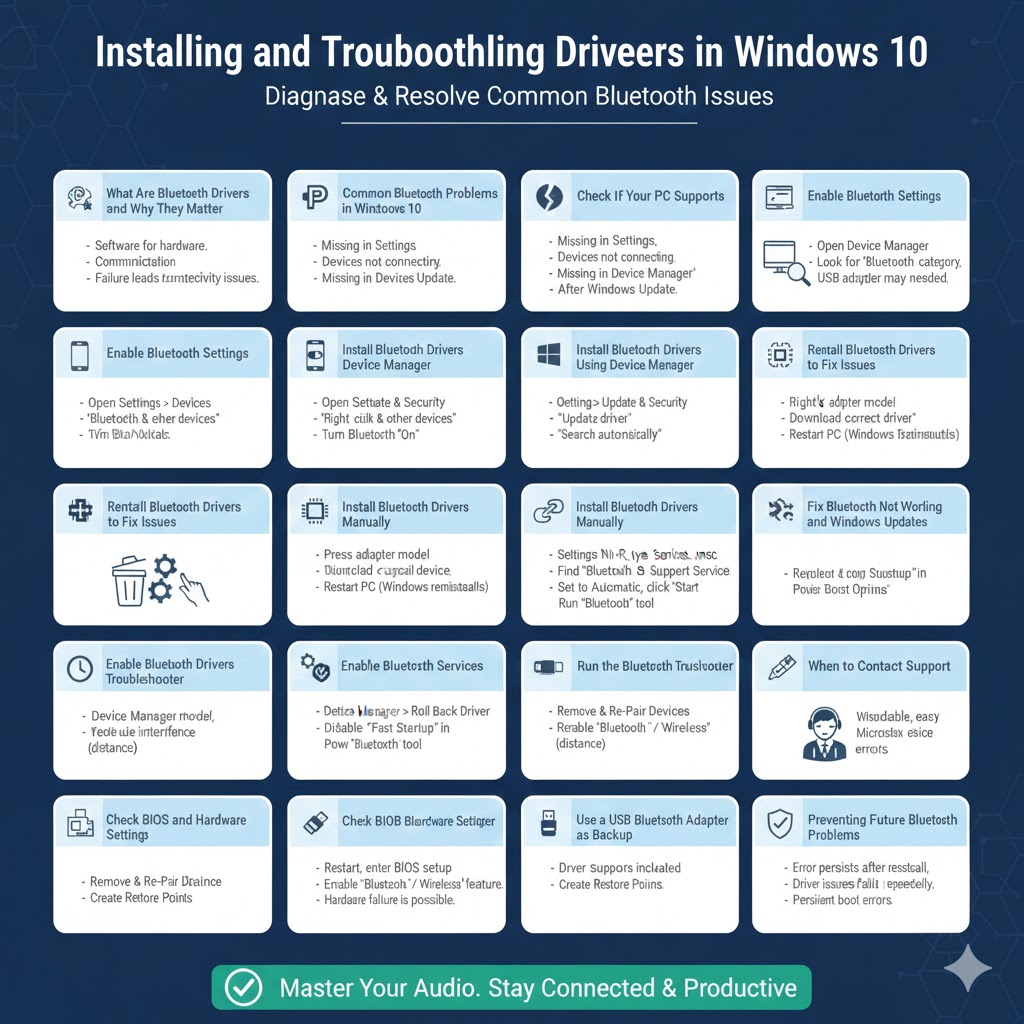
Installing and Troubleshooting Bluetooth Drivers in Windows 10
Bluetooth is an essential feature in Windows 10, allowing users to connect wireless devices such as headphones, keyboards, mice, speakers, printers, and smartphones. When Bluetooth drivers are missing, outdated, or corrupted, the feature may stop working entirely. Common problems include Bluetooth not showing up, devices failing to pair, or frequent disconnections.
This complete guide explains how to properly install Bluetooth drivers in Windows 10 and fix the most common Bluetooth driver issues step by step. Whether Bluetooth disappeared after a Windows update or never worked correctly in the first place, this article will help you restore it.
What Are Bluetooth Drivers and Why They Matter
Understanding Bluetooth Drivers
Bluetooth drivers are software components that allow Windows 10 to communicate with your computer’s Bluetooth hardware. Without a functioning driver, Windows cannot detect or use Bluetooth devices.
Why Bluetooth Drivers Fail
Bluetooth drivers may stop working due to:
-
Windows updates
-
Corrupted driver files
-
Incompatible hardware drivers
-
Manual driver removal
-
System errors or crashes
Knowing the cause helps you choose the right solution.
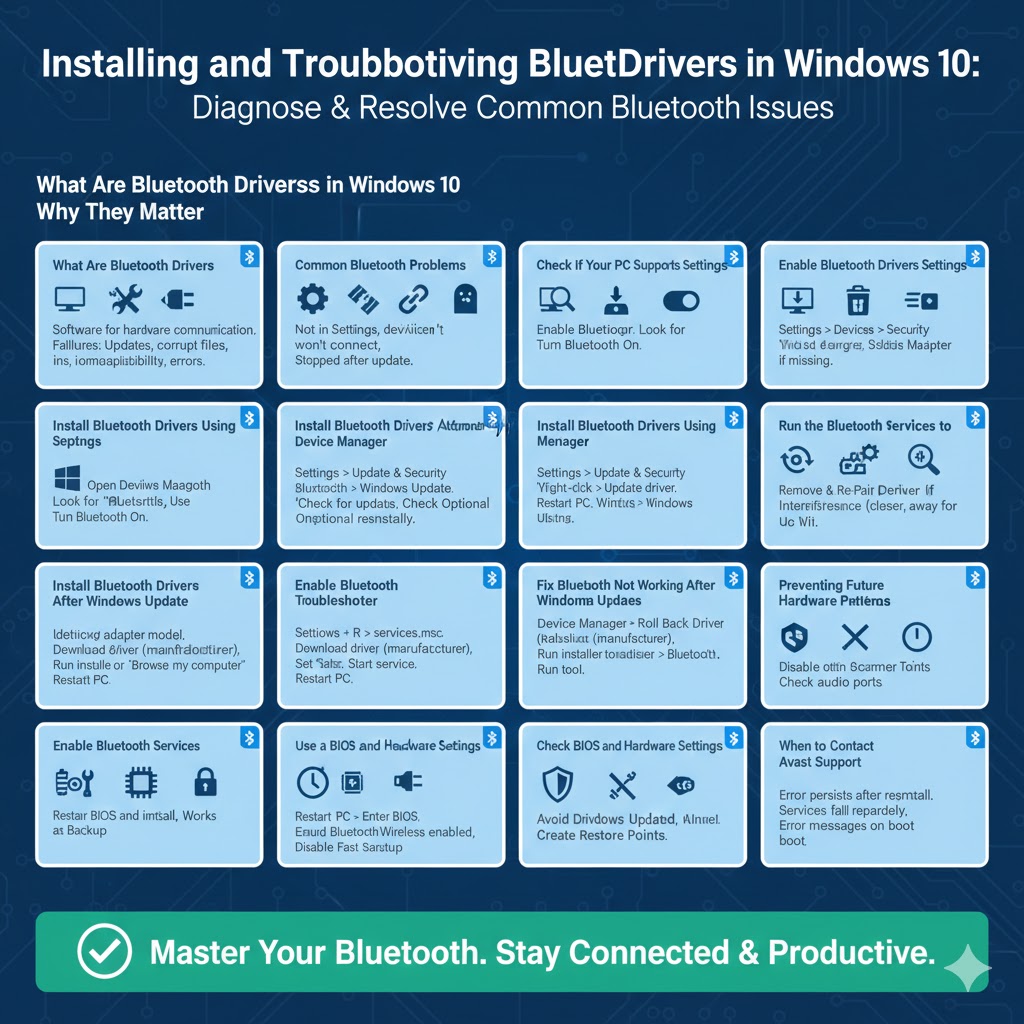
Common Bluetooth Problems in Windows 10
Bluetooth Not Showing in Settings
The Bluetooth toggle may be missing entirely from Settings.
Bluetooth Devices Not Connecting
Devices appear but fail to pair or disconnect repeatedly.
Bluetooth Missing in Device Manager
The Bluetooth section may not appear at all in Device Manager.
Bluetooth Stopped Working After Update
A recent Windows update may replace or break existing drivers.
Check If Your PC Supports Bluetooth
Why This Step Is Important
Some desktop PCs and older laptops do not have built-in Bluetooth.
How to Check
-
Open Device Manager
-
Look for a Bluetooth category
If Bluetooth is not listed, your system may require a USB Bluetooth adapter.
Enable Bluetooth in Windows Settings
Quick Check
-
Open Settings
-
Go to Devices
-
Select Bluetooth & other devices
-
Turn Bluetooth On
If the option is missing, the driver is likely not installed or disabled.
Install Bluetooth Drivers Automatically Using Windows Update
Why Use Windows Update
Windows Update often installs compatible and stable Bluetooth drivers automatically.
Steps
-
Open Settings
-
Go to Update & Security
-
Click Windows Update
-
Select Check for updates
Also check Optional updates, as Bluetooth drivers are often listed there.
Install Bluetooth Drivers Using Device Manager
Automatic Driver Installation
-
Right-click the Start button
-
Select Device Manager
-
Expand Bluetooth or Other devices
-
Right-click the Bluetooth device
-
Choose Update driver
-
Select Search automatically for drivers
Windows will search and install the best available driver.
If Bluetooth Appears as Unknown Device
This usually means the driver is missing. Updating the driver often resolves the issue.
Reinstall Bluetooth Drivers to Fix Issues
Why Reinstallation Works
Reinstalling removes corrupted driver files and restores default settings.
Steps
-
Open Device Manager
-
Expand Bluetooth
-
Right-click the Bluetooth device
-
Select Uninstall device
-
Restart your computer
Windows will reinstall the driver automatically after restart.
Install Bluetooth Drivers Manually
When Manual Installation Is Needed
Manual installation is useful if Windows cannot find a driver automatically.
Steps
-
Identify your Bluetooth adapter model in Device Manager
-
Download the correct driver for Windows 10
-
Run the installer or use Update driver → Browse my computer
-
Follow on-screen instructions
Important Tip
Always install drivers that match your Windows version and system architecture.
Enable Bluetooth Services
Why Services Matter
Bluetooth relies on background services to function properly.
Steps to Check Services
-
Press Windows + R, type
services.msc, and press Enter -
Find Bluetooth Support Service
-
Set Startup type to Automatic
-
Click Start if the service is not running
Restart your computer and test Bluetooth again.
Run the Bluetooth Troubleshooter
Using Built-In Diagnostics
Windows 10 includes a Bluetooth troubleshooter to detect common problems.
Steps
-
Open Settings
-
Go to Update & Security
-
Select Troubleshoot
-
Click Additional troubleshooters
-
Choose Bluetooth and run the tool
Apply any suggested fixes.
Fix Bluetooth Not Working After Windows Update
Roll Back the Bluetooth Driver
If Bluetooth stopped working after an update:
-
Open Device Manager
-
Right-click the Bluetooth device
-
Select Properties
-
Go to the Driver tab
-
Click Roll Back Driver if available
Disable Fast Startup
Fast Startup can interfere with Bluetooth initialization.
-
Open Control Panel
-
Go to Power Options
-
Choose What the power buttons do
-
Disable Fast startup
Fix Bluetooth Pairing and Connection Issues
Remove and Re-Pair Devices
-
Go to Bluetooth & other devices
-
Select the problematic device
-
Click Remove device
-
Pair it again
Reduce Interference
Keep Bluetooth devices close and avoid Wi-Fi or USB interference.
Check BIOS and Hardware Settings
When Bluetooth Is Completely Missing
Bluetooth may be disabled in BIOS.
What to Do
Restart your PC, enter BIOS settings, and ensure Bluetooth or wireless features are enabled.
Use a USB Bluetooth Adapter as a Backup
When Built-In Bluetooth Fails
A USB Bluetooth adapter is an affordable and reliable alternative.
Advantages
-
Easy installation
-
Driver support included
-
Works on most PCs
Preventing Future Bluetooth Driver Problems
Keep Windows Updated
Updates often include driver improvements and bug fixes.
Avoid Driver Cleaner Tools
These tools may delete essential Bluetooth components.
Create Restore Points
This allows easy recovery if Bluetooth stops working again.
Conclusion
Installing and fixing Bluetooth drivers in Windows 10 is usually straightforward once you know where the problem lies. From enabling Bluetooth settings and updating drivers to reinstalling corrupted files and restarting services, most Bluetooth issues can be resolved without advanced technical skills.