


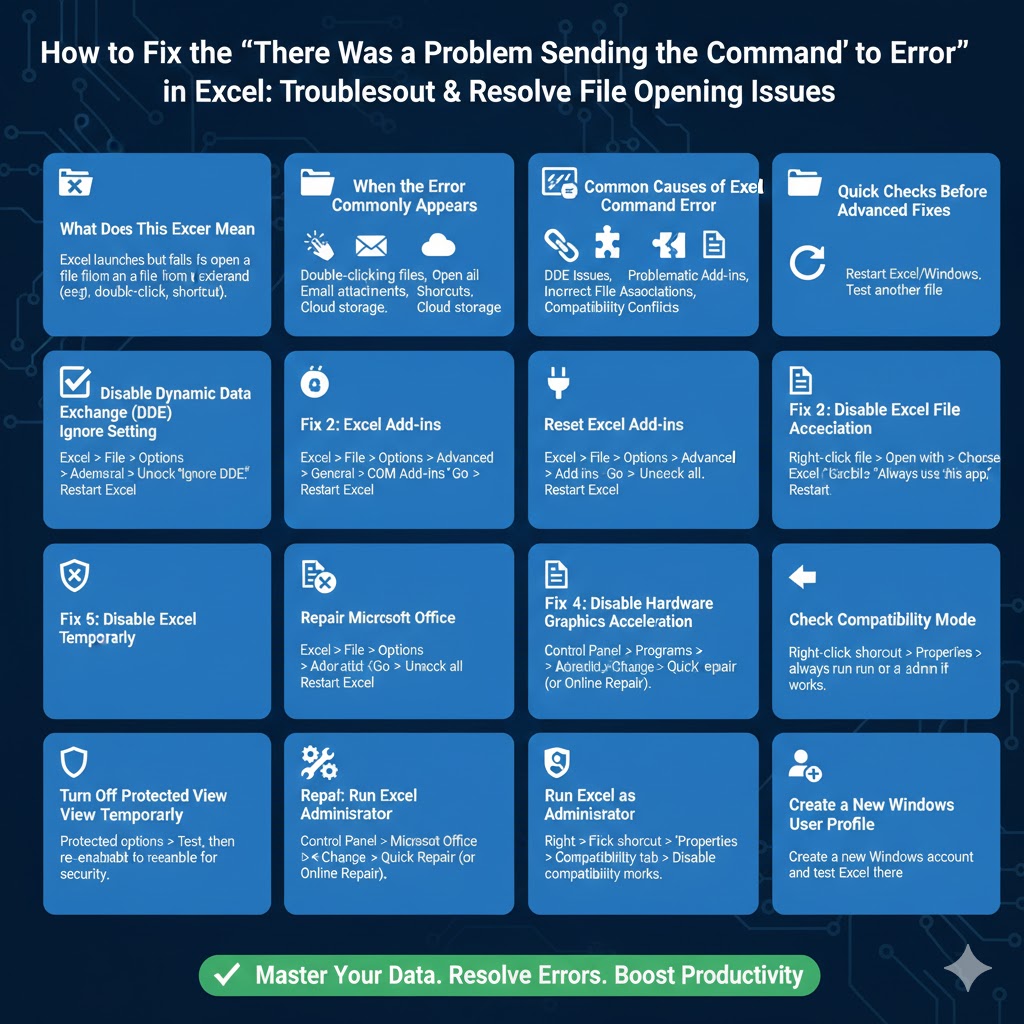
How to Fix the “There Was a Problem Sending the Command to the Program” Error in Excel
Microsoft Excel is generally stable, but certain errors can appear unexpectedly and interrupt your workflow. One particularly confusing message is “There was a problem sending the command to the program.” This error often appears when opening Excel files from File Explorer, email attachments, shortcuts, or other applications.
While the message itself is vague, the underlying causes are usually related to Excel settings, add-ins, file associations, or permission conflicts. The good news is that this issue is almost always fixable without reinstalling Windows or losing data.
This comprehensive guide explains what causes this Excel error and walks you through proven solutions step by step.
What Does This Excel Error Mean
Understanding the Error Message
The error occurs when Windows successfully launches Excel, but Excel fails to receive or process the command to open a specific file. In simple terms, Excel opens, but the file does not.
When the Error Commonly Appears
You may encounter this error when:
-
Double-clicking an Excel file
-
Opening Excel files from email attachments
-
Using shortcuts pinned to the taskbar
-
Opening files from cloud storage folders
Common Causes of the Excel Command Error
Dynamic Data Exchange (DDE) Issues
Excel uses DDE to communicate with Windows and other applications. If DDE is disabled or misconfigured, commands may not be passed correctly.
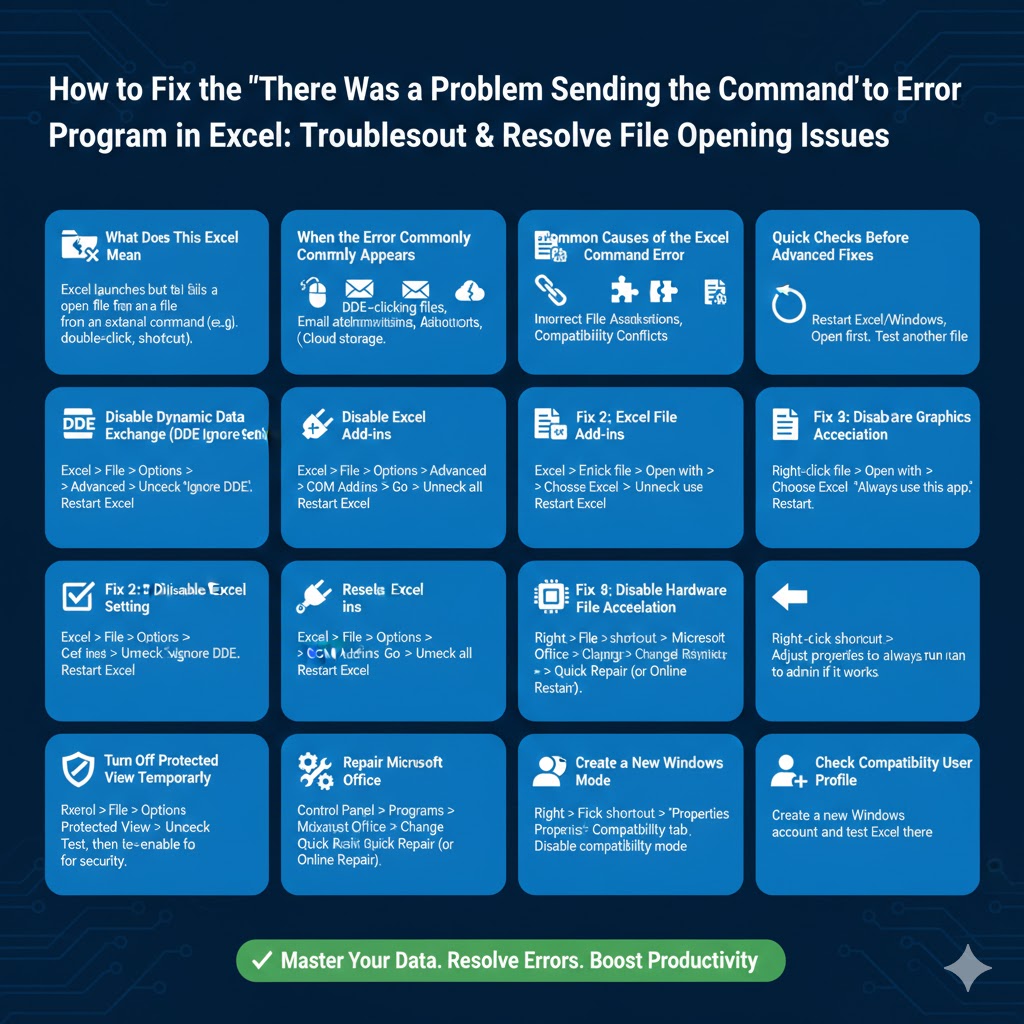
Problematic Excel Add-ins
Certain add-ins can block or interfere with file-opening commands.
Incorrect File Associations
Windows may not be correctly associating Excel file types with the Excel application.
Compatibility or Protected View Conflicts
Security features may prevent Excel from opening files automatically.
Corrupt Office Installation
Damaged Office files can cause command-handling failures.
Quick Checks Before Advanced Fixes
Restart Excel and Windows
Temporary glitches can trigger this error. Restarting often resolves it immediately.
Try Opening Excel First
Open Excel manually, then use File > Open to load the file. If this works, the issue is likely related to command passing.
Test Another Excel File
Check whether the problem affects all Excel files or only specific ones.
Fix 1: Disable Dynamic Data Exchange (DDE) Ignore Setting
Why This Fix Works
If Excel is set to ignore DDE requests, it cannot receive open-file commands from Windows.
Steps to Fix
-
Open Excel
-
Click File and choose Options
-
Select Advanced
-
Scroll to the General section
-
Make sure Ignore other applications that use Dynamic Data Exchange (DDE) is unchecked
-
Click OK and restart Excel
This is one of the most effective solutions for this error.
Fix 2: Disable Excel Add-ins
Why Add-ins Cause Problems
Some add-ins intercept commands and prevent Excel from opening files properly.
Steps to Disable Add-ins
-
Open Excel
-
Go to File > Options > Add-ins
-
At the bottom, select COM Add-ins and click Go
-
Uncheck all add-ins
-
Restart Excel
If the error disappears, re-enable add-ins one by one to find the problematic one.
Fix 3: Reset Excel File Associations
Why File Associations Matter
If Windows does not correctly associate .xlsx, .xls, or .xlsm files with Excel, commands may fail.
Steps to Reset Associations
-
Right-click an Excel file
-
Choose Open with
-
Select Choose another app
-
Choose Microsoft Excel
-
Check Always use this app
-
Click OK
Repeat for other Excel file types if necessary.
Fix 4: Disable Hardware Graphics Acceleration
How Graphics Acceleration Affects Excel
In some systems, graphics acceleration causes Excel to malfunction when opening files via commands.
Steps
-
Open Excel
-
Go to File > Options > Advanced
-
Scroll to the Display section
-
Check Disable hardware graphics acceleration
-
Click OK and restart Excel
Fix 5: Turn Off Protected View Temporarily
Why Protected View Can Trigger the Error
Files from email attachments or the internet may open in Protected View, blocking command execution.
Steps
-
Open Excel
-
Go to File > Options > Trust Center
-
Click Trust Center Settings
-
Select Protected View
-
Temporarily uncheck the options
-
Restart Excel and test
After confirming the fix, re-enable Protected View for security.
Fix 6: Repair Microsoft Office
When Repair Is Necessary
If Excel program files are damaged, repairing Office can restore normal behavior.
Steps
-
Open Control Panel
-
Go to Programs and Features
-
Select Microsoft Office
-
Click Change
-
Choose Quick Repair first
-
If needed, use Online Repair
Repairing Office does not remove personal files.
Fix 7: Run Excel as Administrator
Permission Conflicts
Insufficient permissions can prevent Excel from accepting commands.
Steps
-
Right-click the Excel shortcut
-
Select Run as administrator
-
Try opening the file again
If this works, adjust shortcut properties to always run Excel with proper permissions.
Fix 8: Check Compatibility Mode
Why Compatibility Mode Causes Issues
Running Excel in compatibility mode may interfere with file-opening behavior.
Steps
-
Right-click the Excel shortcut
-
Choose Properties
-
Go to the Compatibility tab
-
Make sure compatibility mode is disabled
-
Click Apply
Fix 9: Create a New Windows User Profile
Why This Helps
Corrupted user profiles can cause Excel command errors.
What to Do
Create a new Windows user account and test Excel there. If the issue disappears, your original profile may be corrupted.
Preventing the Error in the Future
Keep Office Updated
Updates often fix bugs related to file handling.
Limit Third-Party Add-ins
Install only essential add-ins from trusted sources.
Avoid Forcing Excel Shutdowns
Improper shutdowns can corrupt settings.
Use Trusted File Locations
Add frequently used folders to Excel’s Trusted Locations.
When to Consider Reinstalling Office
If none of the solutions work and the error appears consistently across all files, a full Office reinstall may be necessary. This is rarely required but can resolve deeply corrupted installations.
Conclusion
The “There was a problem sending the command to the program” Excel error is frustrating, but it is usually caused by simple configuration issues rather than serious system failures. In most cases, adjusting DDE settings, disabling problematic add-ins, or repairing Office resolves the problem quickly.