


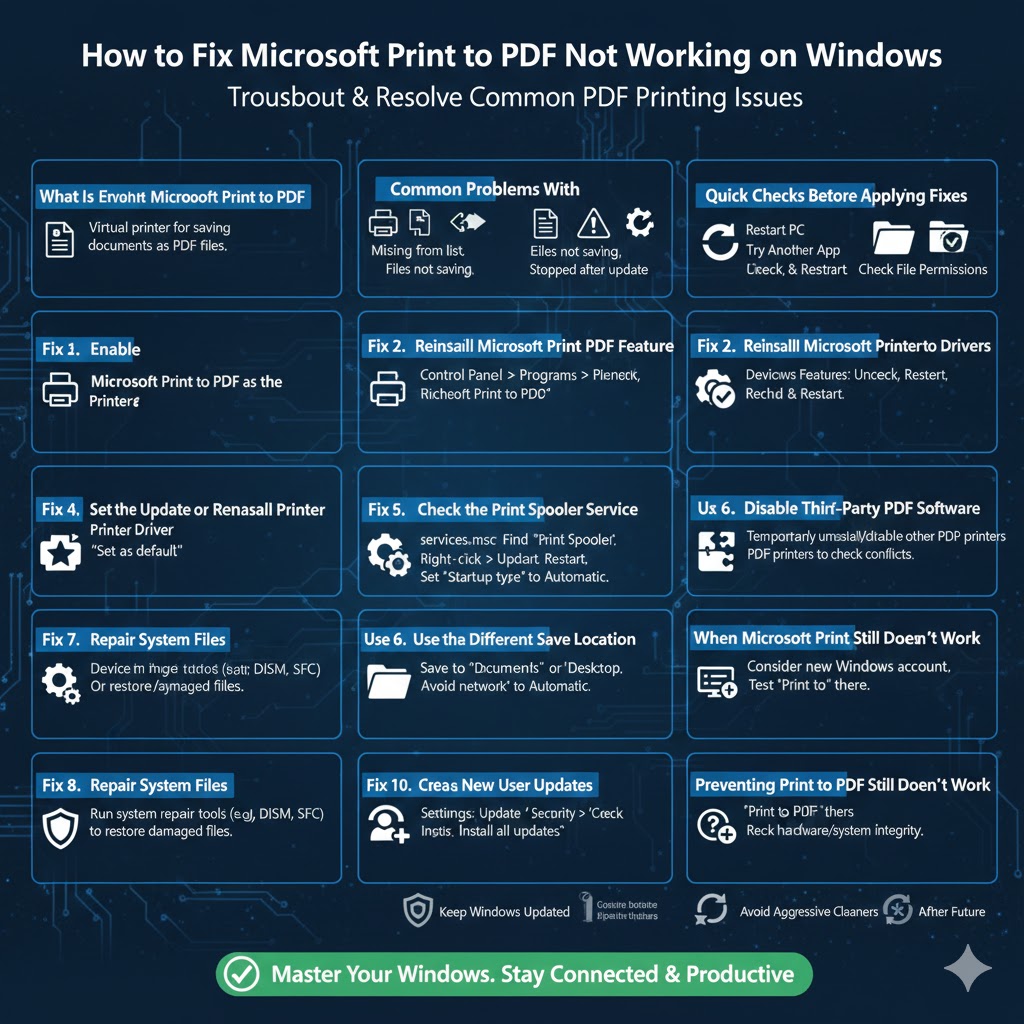
How to Fix Microsoft Print to PDF Not Working on Windows
Microsoft Print to PDF is a built-in Windows feature that allows users to save documents as PDF files without installing third-party software. It works with most applications, including Microsoft Word, Excel, web browsers, and image viewers. However, there are times when this feature stops working, disappears from the printer list, or fails to create PDF files.
If you are facing issues with Microsoft Print to PDF not working, you are not alone. This guide explains why the problem occurs and provides step-by-step solutions to fix it on Windows systems.
What Is Microsoft Print to PDF
Understanding the Feature
Microsoft Print to PDF acts like a virtual printer. Instead of printing to paper, it converts documents into PDF files and saves them to your computer.
Why People Use It
This feature is popular because it:
-
Comes pre-installed with Windows
-
Requires no additional software
-
Works across multiple applications
-
Produces standard PDF files
When it stops working, it can disrupt workflows that rely on quick PDF creation.
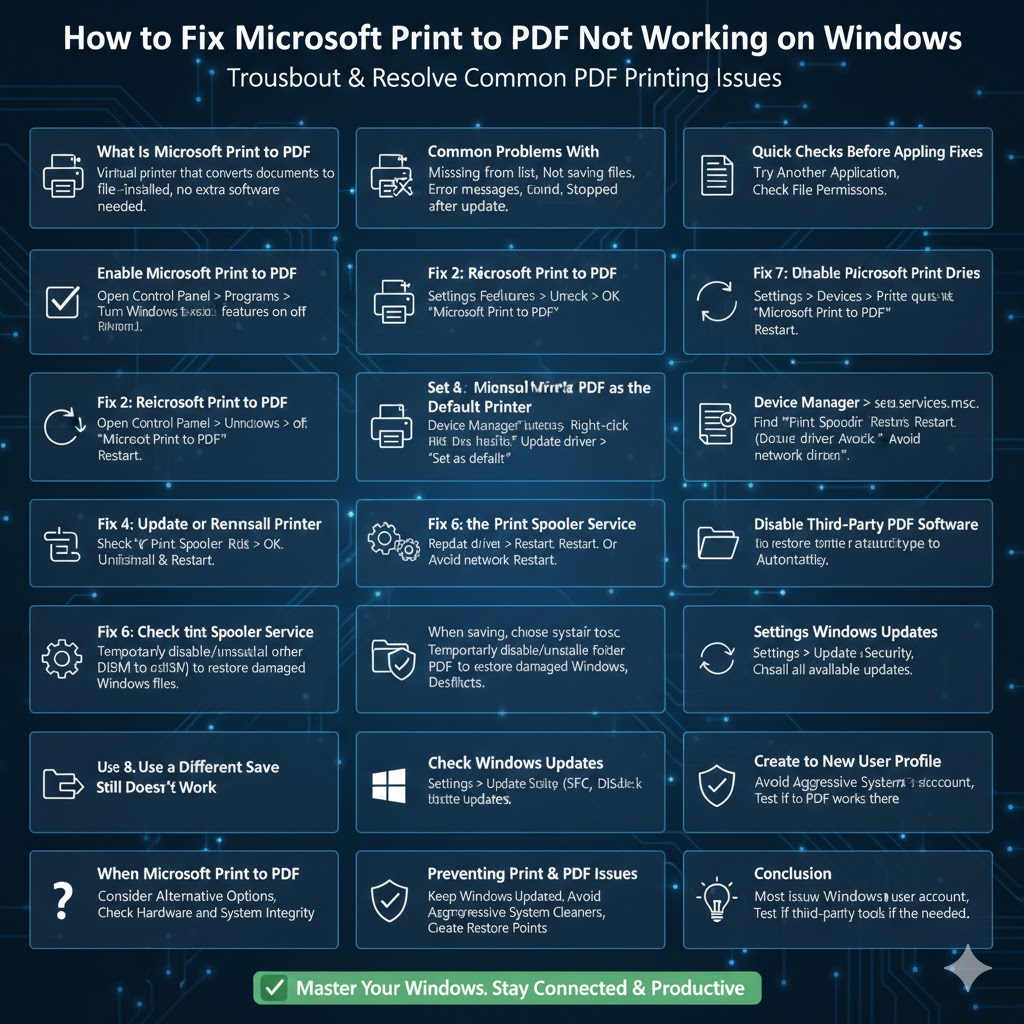
Common Problems With Microsoft Print to PDF
Microsoft Print to PDF Missing
The printer does not appear in the printer list.
Print to PDF Not Saving Files
The save dialog does not appear or files are not created.
Error Messages During Printing
You may see generic printing errors or failed print jobs.
Feature Stopped Working After an Update
Windows updates sometimes disable or corrupt the Print to PDF feature.
Understanding the exact symptom helps determine the right fix.
Quick Checks Before Applying Fixes
Restart Your Computer
A restart clears temporary system issues that may affect printing services.
Try Another Application
Test Microsoft Print to PDF from a different app to rule out app-specific issues.
Check File Permissions
Make sure you have permission to save files to the selected folder.
Fix 1: Enable Microsoft Print to PDF Feature
Why This Fix Works
Sometimes the feature is accidentally disabled in Windows Features.
Steps to Enable It
-
Open Control Panel
-
Go to Programs
-
Click Turn Windows features on or off
-
Locate Microsoft Print to PDF
-
Check the box and click OK
-
Restart your computer
After restarting, check if the printer appears.
Fix 2: Reinstall Microsoft Print to PDF
Why Reinstallation Helps
Reinstalling refreshes system files related to the feature.
Steps to Reinstall
-
Open Windows Features
-
Uncheck Microsoft Print to PDF
-
Click OK and restart
-
Return to Windows Features
-
Recheck Microsoft Print to PDF
-
Restart again
This often restores missing or broken functionality.
Fix 3: Set Microsoft Print to PDF as the Default Printer
Why Default Printer Matters
Windows may fail to route print jobs correctly if another printer is misconfigured.
Steps
-
Open Settings
-
Go to Devices
-
Select Printers & scanners
-
Click Microsoft Print to PDF
-
Choose Set as default
Test printing again after setting it as default.
Fix 4: Update or Reinstall Printer Drivers
Driver Issues Explained
Although Microsoft Print to PDF is virtual, it still relies on system printer components.
Steps
-
Open Device Manager
-
Expand Print queues
-
Right-click Microsoft Print to PDF
-
Choose Update driver
If updating does not work, uninstall the printer and restart Windows to reinstall it automatically.
Fix 5: Check the Print Spooler Service
Why the Print Spooler Is Important
The Print Spooler manages print jobs. If it stops, printing fails.
Steps to Restart Print Spooler
-
Press Windows + R, type
services.msc -
Find Print Spooler
-
Right-click and select Restart
-
Set Startup type to Automatic
Restart your computer and test the feature again.
Fix 6: Use a Different Save Location
Why This Matters
Some folders may block file creation due to permissions or sync issues.
What to Do
When saving the PDF:
-
Choose a simple folder like Documents or Desktop
-
Avoid network drives or protected system folders
This helps rule out permission-related problems.
Fix 7: Disable Third-Party PDF Software Temporarily
Why Conflicts Occur
Other PDF tools may interfere with Microsoft Print to PDF.
How to Test
Temporarily disable or uninstall third-party PDF printers and try again. If the feature works, re-enable software one by one to find the conflict.
Fix 8: Repair System Files
Why System File Corruption Affects Printing
Corrupt system files can break built-in Windows features.
What to Do
Run system repair tools to restore missing or damaged files. This can fix deeper issues affecting printing components.
Fix 9: Check Windows Updates
Why Updates Matter
Microsoft often releases fixes for printing-related bugs.
Steps
-
Open Settings
-
Go to Update & Security
-
Click Check for updates
Install all available updates and restart your system.
Fix 10: Create a New User Profile
Why This Works
User profile corruption can affect printer settings.
What to Do
Create a new Windows user account and test Microsoft Print to PDF there. If it works, your original profile may be the problem.
When Microsoft Print to PDF Still Doesn’t Work
Consider Alternative Options
If all fixes fail, you can temporarily use trusted third-party PDF tools until the issue is resolved.
Check Hardware and System Integrity
Rarely, deeper system issues may affect multiple Windows features, including printing.
Preventing Print to PDF Issues in the Future
Keep Windows Updated
Updates help maintain feature stability.
Avoid Aggressive System Cleaners
Some tools remove essential components.
Restart After Major Updates
This ensures features are applied correctly.
Limit Conflicting Printer Software
Too many virtual printers can cause conflicts.
Conclusion
Microsoft Print to PDF not working can be frustrating, especially when you rely on it for everyday tasks. Fortunately, the issue is usually caused by disabled features, driver problems, print service errors, or update-related glitches.