


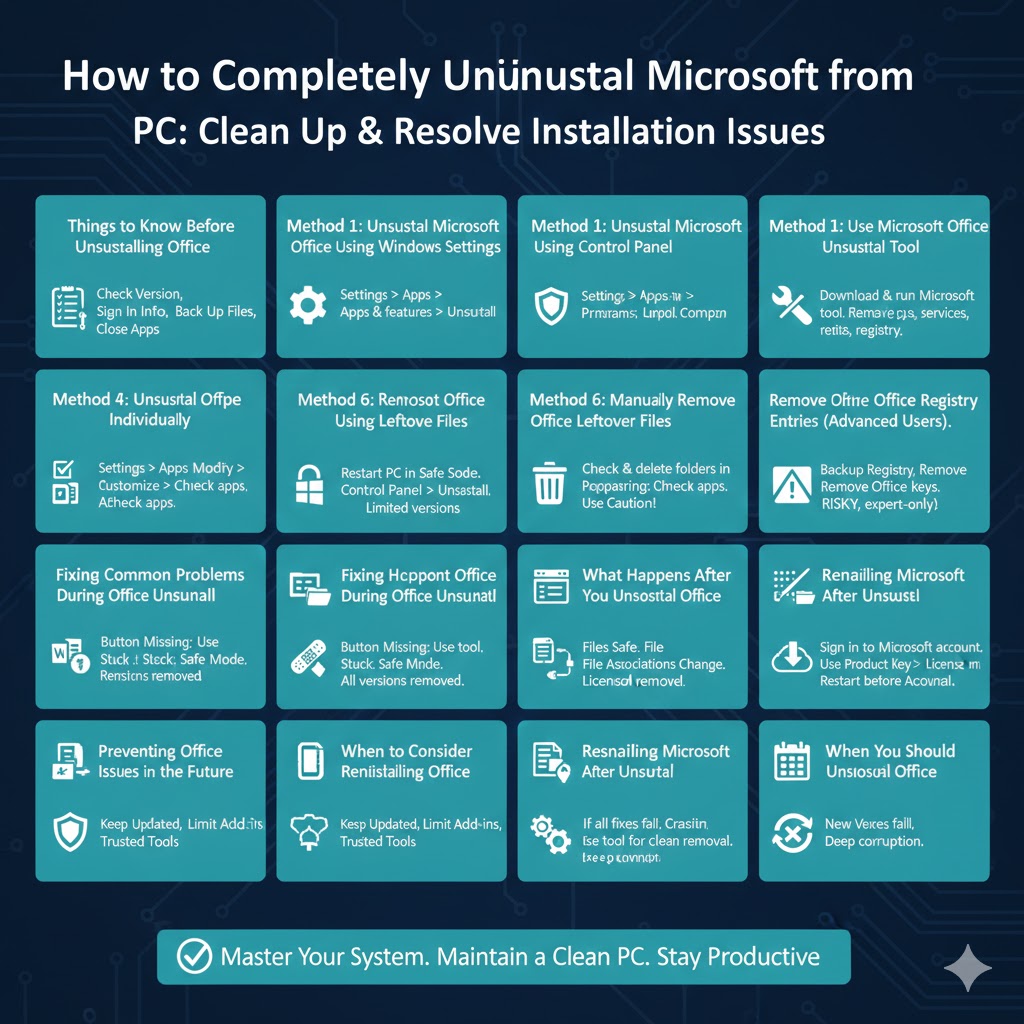
How to Completely Uninstall Microsoft Office from a PC
Microsoft Office is one of the most widely used productivity suites on Windows PCs. However, there are many situations where you may need to uninstall it. You might be switching to a newer Office version, troubleshooting errors, freeing up disk space, or removing Office before selling or giving away your computer.
Uninstalling Microsoft Office properly is important. A partial or incorrect removal can leave behind files, registry entries, or services that cause problems when reinstalling Office later. This complete guide walks you through all reliable methods to uninstall Microsoft Office from a PC, from basic options to advanced cleanup solutions.
Things to Know Before Uninstalling Microsoft Office
Check Your Office Version
Microsoft Office exists in several forms, including Office 2016, Office 2019, Office 2021, and Microsoft 365. The uninstall steps are similar, but some options vary slightly.
Sign In Information
If you plan to reinstall Office later, make sure you remember the Microsoft account or product key associated with your license.
Back Up Important Files
Uninstalling Office does not delete your documents, but it is still a good idea to back up important files before making system changes.
Close All Office Apsplications
Ensure that Word, Excel, Outlook, and other Office apps are fully closed before uninstalling.
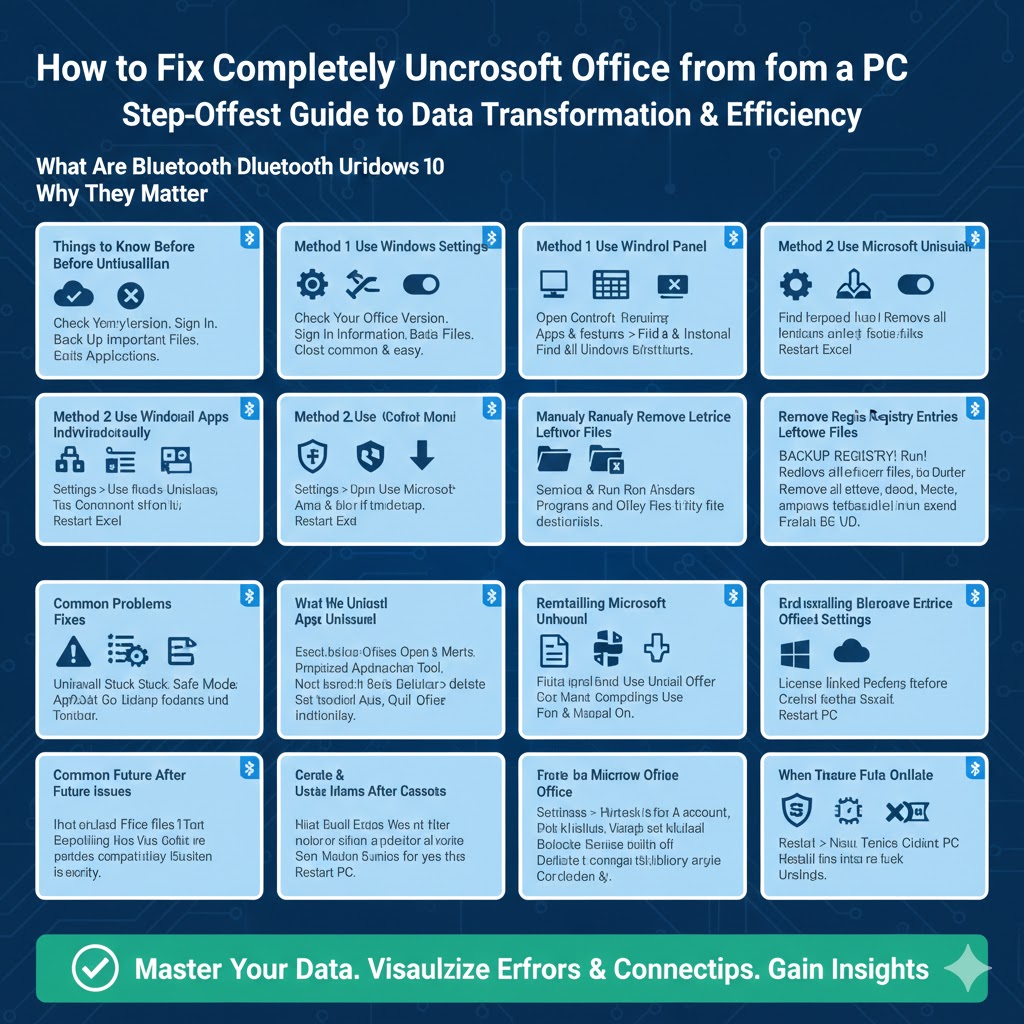
Method 1: Uninstall Microsoft Office Using Windows Settings
Why Use This Method
This is the easiest and most common way to uninstall Office on Windows 10 and Windows 11.
Step-by-Step Instructions
-
Open Settings
-
Go to Apps
-
Select Apps & features
-
Scroll down and find Microsoft Office or Microsoft 365
-
Click on it and choose Uninstall
-
Confirm the action and follow on-screen instructions
Windows will remove Office automatically. Restart your PC when the process finishes.
When This Method Works Best
This method works well for most users and standard installations.
Method 2: Uninstall Microsoft Office Using Control Panel
Why Use Control Panel
Some older Office versions still rely on Control Panel for uninstall options.
Steps
-
Open Control Panel
-
Select Programs and Features
-
Find Microsoft Office in the list
-
Right-click and choose Uninstall
-
Follow the prompts
Common Prompts
You may be asked to choose between a quick removal or repair. Select uninstall to proceed.
Method 3: Use the Microsoft Office Uninstall Tool
Why This Tool Is Useful
If Office fails to uninstall normally or leaves errors behind, Microsoft provides a dedicated removal tool.
What the Tool Does
It removes:
-
Office applications
-
Background services
-
Registry entries
-
Installation leftovers
How to Use It
Download and run the Microsoft Office removal tool, select your Office version, and let it complete the cleanup. Restart your PC afterward.
When to Use This Method
Use this option if:
-
Office uninstall fails
-
Office apps still appear after removal
-
Reinstallation errors occur
Method 4: Uninstall Office Apps Individually
Why You Might Do This
In rare cases, you may want to remove specific Office apps instead of the entire suite.
Steps
-
Open Settings
-
Go to Apps
-
Select Apps & features
-
Click Microsoft Office
-
Choose Modify
-
Select Customize
-
Uncheck apps you want to remove
Limitations
Not all Office versions support individual app removal.
Method 5: Remove Microsoft Office Using Safe Mode
Why Safe Mode Helps
Safe Mode prevents background services and add-ins from interfering with the uninstall process.
Steps
-
Restart your PC into Safe Mode
-
Open Control Panel
-
Go to Programs and Features
-
Uninstall Microsoft Office
When to Use Safe Mode
This is helpful if uninstalling Office freezes or fails in normal mode.
Method 6: Manually Remove Office Leftover Files
Why Leftovers Matter
Even after uninstalling, Office may leave behind files that cause conflicts later.
Folders to Check
After uninstalling, check and delete remaining folders in:
-
Program Files
-
Program Files (x86)
-
AppData (Local and Roaming)
Important Note
Only delete folders related to Microsoft Office. Avoid removing system files.
Method 7: Remove Office Registry Entries (Advanced Users)
Why Registry Cleanup Is Risky
Incorrect registry edits can cause system instability.
When This Is Necessary
Only consider this if:
-
Office reinstall keeps failing
-
Microsoft support recommends it
Best Practice
Back up the registry before making changes. Remove only entries related to Office.
Fixing Common Problems During Office Uninstall
Office Uninstall Button Is Missing
Use Control Panel or the Office removal tool instead.
Uninstall Gets Stuck
Restart your PC and try again in Safe Mode.
Office Keeps Reappearing
Ensure you removed all Office versions and restarted Windows.
Error Messages During Removal
Use the Microsoft uninstall tool for a clean removal.
What Happens After You Uninstall Office
Documents Remain Safe
Your Word, Excel, and PowerPoint files stay on your computer.
File Associations Change
Office files may open in alternative apps until Office is reinstalled.
License Status
Your Office license remains linked to your Microsoft account, not your PC.
Reinstalling Microsoft Office After Uninstall
Using a Microsoft Account
Sign in to your Microsoft account and reinstall Office from your account dashboard.
Using a Product Key
Enter the product key during installation to activate Office again.
Best Time to Reinstall
Restart your PC before reinstalling to ensure a clean environment.
When You Should Uninstall Microsoft Office
Before Installing a New Version
Avoid conflicts by removing older versions first.
When Office Apps Keep Crashing
A clean uninstall can fix persistent errors.
When Selling or Donating Your PC
Uninstall Office to protect your license and personal data.
Preventing Office Issues in the Future
Keep Office Updated
Updates fix bugs and compatibility problems.
Avoid Multiple Office Versions
Installing more than one version can cause conflicts.
Use Trusted Cleanup Tools
Only use official tools for uninstalling Office.
Conclusion
Uninstalling Microsoft Office from a PC is usually straightforward, but doing it properly is essential to avoid future issues. Whether you use Windows Settings, Control Panel, Safe Mode, or Microsoft’s official uninstall tool, each method serves a specific purpose depending on the situation.