


Our Enterprise Access portal allows you to securely generate Confirmation IDs by connecting directly to Microsoft’s activation servers. This automates the telephone activation process for you.
Step 1: Retrieve Installation ID
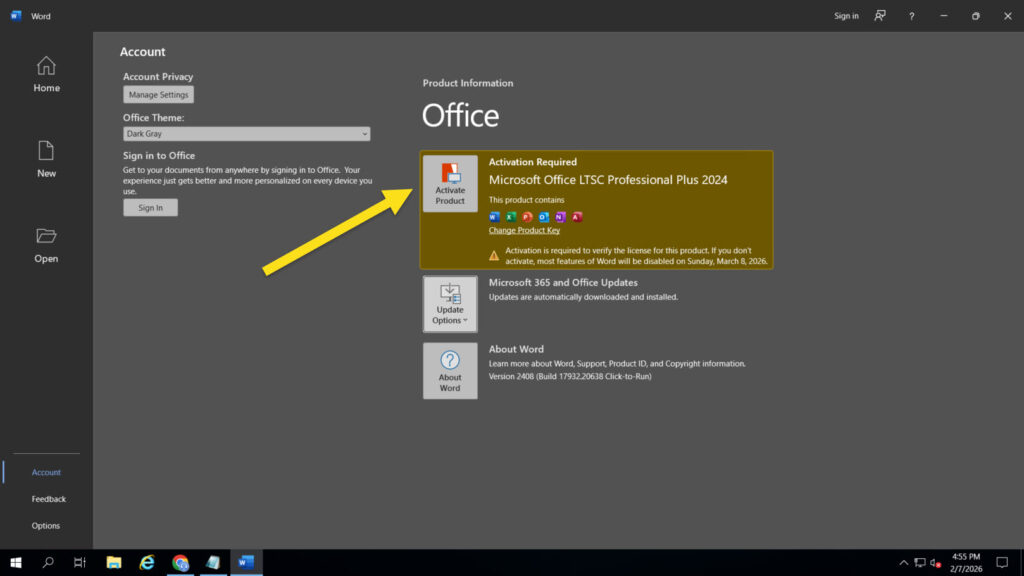
- Open your Office application (Word, Excel, etc.).
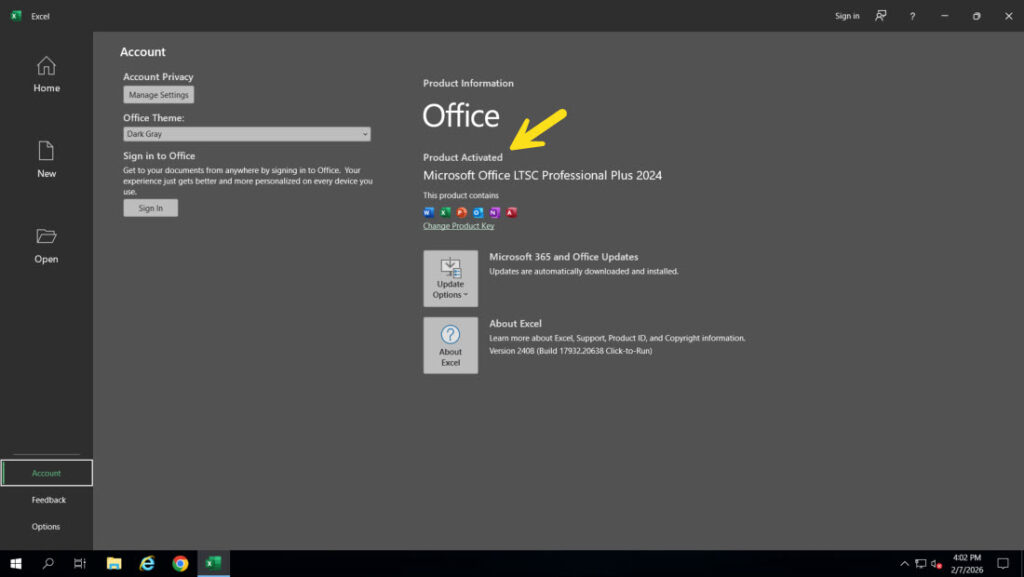
- Navigate to File > Account and click Activate Product.
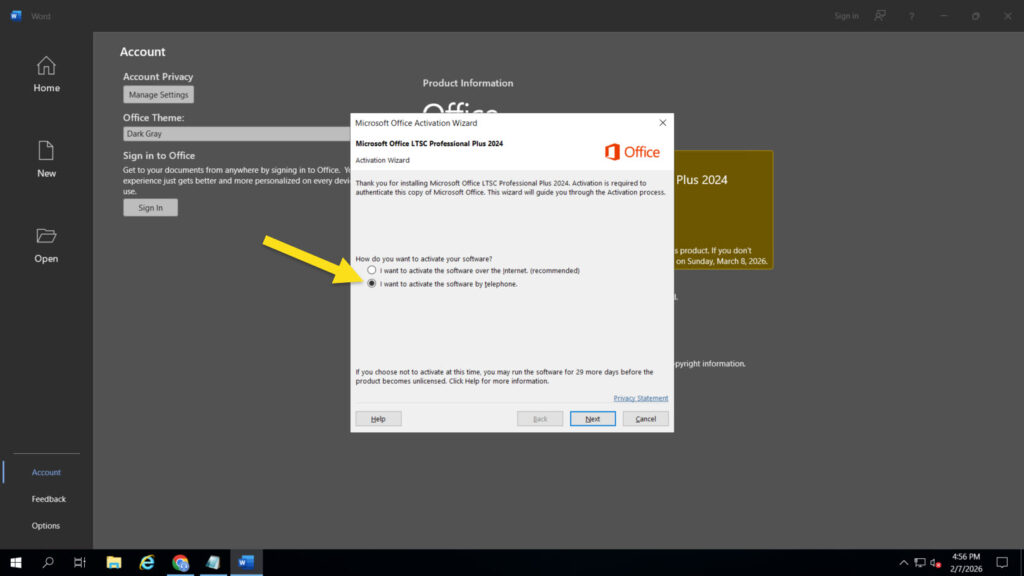
- Select “I want to activate the software by phone” and click Next.
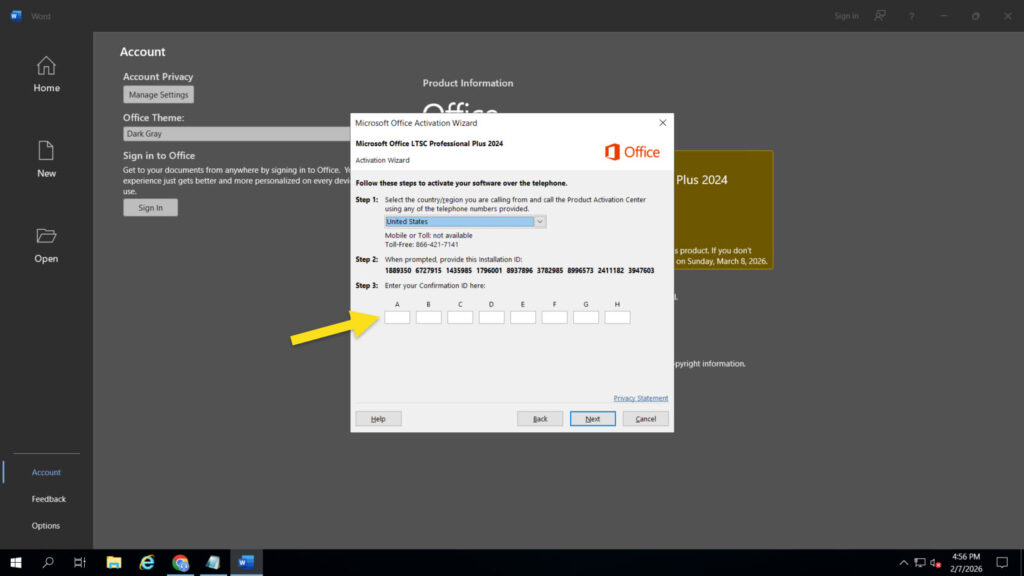
- Note the Installation ID (IID) displayed on the screen (Step 2 in the wizard).
Step 2: Authenticate & Generate CID
- Access the Enterprise Ativation portal: https://www.softwarehubs.com/getpcid/
- Verify Credentials: Enter your SoftwareHubs Order ID (starts with SH-) into the “Order Identification” field and click Verify Credentials.
- Input IID: Once authenticated, enter your 63-digit Installation ID into the blocks provided.
Select “I want to activate the software by phone” and click Next. - Click Generate Confirmation ID. The system will communicate with the Microsoft server to retrieve your ID.
Step 3: Complete Activation
- Copy the generated Confirmation ID.
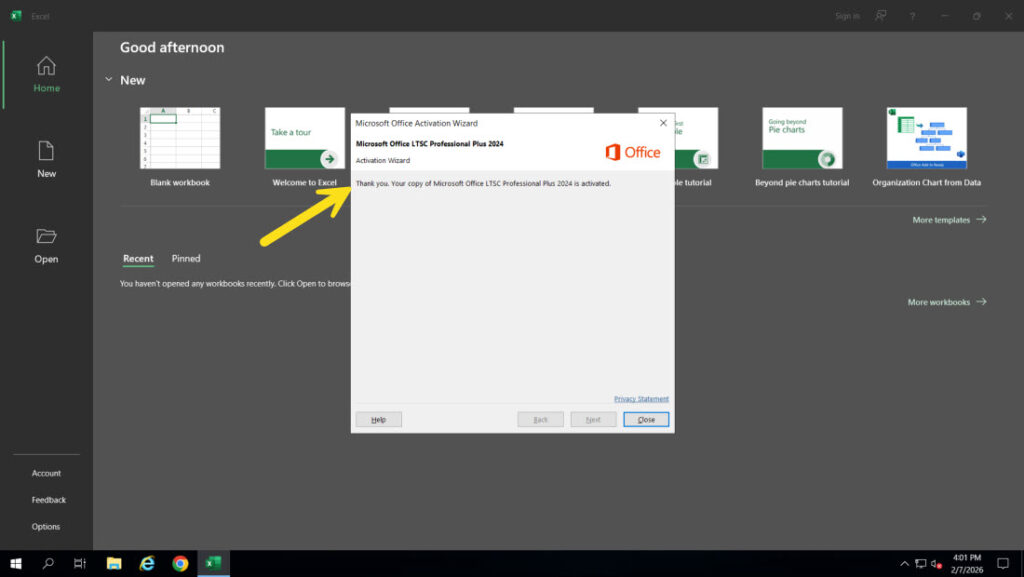
- Paste it back into the Office activation wizard (Step 3) and click Next.
Subscribe
Login
0 Comments
Oldest