


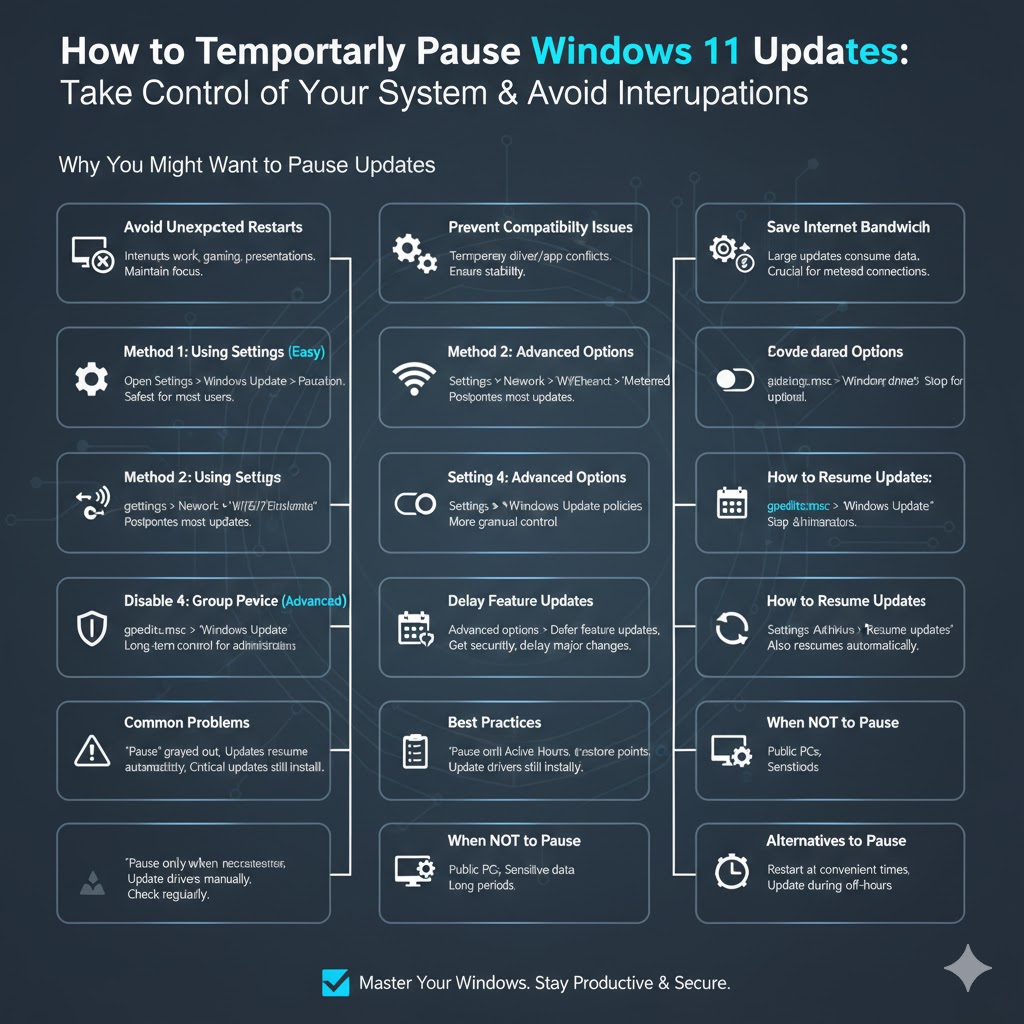
How to Temporarily Pause Windows 11 Updates
Windows 11 updates are designed to keep your system secure, stable, and up to date with the latest features. While updates are important, there are many situations where you may want to pause them temporarily. Automatic updates can restart your computer at inconvenient times, consume bandwidth during important work, or cause compatibility issues with software and drivers.
This complete guide explains how to pause Windows 11 updates safely and effectively. You will learn multiple methods, when to use each one, and what to consider before stopping updates so your system remains secure and reliable.
Why You Might Want to Pause Windows 11 Updates
Avoid Unexpected Restarts
Windows updates can restart your PC automatically, interrupting work, gaming sessions, or presentations.
Prevent Compatibility Issues
Some updates may cause temporary issues with specific drivers, apps, or hardware.
Save Internet Bandwidth
Large updates can consume significant bandwidth, especially on limited or metered connections.
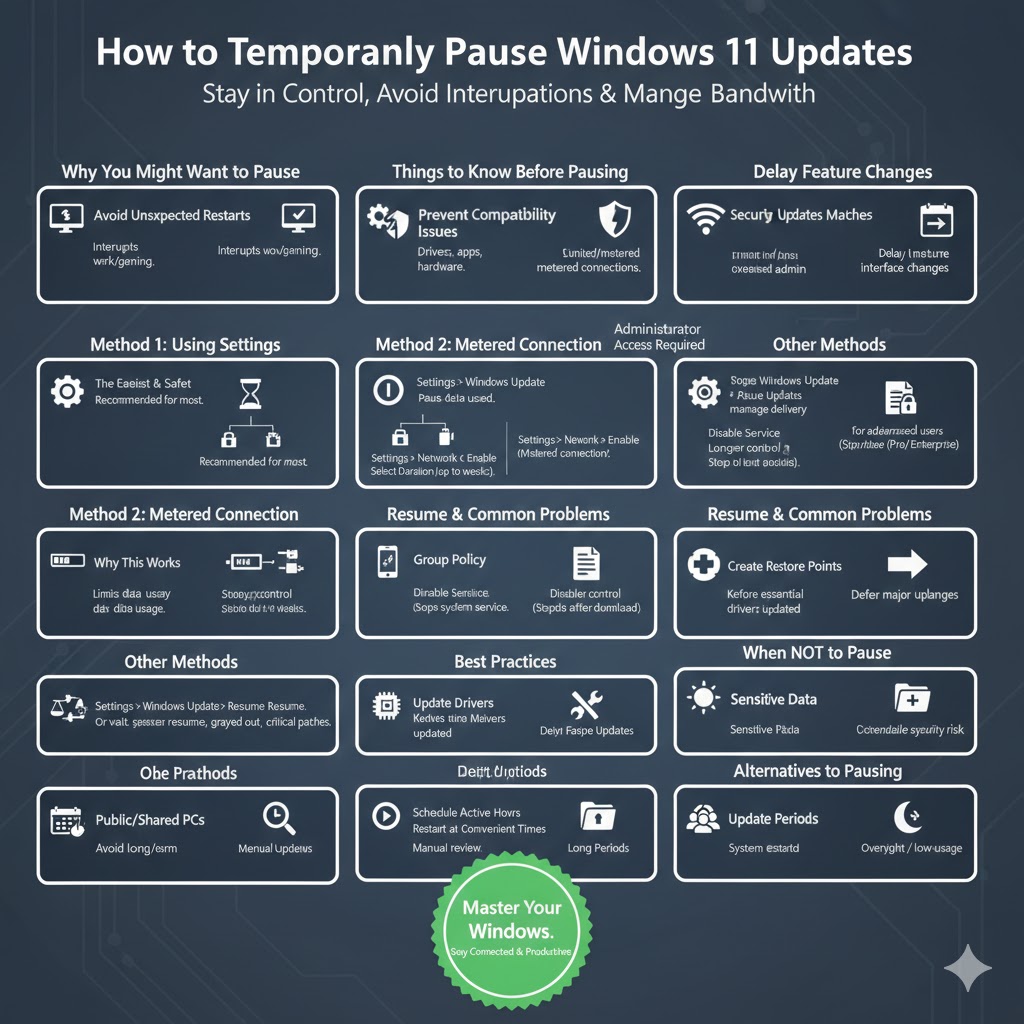
Delay Feature Changes
Major updates sometimes introduce interface or behavior changes that you may want to postpone.
Pausing updates gives you control without permanently disabling essential security improvements.
Things to Know Before Pausing Windows 11 Updates
Pausing Is Temporary
Windows 11 does not allow permanent pausing through normal settings. Updates will resume automatically after the pause period ends.
Security Updates Matter
Pausing updates delays security patches. Avoid long pauses if your PC is exposed to the internet regularly.
Administrator Access Required
Most update controls require administrator privileges.
Method 1: Pause Windows 11 Updates Using Settings
The Easiest and Safest Method
This is the recommended option for most users.
Step-by-Step Instructions
-
Open Settings
-
Select Windows Update
-
Find the Pause updates section
-
Click the dropdown menu
-
Choose how long to pause updates
Windows 11 allows you to pause updates for up to several weeks. Once selected, updates will stop until the chosen date.
When to Use This Method
Use this option if you want a quick, temporary pause without changing system behavior.
Method 2: Pause Updates by Setting a Metered Connection
Why This Works
Windows limits updates on metered connections to reduce data usage.
Steps for Wi-Fi
-
Open Settings
-
Go to Network & Internet
-
Select Wi-Fi
-
Click your connected network
-
Enable Metered connection
Steps for Ethernet
-
Open Settings
-
Go to Network & Internet
-
Select Ethernet
-
Enable Metered connection
What This Method Does
Most updates will be postponed automatically, though critical updates may still install.
Best Use Case
Ideal for users with limited data plans or unstable internet connections.
Method 3: Pause Updates Using Advanced Windows Update Options
Accessing Advanced Settings
-
Open Settings
-
Go to Windows Update
-
Select Advanced options
What You Can Control
You can limit update behavior, reduce background downloads, and manage how updates are delivered.
Why This Helps
Advanced settings give more control without fully disabling updates.
Method 4: Pause Windows 11 Updates Using Group Policy
Who Should Use This Method
This option is best for advanced users and professionals.
Steps
-
Press Windows + R, type
gpedit.msc, and press Enter -
Navigate to Windows Update policies
-
Configure update behavior to delay or pause updates
What This Method Offers
-
Longer control over updates
-
Better management for work environments
Important Note
Group Policy Editor is not available in all Windows editions.
Method 5: Disable Windows Update Service Temporarily
Why This Is Considered Advanced
Stopping the update service blocks updates at the system level.
Steps
-
Press Windows + R, type
services.msc, and press Enter -
Find Windows Update
-
Right-click and choose Stop
-
Set Startup type to Manual
When to Use This Method
Use this only if other methods fail or updates are causing serious problems.
Caution
Disabling services for too long can leave your system vulnerable.
Method 6: Pause Updates by Delaying Feature Updates
What Feature Updates Are
Feature updates introduce major changes and new features.
How to Delay Them
In Windows Update advanced options, you can defer feature updates while still receiving important security fixes.
Best Scenario
Useful if you want stability without missing critical patches.
How to Resume Windows 11 Updates
Using Settings
Go to Windows Update and click Resume updates.
Automatic Resume
Updates resume automatically once the pause period expires.
Restart Required
Some updates may require a restart to apply changes.
Common Problems When Pausing Windows 11 Updates
Pause Option Is Grayed Out
This may happen if updates are already downloading or installing.
Updates Resume Automatically
Windows resumes updates once the pause limit is reached.
Critical Updates Still Install
Security patches may install even when updates are paused.
Best Practices for Managing Windows 11 Updates
Pause Only When Necessary
Avoid long-term pauses unless absolutely required.
Create Restore Points
Before major updates, restore points allow quick recovery if issues arise.
Update Drivers Manually
If you pause updates, keep essential drivers up to date separately.
Check Updates Regularly
Manually review updates before resuming to avoid surprises.
When You Should Not Pause Windows 11 Updates
On Public or Shared Computers
Security risks increase without updates.
When Using Sensitive Data
Unpatched systems are more vulnerable to threats.
For Long Periods
Extended pauses increase the risk of system instability and security issues.
Alternatives to Pausing Windows Updates
Schedule Active Hours
Set active hours to prevent restarts during important times.
Restart at Convenient Times
Windows allows restart scheduling after updates download.
Update During Off-Hours
Let updates run overnight or during low-usage periods.
Conclusion
Pausing Windows 11 updates is a practical way to maintain control over your system when timing matters. Whether you use the built-in pause option, a metered connection, or advanced settings, Windows offers flexible ways to delay updates without completely disabling them.