


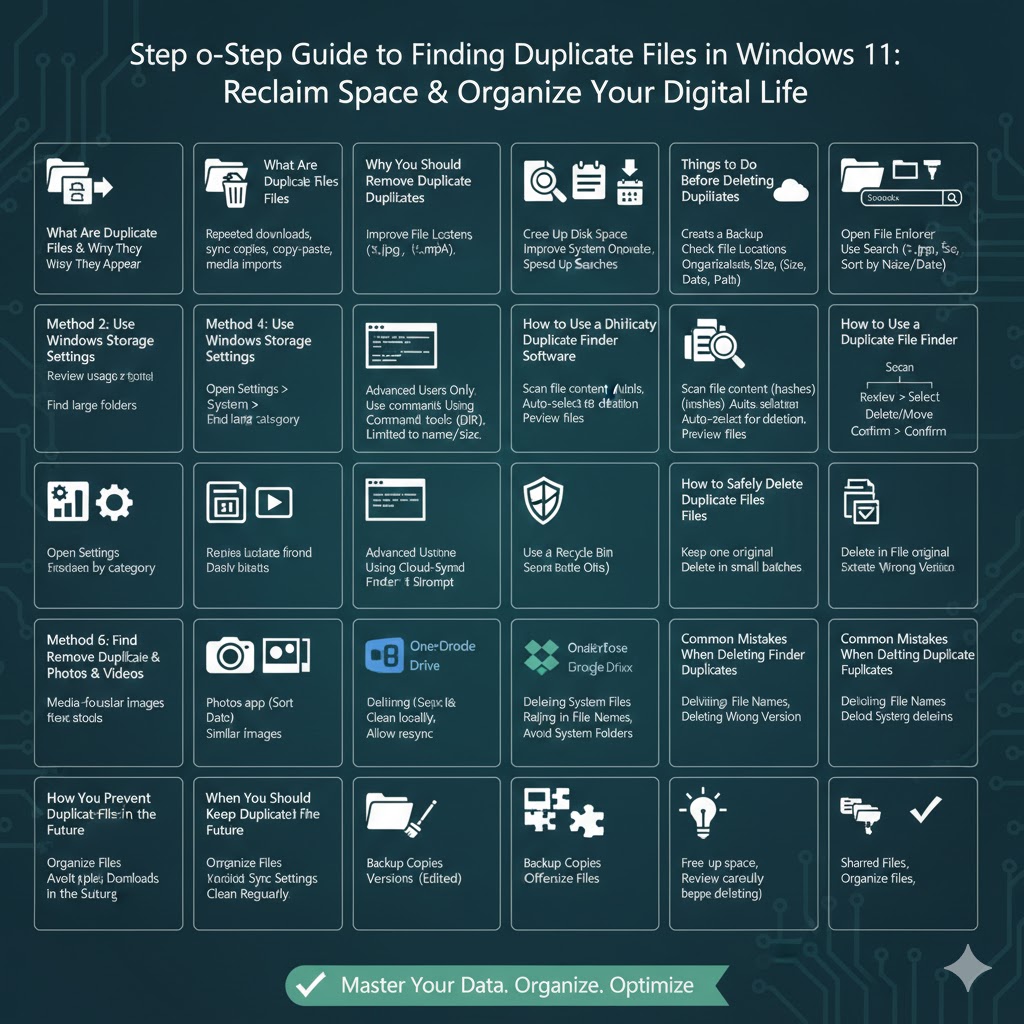
Step-by-Step Guide to Finding Duplicate Files in Windows 11
Duplicate files are a common issue on Windows 11 systems, especially if you regularly download files, sync data from multiple devices, or move folders between drives. Over time, these duplicates can waste valuable storage space, slow down searches, and make file management confusing.
This complete guide explains how to find and delete duplicate files in Windows 11 safely. You will learn both built-in manual methods and reliable third-party solutions, along with best practices to avoid accidental data loss.
What Are Duplicate Files and Why Do They Appear
Duplicate files are identical copies of the same file stored in different locations or with different names. They usually appear because of:
-
Repeated downloads of the same files
-
File backups and sync tools creating copies
-
Copy-paste actions without deleting the original
-
Software installations leaving duplicate resources
-
Media files imported multiple times from phones or cameras
Understanding how duplicates are created helps you remove them confidently and prevent them in the future.
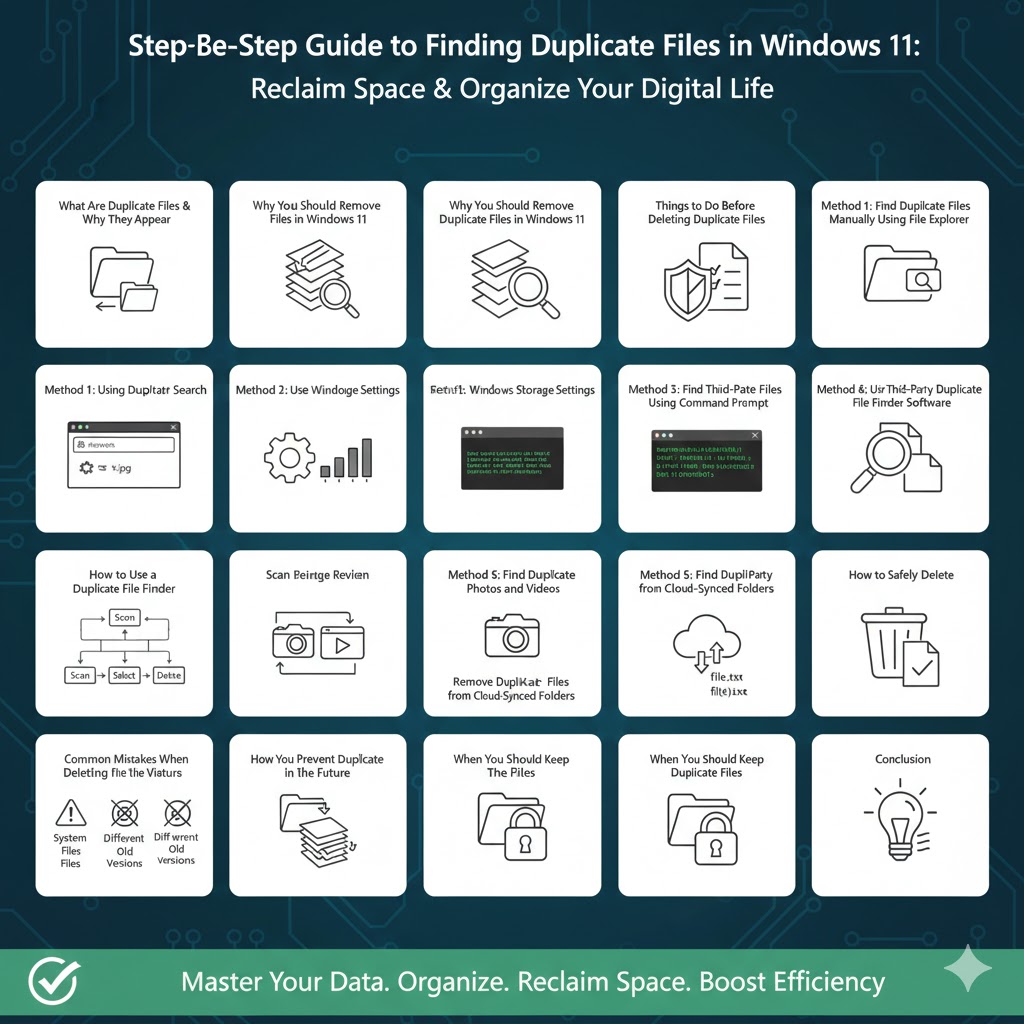
Why You Should Remove Duplicate Files in Windows 11
Free Up Disk Space
Duplicate files can consume gigabytes of storage, especially videos, photos, and installers.
Improve System Organization
Removing duplicates makes it easier to find the correct file quickly.
Speed Up File Searches
Fewer files mean faster indexing and search results.
Reduce Backup Size
Backups become smaller and faster when duplicates are removed.
Things to Do Before Deleting Duplicate Files
Create a Backup
Always back up important data before deleting files. This protects you from accidental deletion.
Check File Locations
Duplicates in system folders may be required by Windows or installed software.
Compare File Details
Look at file size, date modified, and file path before deleting.
Method 1: Find Duplicate Files Manually Using File Explorer
Using File Explorer Search
-
Open File Explorer
-
Navigate to the folder you want to scan
-
Use the search box to find files by name or type
For example, searching for *.jpg shows all images in that folder.
Sort Files to Spot Duplicates
-
Sort by Name to find files with similar titles
-
Sort by Size to locate identical file sizes
-
Sort by Date modified to compare versions
Limitations of Manual Search
Manual searching works for small folders but becomes time-consuming on large drives.
Method 2: Use Windows Storage Settings
Access Storage Settings
-
Open Settings
-
Go to System
-
Select Storage
Review Storage Usage
Windows 11 shows categories such as temporary files, documents, pictures, and apps.
What This Method Helps With
While it does not directly detect duplicates, it helps identify folders consuming excessive space where duplicates often exist.
Method 3: Find Duplicate Files Using Command Prompt
Advanced Users Only
This method is best for users comfortable with commands.
Basic Concept
Command-line tools can list files with identical names or sizes within directories.
Why This Method Is Limited
It does not compare file content, so files with different names but identical data may be missed.
Method 4: Use Third-Party Duplicate File Finder Software
Why Third-Party Tools Are Effective
These tools scan file content, not just names, ensuring accurate detection.
What Most Tools Can Do
-
Scan entire drives or specific folders
-
Compare file content using hashes
-
Automatically select safe files for deletion
-
Preview files before removing them
How to Use a Duplicate File Finder
-
Install a trusted duplicate file finder
-
Choose folders or drives to scan
-
Start the scan
-
Review the duplicate list
-
Select files to delete or move
-
Confirm deletion
Safe Deletion Options
Many tools allow you to move duplicates to a recycle bin or backup folder instead of deleting permanently.
Method 5: Find Duplicate Photos and Videos
Why Media Files Are Often Duplicated
Photos and videos are frequently copied across folders, cloud storage, and external drives.
Using the Photos App
-
Open the Photos app
-
Sort by Date or Size
-
Look for repeated images
Using Media-Focused Tools
Some duplicate finders specialize in images and videos, detecting duplicates even if file names differ.
Method 6: Remove Duplicate Files from Cloud-Synced Folders
Common Cloud Locations
-
OneDrive
-
Google Drive
-
Dropbox
How Duplicates Happen
Sync conflicts often create files like filename(1) or filename-copy.
Best Practice
Clean duplicates locally first, then allow the cloud service to resync.
How to Safely Delete Duplicate Files
Use the Recycle Bin
Avoid permanent deletion until you confirm files are no longer needed.
Keep One Original
Always retain at least one copy of each file.
Delete in Small Batches
Remove duplicates gradually to avoid mistakes.
Avoid System Folders
Do not delete files from Windows or Program Files folders unless you are sure.
Common Mistakes When Deleting Duplicate Files
Deleting System Files
This can cause apps or Windows features to malfunction.
Relying Only on File Names
Different files can share the same name but contain different data.
Deleting the Wrong Version
Newer files may contain updates or edits not present in older duplicates.
How to Prevent Duplicate Files in the Future
Organize Files Consistently
Use clear folder structures and naming conventions.
Avoid Multiple Downloads
Check if a file already exists before downloading again.
Review Sync Settings
Ensure cloud services are not duplicating folders.
Clean Regularly
Scan for duplicates every few months to prevent buildup.
When You Should Keep Duplicate Files
Backup Copies
Some duplicates exist for safety and recovery purposes.
Different Versions
Edited or revised files may look similar but contain important differences.
Shared Files
Multiple applications may rely on identical resources stored separately.
Conclusion
Finding and deleting duplicate files in Windows 11 is one of the easiest ways to reclaim storage space and improve file organization. Whether you choose manual methods for small folders or powerful duplicate file finder tools for large drives, the key is to review duplicates carefully before deleting them.