


How to Speed Up Keyboard Response in Windows 11
A slow or delayed keyboard response on Windows 11 can be extremely frustrating. You press a key, and the text appears seconds later—or sometimes not at all. This issue can affect productivity, gaming, coding, and everyday typing tasks. Fortunately, slow keyboard response is usually caused by software settings, drivers, or system performance issues rather than hardware failure.
This complete guide walks you through all effective solutions to fix slow keyboard response on Windows 11. Each method is explained clearly so you can restore fast, accurate typing without unnecessary risks.
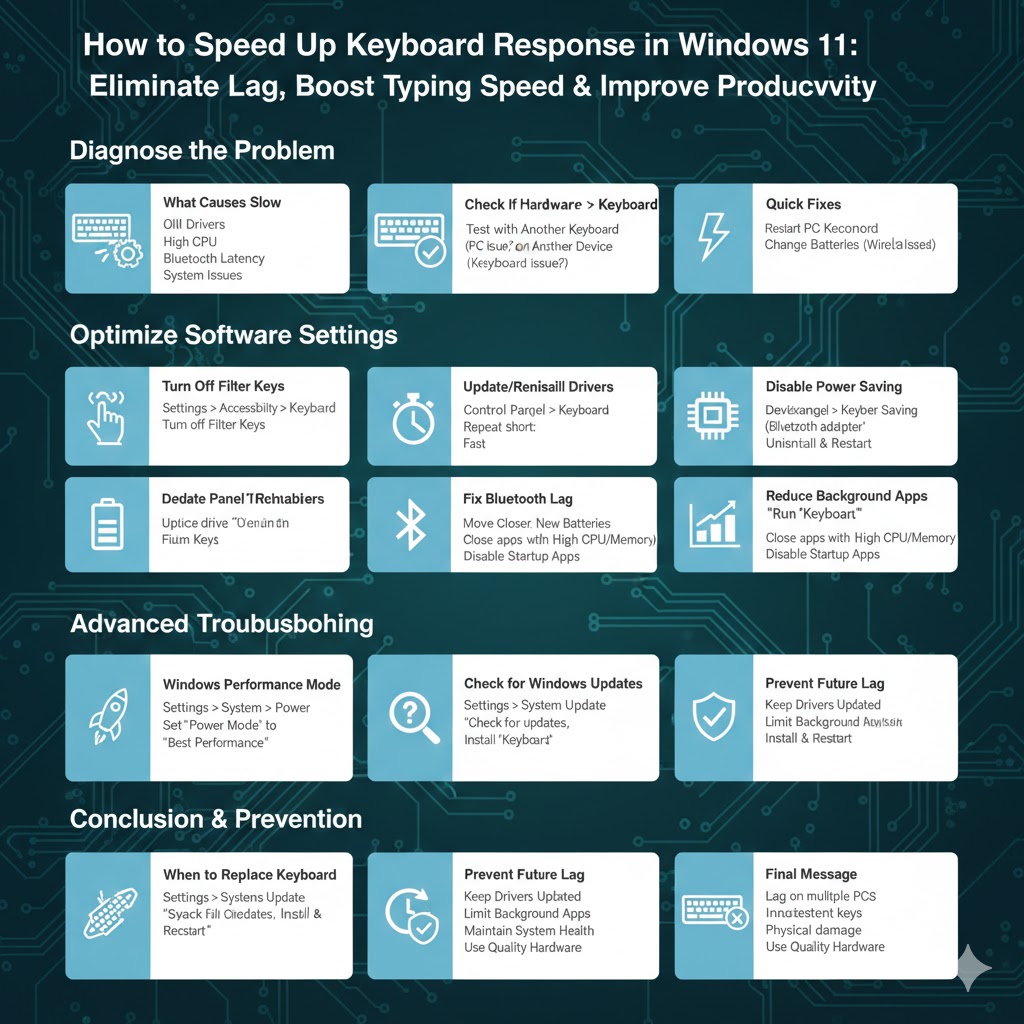
What Causes Slow Keyboard Response on Windows 11
Before fixing the issue, it helps to understand why it happens. Common causes include:
-
Filter Keys or accessibility settings enabled
-
Outdated or corrupted keyboard drivers
-
High CPU or memory usage
-
Background applications causing lag
-
Bluetooth latency for wireless keyboards
-
Power management settings limiting performance
-
System files or Windows update issues
Identifying the cause makes troubleshooting faster and more effective.
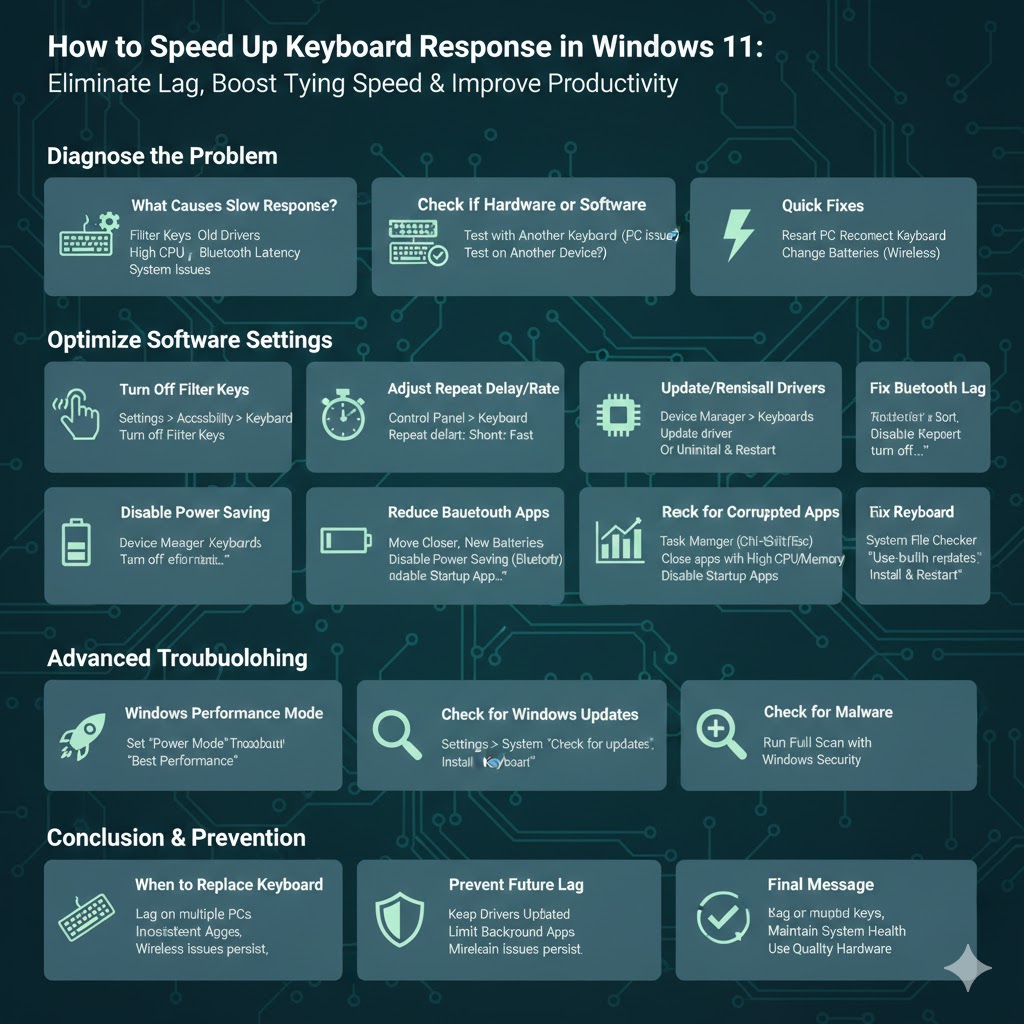
Check If the Problem Is Hardware or Software
Test with Another Keyboard
Plug in a different keyboard or connect an external one. If the delay disappears, your original keyboard may be faulty.
Test the Keyboard on Another Device
If the same lag appears on another computer, the keyboard itself is likely the problem.
If the keyboard works normally elsewhere, the issue is with Windows 11 settings or software.
Turn Off Filter Keys and Accessibility Features
Why This Matters
Filter Keys is designed to ignore brief or repeated keystrokes, which can cause noticeable typing delays.
How to Disable Filter Keys
-
Open Settings
-
Go to Accessibility
-
Select Keyboard
-
Turn off Filter Keys
Also Check
Disable Sticky Keys and Toggle Keys, as these can also interfere with normal typing behavior.
Adjust Keyboard Repeat Delay and Rate
Access Keyboard Settings
-
Open Control Panel
-
Select Keyboard
Recommended Settings
-
Set Repeat delay to Short
-
Set Repeat rate to Fast
These settings ensure Windows registers keystrokes immediately and repeats them smoothly.
Update or Reinstall Keyboard Drivers
Why Drivers Matter
Corrupted or outdated drivers are a leading cause of input lag.
Update Keyboard Driver
-
Right-click Start
-
Select Device Manager
-
Expand Keyboards
-
Right-click your keyboard
-
Choose Update driver
Reinstall Keyboard Driver
-
In Device Manager, right-click the keyboard
-
Select Uninstall device
-
Restart your computer
Windows will automatically reinstall the correct driver after reboot.
Disable Power Management for the Keyboard
Why This Helps
Windows may reduce power to input devices to save energy, causing delays.
How to Disable Power Saving
-
Open Device Manager
-
Expand Keyboards
-
Right-click your keyboard
-
Select Properties
-
Go to the Power Management tab
-
Uncheck Allow the computer to turn off this device to save power
This ensures your keyboard stays fully responsive.
Fix Bluetooth Keyboard Lag
Move Closer to the PC
Bluetooth signal strength affects response time. Keep the keyboard within recommended range.
Replace Batteries
Low battery levels can cause input delay and missed keystrokes.
Disable Bluetooth Power Saving
-
Open Device Manager
-
Expand Bluetooth
-
Right-click your Bluetooth adapter
-
Go to Power Management
-
Disable power-saving options
Reconnect the Keyboard
Remove the Bluetooth keyboard from settings and pair it again.
Reduce Background Apps and CPU Usage
Why Performance Matters
If your CPU or RAM is overloaded, Windows may delay input processing.
Check Task Manager
-
Press Ctrl + Shift + Esc
-
Look for apps using high CPU or memory
-
Close unnecessary programs
Disable Startup Apps
-
Open Task Manager
-
Go to Startup
-
Disable apps you don’t need at startup
Change Windows Performance Settings
Set Performance Mode
-
Open Settings
-
Go to System
-
Select Power & battery
-
Set power mode to Best performance
This ensures faster system response and smoother input handling.
Run Windows Troubleshooters
Keyboard Troubleshooter
-
Open Settings
-
Go to System
-
Select Troubleshoot
-
Open Other troubleshooters
-
Run the Keyboard troubleshooter
Windows will automatically detect and fix common keyboard-related issues.
Check for Windows Updates
Why Updates Matter
Bug fixes and performance improvements often resolve input lag.
How to Update
-
Open Settings
-
Go to Windows Update
-
Check for updates
-
Install available updates
-
Restart your PC
Scan for Corrupted System Files
Why This Helps
Damaged system files can affect input services.
Use Built-in Repair Tools
Windows can scan and repair core system components that may be causing delays.
This step is especially useful if the issue appeared after a crash or failed update.
Check for Malware or Unwanted Software
Why Malware Can Cause Lag
Background malware can consume resources and interfere with input devices.
What to Do
Run a full system scan using Windows Security and remove any detected threats.
Reset Keyboard Settings to Default
When to Try This
If you’ve changed advanced input or language settings, resetting can help.
What It Does
Restores keyboard behavior to default Windows 11 configuration.
When to Replace the Keyboard
You may need a new keyboard if:
-
The lag occurs on multiple computers
-
Keys respond inconsistently
-
Physical damage is visible
-
Wireless keyboards lag even after battery replacement
Mechanical wear or internal damage cannot be fixed through software.
Prevent Slow Keyboard Response in the Future
Keep Drivers Updated
Regular updates prevent compatibility issues.
Avoid Unnecessary Background Apps
Fewer apps mean better system responsiveness.
Maintain System Health
Clean temporary files and install Windows updates regularly.
Use Quality Hardware
Reliable keyboards and Bluetooth adapters provide better performance.
Conclusion
Slow keyboard response on Windows 11 is usually caused by settings, drivers, or performance limitations—not permanent hardware failure. By disabling accessibility features, updating drivers, adjusting power settings, and optimizing system performance, you can restore fast and accurate typing.