


Windows 11 Sleep Mode Not Working? Here’s How to Fix It
Sleep mode in Windows 11 is designed to save power while allowing you to quickly resume your work. When it works correctly, your computer enters a low-power state and wakes up almost instantly. However, many users experience issues where Windows 11 won’t go to sleep, wakes up randomly, or sleep mode is missing entirely.
This in-depth guide explains how to fix Windows 11 sleep mode not working. You’ll learn the most common causes, step-by-step solutions, and best practices to prevent sleep problems from returning.
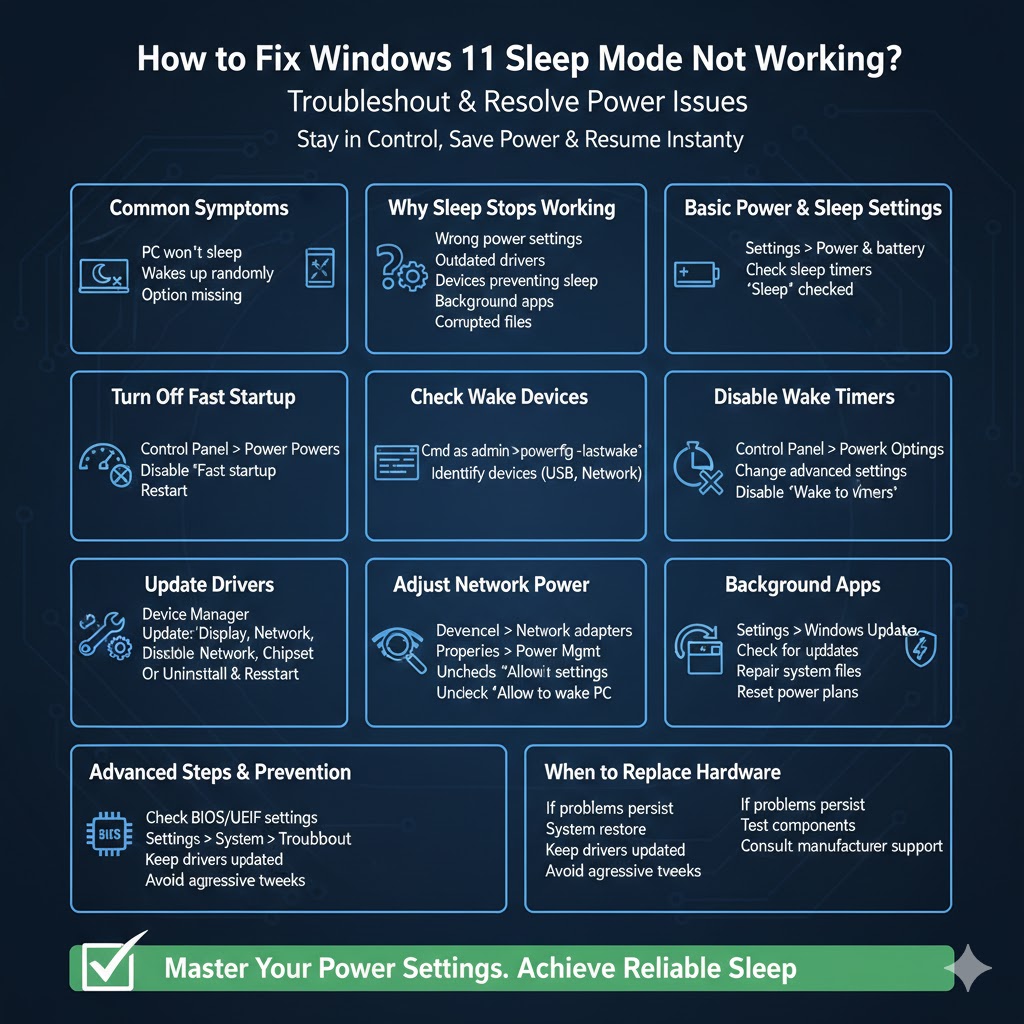
Common Symptoms of Sleep Mode Problems in Windows 11
Before troubleshooting, it’s helpful to recognize how the issue appears. Common symptoms include:
-
The PC refuses to enter sleep mode
-
The computer wakes up immediately after sleeping
-
Sleep option is missing from the Power menu
-
Fans keep running while the screen is off
-
The system wakes up randomly at night
Each symptom may point to different underlying causes.
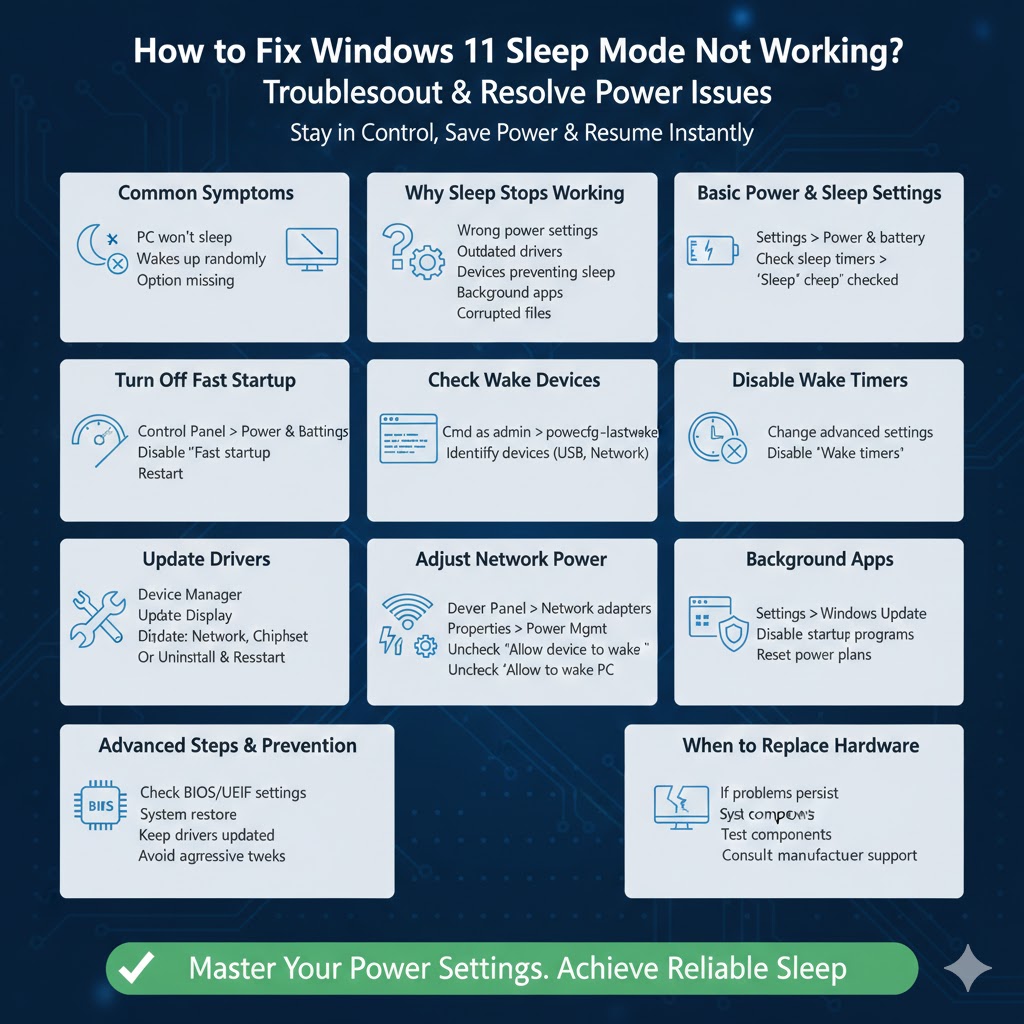
Why Windows 11 Sleep Mode Stops Working
Sleep mode issues usually occur due to software conflicts or system settings rather than hardware failure. The most common causes are:
-
Incorrect power and sleep settings
-
Outdated or incompatible drivers
-
Devices preventing sleep
-
Fast Startup conflicts
-
Background apps or services waking the PC
-
Corrupted system files
-
Windows update issues
Understanding these causes helps you apply the correct fix instead of guessing.
Check Basic Power and Sleep Settings First
Verify Sleep Settings
-
Open Settings
-
Go to System
-
Select Power & battery
-
Expand Screen and sleep
Make sure sleep is set to activate after a reasonable time for both battery and plugged-in modes.
Why This Matters
If sleep timers are set to “Never,” Windows will not enter sleep automatically.
Make Sure Sleep Mode Is Enabled in Power Options
Check Power Menu Settings
-
Open Control Panel
-
Go to Power Options
-
Click Choose what the power buttons do
-
Select Change settings that are currently unavailable
-
Ensure Sleep is checked
If sleep is disabled here, it won’t appear in the Start menu.
Turn Off Fast Startup
Why Fast Startup Causes Problems
Fast Startup combines shutdown and hibernation, which can interfere with sleep mode on some systems.
How to Disable Fast Startup
-
Open Control Panel
-
Go to Power Options
-
Click Choose what the power buttons do
-
Disable Turn on fast startup
-
Save changes and restart
Many sleep issues are resolved immediately after disabling this feature.
Check Which Devices Are Preventing Sleep
Find Sleep-Blocking Devices
Windows can tell you which devices are keeping your PC awake.
-
Open Command Prompt as administrator
-
Run the command to see active wake requests
Common Culprits
-
Network adapters
-
USB devices
-
Gaming peripherals
-
Bluetooth devices
Once identified, you can adjust their power settings.
Disable Wake Timers
What Wake Timers Do
Wake timers allow Windows or apps to wake your PC for tasks like updates.
How to Disable Wake Timers
-
Open Control Panel
-
Go to Power Options
-
Select Change plan settings
-
Click Change advanced power settings
-
Disable Wake timers
This prevents unexpected wake-ups during sleep.
Update or Reinstall Drivers
Why Drivers Matter
Outdated or incompatible drivers are a major reason sleep mode fails in Windows 11.
Focus on These Drivers
-
Display drivers
-
Network drivers
-
Chipset drivers
-
Bluetooth drivers
How to Update Drivers
-
Right-click Start
-
Open Device Manager
-
Right-click each critical device
-
Select Update driver
If updating doesn’t help, uninstall the driver and restart your PC.
Adjust Network Adapter Power Settings
Network Devices Often Wake the PC
Wi-Fi and Ethernet adapters are frequent sleep disrupters.
How to Fix It
-
Open Device Manager
-
Expand Network adapters
-
Right-click your adapter
-
Open Properties
-
Go to Power Management
-
Uncheck Allow this device to wake the computer
This prevents network activity from interrupting sleep.
Disable USB Devices from Waking Windows
Why USB Devices Cause Issues
External keyboards, mice, and controllers can wake your PC unintentionally.
How to Adjust USB Power Settings
-
Open Device Manager
-
Expand Universal Serial Bus controllers
-
Adjust power management settings for each USB device
Only leave wake permissions enabled for devices you truly need.
Run Windows Power Troubleshooter
Why Use the Troubleshooter
It automatically detects common power-related problems.
How to Run It
-
Open Settings
-
Go to System
-
Select Troubleshoot
-
Open Other troubleshooters
-
Run the Power troubleshooter
This tool often fixes misconfigured settings quickly.
Check for Windows Updates
Why Updates Can Fix Sleep Issues
Microsoft frequently patches power management bugs.
How to Update
-
Open Settings
-
Go to Windows Update
-
Install available updates
-
Restart your PC
If the issue started after an update, check for newer fixes.
Repair Corrupted System Files
Why This Is Important
Damaged system files can break sleep functionality.
What This Fix Does
Windows can scan and repair core system components that affect power states.
This step is especially useful if sleep mode stopped working after a crash or forced shutdown.
Check Background Apps and Services
Why Apps Prevent Sleep
Media players, backup tools, and cloud sync apps often keep systems awake.
What to Do
-
Close unnecessary apps
-
Disable unused startup programs
-
Temporarily stop background services to test
Reset Power Plans to Default
When to Try This
If power settings were heavily customized, resetting can restore proper behavior.
What It Does
Reverts all power-related settings to Windows defaults.
When Sleep Mode Still Doesn’t Work
If none of the above solutions fix the issue, consider:
-
Checking BIOS or UEFI power settings
-
Updating system firmware
-
Performing a system restore
-
Testing hardware components
These steps are less common but sometimes necessary.
How to Prevent Sleep Mode Issues in the Future
Keep Drivers Updated
Driver compatibility is critical for power management.
Avoid Aggressive Power Tweaks
Extreme power optimizations often break sleep behavior.
Monitor Installed Software
Some apps interfere with sleep even when idle.
Restart Regularly
Frequent restarts help maintain system stability.
Conclusion
When Windows 11 sleep mode is not working, the cause is usually a misconfigured setting, a problematic driver, or a device preventing sleep. By checking power options, disabling wake sources, updating drivers, and repairing system files, you can restore sleep mode without reinstalling Windows.