


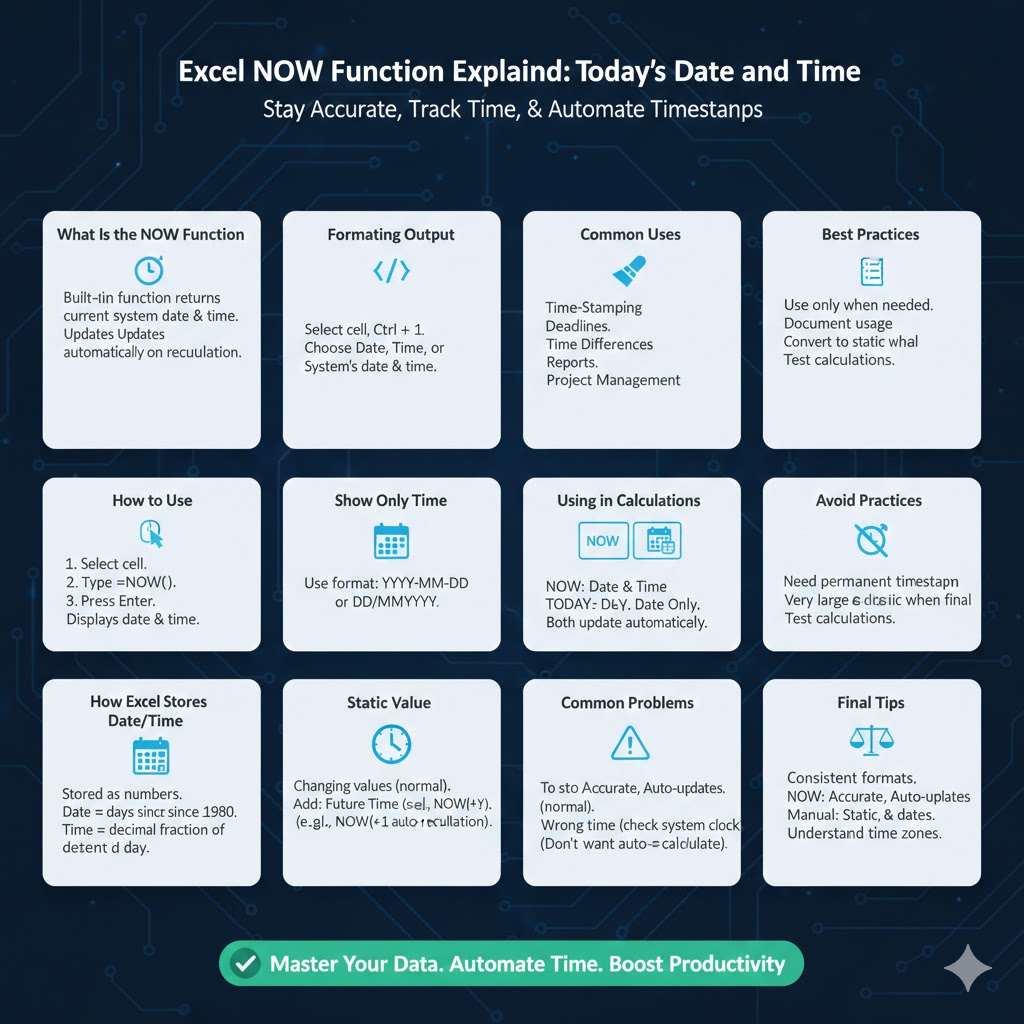
Excel NOW Function Explained: Show Today’s Date and Time
Microsoft Excel offers many powerful date and time functions, and one of the most useful among them is the NOW function. This function allows you to instantly display the current date and time in a worksheet, updating automatically whenever the file recalculates. Whether you are tracking deadlines, logging activities, or creating time-based reports, the NOW function can save time and improve accuracy.
This complete guide explains how to use the NOW function in Excel to get the current date and time, how it works, common use cases, formatting tips, and mistakes to avoid. Everything is written clearly so you can apply it confidently in real-world spreadsheets.
What Is the NOW Function in Excel
The NOW function is a built-in Excel function that returns the current system date and time based on your computer’s clock.
When you use the NOW function, Excel automatically inserts both the date and time into a cell. The value updates whenever the worksheet recalculates, such as when you open the file, edit a cell, or refresh data.
This makes the NOW function ideal for dynamic spreadsheets where timing matters.
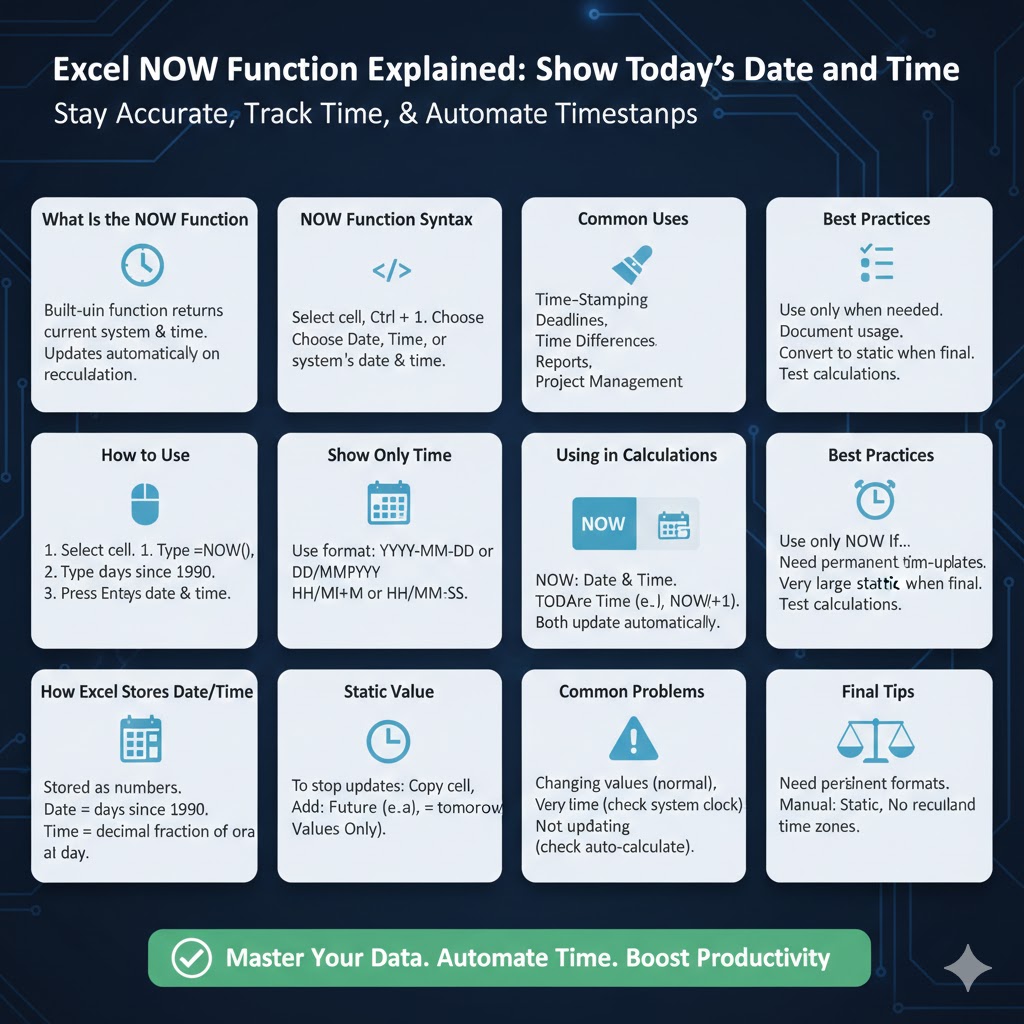
NOW Function Syntax Explained
The syntax of the NOW function is extremely simple:
NOW()
There are no arguments inside the parentheses. Excel automatically uses the current date and time from your system settings.
Because of its simplicity, the function is easy to remember and quick to use, even for beginners.
How to Use the NOW Function in Excel
Basic Steps to Insert the NOW Function
-
Open your Excel worksheet
-
Click on the cell where you want the current date and time
-
Type
=NOW() -
Press Enter
The cell will instantly display the current date and time.
What Happens After You Enter the Formula
-
The date and time appear in the cell
-
The value updates automatically whenever Excel recalculates
-
The format depends on your system’s regional settings
Understanding How Excel Stores Date and Time
Excel stores dates and times as numbers:
-
The date is stored as the number of days since a starting point
-
The time is stored as a decimal fraction of a day
For example:
-
1.0 represents one full day
-
0.5 represents 12 hours
The NOW function returns a number that includes both date and time, even if you only see one of them due to formatting.
Formatting the NOW Function Output
Change Date and Time Format
You can customize how the date and time appear without changing the underlying value.
Steps:
-
Select the cell with the NOW function
-
Press Ctrl + 1
-
Choose Date, Time, or Custom
-
Select your preferred format
Show Only Date
Use a date format such as:
-
YYYY-MM-DD
-
DD/MM/YYYY
Show Only Time
Use a time format such as:
-
HH:MM
-
HH:MM:SS
Even when only the date or time is displayed, the cell still contains both values internally.
Difference Between NOW and TODAY Functions
NOW Function
-
Returns current date and time
-
Updates automatically
-
Ideal for time tracking and logs
TODAY Function
-
Returns current date only
-
Does not include time
-
Useful for daily reports
Choose NOW when time precision matters, and TODAY when only the date is required.
Common Uses of the NOW Function
Time-Stamping Entries
Automatically record when data is entered or updated.
Tracking Deadlines
Compare the current date and time against deadlines to determine status.
Calculating Time Differences
Measure elapsed time between events.
Dashboards and Reports
Display real-time date and time for dynamic reports.
Project Management
Monitor progress based on current time.
Using NOW Function in Calculations
Calculate Elapsed Time
You can subtract a past date and time from NOW to calculate how much time has passed.
This is useful for:
-
Tracking task duration
-
Measuring response times
-
Monitoring system uptime
Add Time to the Current Date
You can add hours or days to the NOW function to calculate future times.
For example:
-
Adding 1 adds one full day
-
Adding 0.5 adds 12 hours
Preventing Automatic Updates with NOW Function
Why NOW Keeps Changing
The NOW function recalculates every time Excel refreshes.
How to Convert NOW to a Static Value
If you want a fixed timestamp:
-
Enter the NOW function
-
Copy the cell
-
Paste values only
This replaces the formula with the current date and time as a static value.
Common Problems When Using the NOW Function
Date and Time Keep Changing
This is expected behavior. The NOW function is volatile and updates automatically.
Wrong Date or Time Displayed
Check your system clock and regional settings, as Excel relies on them.
Time Not Updating
Ensure automatic calculation is enabled in Excel settings.
Formatting Looks Incorrect
Adjust the cell format instead of changing the formula.
Best Practices for Using NOW Function
Use It Only When Needed
Because NOW is volatile, excessive use can slow down large spreadsheets.
Combine with IF Functions Carefully
Conditional formulas using NOW can recalculate frequently.
Document Your Usage
Let other users know that a cell uses a dynamic time function.
Convert to Static When Final
Once timing is no longer required, convert the value to avoid future changes.
When You Should Not Use the NOW Function
Avoid using NOW if:
-
You need a permanent timestamp
-
You are working with very large datasets
-
You do not want automatic recalculation
In these cases, manual timestamps or VBA solutions may be more suitable.
NOW Function vs Manual Date and Time Entry
NOW Function Advantages
-
Always accurate
-
Automatically updates
-
Saves time
Manual Entry Advantages
-
Static values
-
No recalculation
-
Better for historical records
Choose the method that best fits your workflow.
Tips for Better Date and Time Management in Excel
Use Consistent Formats
Standardized formats improve readability and sorting.
Avoid Mixing Text and Dates
Dates stored as text can cause calculation errors.
Test Calculations
Verify time-based formulas to avoid unexpected results.
Understand Time Zones
Excel uses your system time zone, which may affect shared files.
Conclusion
The NOW function in Excel is a simple yet powerful tool for displaying the current date and time dynamically. Whether you are creating time-sensitive reports, tracking progress, or managing schedules, this function helps ensure your data stays accurate and up to date.