


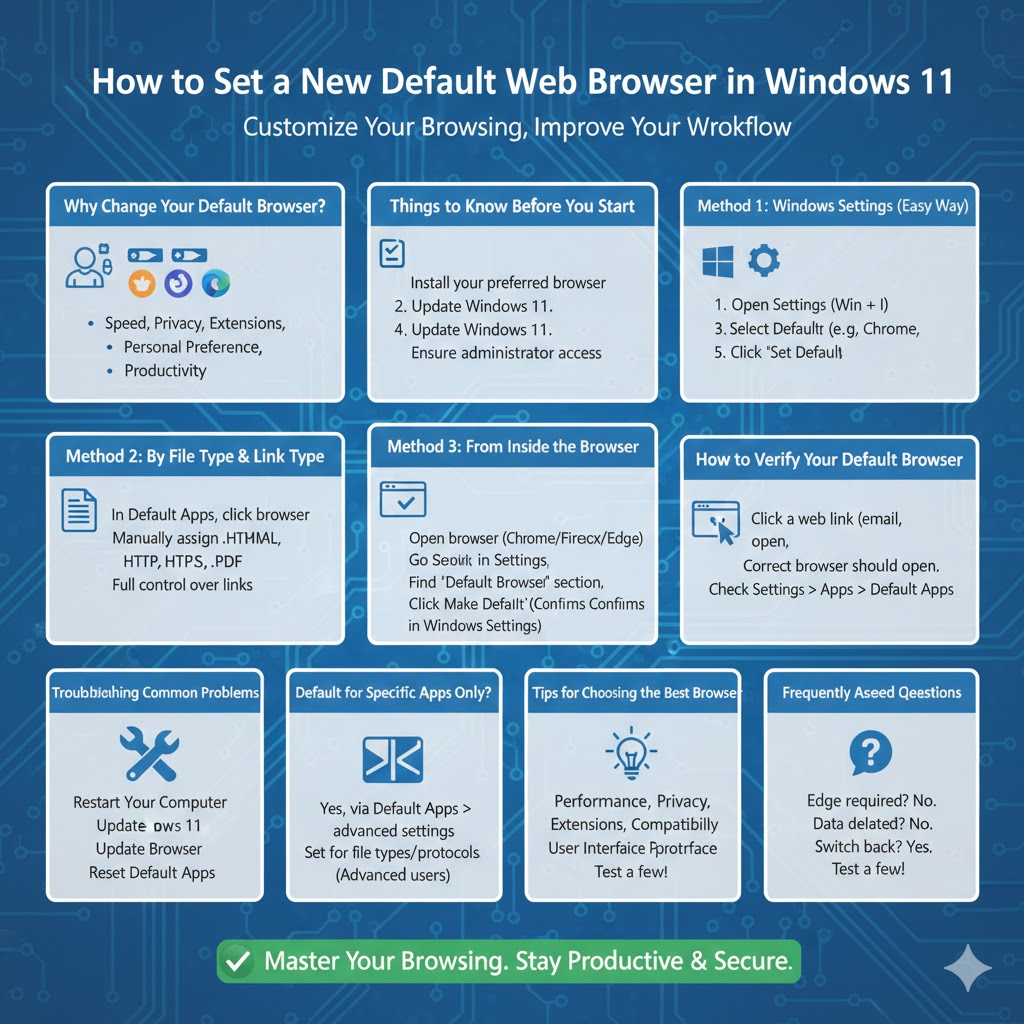
How to Set a New Default Web Browser in Windows 11
Changing the default browser on Windows 11 is a simple but important customization that can significantly improve your daily workflow. Whether you prefer Google Chrome, Mozilla Firefox, Microsoft Edge, Brave, Opera, or another browser, Windows 11 allows you to choose the one that automatically opens links, web files, and online content. However, compared to earlier versions of Windows, the process can feel a bit more complicated because Microsoft redesigned the settings interface.
In this complete guide, you’ll learn exactly how to change your default browser on Windows 11 step by step. You’ll also discover alternative methods, troubleshooting tips, and helpful advice to make sure your preferred browser works exactly the way you want.
Why Change Your Default Browser on Windows 11?
Your default browser is the application Windows uses whenever you click a web link, open an HTML file, or launch online content from another program. While Microsoft Edge comes preinstalled and set as the default browser, many users prefer other browsers for different reasons.
Some people choose Chrome for its speed and extensions, while others prefer Firefox for privacy features. Brave is popular for built-in ad blocking, and Opera offers unique customization options. Changing your default browser allows you to create a browsing experience that matches your habits and preferences.
Additionally, using your favorite browser can help you stay more productive. Bookmarks, saved passwords, extensions, and synchronized data all work seamlessly when your preferred browser opens automatically.
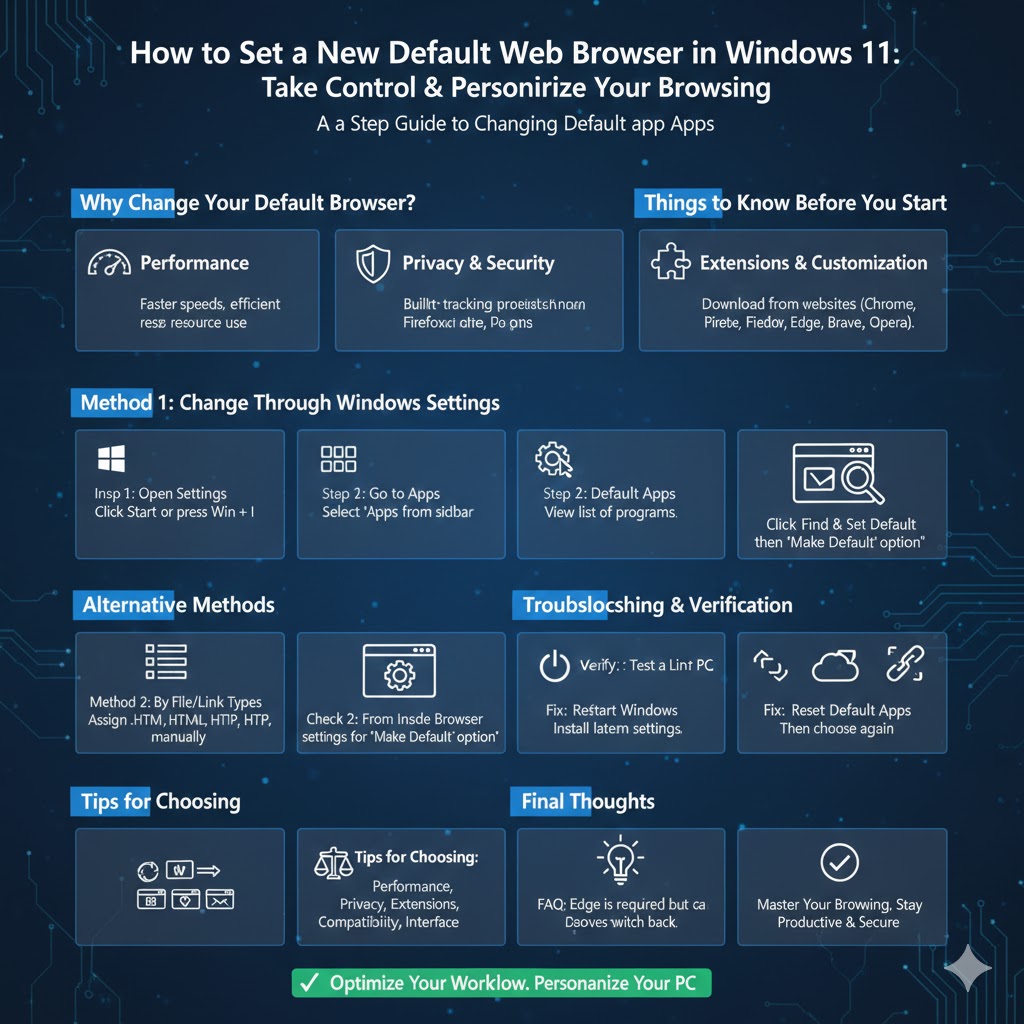
Things to Know Before You Start
Before you change the default browser, make sure the browser you want to use is already installed on your Windows 11 computer. You can download browsers directly from their official websites.
It’s also a good idea to update Windows 11 to the latest version. Microsoft has improved the process of changing default apps in newer updates, making it faster and more straightforward than earlier releases.
Once your browser is installed and updated, you’re ready to proceed.
Method 1: Change the Default Browser Through Windows Settings
The primary way to set a new default browser in Windows 11 is through the Settings app. Follow these steps carefully:
Step 1: Open the Settings App
Click the Start Menu, then select Settings. You can also press Windows + I on your keyboard to open Settings instantly.
Step 2: Go to Apps
Inside Settings, choose Apps from the left sidebar. This section contains options for installed applications and default programs.
Step 3: Select Default Apps
Click Default Apps to see a list of all programs installed on your system.
Step 4: Find Your Preferred Browser
Scroll through the list or use the search bar to find the browser you want to set as default, such as Chrome or Firefox.
Step 5: Set as Default
Click on the browser name. In newer Windows 11 versions, you may see a Set Default button at the top. Select it to make that browser your default immediately.
After completing these steps, Windows will automatically open most web links and files with your selected browser.
Method 2: Change Default Browser by File Types and Link Types
In some Windows 11 builds, you may need to manually assign your browser to specific file and link types.
Once you open your preferred browser in the Default Apps menu, you may see a list of extensions like:
-
.HTM
-
.HTML
-
HTTP
-
HTTPS
-
.PDF (optional)
Click each file type and choose your browser from the list. While this method takes longer, it gives you full control over how different types of links open.
Method 3: Set Default Browser From Inside the Browser
Many browsers include a built-in option that allows you to set them as the default directly from their settings menu.
For example:
-
Open your browser.
-
Go to Settings or Preferences.
-
Look for a section labeled Default Browser.
-
Click Make Default.
Windows will then open the Default Apps settings page where you can confirm the change.
How to Verify Your Default Browser
After changing the default browser, it’s smart to test it. Try clicking a web link from an email, a document, or another application. If the correct browser opens automatically, your settings are working.
You can also go back into Settings > Apps > Default Apps and check which browser is currently listed as default.
Troubleshooting Common Problems
Sometimes Windows 11 may not immediately apply your changes, or certain links might still open in Microsoft Edge. Here are a few solutions:
Restart Your Computer
A quick restart can refresh system settings and apply recent changes.
Update Windows 11
Go to Settings > Windows Update and install any available updates. Microsoft frequently improves default app controls.
Check Browser Updates
Make sure your chosen browser is running the latest version. Older versions may not integrate correctly with Windows 11.
Reset Default Apps
If problems continue, go to Default Apps and reset your settings before choosing the browser again.
Can You Change the Default Browser for Specific Apps Only?
Yes, Windows 11 allows you to set different default apps for specific file types or protocols. For instance, you might want one browser for work links and another for personal use. While this requires more manual setup, it’s possible through the advanced Default Apps settings.
This flexibility is helpful for developers, testers, and users who manage multiple browsing environments.
Tips for Choosing the Best Default Browser
If you’re unsure which browser to set as default, consider the following factors:
-
Performance: How fast pages load and how efficiently the browser uses system resources.
-
Privacy Features: Built-in tracking protection and data security options.
-
Extensions: Availability of useful add-ons and customization tools.
-
Compatibility: Support for websites and web apps you use regularly.
-
User Interface: Layout and navigation that feel comfortable for you.
Testing a few browsers before deciding can help you find the best match for your workflow.
Frequently Asked Questions
Is Microsoft Edge required on Windows 11?
Edge comes preinstalled and cannot be fully removed, but you can choose another browser as your default for everyday use.
Will changing the default browser delete my data?
No. Changing the default browser only affects which application opens links. Your bookmarks, files, and browsing data remain unchanged.
Can I switch back later?
Absolutely. You can return to Settings at any time and select a different browser.
Final Thoughts
Changing the default browser on Windows 11 is one of the easiest ways to personalize your computer and improve your browsing experience. While the process may seem slightly different compared to older versions of Windows, the steps are straightforward once you know where to look.