


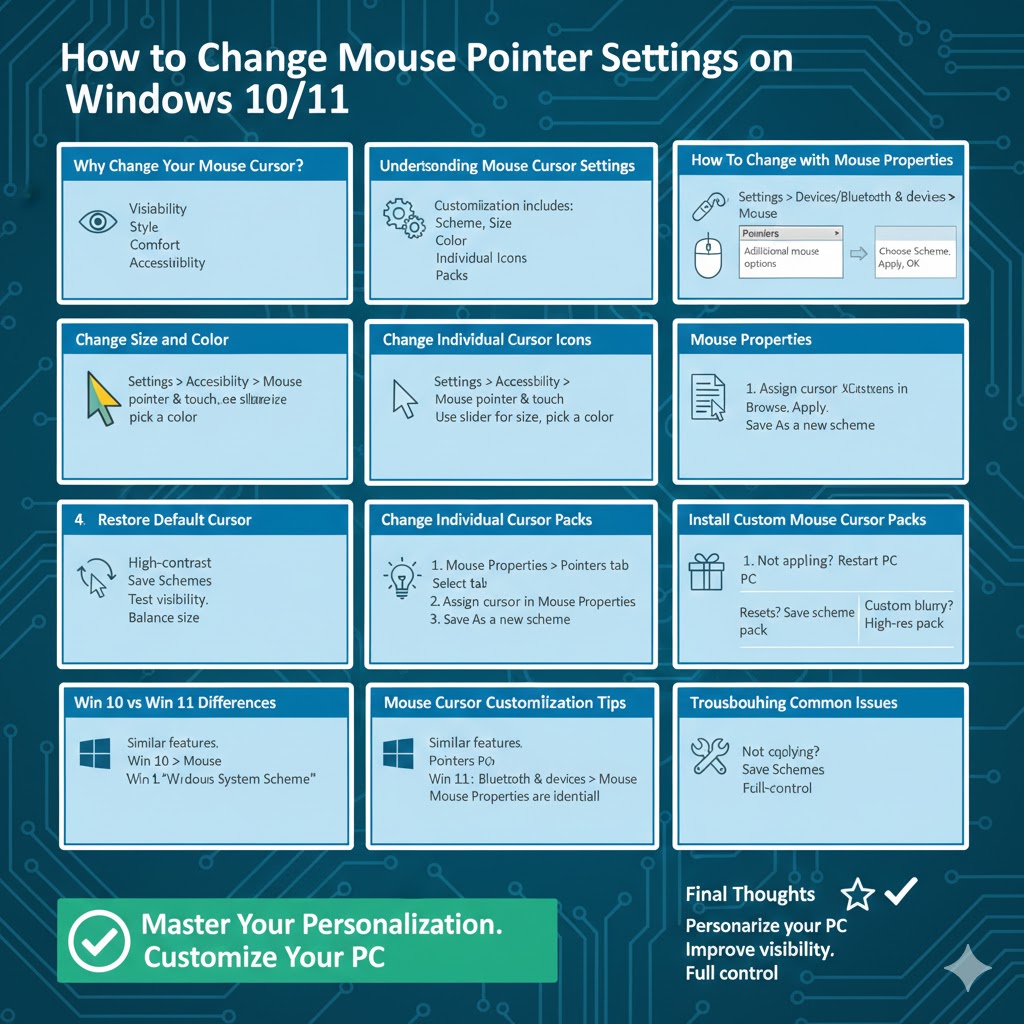
How to Change Mouse Pointer Settings on Windows 10/11
Customizing your mouse cursor on Windows 10 or Windows 11 is a simple way to personalize your computer and make it more comfortable to use. Whether you want a larger cursor for better visibility, a stylish design that matches your desktop theme, or a more functional cursor for work and gaming, Windows gives you several built-in options to do this—no advanced skills required.
In this complete guide, you’ll learn how to change your mouse cursor on both Windows 10 and Windows 11, explore customization options, install custom cursor packs, and fix common issues. Everything is explained step by step, making it easy for beginners and experienced users alike.
Why Change Your Mouse Cursor?
The mouse cursor is one of the most-used visual elements on your computer. You see it constantly while browsing the web, editing documents, designing graphics, or gaming. Changing your mouse cursor can improve both usability and appearance.
Some common reasons people customize their cursor include improving visibility for large or high-resolution screens, making the cursor easier to find while presenting or recording, matching the cursor style with a custom desktop theme, reducing eye strain with better contrast, and adding a personal or creative touch to the system.
Windows offers default cursor schemes, but you can go much further with custom designs if you want.
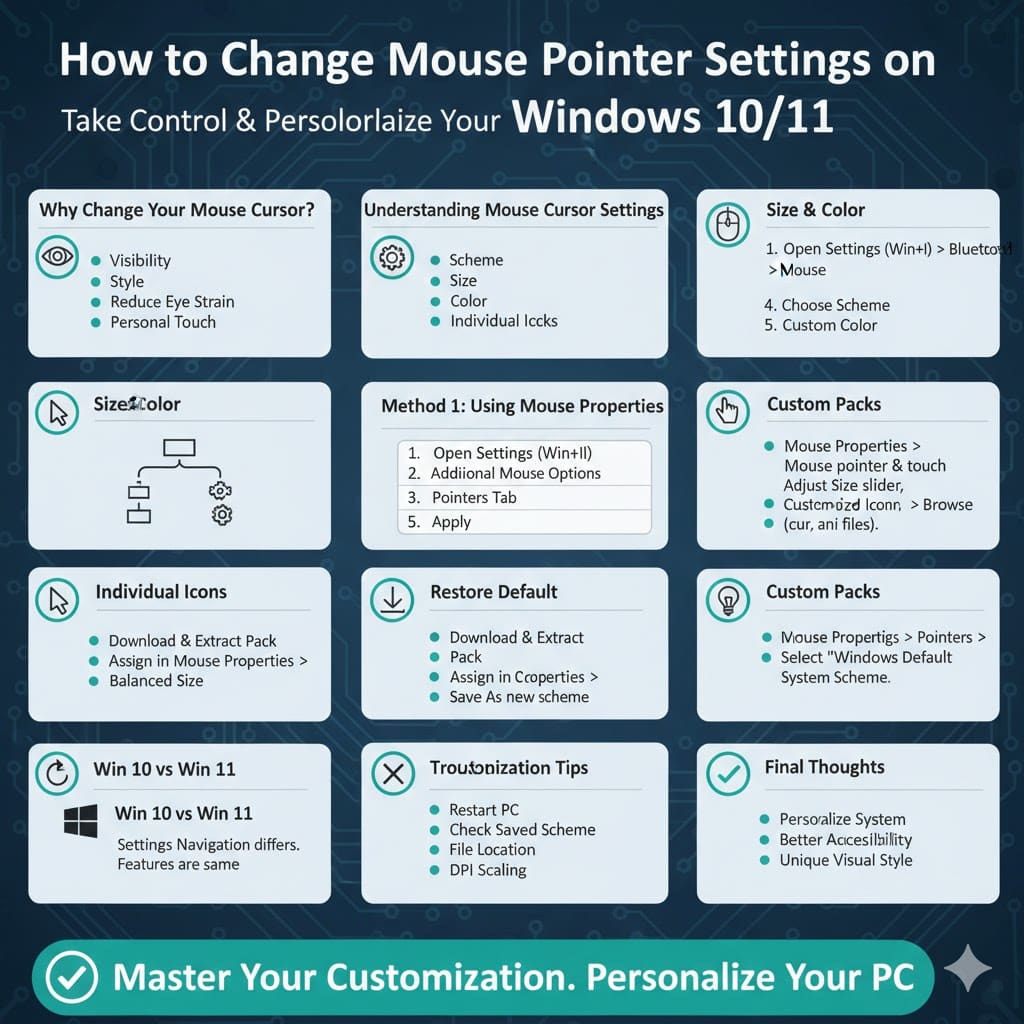
Understanding Mouse Cursor Settings in Windows
Both Windows 10 and Windows 11 use the same core system for mouse cursor customization. The main difference lies in how you access the settings, since Windows 11 has a redesigned Settings app.
Cursor customization includes changing the cursor scheme, adjusting cursor size, changing cursor color, replacing individual cursor icons, and installing third-party cursor packs.
How To Change the Mouse Cursor Using Mouse Properties
This is the most common and flexible method for changing your cursor.
Step 1: Open Mouse Settings
Press Windows + I to open Settings. Go to Bluetooth & devices on Windows 11 or Devices on Windows 10, then click Mouse.
Step 2: Open Additional Mouse Options
Scroll down and select Additional mouse settings to open the classic Mouse Properties window.
Step 3: Switch to the Pointers Tab
In the Mouse Properties window, click the Pointers tab. This is where you can change the cursor style.
Step 4: Choose a Cursor Scheme
Under Scheme, select one of the built-in options such as Windows Default, Windows Black, Windows Inverted, or Windows Large.
Step 5: Apply the Changes
Click Apply, then OK. Your new mouse cursor will take effect immediately.
How To Change Mouse Cursor Size and Color
If your main goal is better visibility rather than style, Windows offers easy accessibility options.
On Windows 10 and Windows 11
Open Settings, select Accessibility, then choose Mouse pointer and touch.
Use the slider to adjust cursor size. You can also change the cursor color by selecting White, Black, Inverted, or a Custom color to improve contrast.
How To Change Individual Cursor Icons
Windows allows you to replace specific cursor icons, such as the loading cursor or text selection cursor.
Open Mouse Properties, go to the Pointers tab, select the cursor you want to change under Customize, then click Browse. Choose a new cursor file with the .cur or .ani format, click Open, and apply the changes.
How To Install Custom Mouse Cursor Packs
If the default Windows options feel too basic, custom cursor packs can completely transform your experience.
First, download a cursor pack from a trusted source. These packs usually come as ZIP files containing multiple cursor files.
Extract the ZIP file to a permanent folder. Then open Mouse Properties, go to the Pointers tab, and assign each cursor manually by clicking Browse.
After assigning all cursors, click Save As to create a new cursor scheme so you can reuse it later.
How To Restore the Default Mouse Cursor
If you want to undo your changes, restoring the default cursor is easy.
Open Mouse Properties, go to the Pointers tab, select Windows Default System Scheme, then click Apply and OK.
Mouse Cursor Customization Tips
Choose high-contrast cursors if you work with bright or busy backgrounds. Avoid overly animated cursors if performance is important. Save your favorite schemes so you can switch between them easily. Test the cursor across different apps to ensure visibility everywhere. Keep cursor size balanced so it does not block text or icons.
Troubleshooting Common Mouse Cursor Issues
If cursor changes don’t apply, restart your computer and reapply the settings.
If the cursor resets after restart, make sure you saved the scheme and clicked Apply.
If a custom cursor does not show, ensure the cursor files remain in the same folder.
If the cursor looks blurry, try adjusting DPI scaling or using a high-resolution cursor pack.
Differences Between Windows 10 and Windows 11 Cursor Settings
The customization features are nearly identical. The main difference is navigation. Windows 10 uses Devices > Mouse, while Windows 11 uses Bluetooth & devices > Mouse. Once you open Mouse Properties, the options are the same.
Final Thoughts
Changing your mouse cursor on Windows 10 or Windows 11 is a simple but effective way to personalize your system. Whether you want better accessibility, clearer visibility, or a unique visual style, Windows gives you full control over how your cursor looks and behaves.