


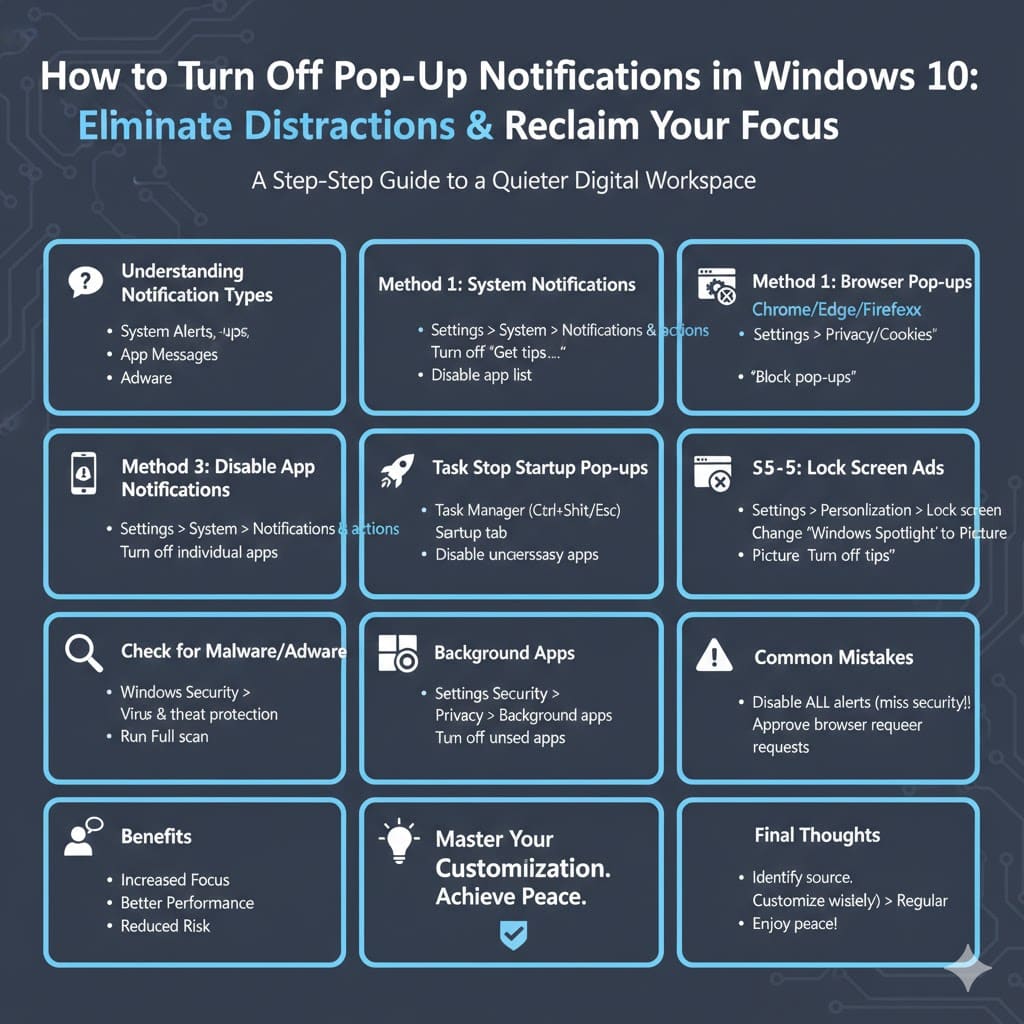
How to Turn Off Pop-Up Notifications in Windows 10
Pop-ups in Windows 10 can be one of the most frustrating parts of using a computer. They interrupt your work, break your concentration, and sometimes even pose security risks. These pop-ups can come from different sources, including system notifications, web browsers, installed apps, or even malware. The good news is that Windows 10 provides several built-in tools that allow you to control, reduce, or completely stop most pop-ups.
In this detailed guide, you will learn how to stop pop-ups in Windows 10 step by step. We will cover system notifications, browser pop-ups, app alerts, startup ads, and security-related pop-ups, all without relying on third-party software.
Understanding the Different Types of Pop-Ups in Windows 10
Before disabling pop-ups, it is important to understand where they come from. Not all pop-ups are the same, and each type requires a slightly different approach.
Some pop-ups are system notifications, such as tips, suggestions, or reminders from Windows itself. Others come from web browsers in the form of ads or permission requests. You may also see pop-ups from installed applications, especially free software that displays promotions. In some cases, frequent pop-ups may indicate adware or unwanted programs.
Identifying the source helps you choose the most effective solution.
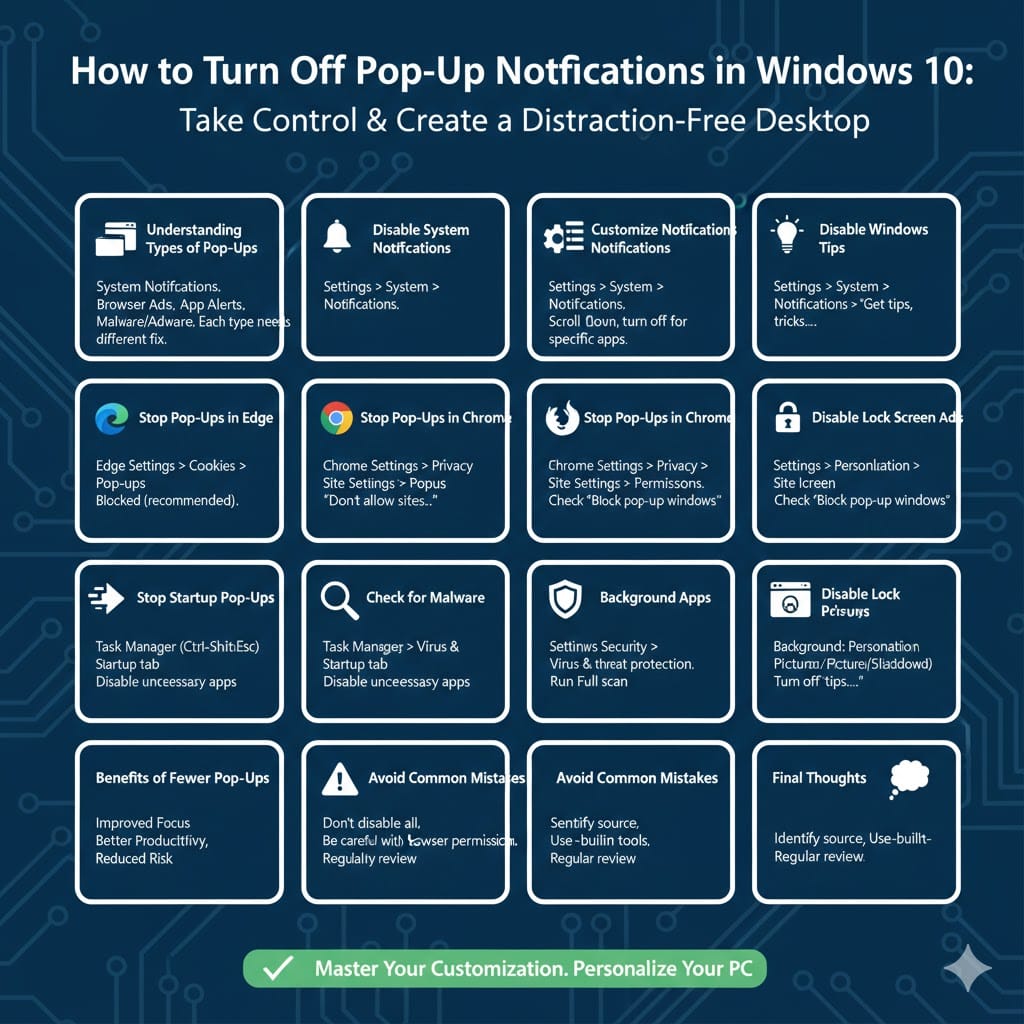
How To Turn Off Windows 10 System Notifications
Windows system notifications are one of the most common sources of pop-ups. These include tips, suggestions, app alerts, and background messages.
Disable Notifications Completely
Open Settings by pressing Windows + I.
Go to System, then select Notifications & actions.
Turn off the toggle for Notifications.
This will stop almost all system pop-ups, including app alerts and Windows messages.
Customize Notifications Instead of Turning Them Off
If you still want important alerts, scroll down to the list of apps under Notifications. You can turn off notifications for specific apps while keeping others enabled.
This option is useful if you want to block distractions without missing important system messages.
How To Disable Windows Tips, Tricks, and Suggestions
Windows 10 often displays pop-ups suggesting features, apps, or settings. These are not essential and can be safely disabled.
Open Settings.
Go to System and select Notifications & actions.
Turn off options such as “Get tips, tricks, and suggestions as you use Windows” and “Show me the Windows welcome experience.”
Disabling these options significantly reduces unnecessary pop-ups.
How To Stop Pop-Ups From Apps in Windows 10
Many installed apps are allowed to send notifications by default. Some apps use this feature excessively.
Go to Settings and open System.
Select Notifications & actions.
Scroll down to the list of apps.
Click on an app and turn off its notification permission.
Repeat this process for any app that frequently sends pop-ups.
How To Stop Browser Pop-Ups in Windows 10
Web browsers are another major source of pop-ups, especially ads and permission requests. Each browser has its own settings.
Stop Pop-Ups in Microsoft Edge
Open Microsoft Edge.
Go to Settings.
Select Cookies and site permissions.
Click Pop-ups and redirects.
Make sure pop-ups are blocked.
You can also review allowed sites and remove any suspicious entries.
Stop Pop-Ups in Google Chrome
Open Chrome and go to Settings.
Select Privacy and security.
Click Site Settings.
Choose Pop-ups and redirects.
Set the option to Don’t allow sites to send pop-ups.
This will prevent most advertising pop-ups while browsing.
Stop Pop-Ups in Mozilla Firefox
Open Firefox and go to Settings.
Select Privacy & Security.
Scroll to the Permissions section.
Enable Block pop-up windows.
Firefox also allows you to manage exceptions for trusted websites.
How To Disable Lock Screen and Sign-In Screen Ads
Windows 10 sometimes displays suggestions or ads on the lock screen.
Open Settings.
Go to Personalization.
Select Lock screen.
Change the background option to Picture or Slideshow instead of Windows Spotlight.
Turn off options related to tips and suggestions.
This removes promotional pop-ups from the lock and sign-in screens.
How To Stop Startup Pop-Ups in Windows 10
Some programs automatically start with Windows and display pop-ups as soon as you log in.
Open Task Manager by pressing Ctrl + Shift + Esc.
Go to the Startup tab.
Review the list of programs.
Disable any app you do not need at startup.
Reducing startup apps not only stops pop-ups but also improves boot speed.
How To Check for Malware and Adware
If pop-ups continue even after adjusting settings, your system may be affected by adware or unwanted software.
Use Windows Security to run a full system scan.
Open Settings and go to Update & Security.
Select Windows Security.
Click Virus & threat protection.
Run a Full scan.
This helps detect and remove malicious software that causes persistent pop-ups.
How To Stop Notifications From Background Apps
Some apps run in the background and generate pop-ups even when not actively used.
Open Settings.
Go to Privacy.
Select Background apps.
Turn off background access for apps you don’t need.
This reduces both pop-ups and system resource usage.
Common Mistakes to Avoid When Blocking Pop-Ups
One common mistake is disabling all notifications without reviewing which ones are important. Some alerts, such as security warnings or system updates, can be useful.
Another mistake is ignoring browser permission requests. Always be cautious when websites ask for notification access, as approving them can lead to frequent pop-ups.
Regularly reviewing notification settings helps maintain a clean and distraction-free system.
Benefits of Reducing Pop-Ups in Windows 10
Stopping pop-ups improves focus, productivity, and overall user experience. Your desktop looks cleaner, your browser sessions feel smoother, and your computer may even perform better due to fewer background processes.
Reducing pop-ups also lowers the risk of accidentally clicking on misleading or harmful content.
Final Thoughts
Pop-ups in Windows 10 can come from many different sources, but they are not something you have to tolerate. By adjusting system notification settings, managing app permissions, configuring your browser, and checking for unwanted software, you can dramatically reduce or completely eliminate pop-ups.