


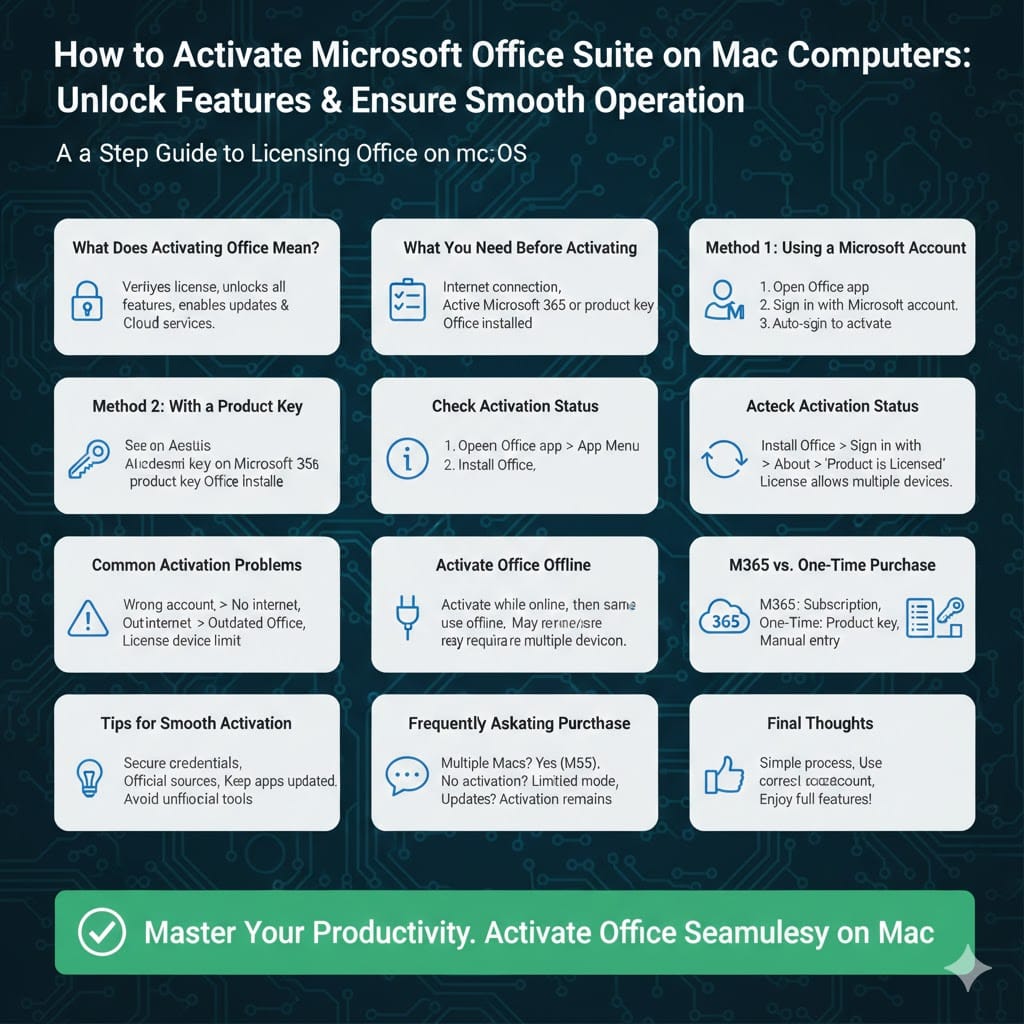
Activating Microsoft Office Suite on Mac Computers
Activating Microsoft Office on a Mac is an essential step to unlock all features and ensure your apps work smoothly without interruptions. Whether you’re using Microsoft Word, Excel, PowerPoint, or Outlook, activation confirms that your copy of Office is genuine and properly licensed. Without activation, Office applications may run in a limited mode, preventing you from editing or saving documents.
In this complete guide, you’ll learn how to activate Microsoft Office for Mac step by step. We’ll cover different activation methods, common issues, and practical tips to make the process as simple as possible, even if you’re new to macOS.
What Does Activating Microsoft Office Mean?
Activation is the process of verifying your Office license with Microsoft. It confirms that you have a valid subscription or product key and allows full access to all Office features. Once activated, Office apps will receive updates, security patches, and cloud services such as OneDrive integration.
On Mac, activation usually happens automatically when you sign in with the correct Microsoft account, but manual steps may be required depending on how Office was installed.
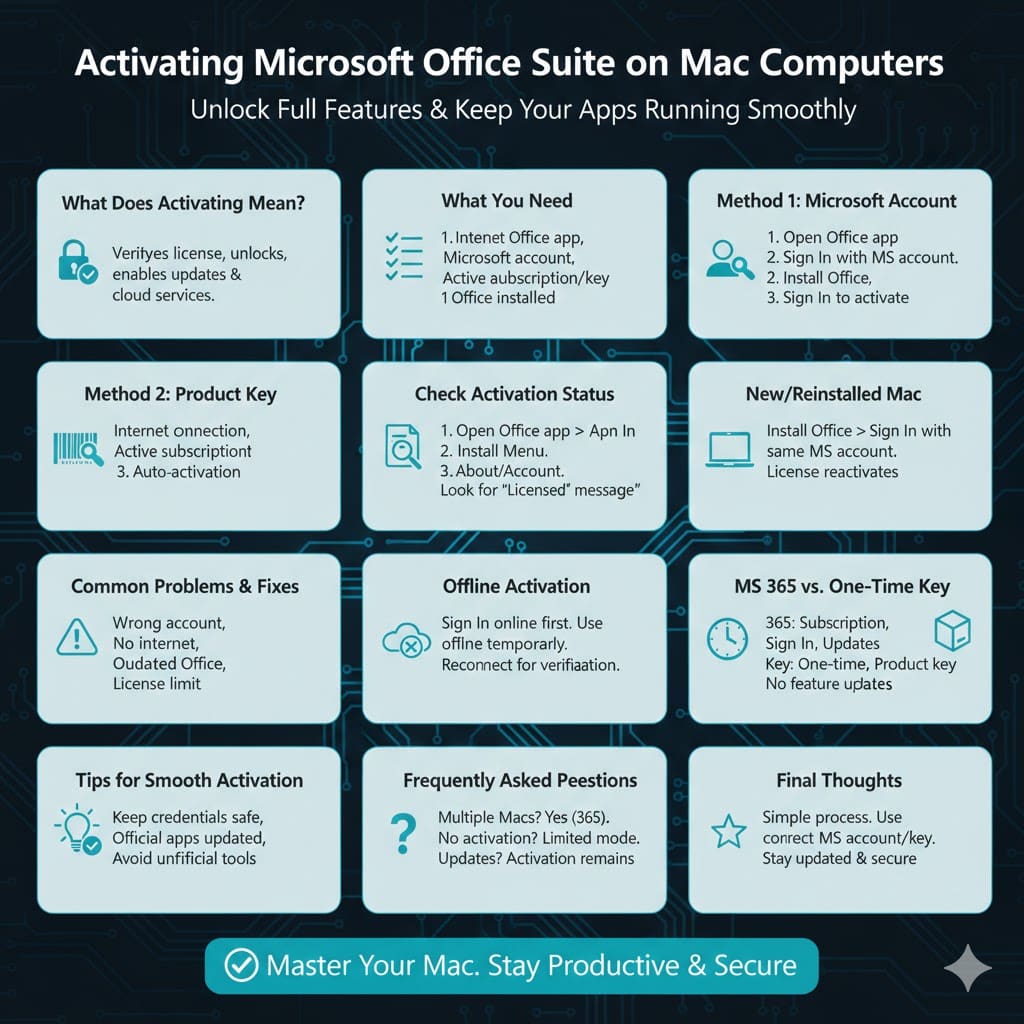
What You Need Before Activating Office on Mac
Before starting the activation process, make sure you have the following:
-
A stable internet connection
-
A valid Microsoft account
-
An active Microsoft 365 subscription or a legitimate Office license
-
Microsoft Office already installed on your Mac
If you purchased Office online, your license is usually linked to your Microsoft account. If you bought a physical copy, you may have received a product key.
How to Activate Microsoft Office for Mac Using a Microsoft Account
This is the most common and recommended method.
Step 1: Open an Office Application
Launch any Office app such as Word, Excel, or PowerPoint from the Applications folder or Dock.
Step 2: Sign In When Prompted
When the app opens, you will see an activation or sign-in prompt. Click Sign In and enter the Microsoft account associated with your Office purchase.
Step 3: Complete the Activation
After signing in, Office will automatically verify your license. Once confirmed, the app will be activated and ready for full use.
If activation does not start automatically, you can open the app menu and select Activate or Account to sign in manually.
How to Activate Microsoft Office for Mac With a Product Key
If you received a product key instead of a subscription-based license, follow these steps.
Step 1: Redeem the Product Key
Open a web browser and go to the Microsoft account website. Sign in or create a Microsoft account if you don’t already have one. Enter your 25-character product key to link the license to your account.
Step 2: Install or Confirm Office Installation
Once the key is redeemed, download and install Office for Mac if it’s not already installed.
Step 3: Sign In to Activate
Open any Office app and sign in with the Microsoft account used to redeem the key. Office will activate automatically.
How to Check Activation Status on Mac
To make sure Office is activated correctly, you can check the activation status inside any Office app.
Open an Office application.
Click the app name in the top menu bar.
Select About or Account.
If Office is activated, you will see a message confirming that the product is licensed and ready to use.
Activating Office on a New or Reinstalled Mac
If you’ve recently upgraded your Mac or reinstalled macOS, you may need to reactivate Office.
Simply install Office again and sign in with the same Microsoft account you used previously. Microsoft allows activation on multiple devices depending on your subscription plan, so you usually won’t need to repurchase anything.
Common Activation Problems and How to Fix Them
Sometimes activation doesn’t go as smoothly as expected. Here are common issues and their solutions.
Incorrect Microsoft Account
Make sure you’re signing in with the account used to purchase Office. Using a different email address is a common mistake.
No Internet Connection
Activation requires an internet connection. Check your network settings and try again.
Outdated Office Version
If Office hasn’t been updated in a long time, activation may fail. Update Office to the latest version and retry.
License Already in Use
If your license has reached its device limit, you may need to sign out of Office on another device through your Microsoft account dashboard.
How to Activate Office for Mac Offline
In most cases, Office activation requires internet access. However, some license types allow temporary offline activation.
You can sign in while online to activate Office, then continue using it offline afterward. If Office detects prolonged offline use, it may prompt you to reconnect for verification.
Differences Between Microsoft 365 and One-Time Purchase Activation
Microsoft Office for Mac is available in two main licensing models.
Microsoft 365 uses a subscription and activates by signing in with your Microsoft account. It includes regular updates and cloud features.
One-time purchase versions activate with a product key and do not require ongoing payments. However, they may not receive feature updates.
The activation process is similar for both, but subscription-based activation is usually faster and more flexible.
Tips for a Smooth Activation Experience
Always keep your Microsoft account credentials safe and up to date.
Install Office only from official Microsoft sources.
Keep macOS and Office updated for compatibility.
Avoid using unofficial activation tools, as they can cause errors and security risks.
Following these tips helps ensure Office activates quickly and stays activated.
Frequently Asked Questions
Can I activate Office on more than one Mac?
Yes, depending on your license. Microsoft 365 subscriptions typically allow multiple devices.
What happens if I don’t activate Office?
Office apps will run in reduced functionality mode, limiting editing and saving features.
Do I need to activate Office again after updates?
No. Updates do not remove activation, as long as your license remains valid.
Final Thoughts
Activating Microsoft Office for Mac is a straightforward process once you understand the available methods. Whether you’re using a Microsoft 365 subscription or a one-time purchase license, signing in with the correct Microsoft account is usually all it takes.