


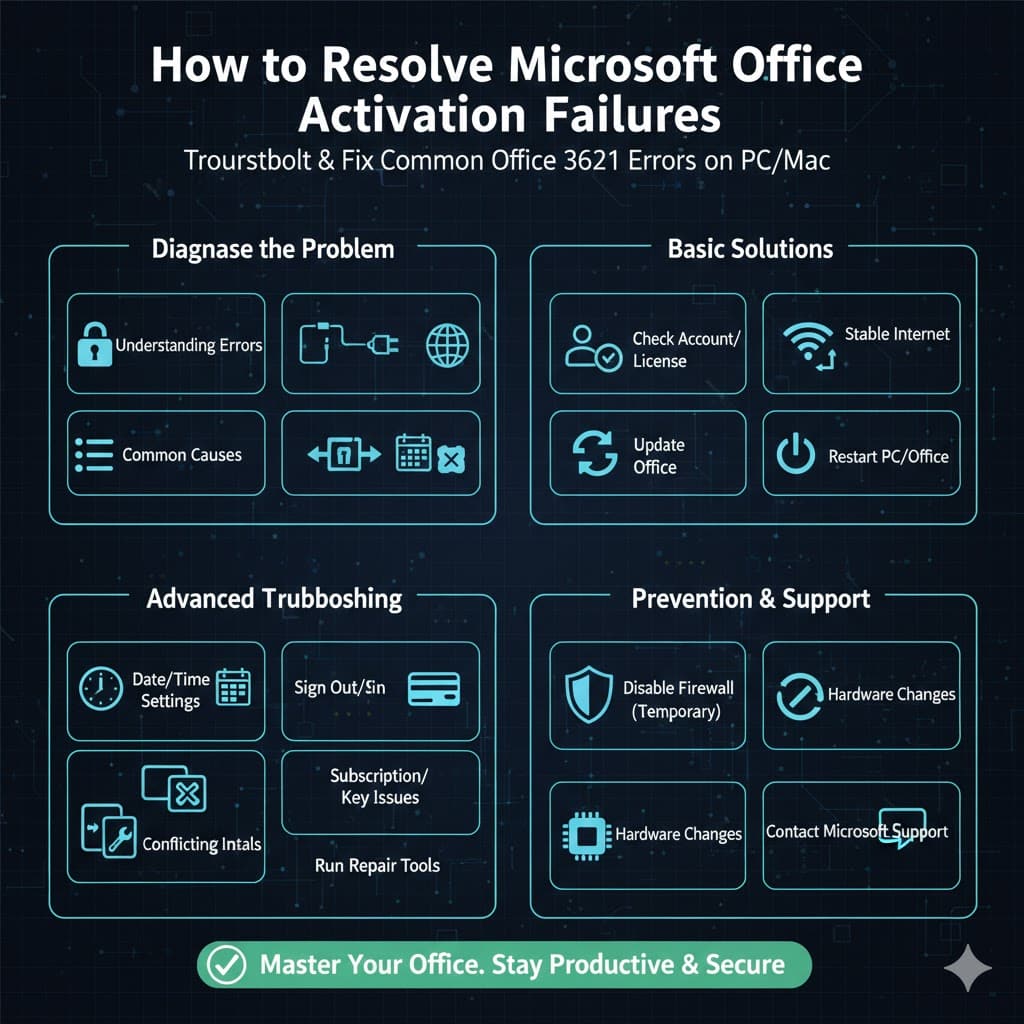
How to Resolve Microsoft Office Activation Failures
Microsoft Office activation errors can be frustrating, especially when you need to get work done quickly. These errors may prevent you from using Word, Excel, PowerPoint, Outlook, or other Office apps fully, often locking them into a limited or read-only mode. Activation problems can occur on both Windows and macOS, and they may appear after installation, system updates, hardware changes, or subscription renewals.
In this in-depth guide, you’ll learn how to troubleshoot Microsoft Office activation errors step by step. We’ll explore common causes, practical solutions, and preventative tips to help ensure your Office apps activate successfully and remain stable over time.
Understanding Microsoft Office Activation Errors
Activation errors occur when Office cannot verify your license with Microsoft. This verification process confirms that your copy of Office is genuine and properly licensed. When something interrupts this process, Office displays an activation message or error code.
Activation errors may appear as pop-up warnings, sign-in loops, messages stating that the product is unlicensed, or prompts asking you to activate again. Understanding why these errors happen is the first step toward fixing them.
Common Causes of Office Activation Errors
Several factors can trigger Office activation issues. One of the most common causes is signing in with the wrong Microsoft account. If your license is tied to a different email address, Office will not recognize it.
Internet connectivity issues can also block activation, since Office must connect to Microsoft’s servers. Expired subscriptions, outdated Office versions, system time mismatches, and firewall restrictions are other frequent causes.
In some cases, hardware changes or reinstalling the operating system can confuse the license system and require reactivation.
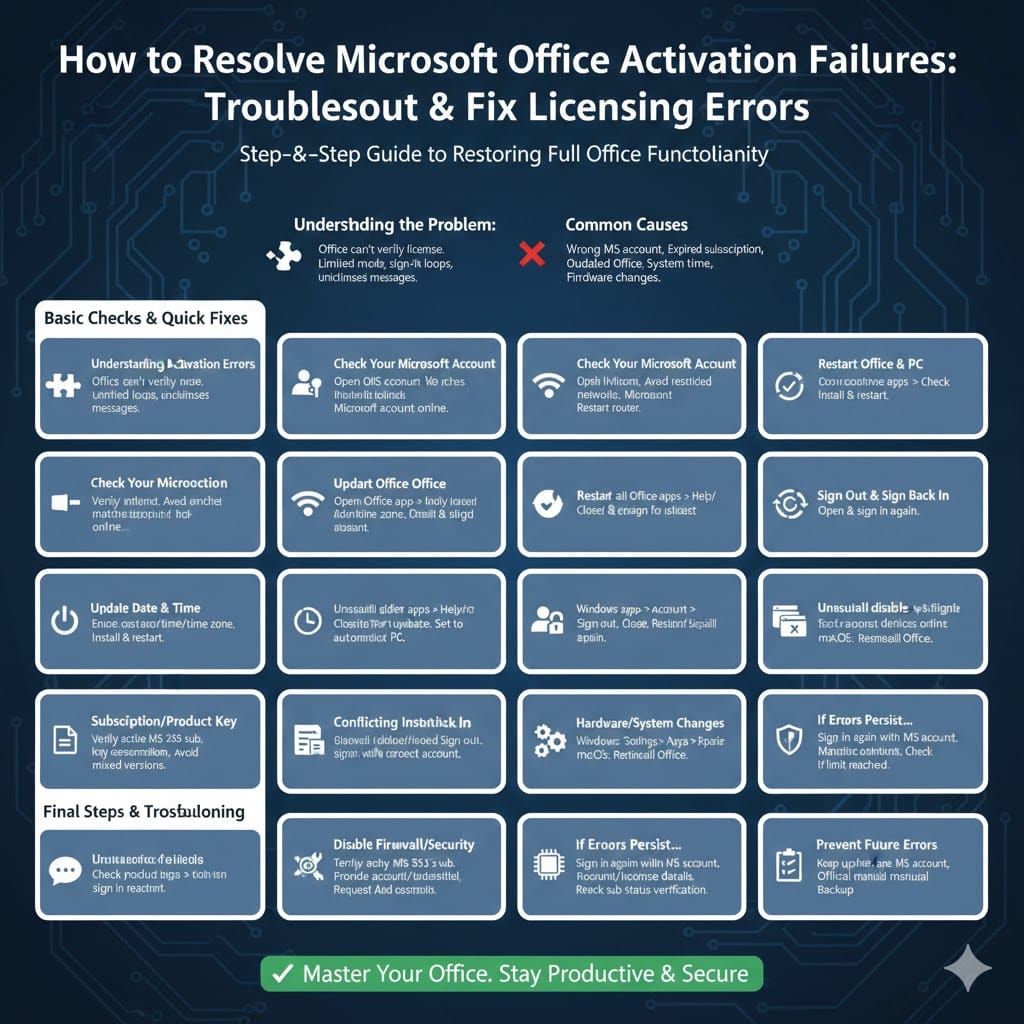
Check Your Microsoft Account and License
Before trying advanced fixes, confirm that you are using the correct Microsoft account.
Open any Office app and go to the Account or About section. Check which email address is currently signed in. Make sure it matches the account used to purchase Microsoft 365 or redeem a product key.
If you’re unsure, sign in to your Microsoft account in a web browser and review your subscriptions or services page. If Office appears there, that account is the correct one to use.
Make Sure Your Internet Connection Is Stable
Office activation requires a reliable internet connection. Even brief interruptions can cause activation to fail.
Test your connection by opening a website or running a speed check. If you’re on a public or restricted network, try switching to a home network or mobile hotspot. Corporate firewalls and proxies can sometimes block activation servers.
Restarting your router or reconnecting to your network can resolve temporary connection issues.
Update Microsoft Office to the Latest Version
Outdated Office installations are more likely to encounter activation errors. Microsoft regularly releases updates that fix bugs, improve compatibility, and enhance licensing stability.
Open any Office app and check for updates through the Help or Account menu. Install all available updates and restart the application afterward. In many cases, activation errors resolve automatically once Office is fully updated.
Restart Office and Your Computer
It may sound simple, but restarting can fix many activation issues. Temporary background processes or system conflicts can interfere with licensing checks.
Close all Office apps completely, restart your computer, then open an Office app again and sign in if prompted. This refreshes system services and clears minor glitches.
Check Date and Time Settings
Incorrect system date and time settings can cause activation to fail because Office cannot verify license certificates properly.
Ensure your computer’s date, time, and time zone are set correctly and configured to update automatically. After adjusting these settings, restart your computer and try activating Office again.
Sign Out and Sign Back In to Office
Sometimes Office gets stuck in an incomplete or corrupted sign-in state.
Open an Office app and go to the Account section. Sign out of your Microsoft account completely. Close the app, reopen it, and sign in again using the correct account credentials.
This process often resolves sign-in loops and unlicensed product messages.
Troubleshoot Subscription or Product Key Issues
If you’re using Microsoft 365, confirm that your subscription is active and not expired. Payment issues or canceled subscriptions can cause activation errors.
For one-time purchase versions, verify that your product key has been redeemed correctly. A product key can usually only be used once, and it must be linked to a Microsoft account.
If Office asks for a product key repeatedly, ensure you are not mixing subscription and key-based versions on the same system.
Check for Conflicting Office Installations
Having multiple versions of Office installed can confuse the activation system. For example, remnants of an older Office version may conflict with a newer one.
Uninstall unused or older Office installations from your system, then reinstall the version you want to use. After reinstalling, sign in with your Microsoft account to activate.
Run Built-In Troubleshooting Tools
On Windows, Microsoft provides built-in repair and troubleshooting options for Office.
You can use the repair feature from system app settings to fix corrupted files and activation components. Choose the online repair option if available, as it performs a deeper scan.
On macOS, reinstalling Office is often the most effective equivalent solution.
Temporarily Disable Firewall or Security Software
In some cases, antivirus or firewall software may block Office from contacting activation servers.
Temporarily disable security software and attempt activation again. If this resolves the issue, add Office apps to the security software’s exception list before re-enabling protection.
Always re-enable your security software after testing.
Reactivate Office After Hardware or System Changes
Significant hardware changes, such as replacing a motherboard or reinstalling the operating system, may require reactivation.
Simply sign in with your Microsoft account again to reactivate Office. If activation limits are reached, you can manage devices through your Microsoft account dashboard and deactivate unused devices.
What to Do If Activation Errors Persist
If none of the above steps work, your license may require manual verification.
Contact Microsoft Support through official channels. Be ready to provide your Microsoft account details, subscription information, or product key. Microsoft support agents can reset activations or fix account-related issues that cannot be resolved locally.
Tips to Prevent Future Activation Errors
Always keep Office and your operating system updated.
Use a single Microsoft account consistently for Office purchases and installations.
Avoid unofficial installers or activation tools.
Check subscription status regularly.
Back up important documents before making major system changes.
These habits reduce the chances of encountering activation problems in the future.
Final Thoughts
Microsoft Office activation errors can be inconvenient, but they are usually fixable with the right approach. By checking your account, ensuring a stable internet connection, updating Office, and reviewing system settings, most activation issues can be resolved quickly.