


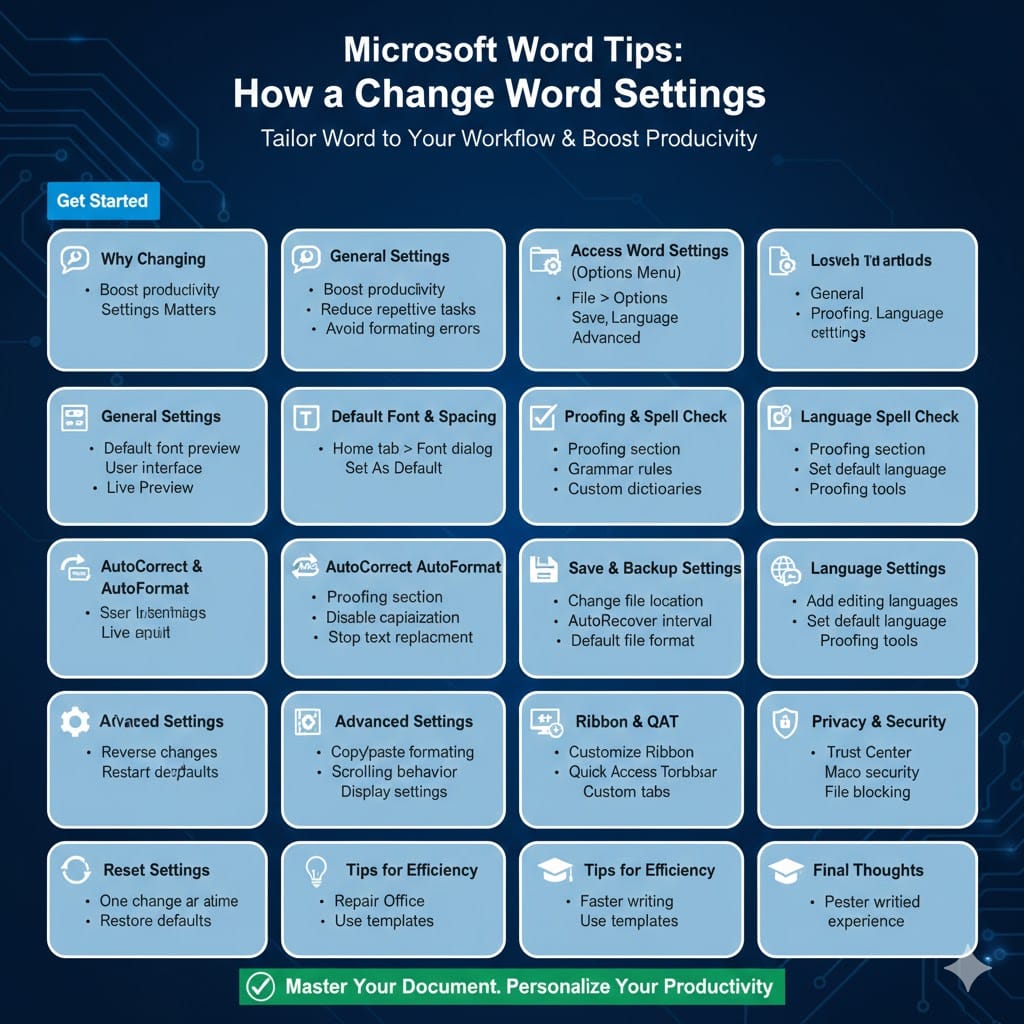
Microsoft Word Tips: How to Change Word Settings
Microsoft Word is one of the most powerful word-processing tools available, but many users only scratch the surface of what it can do. Behind its familiar interface lies a wide range of settings that control everything from how text appears to how documents are saved, proofed, and shared. Learning how to change these settings can dramatically improve your productivity, accuracy, and overall writing experience.
In this guide, you’ll discover practical MS Word hacks focused on changing and customizing settings. Whether you’re a student, professional, or casual user, these tips will help you tailor Word to work the way you want.
Why Changing Settings in Microsoft Word Matters
By default, Microsoft Word uses general settings designed to work for most people. However, everyone writes differently. Some users need stricter proofreading rules, others want automatic formatting disabled, and many prefer specific layout or saving behaviors.
Changing Word settings allows you to reduce repetitive tasks, avoid formatting mistakes, speed up document creation, and create a more comfortable workspace. Once configured correctly, Word feels less like a generic tool and more like a personal assistant.
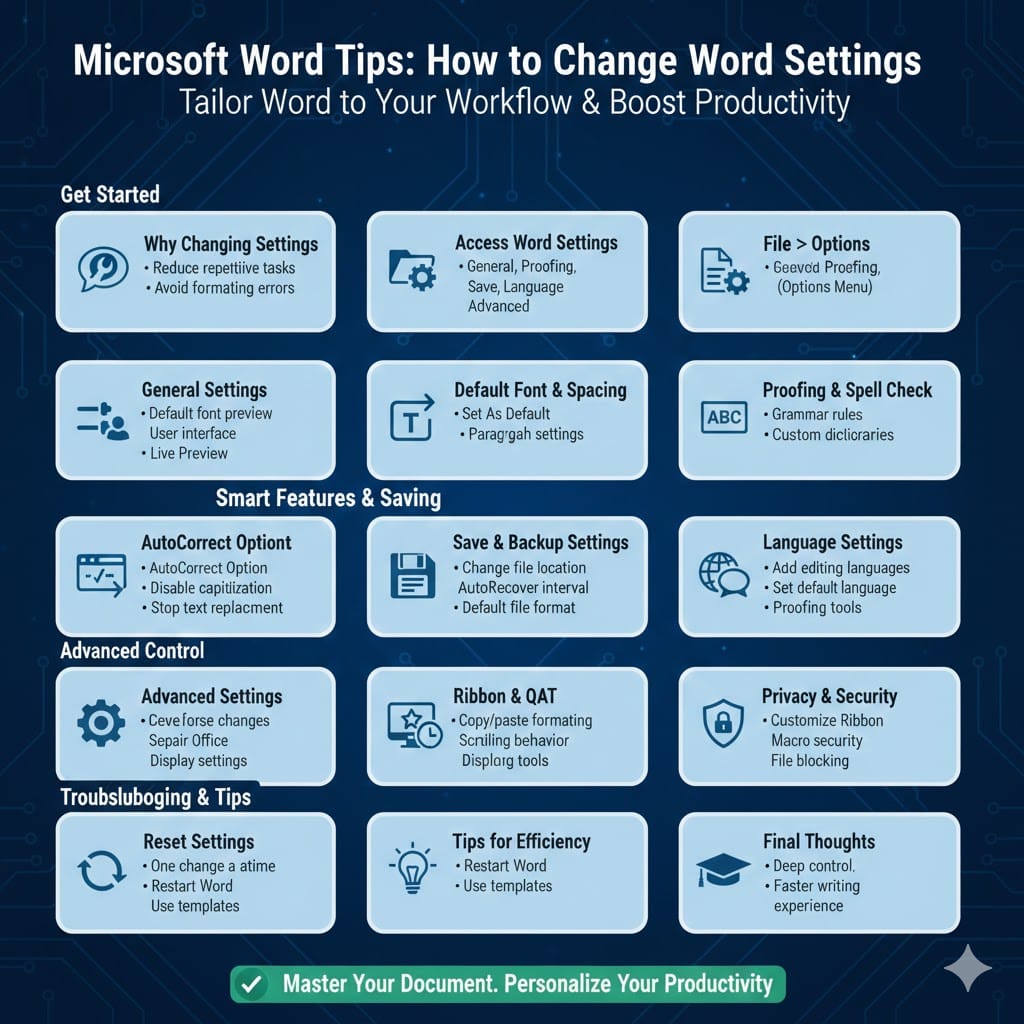
How to Access Word Settings (Options Menu)
Most Word settings are located in the Word Options window.
Open Microsoft Word.
Click File in the top-left corner.
Select Options at the bottom of the menu.
This opens the Word Options panel, where settings are grouped into categories such as General, Proofing, Save, Language, Advanced, and more. Nearly every aspect of Word’s behavior can be adjusted from here.
General Settings You Should Customize First
The General section controls Word’s overall appearance and basic behavior.
Here, you can change the default font size preview, personalize your copy of Word with your name, and adjust the user interface. You can also enable or disable features like Live Preview, which shows formatting changes before you apply them.
Turning off unnecessary visual effects can make Word feel faster and less distracting, especially on older computers.
Change Default Font, Spacing, and Formatting
One of the most common Word hacks is changing the default font and paragraph settings.
Go to the Home tab.
Open the Font dialog box.
Choose your preferred font, size, and style.
Click Set As Default.
You can do the same for paragraph spacing by adjusting line spacing, alignment, and indentation, then setting it as the default. This ensures every new document starts exactly the way you want, saving time and reducing formatting errors.
Customize Proofing and Spell Check Settings
Word’s proofing tools are powerful, but they may not match your writing style out of the box.
In Word Options, go to Proofing.
Here you can enable or disable grammar rules, adjust writing style checks, and control how Word handles spelling mistakes.
If you find Word underlines too many words or grammar suggestions feel intrusive, you can fine-tune these settings. You can also manage custom dictionaries, which is useful if you frequently use technical terms, names, or industry-specific vocabulary.
Control AutoCorrect and AutoFormat Behavior
AutoCorrect can be helpful, but it can also be frustrating if it constantly changes text you didn’t want altered.
In the Proofing section, click AutoCorrect Options.
You can disable automatic capitalization, stop Word from replacing text as you type, or remove specific AutoCorrect entries.
AutoFormat settings control things like automatic bullet lists, numbered lists, and symbol replacements. Adjusting these options gives you more control over how Word formats your text in real time.
Adjust Save and Backup Settings
Save settings determine how and where Word stores your documents.
In Word Options, go to Save.
Here you can change the default file location, adjust how often AutoRecover saves your work, and choose the default file format.
Reducing the AutoRecover time interval can protect your work if Word crashes. Setting a default save location also helps keep files organized, especially if you work with many documents daily.
Change Language and Proofing Language Settings
If you write in more than one language, Word’s language settings are especially important.
Go to Language in Word Options.
You can add editing languages, set a default language, and manage proofing tools for each language.
This prevents Word from flagging correct words as spelling errors and ensures grammar rules match the language you’re writing in.
Customize Advanced Settings for Better Control
The Advanced section contains some of Word’s most powerful customization options.
Here, you can control how Word handles copy and paste formatting, adjust scrolling behavior, change selection options, and manage document display settings.
For example, you can stop Word from automatically adjusting formatting when pasting text from other sources, which is a common frustration for many users.
Modify Display and View Settings
Word’s display settings affect how documents look on your screen.
You can change how measurements are shown, enable or disable animations, and adjust how documents appear in different views such as Print Layout or Draft view.
Tweaking these settings can make long documents easier to navigate and reduce visual clutter during editing.
Customize the Ribbon and Quick Access Toolbar
One of the best MS Word hacks is customizing the interface itself.
Go to Customize Ribbon or Quick Access Toolbar in Word Options.
You can add frequently used commands, remove unused ones, and create custom tabs.
This reduces the number of clicks needed to perform common actions and makes Word more efficient for your specific workflow.
Change Privacy and Security Settings
Word includes privacy and security options that control how your data is handled.
In Word Options, go to Trust Center, then open Trust Center Settings.
Here you can manage macro security, file blocking, and privacy options.
These settings are important if you work with shared documents, templates, or files downloaded from external sources.
Reset Word Settings if Something Goes Wrong
If Word starts behaving unexpectedly after too many changes, you can reset certain settings.
While Word doesn’t have a single reset button, you can restore defaults by reversing changes in Word Options or repairing Office through system settings. This is useful if formatting, proofing, or saving behavior becomes inconsistent.
Practical Tips for Managing Word Settings Efficiently
Change one setting at a time so you know what affects behavior.
Restart Word after making major changes to ensure they apply correctly.
Use templates to preserve layout and formatting preferences.
Keep Word updated to ensure settings work as intended.
Small adjustments can lead to big improvements over time.
Final Thoughts
Changing settings in Microsoft Word is one of the smartest ways to work faster, write better, and reduce frustration. From adjusting proofing rules and formatting defaults to customizing the interface and saving behavior, Word gives you deep control over how it works.