


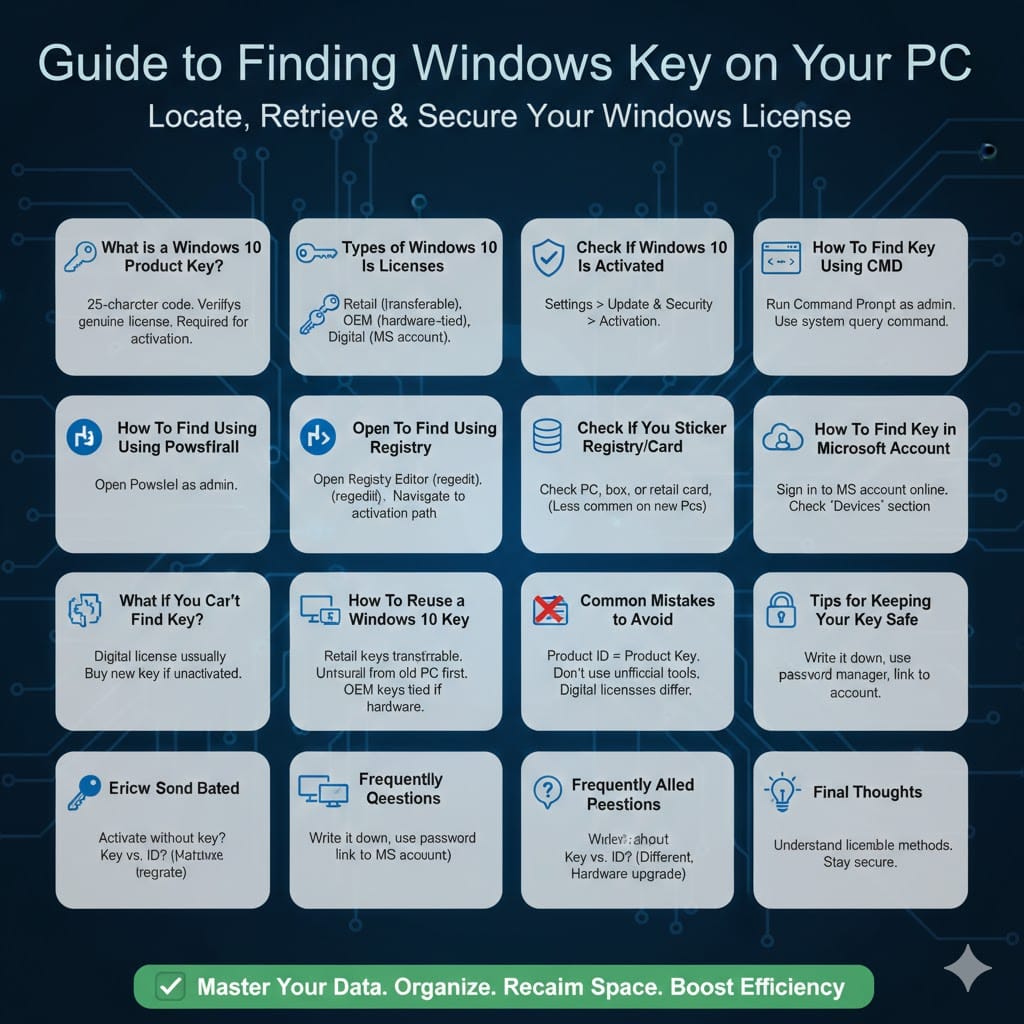
Guide to Finding the Windows 10 Product Key on Your PC
Your Windows 10 product key is an essential part of your operating system license. It proves that your copy of Windows is genuine and allows you to activate or reactivate Windows after reinstalling the system, upgrading hardware, or moving to a new computer. Many users don’t think about their product key until they actually need it, and by then, it can be difficult to locate.
In this complete guide, you’ll learn several reliable ways to find your Windows 10 product key. Whether Windows is already activated, came preinstalled on your PC, or was purchased separately, this article will walk you through every scenario step by step.
What Is a Windows 10 Product Key?
A Windows 10 product key is a 25-character code used to activate Windows. It typically looks like this: XXXXX-XXXXX-XXXXX-XXXXX-XXXXX. This key verifies that your copy of Windows is legally licensed.
Depending on how Windows 10 was obtained, your product key may be stored digitally, embedded in your device’s firmware, linked to your Microsoft account, or printed on a physical label. Understanding which type of license you have helps determine the best method to retrieve it.
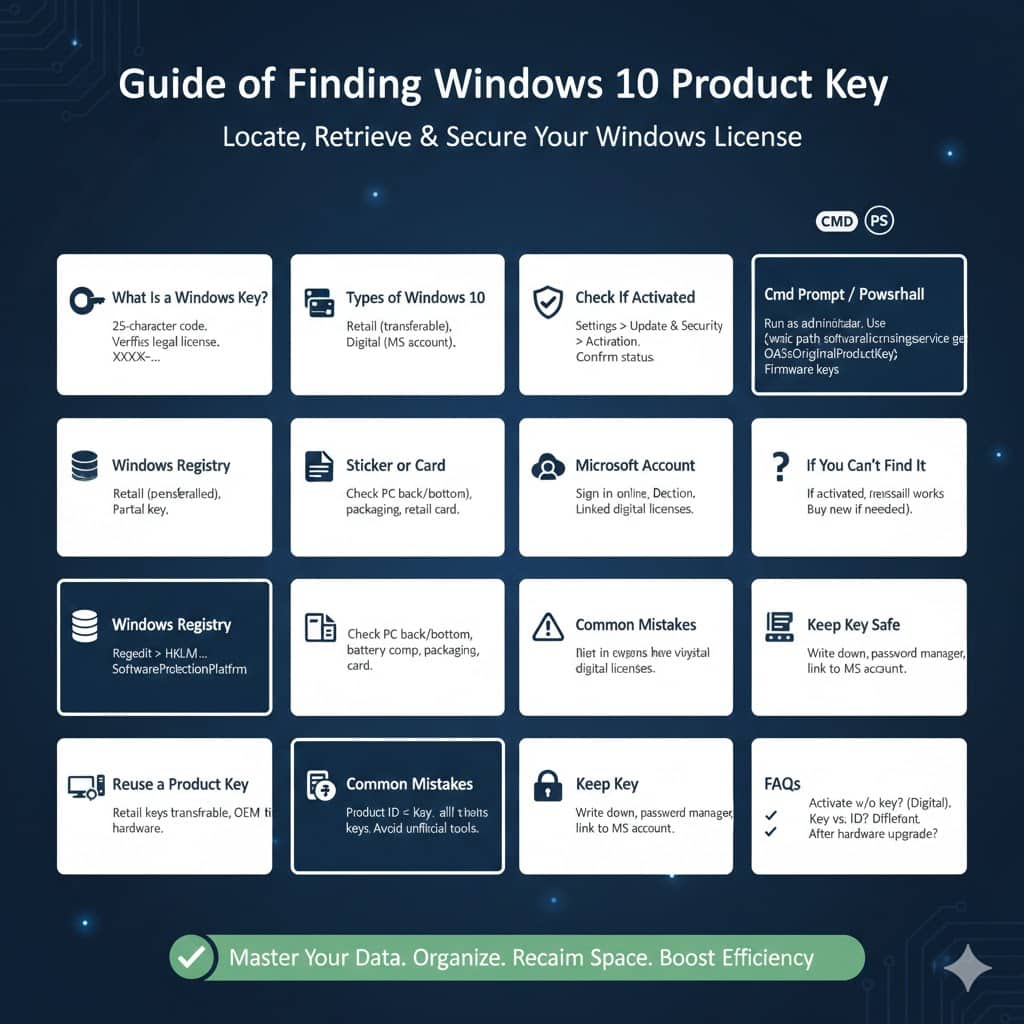
Types of Windows 10 Licenses
Before searching for your product key, it’s helpful to know what kind of license your system uses.
A retail license is purchased separately and usually comes with a product key you can reuse on another computer. An OEM license comes preinstalled on a new PC and is usually tied to the hardware. A digital license does not always include a visible product key and is linked to your Microsoft account instead.
Each license type affects how and where your product key can be found.
How To Check If Windows 10 Is Already Activated
First, confirm whether your copy of Windows 10 is activated.
Open Settings and go to Update & Security.
Select Activation.
If Windows is activated, you will see a message confirming activation status. This section may also tell you whether Windows is activated with a digital license or a product key.
How To Find Your Windows 10 Product Key Using Command Prompt
One of the most common methods to retrieve a product key is through Command Prompt.
Press Windows + S and search for Command Prompt.
Right-click it and select Run as administrator.
Enter the appropriate command and press Enter.
If your product key is stored in the system firmware, Windows will display it. This method works best on systems that came with Windows preinstalled.
How To Find the Product Key Using Windows PowerShell
PowerShell offers another way to retrieve the product key.
Open PowerShell as an administrator.
Run the appropriate system query command.
If the product key is embedded in the system, PowerShell will show it. If nothing appears, your Windows may be activated using a digital license instead.
How To Find Your Product Key Using Windows Registry
In some cases, partial product key information can be found in the Windows Registry.
Open the Registry Editor by pressing Windows + R and typing regedit.
Navigate to the Windows activation registry path.
Here, you may see the last five characters of your product key. While this is not the full key, it can still be useful for identification purposes.
How To Find the Product Key on a Sticker or Card
If you purchased a physical copy of Windows 10 or a computer with Windows preinstalled, your product key may be printed on a sticker or card.
Check the following locations:
-
The back or bottom of your laptop
-
Inside the battery compartment (on older devices)
-
The packaging box your PC came in
-
A card included with a retail Windows purchase
On newer PCs, this sticker may not exist, as many manufacturers use embedded digital licenses.
How To Find Your Windows 10 Product Key in Your Microsoft Account
If Windows 10 was activated using a digital license, your product key may not be visible at all. Instead, the license is linked to your Microsoft account.
Sign in to your Microsoft account using a web browser.
Go to the Devices section.
You’ll see a list of devices associated with your account. While the actual product key may not be shown, this confirms that your Windows license is linked and can be reactivated automatically after reinstalling Windows.
What To Do If You Can’t Find Your Product Key
In some cases, you may not be able to retrieve the product key directly. This usually happens with digital licenses.
If Windows 10 is already activated, you generally don’t need the product key to reinstall Windows on the same device. Simply sign in with the same Microsoft account after reinstalling, and activation should happen automatically.
If Windows is not activated and you cannot find the key, you may need to purchase a new license.
How To Reuse a Windows 10 Product Key
Retail product keys can usually be transferred to a new computer, as long as they are removed from the old one. OEM keys, on the other hand, are tied to the original hardware and typically cannot be transferred.
Before reinstalling Windows or changing hardware, it’s a good idea to confirm your license type and ensure your key or account is available.
Common Mistakes to Avoid
One common mistake is confusing the product ID with the product key. The product ID is visible in system settings but cannot be used for activation.
Another mistake is assuming all systems have a visible product key. Many modern Windows 10 installations rely on digital licenses instead.
Avoid using unofficial tools or websites that claim to generate product keys, as they can be unsafe and unreliable.
Tips for Keeping Your Product Key Safe
Once you’ve found your Windows 10 product key, store it securely.
Write it down and keep it in a safe place.
Save it in a secure password manager.
Link your Windows license to a Microsoft account.
Taking these steps helps ensure you won’t lose access to your license in the future.
Frequently Asked Questions
Can I activate Windows 10 without a product key?
Yes, if you have a digital license linked to your Microsoft account.
Is the product key the same as the product ID?
No, they are different. Only the product key is used for activation.
Do I need the product key after upgrading hardware?
Major hardware changes may require reactivation. Having your product key or Microsoft account ready is helpful.
Final Thoughts
Finding your Windows 10 product key may seem challenging at first, but it becomes much easier once you understand how Windows licensing works. Whether your key is stored in the system firmware, linked to your Microsoft account, or printed on a physical label, there is usually a reliable way to confirm your license.