


Guide to Enabling God Mode in Windows 10
Windows 10 includes many powerful administrative tools and configuration settings, but most of them are scattered across different menus inside the Control Panel and Settings app. If you have ever struggled to find a specific option, such as advanced power settings, device management tools, or backup controls, you are not alone. Fortunately, Windows 10 includes a hidden feature commonly known as God Mode that gives you centralized access to dozens of system settings in one convenient location.
In this complete guide, you will learn how to activate Windows God Mode in Windows 10, what it does, how to use it effectively, and whether it is safe. This step-by-step tutorial is beginner-friendly and does not require any special technical knowledge.
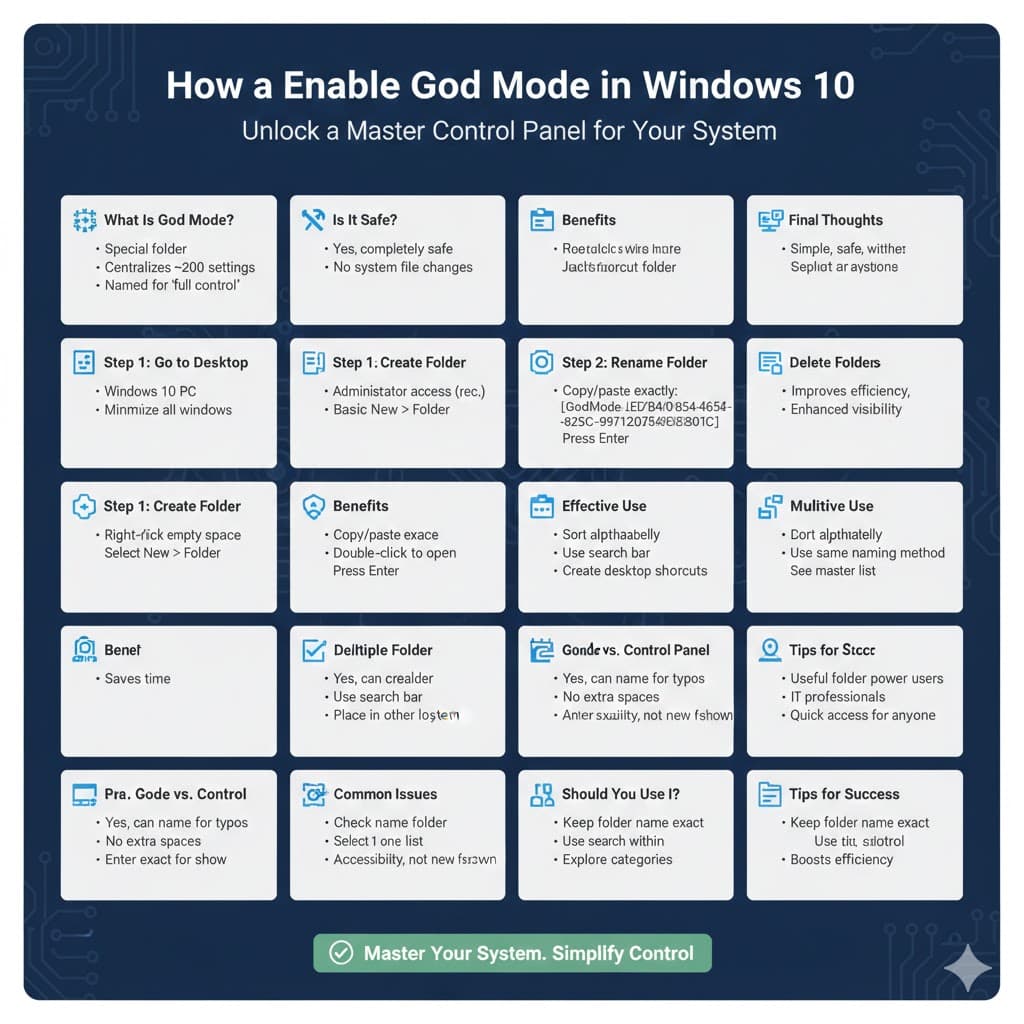
What Is Windows God Mode?
Windows God Mode is an unofficial nickname for a special folder that provides access to a master list of administrative tools and configuration settings. It is not a hack, and it does not unlock secret features. Instead, it simply organizes many Control Panel functions into a single interface.
Once activated, God Mode displays over 200 system settings, grouped by category. These include options for administrative tools, backup and restore, devices and printers, file history, networking, power options, system settings, troubleshooting, and more.
The name “God Mode” comes from gaming terminology, where it typically means having full control. In Windows, it simply means you have quick access to advanced configuration options.
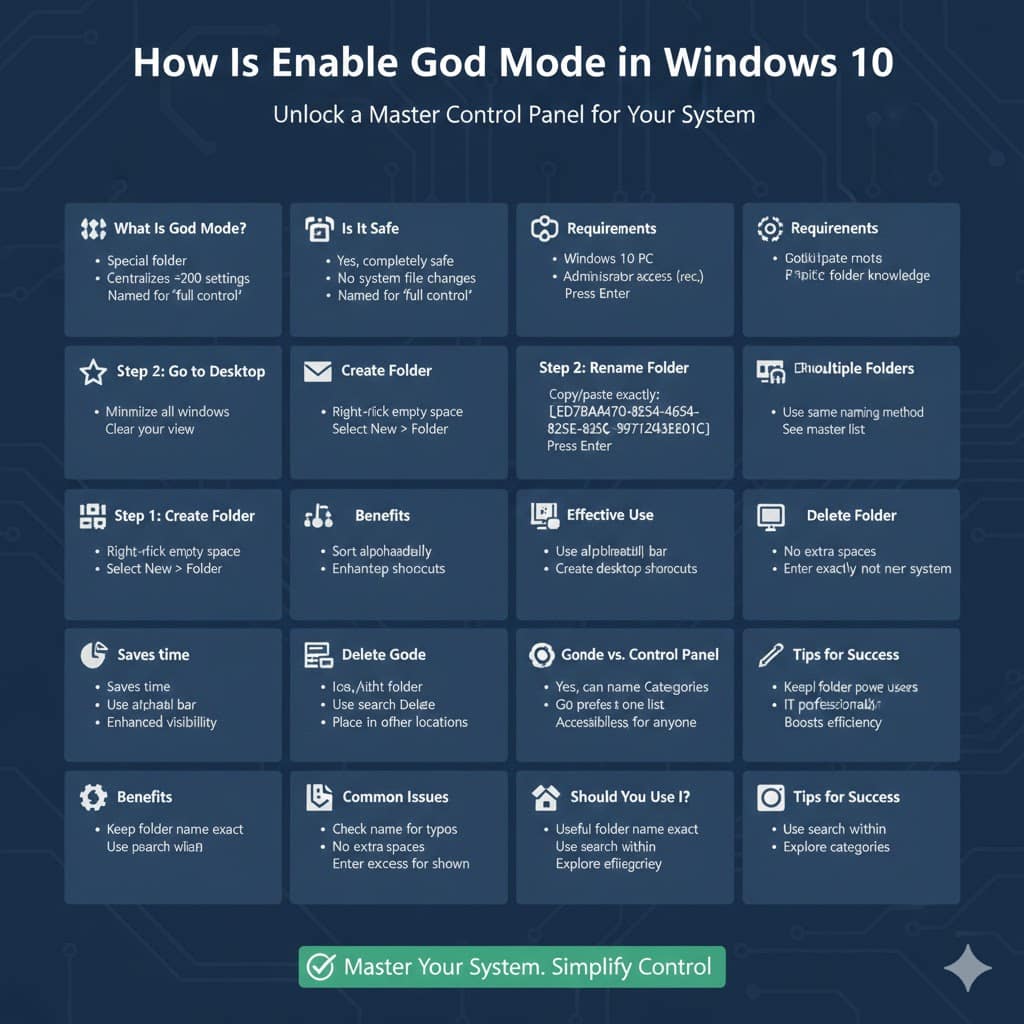
Is Windows God Mode Safe to Use?
Yes, Windows God Mode is safe. It does not modify system files or install any additional software. It is simply a shortcut folder that displays existing system tools in one place.
However, because it gives access to advanced settings, you should be cautious when changing system configurations. If you are unsure about a setting, it is best to research it before making adjustments.
Requirements Before Activating God Mode
To activate God Mode in Windows 10, you need:
-
A computer running Windows 10
-
Administrator access (recommended)
-
Basic knowledge of creating folders
No downloads or third-party programs are required.
How to Activate Windows God Mode in Windows 10
Activating God Mode takes less than a minute. Follow these simple steps carefully.
Step 1: Go to Your Desktop
Minimize all open windows so you can see your desktop clearly.
Step 2: Create a New Folder
Right-click on an empty area of the desktop.
Select New, then click Folder.
A new folder will appear on your desktop with the default name highlighted.
Step 3: Rename the Folder
Copy and paste the following text exactly as shown:
GodMode.{ED7BA470-8E54-465E-825C-99712043E01C}
After pasting the name, press Enter.
Step 4: Access God Mode
The folder icon will automatically change to resemble the Control Panel icon. Double-click the folder to open it.
You will now see a comprehensive list of Windows administrative tools and settings.
What You Can Do Inside Windows God Mode
When you open God Mode, you will notice a long list of options organized into categories. These categories include:
-
Administrative Tools
-
Backup and Restore
-
BitLocker Drive Encryption
-
Credential Manager
-
Devices and Printers
-
Ease of Access Center
-
File Explorer Options
-
Network and Sharing Center
-
Power Options
-
Programs and Features
-
System
-
Troubleshooting
-
User Accounts
Each category expands to reveal direct shortcuts to specific system settings. Instead of navigating through multiple menus, you can access everything from one location.
Benefits of Using Windows God Mode
God Mode provides several advantages, especially for advanced users and IT professionals.
First, it saves time. You no longer need to search through Settings or Control Panel menus to find a specific option.
Second, it improves efficiency. Having all tools in one place makes troubleshooting and system management faster.
Third, it enhances visibility. You can see settings you may not have known existed.
For power users, God Mode becomes a central control hub for system management.
How to Use God Mode Effectively
To use God Mode efficiently, you can:
Sort settings alphabetically to locate options quickly.
Use the search bar inside the God Mode window to find specific settings.
Create shortcuts to frequently used tools by dragging them to the desktop.
This makes repetitive tasks much faster and more organized.
Can You Create Multiple God Mode Folders?
Yes, you can create additional God Mode folders in different locations, such as inside Documents or on another drive. The same naming method applies.
However, most users only need one God Mode folder on the desktop for quick access.
How to Delete Windows God Mode
If you no longer want God Mode on your desktop, simply delete the folder like any other file.
Right-click the God Mode folder and select Delete.
Confirm the action.
Deleting the folder does not affect your system settings or Windows functionality.
Common Issues When Activating God Mode
In rare cases, users may encounter problems while creating the folder.
If the folder does not change its icon, check that the text was entered exactly as shown, including the period and curly brackets.
If Windows shows an error, ensure there are no extra spaces before or after the folder name.
On very old versions of Windows, creating the folder in certain locations may cause issues, but Windows 10 handles it safely.
Difference Between God Mode and Control Panel
Some users wonder how God Mode differs from the traditional Control Panel.
Control Panel organizes tools by categories and subcategories, requiring multiple clicks to find certain options. God Mode simply lists all available Control Panel items in one expanded view.
It does not add new features; it only improves accessibility and convenience.
Should You Use Windows God Mode?
If you frequently adjust system settings, troubleshoot issues, or manage multiple devices, God Mode can be extremely useful.
For casual users who rarely modify system settings, it may not be necessary. However, even basic users may appreciate having all configuration tools in one place.
It is a simple feature that can significantly improve navigation efficiency.
Final Thoughts
Activating Windows God Mode in Windows 10 is quick, safe, and incredibly useful for accessing advanced system settings. By creating a simple folder with a special name, you unlock a centralized control panel that brings together hundreds of administrative tools and configuration options.