


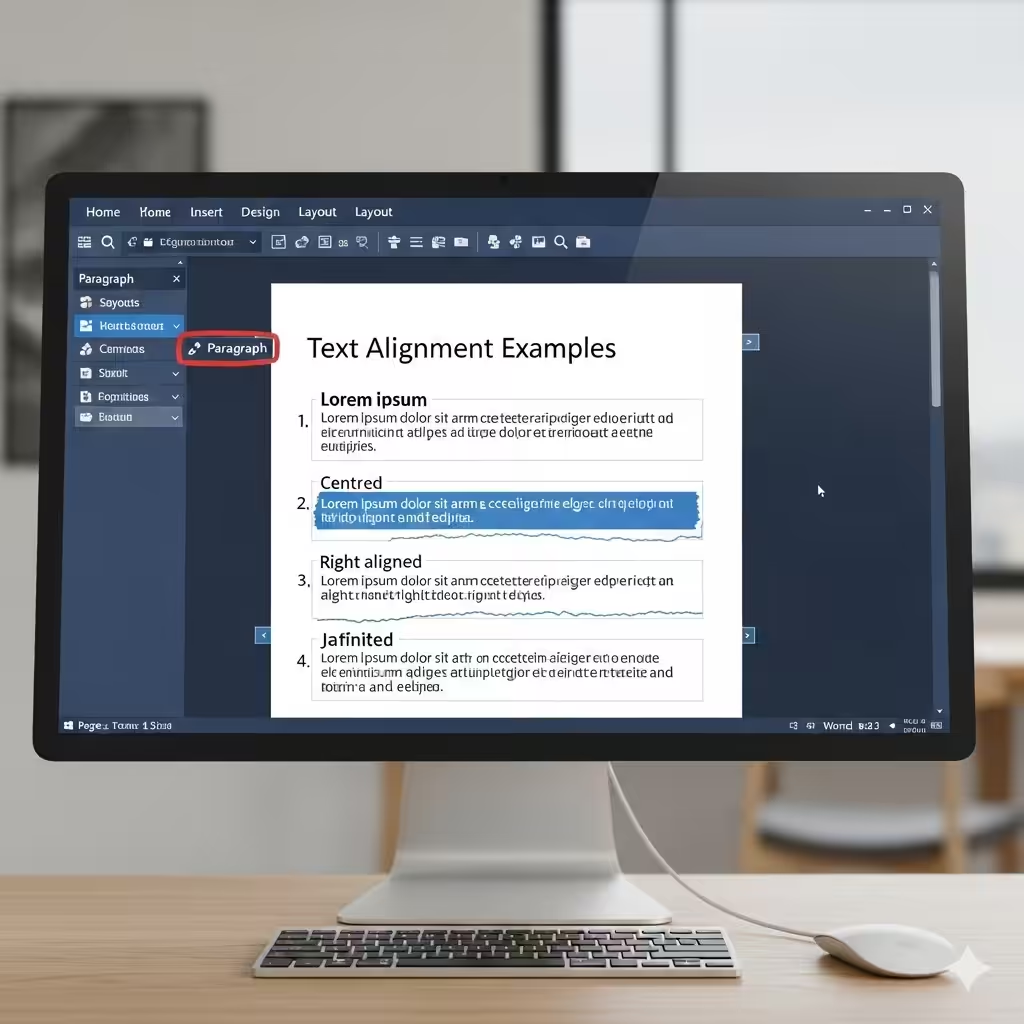
Guide to Aligning Text in Microsoft Word
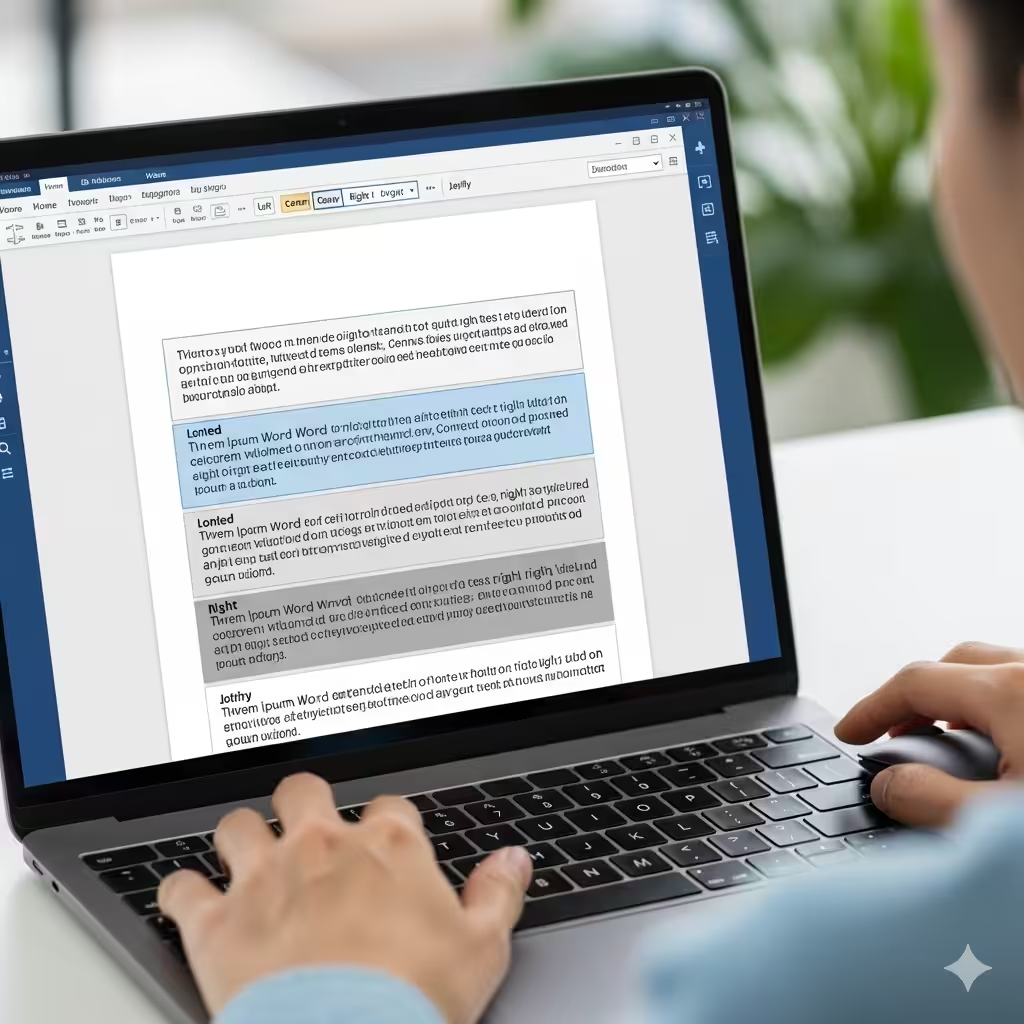
Microsoft Word is one of the most powerful tools for creating professional documents, from essays and reports to resumes and business letters. A key element of making your content look neat and readable is text alignment. Properly aligning your text not only improves the visual appeal of your document but also ensures it follows formatting standards for academic, business, or personal use.
In this guide, we will cover everything you need to know about aligning text in Word: what alignment options exist, how to apply them, and tips for using alignment effectively in different types of documents.
What Is Text Alignment?
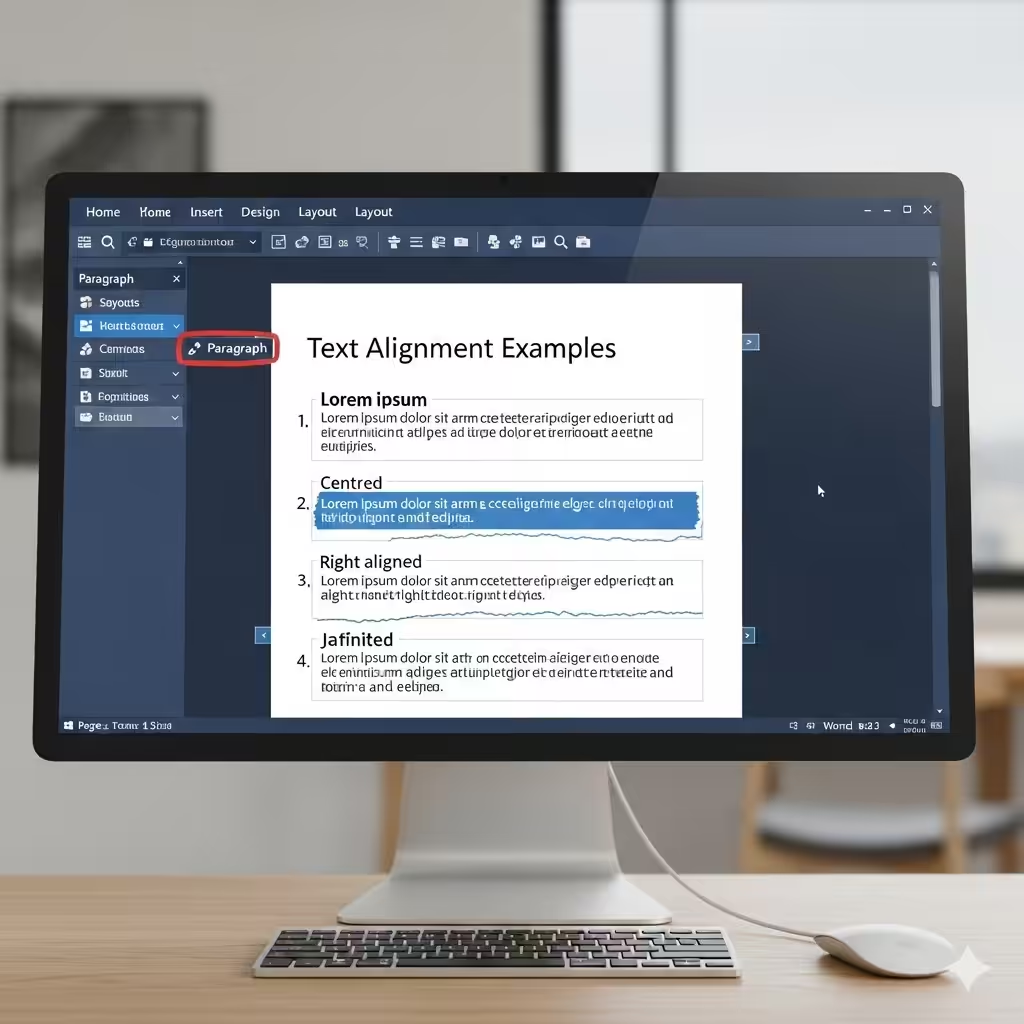
Text alignment refers to how text is positioned horizontally within a document. By default, Word aligns text to the left, but you can easily change it to center, right, or justify. These options help structure your content in ways that suit different purposes.
Types of Text Alignment in Word
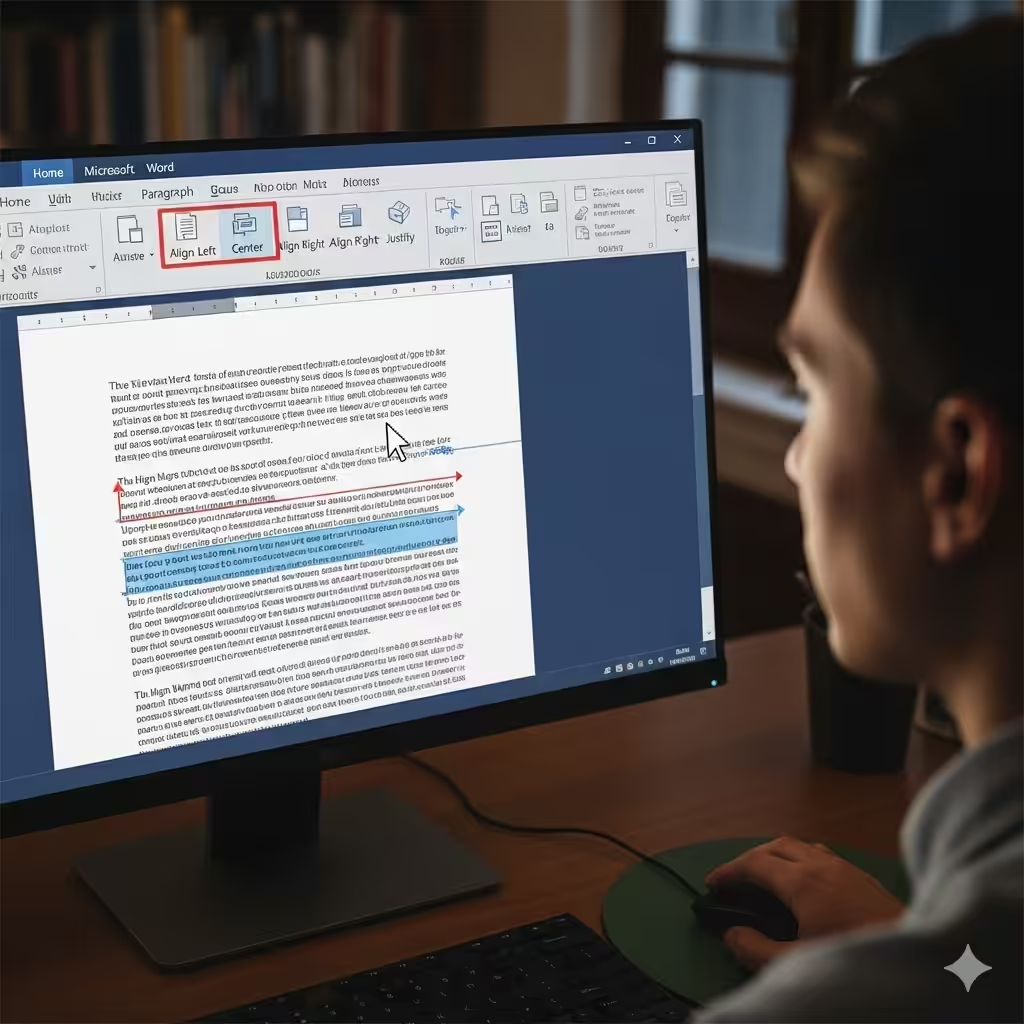
Microsoft Word offers four main types of text alignment:
Left Alignment
This is the default alignment in Word. Text starts at the left margin and flows to the right. It’s the most common style used in documents like essays, letters, and reports.
Center Alignment
Centered text is often used for titles, headings, invitations, and cover pages. It places the text evenly between the left and right margins, giving your document a formal and balanced look.
Right Alignment
This alignment pushes text to the right margin. It’s not used as often in standard documents but is useful for elements like dates in letters, page numbers in headers/footers, or aligning information in tables.
Justify Alignment
Justified text stretches the text across the entire line, adjusting spacing so both the left and right sides line up. This is common in newspapers, books, and formal reports because it gives text blocks a clean, professional appearance.
How to Align Text in Word
Aligning text in Word is simple and can be done in a few different ways.
Using the Ribbon Menu
-
Highlight the text you want to align.
-
Go to the Home tab on the ribbon.
-
In the Paragraph group, select one of the alignment icons:
-
Left (Ctrl + L)
-
Center (Ctrl + E)
-
Right (Ctrl + R)
-
Justify (Ctrl + J)
-
Using Keyboard Shortcuts
Word offers quick shortcuts for alignment:
-
Ctrl + L → Align left
-
Ctrl + E → Center
-
Ctrl + R → Align right
-
Ctrl + J → Justify
Using these shortcuts can save time, especially when working on large documents.
Using the Paragraph Dialog Box
-
Highlight the text.
-
Right-click and choose Paragraph.
-
Under the Indents and Spacing tab, select the desired alignment under the General section.
-
Click OK to apply.
This method allows you to fine-tune spacing and indentation along with alignment.
Aligning Text in Tables
When working with tables in Word, you may need to align text differently inside cells.
-
Select the cell(s) you want to format.
-
Go to the Layout tab under Table Tools.
-
In the Alignment group, choose from nine alignment options (top, middle, bottom with left, center, or right).
This is especially useful when creating schedules, invoices, or data tables.
Aligning Text in Headers and Footers
Headers and footers often require special alignment. For example, you may want the page number aligned to the right and the document title centered.
-
Double-click the header or footer area.
-
Use the alignment tools in the Home tab or the Header & Footer Tools tab.
-
Apply left, center, or right alignment as needed.
You can also insert tab stops to align text precisely in headers and footers.
Using Ruler and Tab Stops for Custom Alignment
For more control over text placement, you can use the ruler and tab stops:
-
Enable the ruler by going to the View tab and checking Ruler.
-
Click on the ruler to set a tab stop.
-
Press the Tab key to align text at that stop.
Tab stops allow for advanced layouts such as aligning names on the left and page numbers on the right in a table of contents.
Best Practices for Text Alignment
-
Stick with left alignment for body text in most documents, as it’s the easiest to read.
-
Use center alignment sparingly, mainly for titles or section headings.
-
Apply right alignment for specific design elements like dates, signatures, or page numbers.
-
Justify text for professional reports, but make sure spacing doesn’t look uneven.
-
Be consistent—avoid mixing multiple alignments in one section of text.
-
Combine alignment with spacing for a polished layout. Proper line spacing and margins complement alignment choices.
Common Mistakes to Avoid
-
Overusing center alignment: Centering every line can make documents look unprofessional.
-
Ignoring uneven spacing in justified text: Adjust hyphenation settings to prevent large gaps.
-
Mixing alignments randomly: This makes your document harder to follow.
-
Not checking print layout: Alignment may look different on screen and in print, so preview before finalizing.
Conclusion
Learning how to align text in Word is essential for producing clean, professional, and well-structured documents. With four main alignment options—left, center, right, and justify—you can adapt your document to suit any purpose, from casual writing to formal reports.
By mastering different alignment methods, such as using the ribbon, keyboard shortcuts, or tab stops, you’ll gain full control over how your text appears. Remember to choose alignment carefully, keeping readability and consistency in mind. With these tips, your Word documents will not only look polished but also deliver your message more effectively.