


Recording Audio on macOS: A Complete Guide
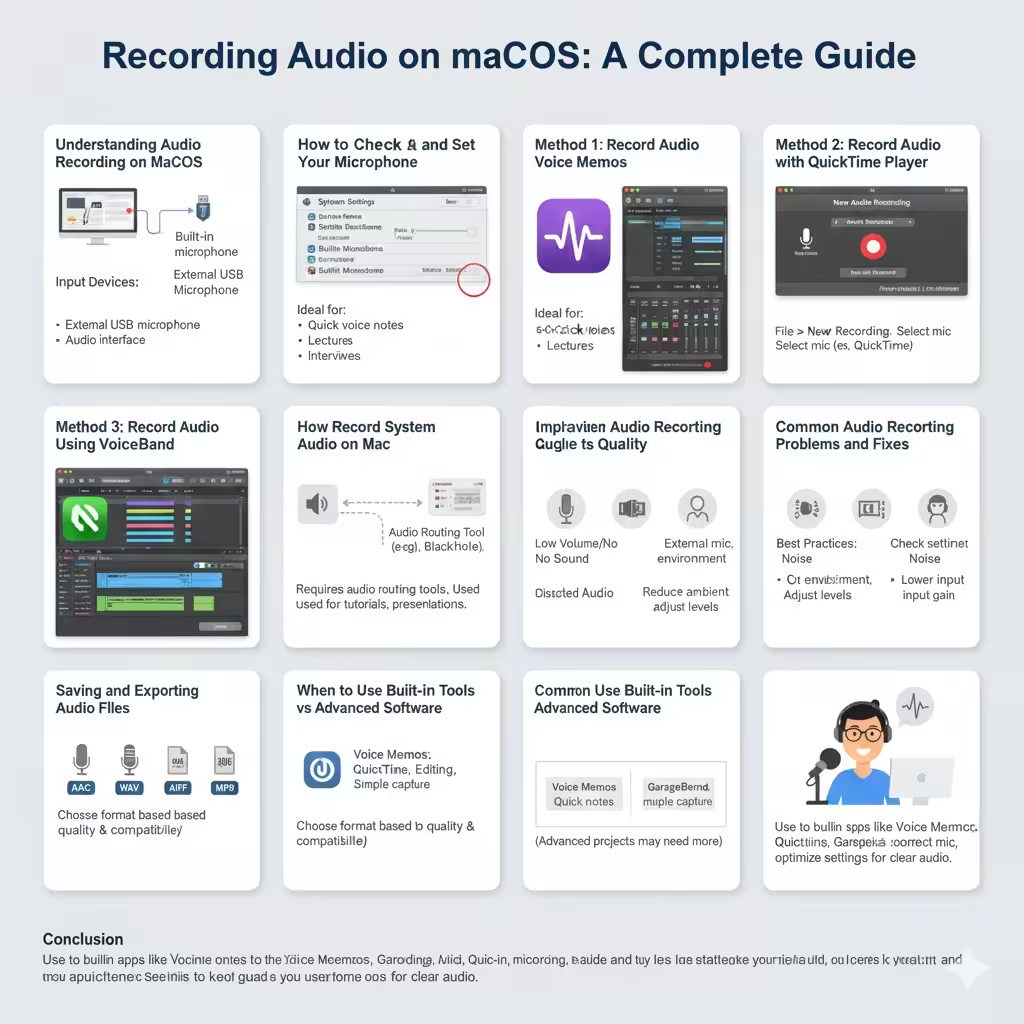
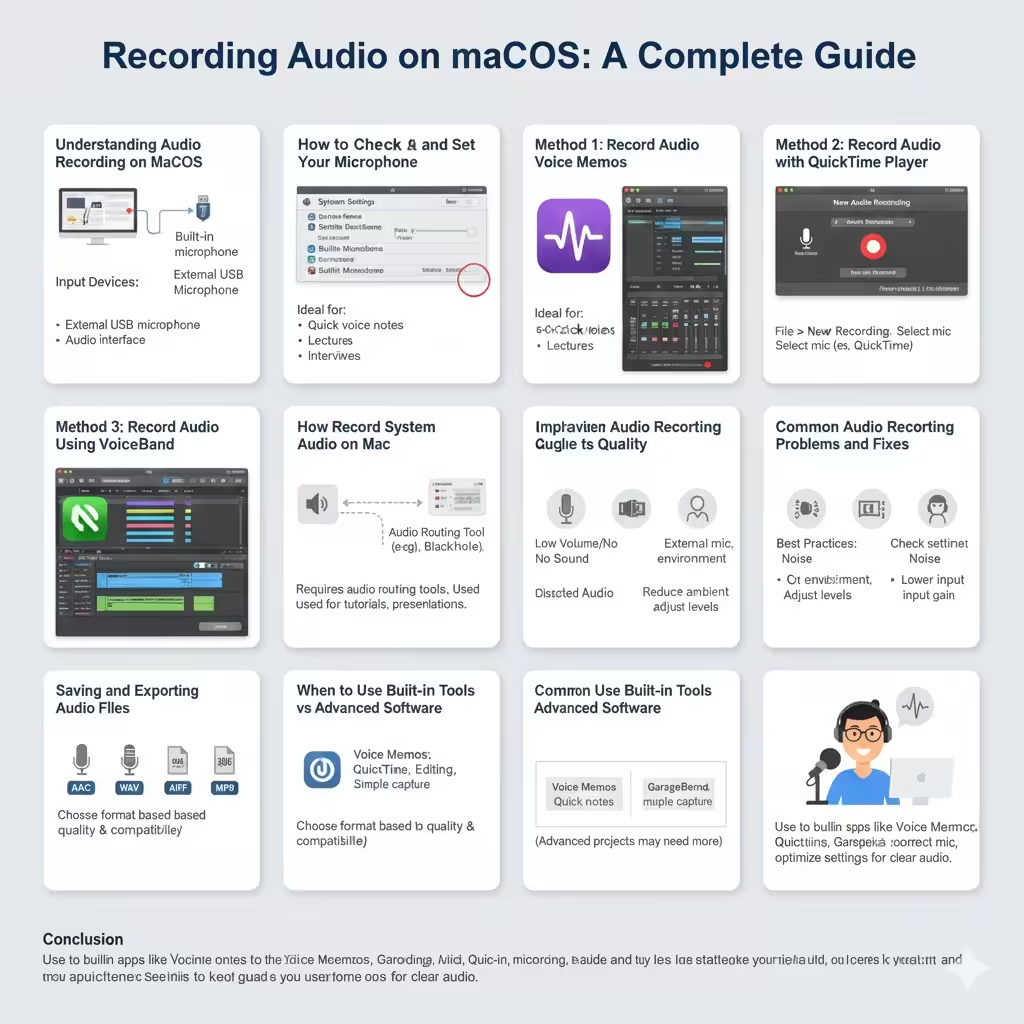
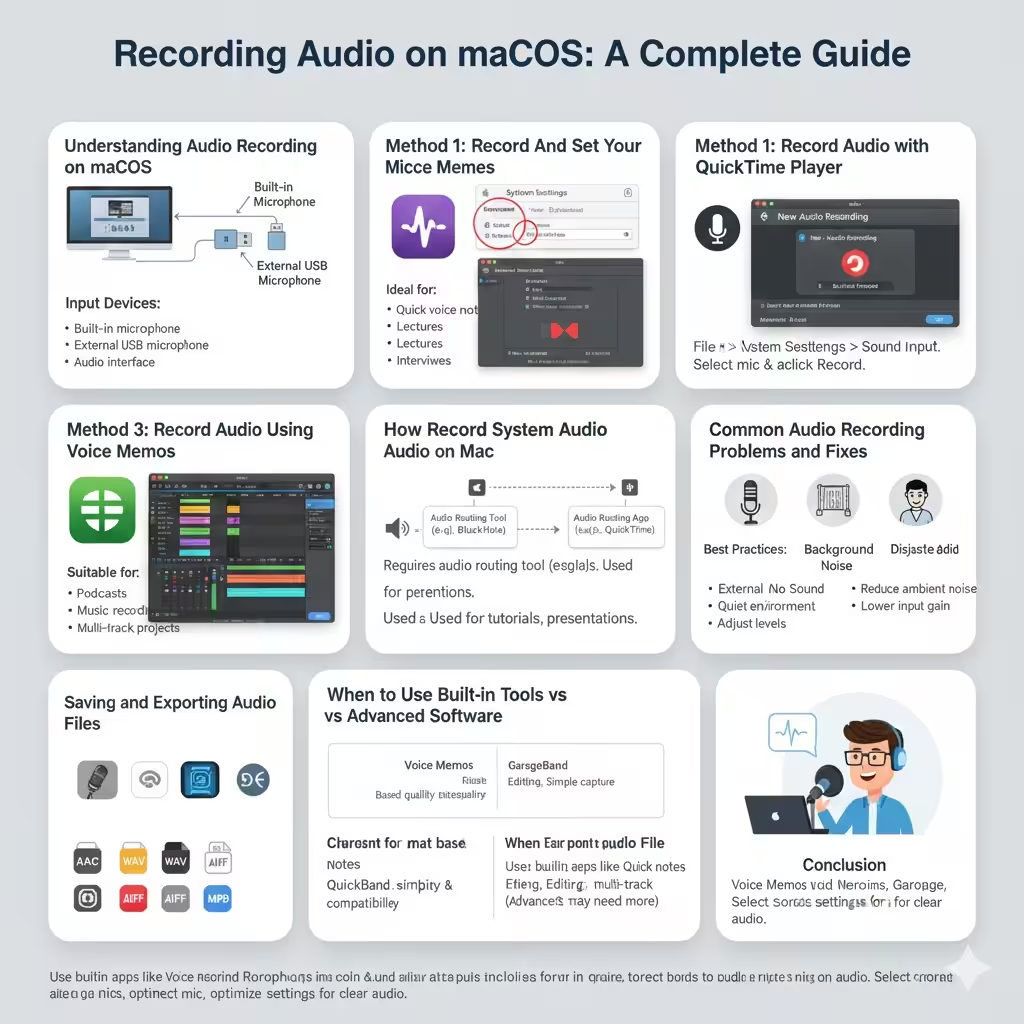
Recording audio on a Mac is easier than many users expect. macOS includes several built-in tools that allow you to capture voice, system sounds, music, podcasts, interviews, and more without installing additional software. Whether you are a student recording lectures, a content creator producing podcasts, or a professional capturing voice notes and presentations, your Mac already provides everything you need to get started.
This guide explains how to record audio on Mac using built-in applications, how to choose the right input device, and how to improve recording quality. It also covers common recording scenarios and best practices so you can achieve clear, reliable audio results.
Understanding Audio Recording on macOS
Before recording, it helps to understand how macOS handles audio input.
Audio Input Devices
A Mac can record audio using:
- Built-in microphone
- External USB microphone
- Audio interface
- Headset or headphones with mic
macOS allows you to select and manage these input devices through system settings, ensuring the correct microphone is used during recording.
How to Check and Set Your Microphone
Selecting the correct microphone is essential for good audio quality.
Adjusting Input Settings
Open System Settings (or System Preferences), go to Sound, and choose the Input tab. Select your preferred microphone and adjust the input level so your voice is clear without distortion.
Testing the microphone before recording prevents common issues such as low volume or background noise.
Method 1: Record Audio Using Voice Memos
Voice Memos is one of the simplest ways to record audio on a Mac.
Recording with Voice Memos
Voice Memos is ideal for:
- Quick voice notes
- Lectures
- Interviews
- Personal reminders
Open the Voice Memos app, click the record button, and start speaking. The app automatically saves recordings and allows basic trimming and playback.
Method 2: Record Audio with QuickTime Player
QuickTime Player is a versatile built-in tool that supports audio recording.
Using QuickTime Player
- Open QuickTime Player
- Click File > New Audio Recording
- Select your microphone
- Click Record
QuickTime provides better control over input selection and recording quality compared to Voice Memos.
Method 3: Record Audio Using GarageBand
GarageBand is a powerful audio recording and editing tool included with macOS.
Why Use GarageBand?
GarageBand is suitable for:
- Podcasts
- Music recording
- Multi-track projects
- Audio editing and mixing
It offers advanced features such as noise control, equalization, and track layering, making it ideal for professional-quality recordings.
How to Record System Audio on Mac
Recording system audio, such as application sounds or browser audio, requires additional configuration.
System Audio Recording Explained
macOS does not natively support direct system audio recording. However, audio routing tools allow system sound to be captured by recording software.
This method is commonly used for tutorials, presentations, and screen recordings.
Improving Audio Recording Quality
Good equipment and setup can significantly improve results.
Best Practices
- Use an external microphone for clearer sound
- Record in a quiet environment
- Adjust input levels carefully
- Keep consistent distance from the microphone
Small changes in setup can lead to noticeable improvements in audio clarity.
Common Audio Recording Problems and Fixes
Even with the right tools, users may encounter issues.
Low Volume or No Sound
Check microphone permissions and input settings. Ensure the correct device is selected.
Background Noise
Reduce ambient noise and consider using noise reduction features in recording apps.
Distorted Audio
Lower the input gain and avoid speaking too close to the microphone.
Saving and Exporting Audio Files
After recording, choosing the right format is important.
Common Audio Formats
- AAC
- WAV
- AIFF
- MP3
Select a format based on quality requirements and compatibility needs.
When to Use Built-in Tools vs Advanced Software
macOS tools are suitable for most users, but advanced projects may require additional features.
Choosing the Right Tool
- Voice Memos for quick recordings
- QuickTime for simple audio capture
- GarageBand for editing and multi-track projects
Choosing the right tool saves time and improves workflow efficiency.
Conclusion
Recording audio on a Mac is straightforward thanks to macOS’s built-in applications and flexible audio settings. Whether you need a quick voice note or a professional-quality recording, tools like Voice Memos, QuickTime Player, and GarageBand provide reliable solutions without extra cost. By selecting the correct microphone, optimizing settings, and following best practices, you can produce clear, high-quality audio recordings for any purpose.