


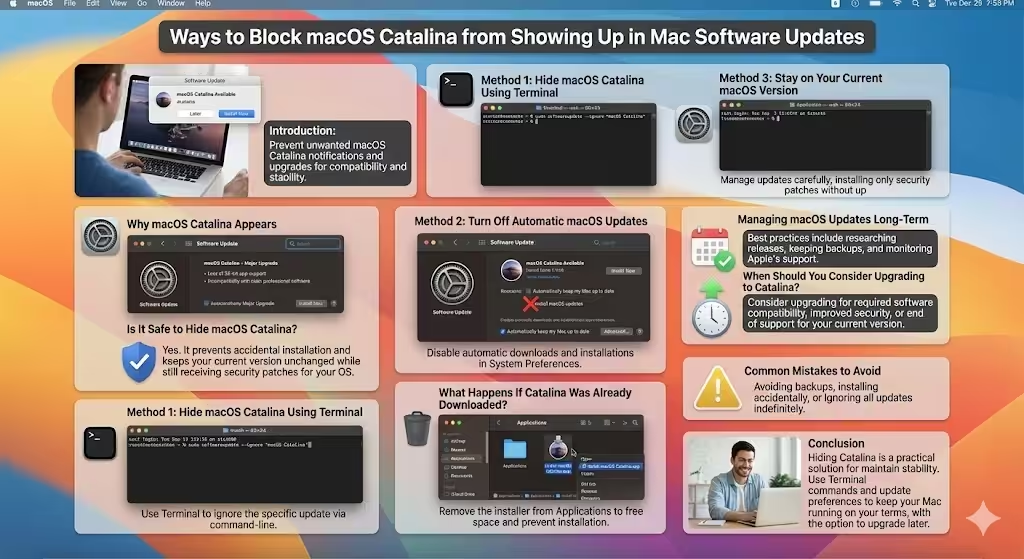
Ways to Block macOS Catalina from Showing Up in Mac Software Updates
When Apple released macOS Catalina, many Mac users were encouraged to upgrade immediately. While Catalina introduced new features and security improvements, it also removed support for 32-bit applications and caused compatibility issues for some software and hardware. Because of this, not everyone wants to install it right away—or at all.
If you are using an older Mac, rely on legacy applications, or simply prefer to stay on your current macOS version, constant upgrade notifications can become distracting. Fortunately, macOS provides ways to hide macOS Catalina from Software Update, allowing you to control when and if you upgrade your system. This guide explains why Catalina appears, how to hide it safely, and how to manage updates without affecting system stability.
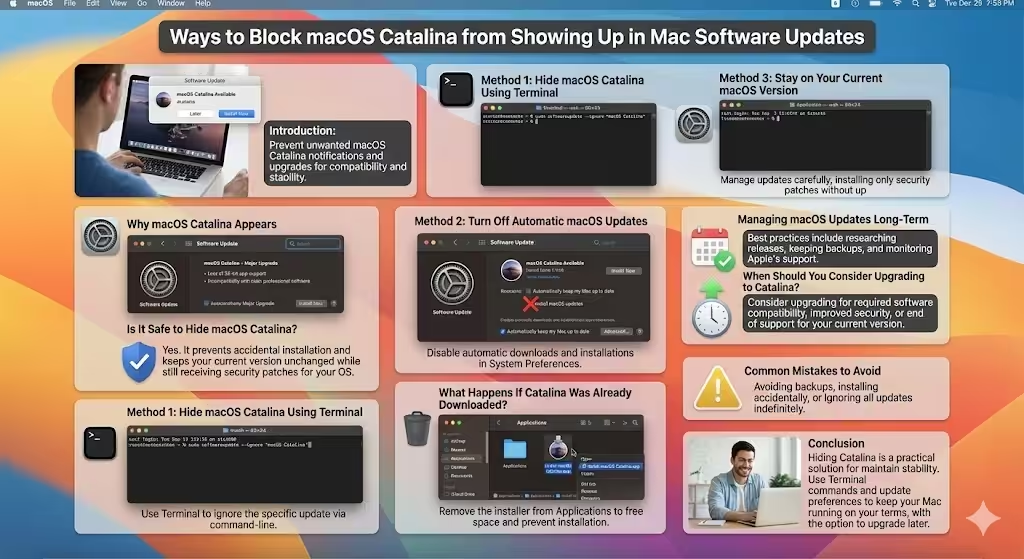
Why macOS Catalina Appears in Software Update
Apple promotes major macOS releases through the Software Update system to ensure users stay secure and up to date. When your Mac is compatible with macOS Catalina, the update appears automatically, even if you are satisfied with your current version.
Common Reasons Users Avoid Catalina
- Loss of 32-bit app support
- Incompatibility with older professional software
- Hardware driver issues
- Workflow disruptions
Understanding these reasons helps explain why many users prefer to delay or hide the update.
Is It Safe to Hide macOS Catalina?
Hiding macOS Catalina does not damage your system or prevent normal operation. You can continue receiving security updates and minor patches for your current macOS version, depending on Apple’s support policy.
What Hiding the Update Does
- Removes Catalina from Software Update notifications
- Prevents accidental installation
- Keeps your current macOS version unchanged
You can always choose to upgrade later if needed.
Method 1: Hide macOS Catalina Using Terminal
The most reliable way to hide Catalina is by using Terminal.
Using Software Update Command
macOS allows users to ignore specific updates through command-line tools. By identifying the Catalina installer and marking it as ignored, Software Update no longer displays it.
After running the appropriate command, restart your Mac and check Software Update to confirm Catalina is hidden.
Method 2: Turn Off Automatic macOS Updates
Disabling automatic updates reduces the chance of unwanted upgrades.
Adjusting Update Preferences
In System Preferences, you can disable automatic macOS downloads and installations. This ensures your Mac does not download Catalina in the background or prompt you repeatedly.
This method works best when combined with hiding the update manually.
Method 3: Stay on Your Current macOS Version
Continuing to use your existing macOS version is a valid choice.
Managing Updates Carefully
You can install security and supplemental updates without upgrading to Catalina. This allows you to maintain system security while avoiding major OS changes.
What Happens If Catalina Was Already Downloaded?
Sometimes macOS downloads the Catalina installer automatically.
Removing the Installer
If the installer is present, it can be deleted from the Applications folder. Removing it frees storage space and prevents accidental installation.
After deletion, hiding the update ensures it does not download again.
Managing macOS Updates Long-Term
If you prefer stability over frequent upgrades, long-term update management is important.
Best Practices
- Research macOS releases before upgrading
- Test compatibility with critical software
- Keep backups using Time Machine
- Monitor Apple’s support lifecycle
These practices help you stay in control of your Mac environment.
When Should You Consider Upgrading to Catalina?
While hiding Catalina is useful, upgrading may eventually be necessary.
Situations That Justify an Upgrade
- Required software compatibility
- Improved security features
- End of support for your current macOS version
Evaluating these factors helps you decide the right time to upgrade.
Common Mistakes to Avoid
- Ignoring all updates indefinitely
- Upgrading without backups
- Installing Catalina accidentally
- Mixing beta and stable releases
Avoiding these mistakes reduces the risk of data loss or system instability.
Conclusion
Hiding macOS Catalina from Mac Software Update is a practical solution for users who want to maintain stability, compatibility, or workflow continuity. Whether you rely on older applications or simply prefer to wait before upgrading, macOS provides flexible options to control updates. By using Terminal commands, adjusting update preferences, and managing installers carefully, you can keep your Mac running exactly the way you want—while still leaving the option open to upgrade when the time is right.