


How to Prevent Word from Auto-Correcting Your Text
Auto-correct can be incredibly helpful—until it isn’t. Many users appreciate how it fixes typing mistakes automatically, but others find it intrusive, especially when working with technical terms, names, or multilingual content. If you often find auto-corrections changing words you typed intentionally, you may prefer turning the feature off entirely or customizing it to behave the way you want.
This guide explains in detail how to stop auto-correct in Microsoft Word across multiple versions. You will also learn how to disable specific corrections, manage auto-formatting, and create custom exceptions.
Understanding What Auto-Correct Really Does
Before turning off auto-correct, it helps to understand exactly what the feature does. In Microsoft Word, AutoCorrect is a tool built into the wider Microsoft Office suite that automatically fixes common spelling and formatting mistakes. It performs functions such as:
-
Correcting common typos (e.g., “teh” → “the”)
-
Capitalizing the first letter of sentences
-
Converting text shortcuts into symbols (e.g., “(c)” → ©)
-
Auto-formatting lists and quotes
-
Replacing misspelled words with suggested dictionary words
While helpful for many, these actions can be disruptive if you use specialized vocabulary or intentionally type non-standard text. Fortunately, Word gives you full control over the AutoCorrect options.
How to Turn Off Auto-Correct Completely
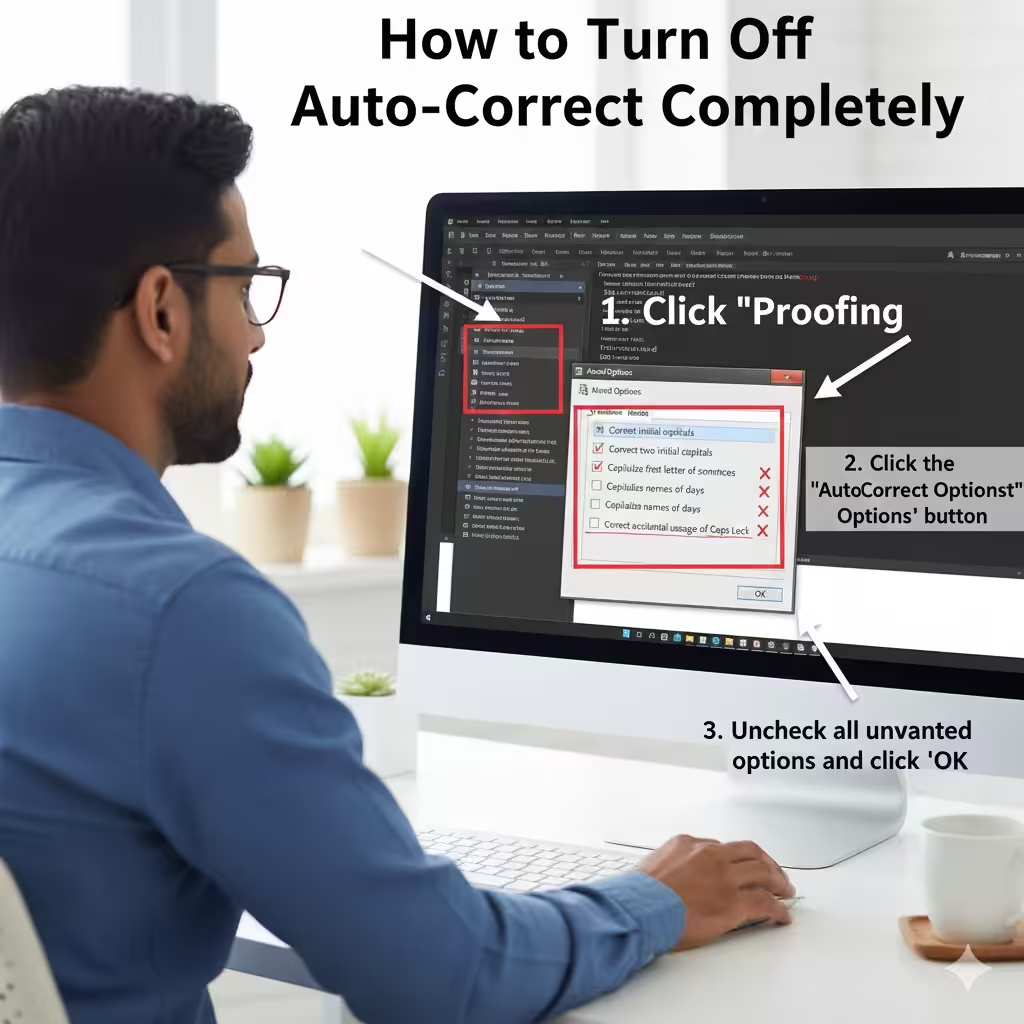
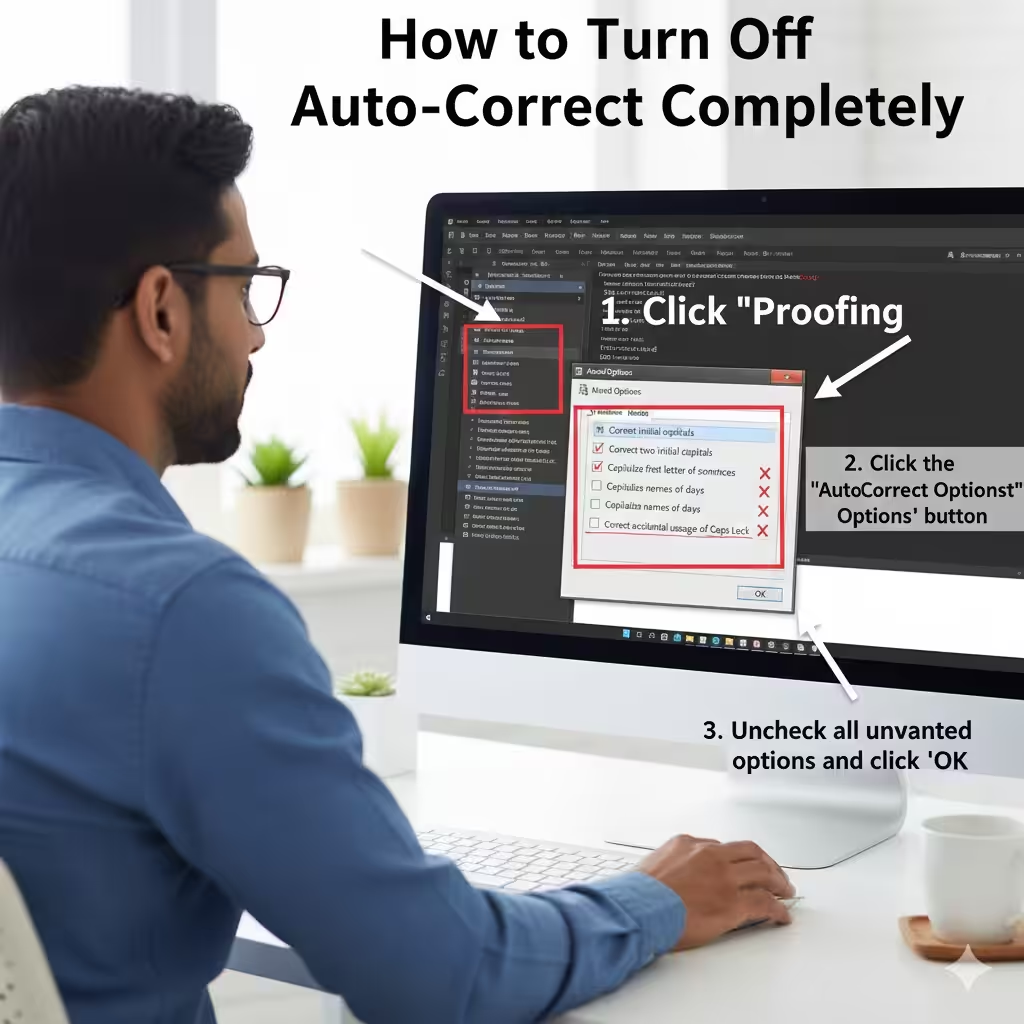
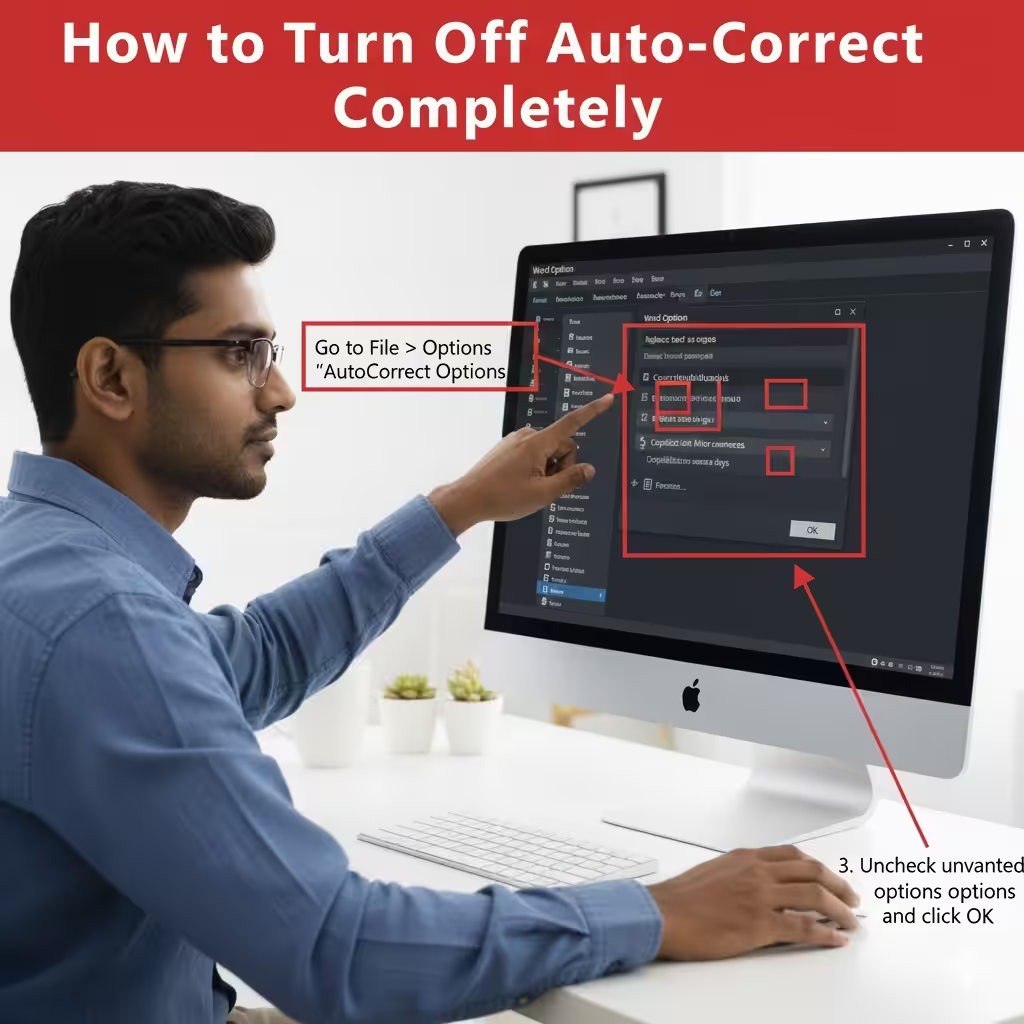
If you want to stop Word from automatically correcting anything, you can disable AutoCorrect entirely. Here’s how to do it on most modern versions of Word for Windows and Mac.
Accessing AutoCorrect Settings
-
Open Word.
-
Select File in the top-left corner.
-
Click Options.
-
Choose Proofing from the left-hand menu.
-
Click the AutoCorrect Options button.
You will now see all settings for AutoCorrect and AutoFormat.
Disable Auto-Correct
Inside the AutoCorrect tab, uncheck the following options:
-
Replace text as you type
-
Correct two initial capitals
-
Capitalize first letter of sentences
-
Capitalize names of days
-
Correct accidental usage of Caps Lock
By clearing these checkboxes, Word will stop making automatic changes while you type.
How to Stop Auto-Correct for Specific Words Only
You may not want to disable the feature entirely. In many cases, users only want to stop Word from repeatedly “fixing” one specific term, brand name, or acronym.
Remove a Word from Auto-Correct List
-
Open AutoCorrect Options (using the steps above).
-
In the Replace text as you type section:
-
Browse the list to find the word being corrected.
-
Select it.
-
Click Delete.
-
Add Exceptions to Auto-Correct
-
Click the Exceptions button inside the AutoCorrect window.
-
Go to the First Letter or Other Corrections tabs.
-
Add any words or abbreviations that should never be auto-corrected or capitalized.
This is useful for names, coding terms, product identifiers, or brand-specific wording.
How to Disable Auto-Formatting Features
Auto-correct is not the only automatic feature in Word. AutoFormat can also modify your text by:
-
Automatically creating bulleted or numbered lists
-
Converting hyphens into long dashes
-
Converting URLs into hyperlinks
-
Applying smart quotes
-
Formatting fractions automatically
If these automatic formatting changes annoy you, disable them as follows:
Disable AutoFormat As You Type
-
In AutoCorrect Options, switch to the AutoFormat As You Type tab.
-
Uncheck features you don’t want, such as:
-
Automatic bulleted lists
-
Automatic numbered lists
-
Straight quotes with smart quotes
-
Internet and network paths with hyperlinks
-
Turning Off Auto-Correct on Word for Mac
If you’re using Word on macOS, the steps are slightly different.
Steps on macOS
-
Open Word.
-
Select Word in the top menu bar.
-
Choose Preferences.
-
Click AutoCorrect.
You will see similar options as on Windows:
-
Uncheck Replace text as you type.
-
Uncheck unwanted capitalization and formatting options.
-
Use the Replace / With section to delete specific auto-correct rules.
Mac users can also disable automatic formatting under the AutoFormat tab.
How to Temporarily Override Auto-Correct
Even if auto-correct is enabled, there are quick ways to override it without changing your settings.
Use Undo Immediately
Press Ctrl + Z on Windows or Command + Z on Mac to instantly reverse the auto-correction.
Use the Small Blue Box
Whenever Word changes something, a small blue box appears under the corrected word.
Click it to:
-
Undo the correction
-
Add the word to the dictionary
-
Stop correcting this word
Managing Spelling and Grammar Separately
Some users want to stop auto-correct but still want Word to underline spelling or grammar issues without changing anything automatically.
-
Go to File > Options > Proofing.
-
Keep Check spelling as you type enabled.
-
Keep Mark grammar errors as you type enabled.
-
Disable auto-correct separately.
This way, Word highlights issues but never alters your text automatically.
Why You Might Want to Turn Off Auto-Correct
Turning off auto-correct can be helpful when you’re writing:
-
Technical documentation
-
Programming code or specialized symbols
-
Scientific terms
-
Multilingual content
-
Brand names and product codes
-
Creative writing with intentional style choices
In these cases, automatic changes may harm accuracy.
Final Thoughts
Auto-correct is a powerful feature that can improve typing speed and accuracy, but it doesn’t suit every writing style or workflow. Whether you want to disable it entirely, tailor it to your needs, or prevent only certain corrections, Microsoft Word provides the flexibility to customize your typing experience.