


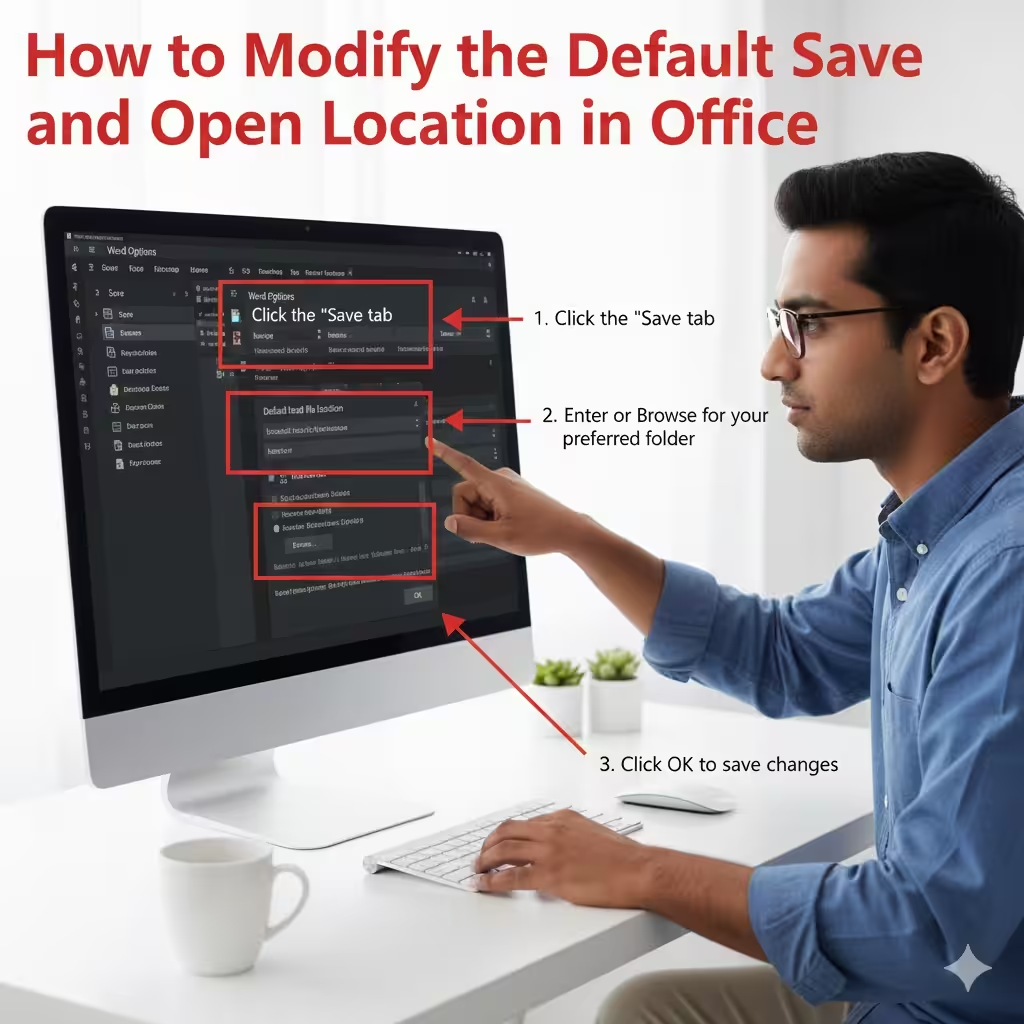
How to Modify the Default Save and Open Location in Office
Microsoft Office applications such as Word, Excel, and PowerPoint are designed to save your documents automatically in a default location. For many users, this default directory may not be ideal. You may prefer saving files on your desktop, a dedicated project folder, an external drive, or a cloud storage service such as OneDrive. Changing the default folder not only improves your workflow but also helps you stay organized, work faster, and maintain consistent file management habits.
This guide explains step-by-step how to change the default file location for saving and opening files across Office apps. You’ll also learn how to customize individual locations for each application and troubleshoot common issues.
Why Change the Default Save and Open Folder?
Different users have different workflows, and the default save location may not match your needs. Here are some common reasons to change it:
-
You want documents to save automatically in a project folder
-
You store files on an external or network drive
-
You prefer saving files on the desktop for quick access
-
You want to organize work files separately from personal files
-
You want to avoid searching through multiple directories
-
You want to sync files directly with cloud services
Customizing the default folder saves time and reduces the chance of lost or misplaced documents.
How to Change the Default Save Location in Word, Excel, and PowerPoint
Each Office application allows you to set its own default file location. These steps apply to most versions, including Office 2016, Office 2019, Office 2021, and Microsoft 365.
Step 1: Open the Office App
Start by opening one of the Office applications:
-
Word
-
Excel
-
PowerPoint
You can set each app’s folder independently.
Step 2: Go to Options
-
Click File in the top-left corner.
-
Select Options near the bottom of the menu.
-
A new settings window will appear.
Step 3: Open the Save Settings
-
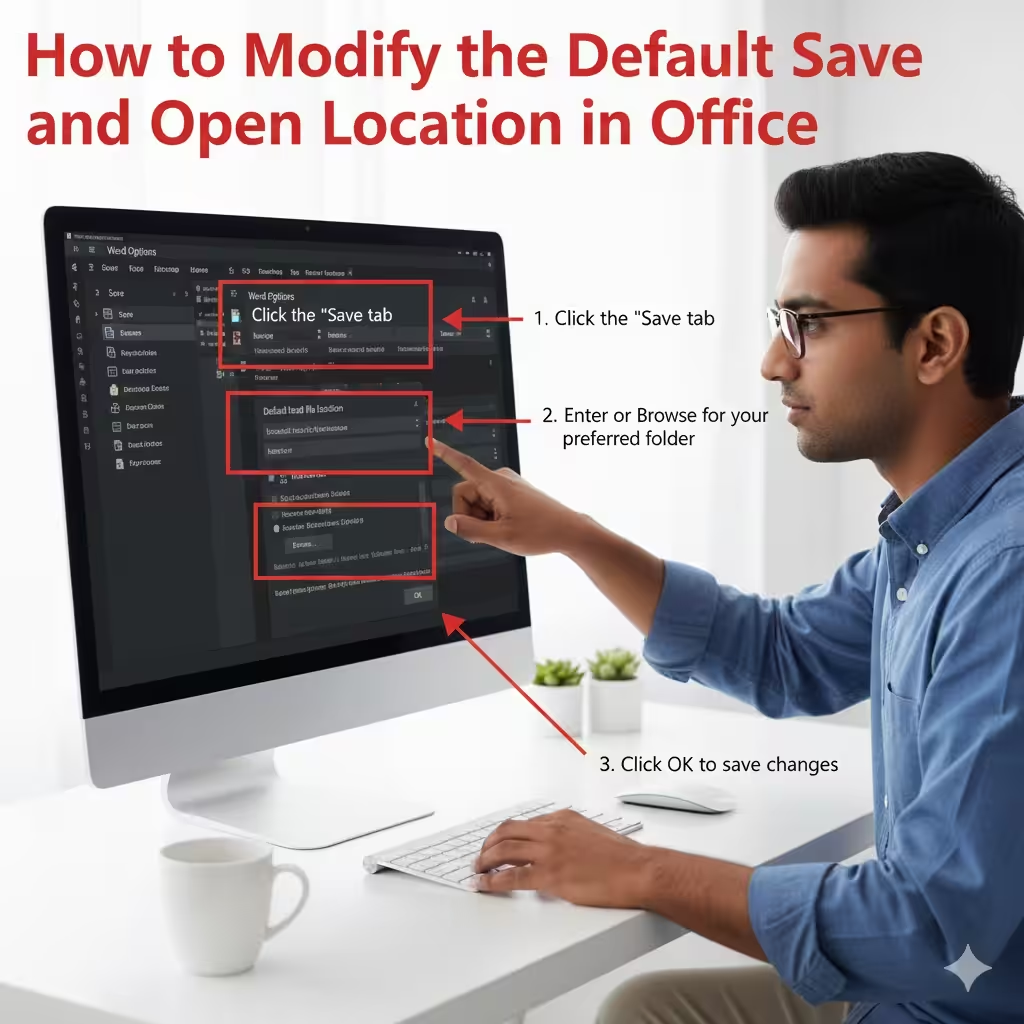
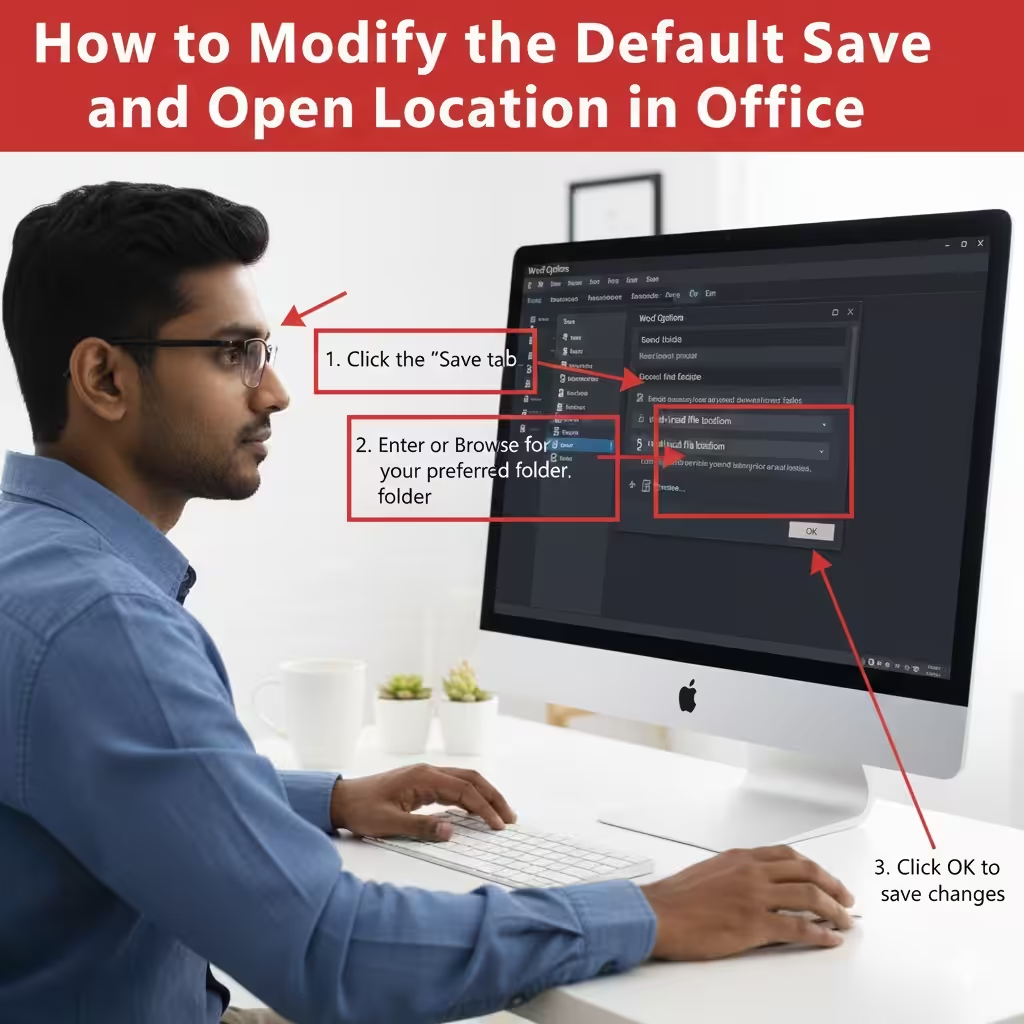
Click Save in the left-hand panel.
-
Look for the section labeled Save documents (in Word) or Save workbooks/presentations (in Excel or PowerPoint).
Step 4: Change the Default Local File Location
-
Find the field labeled Default local file location.
-
Enter the path manually or click Browse to choose a folder.
-
Select your preferred folder.
-
Click OK to save your settings.
From now on, this folder will appear automatically when you save or open files.
How to Change the Default File Location in Office 2010 or Earlier
Older versions of Office have slightly different menu layouts.
Steps for Office 2010 and 2007
-
Click the File or Office button.
-
Choose Options.
-
Select Save.
-
Locate Default file location.
-
Enter your desired folder or browse to select it.
-
Click OK.
Steps for Office 2003
-
Open the Office app.
-
Click Tools on the menu bar.
-
Select Options.
-
Open the File Locations tab.
-
Highlight Documents, then click Modify.
-
Choose your preferred folder.
-
Click OK.
Older versions store file locations separately for different file types, so you may need to adjust multiple categories.
How to Change the Default Open Folder
By default, Office opens files from the same folder used for saving. But you can also adjust this independently.
Steps to change the default open directory
-
Click File > Options.
-
Select General or Save (depending on the app).
-
Look for Open File Location or Default File Location.
-
Enter or select your preferred folder.
-
Save your changes.
This allows you to control where Office looks first when opening documents.
How to Change the Default Folder for OneDrive or SharePoint Users
If your Office suite is connected to OneDrive or SharePoint, files may default to cloud storage. You can customize this behavior.
Disable the cloud-first default
-
Click File > Options.
-
Go to Save.
-
Check the box:
Save to Computer by default -
Choose your preferred local folder.
Change OneDrive save location
-
Open File Explorer.
-
Right-click the OneDrive icon.
-
Select Settings.
-
Click Backup or Manage Folders.
-
Adjust folder syncing options.
This ensures your default folder aligns with your cloud backup preferences.
How to Set Different Default Folders for Different File Types
Some users want separate folders for different document types, such as:
-
A folder for Word documents
-
Another for spreadsheets
-
A third for presentations
Office allows each application to maintain its own default directory.
To set separate folders
Repeat the “Change Default Location” steps in:
-
Word Options
-
Excel Options
-
PowerPoint Options
This customized structure makes file management more organized.
Troubleshooting: When Your Default Folder Doesn’t Change
Sometimes, after changing the default folder, Office may still open the old directory. Try these solutions.
1. Check if OneDrive is forcing cloud defaults
Uncheck “Save to Computer by default” as described earlier.
2. Make sure you have permission to write to the folder
Network or system folders may block changes.
3. Check if your Office is managed by an organization
Corporate IT administrators may lock file settings.
4. Repair Microsoft Office
-
Go to Control Panel.
-
Open Programs and Features.
-
Select Microsoft Office.
-
Click Repair.
5. Reset Office settings
-
Close all Office apps.
-
Go to:
%appdata%\Microsoft -
Rename the Office folder to force a reset.
This may restore normal behavior.
Best Practices for Choosing a Default Save and Open Folder
To get the most out of this feature, consider these recommendations:
-
Choose a folder that’s easy to access
-
Avoid setting system or temporary folders
-
Use separate folders for work and personal files
-
Enable cloud sync if you need backups
-
Use external drives only when they are connected
-
Create a clean folder structure before setting defaults
Taking the time to organize your folders saves time and prevents misplaced files later.
Conclusion
Changing the default folder for saving and opening files in Office is a simple yet powerful way to improve your workflow and stay organized. Whether you prefer working locally, on the cloud, or across multiple devices, customizing your default locations ensures faster access to your files and a smoother working experience. By following the steps provided for various versions of Office, you can tailor file management to your exact needs and avoid unnecessary navigation every time you save or open a document.