


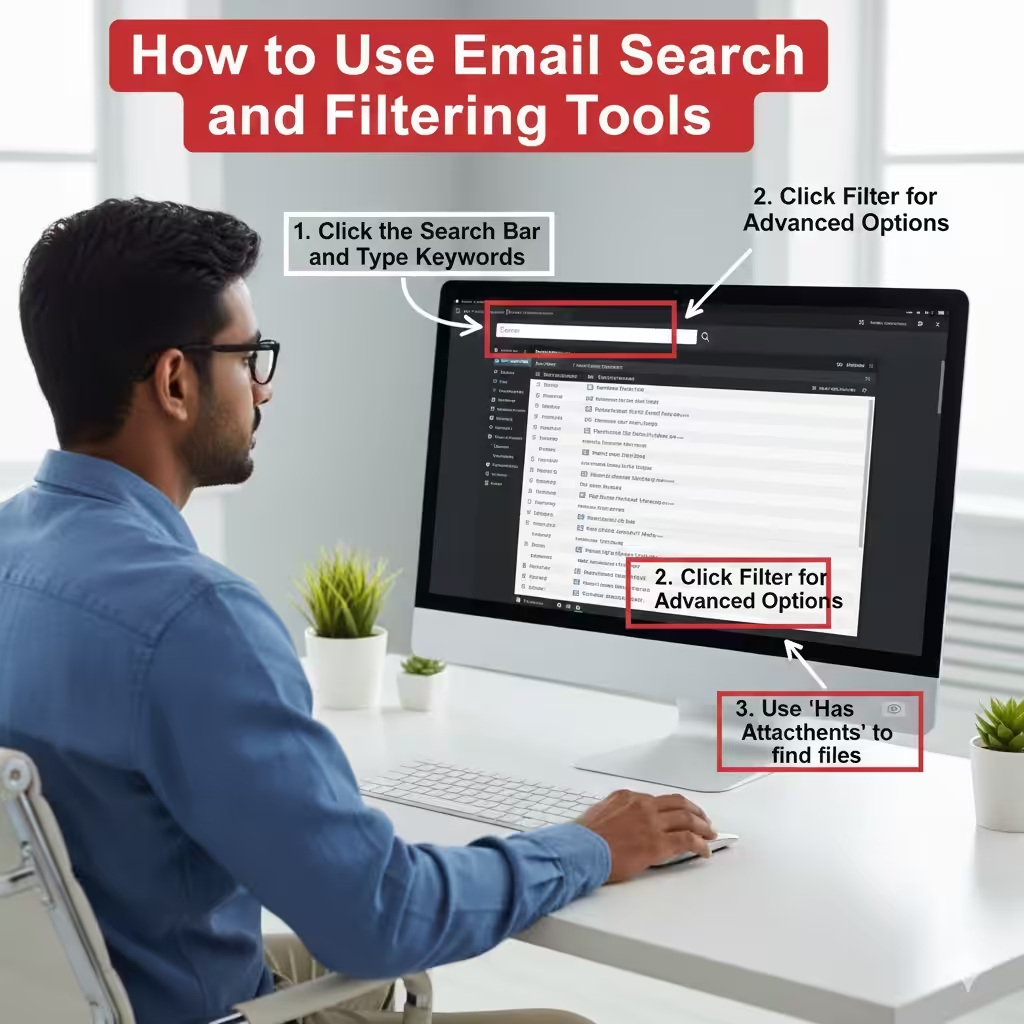
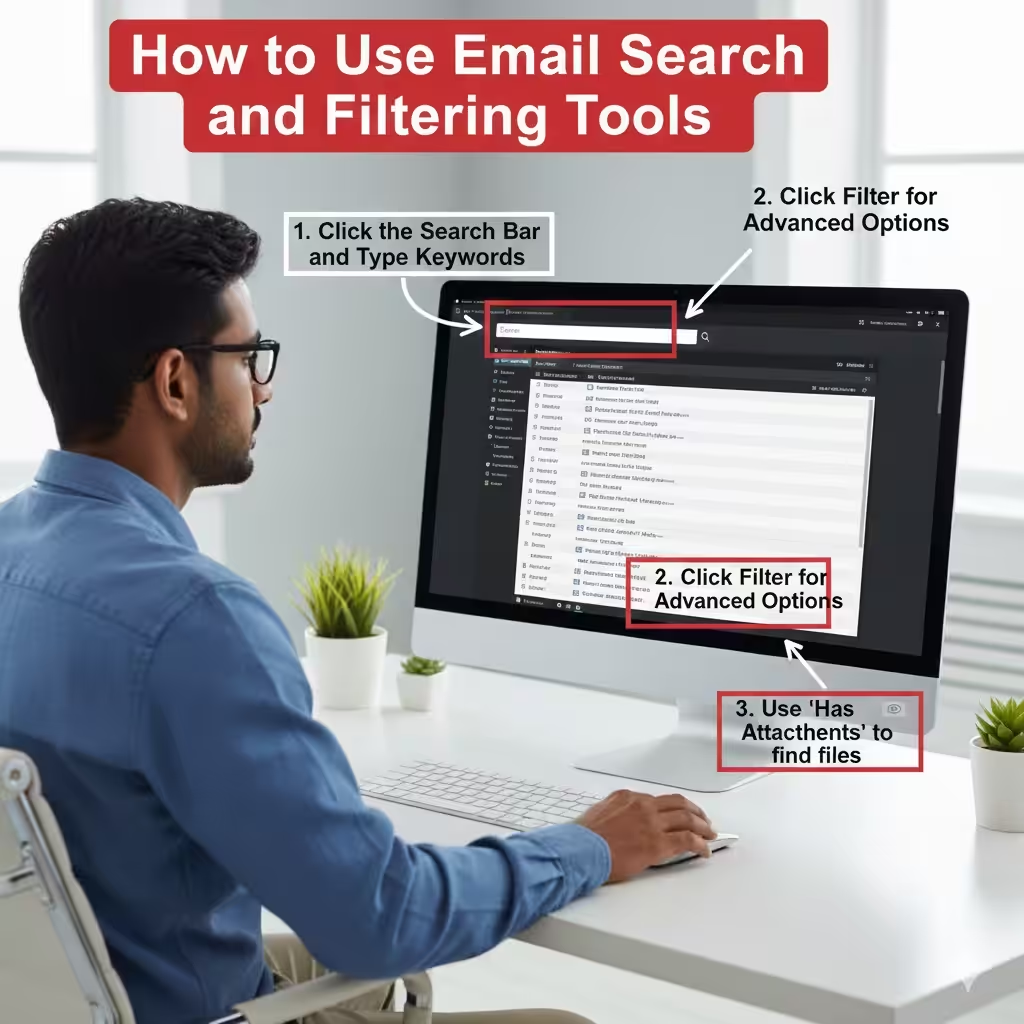
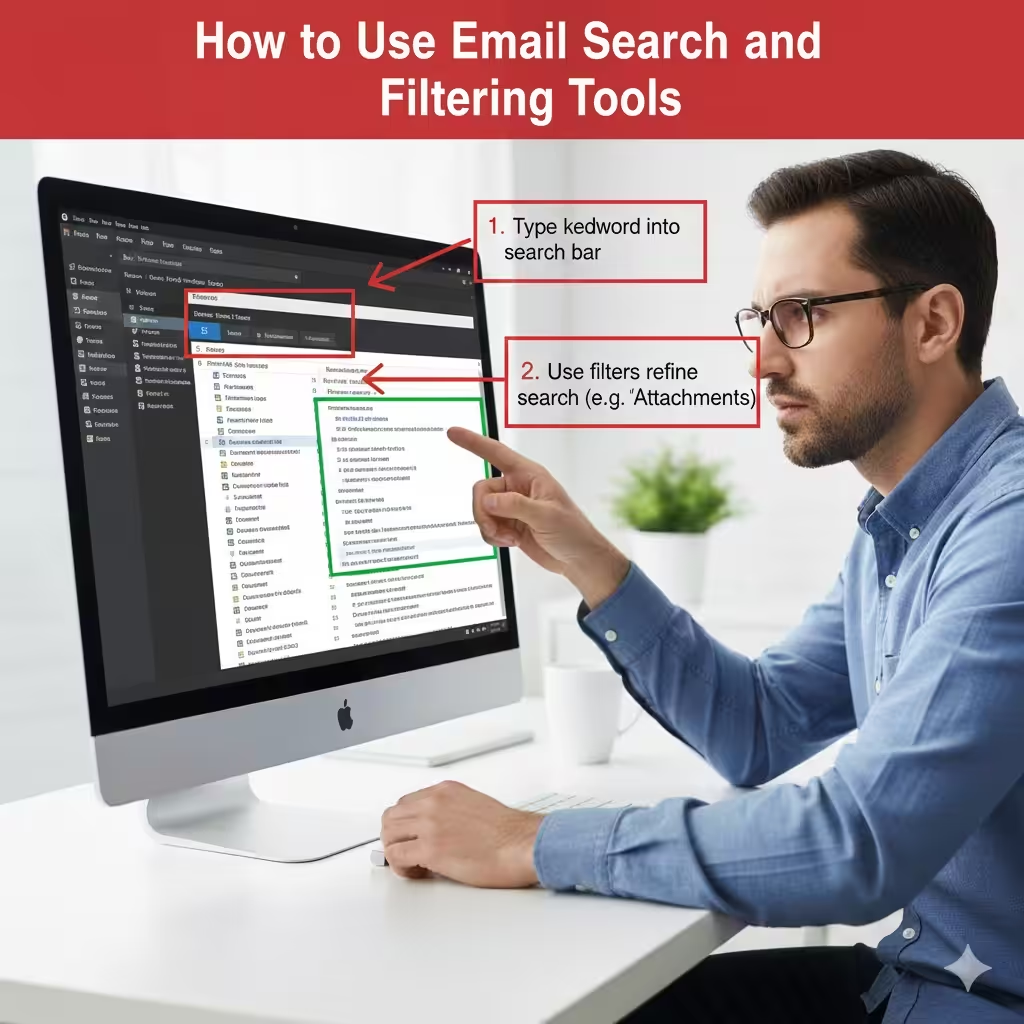
How to Use Email Search and Filtering Tools
Searching and filtering emails efficiently is an essential skill for anyone who deals with large volumes of messages daily. Whether you use Outlook, Gmail, or another email service, knowing how to refine your search can save time, improve productivity, and help you stay organized. Modern email clients include advanced tools that allow you to quickly locate specific messages, filter by criteria, and even automate search rules for future emails.
This guide covers everything you need to know about searching and filtering emails effectively—whether you are working on Windows, Mac, mobile devices, or web-based platforms.
Why Searching and Filtering Emails Is Important
Email inboxes can quickly become cluttered with notifications, newsletters, work communication, promotional messages, and personal updates. Without proper search and filtering techniques, finding older emails or important messages can be extremely difficult.
Here’s why mastering email search is helpful:
-
Saves time when locating specific content
-
Helps you stay organized and reduce inbox clutter
-
Makes it easier to work with attachments, requests, and important threads
-
Allows you to identify unread or high-priority messages
-
Reduces stress by making your inbox more manageable
Understanding how to search and filter emails is a valuable skill for both personal and professional communication.
How To Search Emails Using Basic Search Tools
Most email platforms include a simple search bar located at the top of your inbox. This allows you to search for keywords, names, or subjects.
How basic search works in most email clients
-
Type a word or phrase in the search bar.
-
The client instantly filters messages that match your search.
-
Click on any result to read the email.
What you can search for
-
Sender name
-
Receiver name
-
Subject line
-
Keywords in the body of the email
-
Email addresses
-
Attachment names
-
Dates
Basic search is great for quick results, but advanced search features provide even more precise filtering options.
How To Use Advanced Search Filters
Advanced search helps narrow down your results with greater accuracy. Different email clients have slightly different options, but the core features are similar.
Common advanced search filters
-
From: Search by sender
-
To: Filter by recipient
-
Subject: Search within subject lines
-
Has attachments: Only show emails with attached files
-
Date range: Filter emails from specific dates
-
Unread: Show only unread messages
-
Flagged or starred: Show important or saved messages
-
Category or label: Filter by organizational tags
-
Size: Find emails greater than a specific size
Benefits of advanced filtering
-
Quickly locate old emails
-
Track communication threads
-
Find large files that take up storage
-
Identify missing or overlooked messages
-
Improve inbox organization
These filters are especially useful for users who receive hundreds of emails daily.
How To Search and Filter Emails in Outlook
Microsoft Outlook provides one of the most powerful search systems.
Basic search in Outlook
-
Click the Search bar above your email list.
-
Type any keyword, name, or phrase.
-
Outlook displays matching results instantly.
Using the Search Tools menu
When you click in the search bar, the Search tab appears.
You can filter by:
-
From
-
Has Attachments
-
Subject
-
This Week, Last Month, or specific date ranges
-
Unread or Flagged
-
Important
-
Category
Using Search Operators in Outlook
Outlook supports special commands such as:
-
from:John -
subject:invoice -
hasattachments:yes -
received:yesterday
Using these commands helps you refine searches very precisely.
Creating Search Folders
Search Folders allow you to save custom search filters.
Examples:
-
All Unread Mail
-
Important Emails
-
Messages from Your Manager
-
Messages with Attachments
Search Folders update automatically, helping you maintain organization effortlessly.
How To Search and Filter Emails in Gmail
Gmail has a powerful search system using operators similar to Google Search.
Basic search in Gmail
-
Go to the top search bar.
-
Type any word or name.
-
Gmail shows matching results instantly.
Filter search with the drop-down menu
Click the small arrow on the right side of the search bar to open advanced filters.
You can filter by:
-
From
-
To
-
Subject
-
Keywords
-
Has Attachment
-
Size
-
Date Within
-
Labels
Using Gmail Search Operators
Some useful Gmail commands:
-
from:— Filter by sender -
to:— Filter by recipient -
subject:— Search in subject lines -
has:attachment— Only emails with files -
is:unread— Unread messages only -
label:work— Filter by label -
before:YYYY/MM/DDorafter:YYYY/MM/DD
Example searches:
-
from:mary has:attachment -
subject:meeting before:2024/01/01
These operators make Gmail’s search system extremely fast and flexible.
How To Filter Emails Automatically
Most email clients allow you to create rules that filter emails automatically based on customized criteria.
Examples of automated filters
-
Move promotional emails to a separate folder
-
Tag or label emails from your manager
-
Highlight urgent emails
-
Automatically archive notifications
-
Forward certain emails to another account
Why automation helps
-
Reduces inbox clutter
-
Saves time
-
Keeps communication organized
-
Ensures important messages never get lost
Automation is ideal for users who handle large amounts of email daily.
How To Search Emails on Mobile Devices
Mobile apps for Outlook, Gmail, and other platforms also include search and filtering options.
Mobile search features
-
Keyword search
-
Sender-based filtering
-
Attachment filtering
-
Label or folder-based searching
While mobile search is usually simpler than desktop versions, it remains highly efficient for quick lookups.
Tips for Improving Email Search Efficiency
To get the most out of your email search tools, follow these best practices:
-
Use clear and specific keywords
-
Archive old emails to reduce clutter
-
Create folders or labels for categories
-
Delete unnecessary emails
-
Use operators for precise searches
-
Automate filtering whenever possible
The more organized your inbox is, the easier searching becomes.
Conclusion
Learning how to search and filter emails is essential for staying productive and organized in today’s fast-paced digital world. With the help of advanced search filters, operators, and automated rules, you can streamline your inbox, locate important emails quickly, and manage communication efficiently. Whether you’re using Outlook, Gmail, or another platform, mastering these tools will help you work smarter and stay in control of your messages.