


How to Disable the Office Assistant
The Office Assistant, famously known as “Clippy,” was one of the most iconic features of older Microsoft Office versions such as Office 97, Office 2000, and Office 2003. While some users found it helpful, many considered it distracting, intrusive, or unnecessary. Because of this, Microsoft provided several ways to turn off or hide the Office Assistant completely.
Although modern versions of Microsoft Office no longer include the Office Assistant, many users still work with older versions for legacy compatibility. This guide will show you every method to disable the Office Assistant, hide it temporarily, modify its behavior, or remove it altogether.
What Is the Office Assistant?
The Office Assistant was an animated help feature that provided tips, troubleshooting guidance, and shortcuts while using Microsoft Office applications.
Some common characters included:
-
Clippy (the paperclip)
-
The Dot
-
Office Logo
-
Rover the Dog
-
Links the Cat
-
The Genius
The assistant would appear automatically when it detected that a user might need help, but this behavior could become bothersome. For this reason, many people prefer turning it off.
How To Hide the Office Assistant Quickly
If you don’t want to see the Office Assistant temporarily, you can hide it without fully disabling it.
Steps to hide it instantly
-
Click the Office Assistant character (Clippy or another assistant).
-
Select Hide from the pop-up menu.
This hides the assistant from your workspace but does not disable it.
It may reappear later if Office detects you might need help.
How To Turn Off the Office Assistant Completely
If you want to permanently disable the Office Assistant in Microsoft Office 2003, Office XP, or Office 2000, follow the step-by-step instructions below.
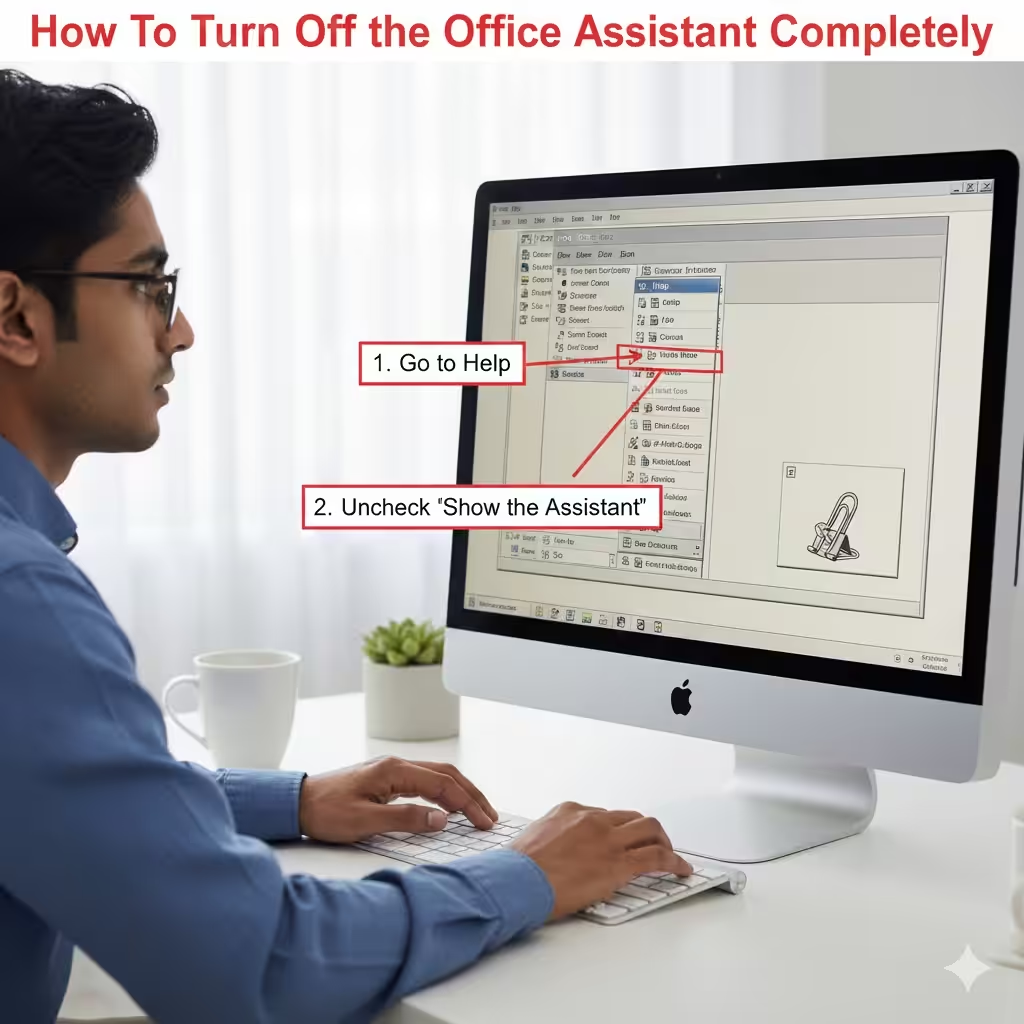
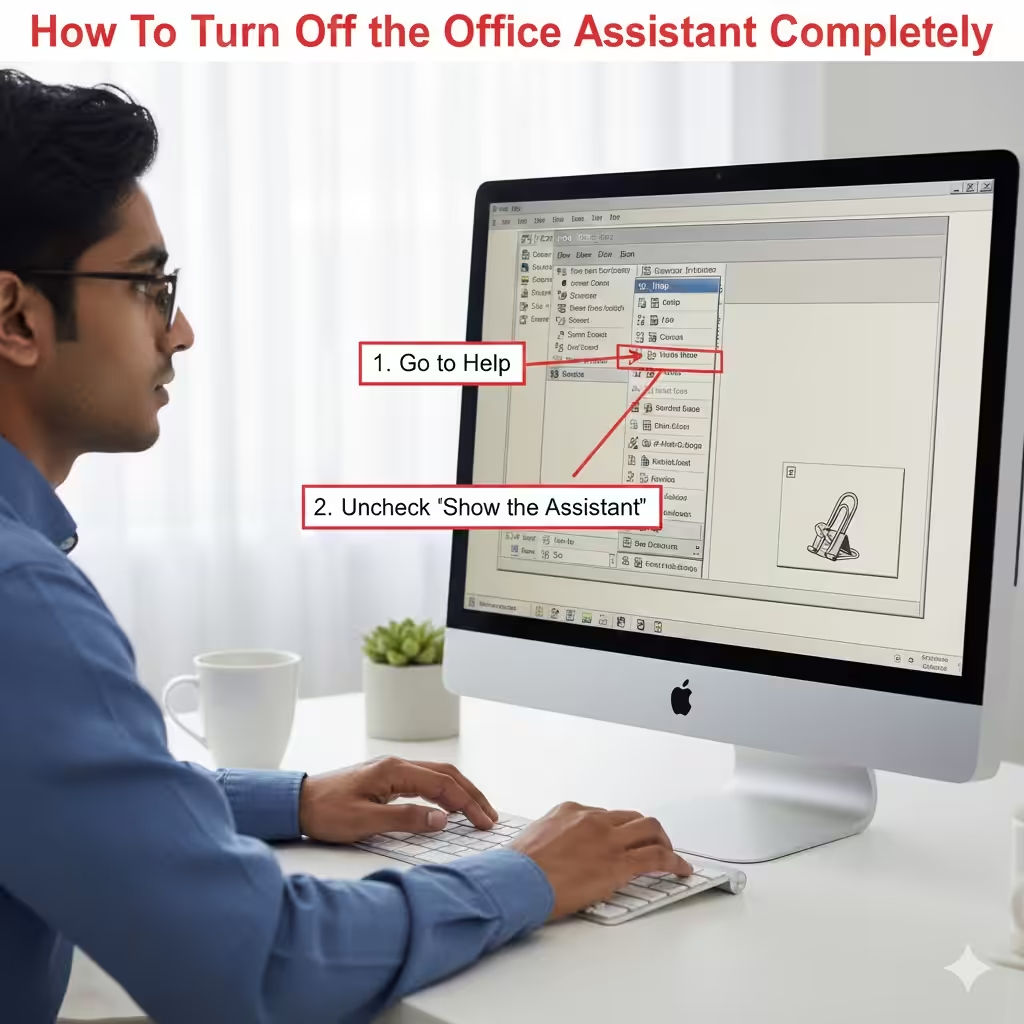
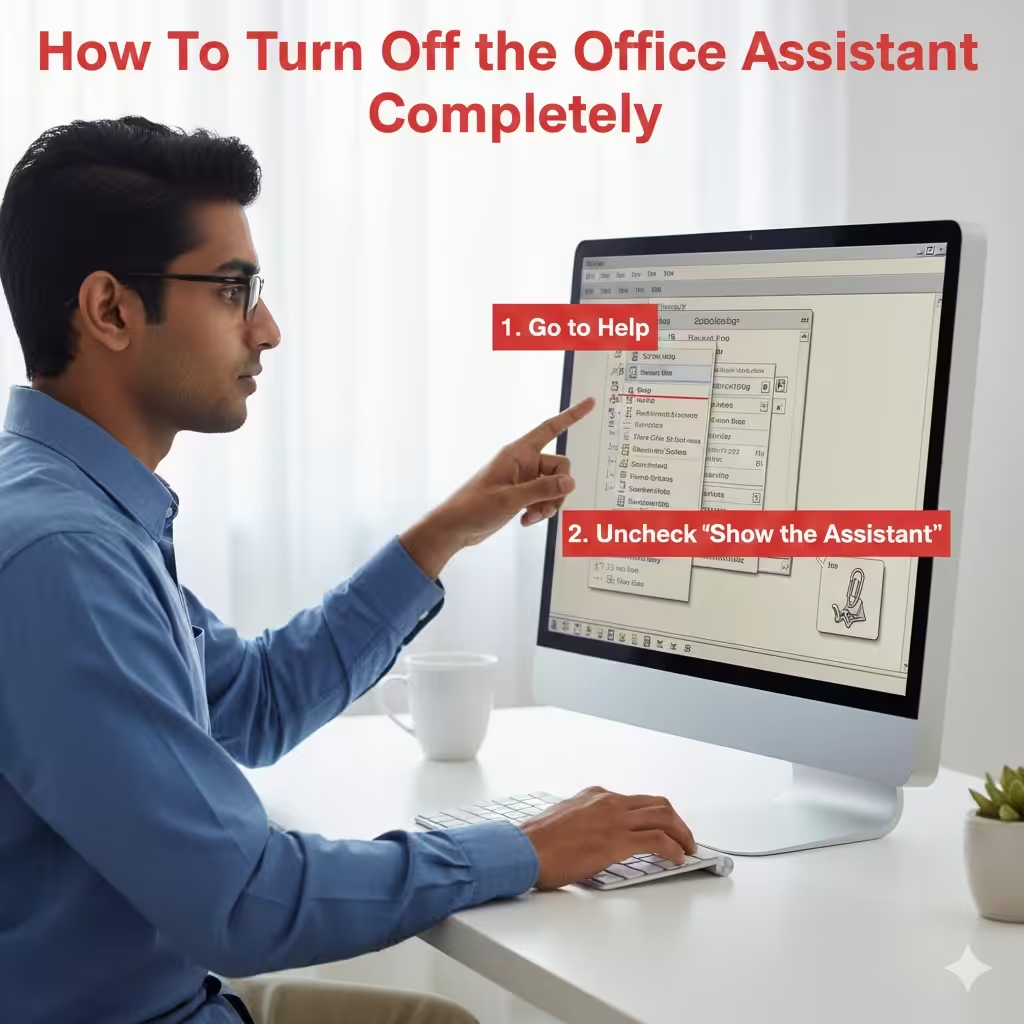
Method 1: Turn it off from the Help Menu
-
Open any Office application, such as Word or Excel.
-
Click Help on the top menu bar.
-
Select Show the Office Assistant to uncheck it.
When the option is unchecked, the Office Assistant will no longer appear automatically.
Method 2: Turn it off from the Office Assistant Options
-
Click the Office Assistant character.
-
Choose Options from the menu.
-
In the dialog box, uncheck the option:
Use the Office Assistant -
Click OK to save changes.
This disables the Office Assistant until you manually re-enable it.
Method 3: Disable Tips and Alerts
You can turn off the assistant’s behavior by disabling triggers.
-
Open the Office Assistant Options.
-
Uncheck any of the following items:
-
Use tips from the Office Assistant
-
Respond to certain events
-
Show alerts automatically
-
-
Click OK.
This reduces interruptions even if the Office Assistant remains enabled.
How To Remove the Office Assistant from Office Setup
If you want to remove the Office Assistant entirely, you can uninstall it from your Office installation.
Steps to remove it using Office Setup
-
Go to the Windows Control Panel.
-
Click Add or Remove Programs (Windows XP) or Programs and Features (Windows 7).
-
Select your version of Microsoft Office.
-
Click Change or Modify.
-
Choose Add or Remove Features.
-
Expand the Office Tools category.
-
Find Office Assistant.
-
Select Not Available from the options.
-
Click Update or Continue to apply changes.
Once removed, the Office Assistant will no longer be available in any Office application.
How To Stop the Office Assistant From Appearing Automatically
Even if you don’t want to disable it fully, you may want to prevent it from popping up randomly.
To stop automatic appearance
-
Click the assistant.
-
Choose Options.
-
Uncheck:
-
Display alerts automatically
-
Show tips automatically
-
-
Click OK.
This prevents interruptions while keeping the assistant accessible when needed.
How To Change the Assistant Instead of Disabling It
If Clippy annoys you, switching to a different character might improve your experience.
Steps to change the assistant
-
Click the current assistant.
-
Select Choose Assistant.
-
Pick another character from the list.
-
Click OK.
Options vary depending on your Office version, but popular assistants include:
-
Rover the Dog
-
Links the Cat
-
The Dot
-
The Genius
While this doesn’t disable the assistant, some characters feel less intrusive.
Troubleshooting: What If the Office Assistant Won’t Turn Off?
Sometimes the Office Assistant may still appear due to software settings or user profile issues.
Try these fixes
1. Reset Office Assistant settings
-
Open the Assistant options.
-
Recheck and uncheck Use the Office Assistant.
-
Restart the Office app.
2. Repair Microsoft Office
-
Go to Control Panel.
-
Open Programs and Features.
-
Select Microsoft Office.
-
Click Repair.
3. Delete user profile preferences
If the assistant reappears due to corrupted Office profiles, creating a new Windows user account or refreshing Office settings may resolve the issue.
4. Ensure macros or templates aren’t triggering it
Some old templates automatically call the Office Assistant.
Disable macros if necessary.
Is the Office Assistant Still Available in Modern Office Versions?
No.
The Office Assistant was removed starting from Microsoft Office 2007.
All modern versions — including Office 2010, Office 2013, Office 2016, Office 2019, Office 2021, and Microsoft 365 — do not include Clippy or any animated assistant.
These versions instead use:
-
Smart Help
-
Editor
-
On-screen tips
-
Modern UI notifications
If you’re using a newer version of Office, you will not see the Office Assistant at all.
Conclusion
Turning off the Office Assistant is simple once you understand where its settings are located. Whether you want to hide it temporarily, disable it permanently, remove it from Office Setup, or simply change its behavior, Microsoft gives you full control over how it appears in older Office versions. Even though Clippy and other assistants were once a central part of the Office experience, today’s versions rely on more advanced and less intrusive tools.