


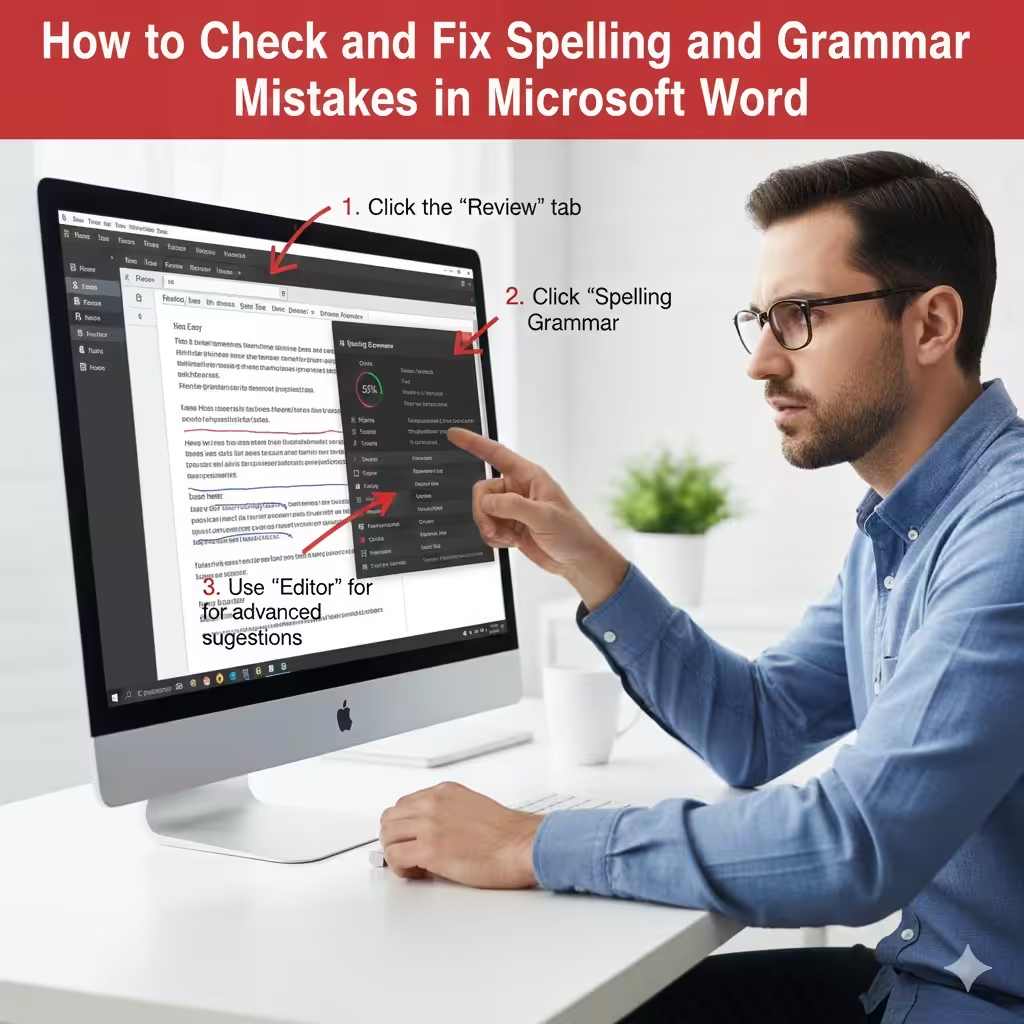
How to Check and Fix Spelling and Grammar Mistakes in Microsoft Word
Microsoft Word offers one of the most advanced and user-friendly tools for checking spelling and grammar. Whether you are writing a school assignment, business report, email draft, or creative content, Word’s proofreading features help you write clearly and professionally. The built-in Spelling and Grammar checker not only highlights mistakes but also provides suggestions, explanations, and even rewriting options.
This comprehensive guide will walk you through every method to check spelling and grammar in Word, from basic corrections to advanced tools like Editor, readability scores, language settings, and custom dictionaries. By mastering these features, you can significantly improve the clarity, correctness, and professionalism of your documents.
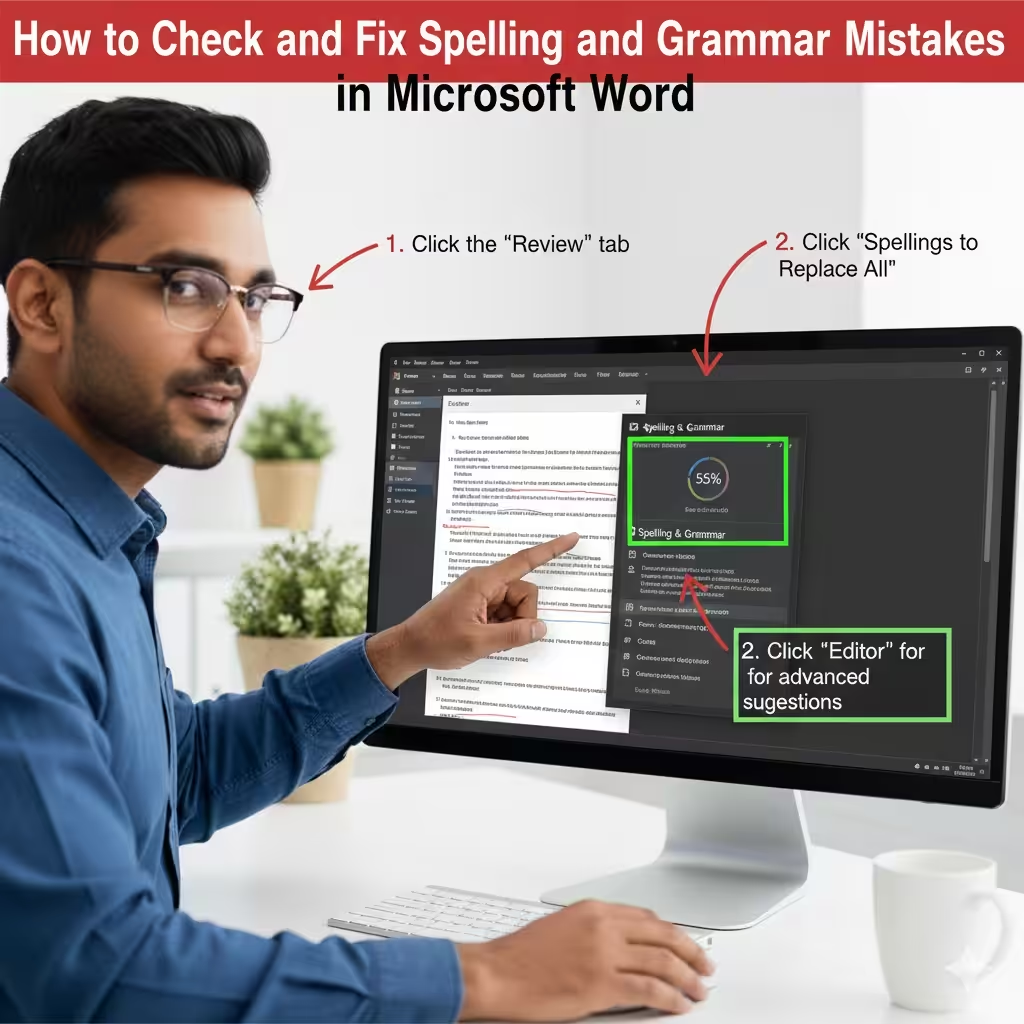
Understanding Word’s Proofing Tools
Before diving into the steps, it’s important to know the tools Word provides for proofing:
-
Automatic spell check (underlines errors in real time)
-
Grammar check (detects incorrect sentence structure, punctuation, and style)
-
Editor (advanced writing assistant with scoring)
-
Readability statistics
-
Language preferences
-
Custom dictionaries
-
Advanced proofing options for precise control
Together, these tools help you write with better accuracy and confidence.
How To Use Automatic Spell Check in Word
Automatic spell check is the simplest way to monitor your writing as you type.
How it works
-
Misspelled words are highlighted with a red wavy underline.
-
Grammar errors appear with a blue or double-underline.
How to correct errors
-
Right-click the underlined word or phrase.
-
Choose a suggested correction from the menu.
-
Click it to apply the fix.
You can also choose:
-
Ignore – skip this error
-
Add to Dictionary – mark the word as correct for future use
This feature is ideal for catching mistakes instantly as you continue writing.
How To Run a Full Spelling and Grammar Check
Sometimes, you may want to review an entire document rather than correct errors as you go.
Steps to run a manual check
-
Open your document in Word.
-
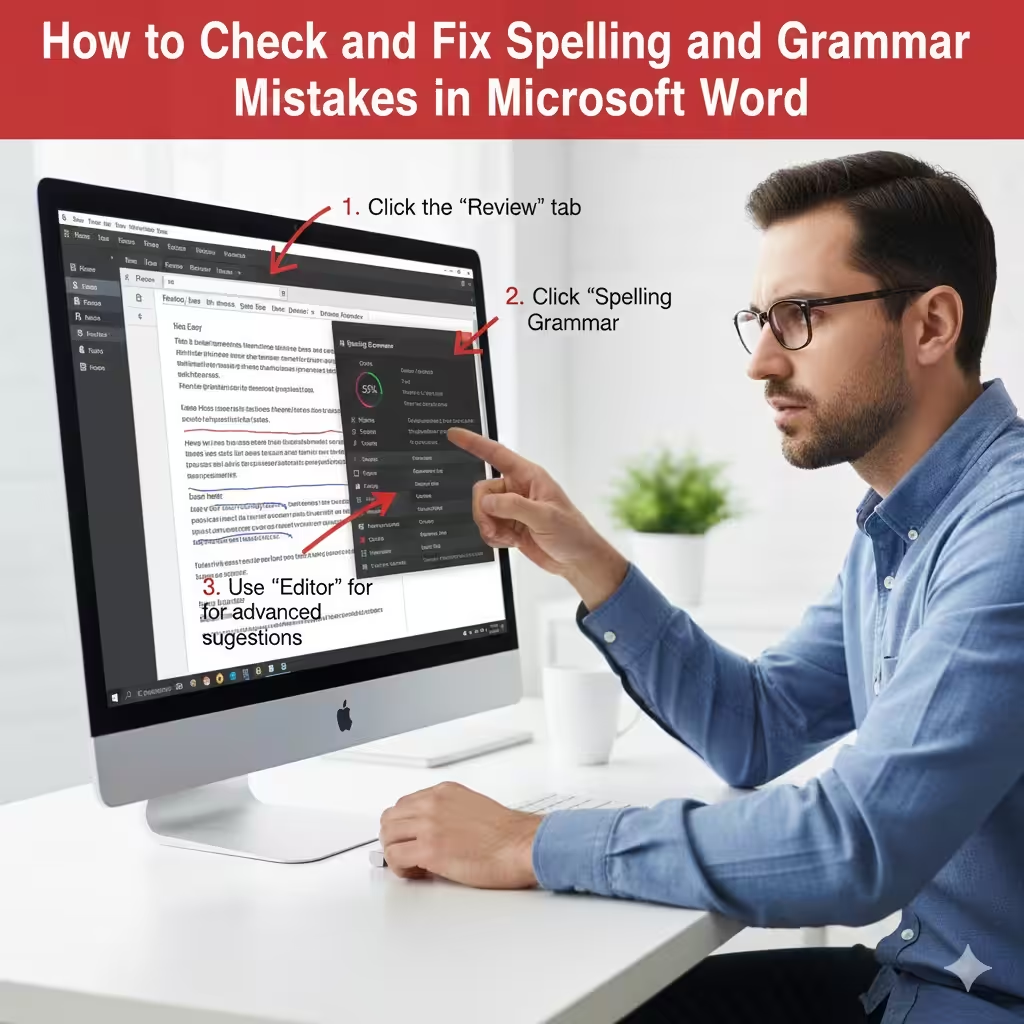
Go to the Review tab at the top.
-
Click Spelling & Grammar.
-
Word will begin scanning your document.
-
A sidebar will appear showing errors and suggested improvements.
How to respond to suggestions
For each detected issue, you can choose:
-
Change – replace with the suggested correction
-
Change All – apply the correction everywhere in the document
-
Ignore – skip this issue once
-
Ignore All – skip all occurrences
-
Add to Dictionary – mark the word as correct permanently
This method ensures that no errors are missed before your final revision.
Using Microsoft Editor for Advanced Proofing
Editor is a more powerful version of Word’s proofreading tool. It evaluates your writing and gives you overall scores based on:
-
Spelling
-
Grammar
-
Clarity
-
Conciseness
-
Formality
-
Vocabulary
-
Punctuation
-
Readability
How to open Editor
-
Open your Word document.
-
Go to the Home tab.
-
Click Editor on the right side of the toolbar.
A panel will open showing your Editor Score, suggestions, and categories of issues.
Why Editor is useful
-
Offers detailed explanations
-
Helps improve sentence structure
-
Improves writing style
-
Suggests clearer alternatives
-
Alerts you to overly long or complex sentences
Editor is perfect for professional writing, essays, and business communication.
How To Turn Proofing Settings On or Off
Word lets you customize which types of errors you want checked.
Steps to change proofing options
-
Click File.
-
Select Options.
-
Choose Proofing.
Here, you’ll find settings such as:
-
Check spelling as you type
-
Mark grammar errors as you type
-
Frequently confused words
-
Writing Style (Grammar only or Grammar & Style)
Under Writing Style settings, you can control checks for:
-
Punctuation rules
-
Passive voice
-
Wordiness
-
Capitalization
-
Formality
-
Inclusive language
Adjusting these settings helps tailor Word’s feedback to your writing style.
How To Check Readability Statistics
Word can show readability levels using scores like:
-
Flesch Reading Ease
-
Flesch-Kincaid Grade Level
How to enable readability
-
Go to File > Options > Proofing.
-
Check Show readability statistics.
-
Run a spelling and grammar check.
After the check completes, Word displays a summary including sentence length, passive voice percentage, and overall readability scores.
This feature is extremely helpful for academic, professional, and public-facing writing.
How To Change the Proofing Language
If your document contains text in different languages, Word can proofread them separately.
To set the proofing language
-
Select the text you want to assign a language to.
-
Go to the Review tab.
-
Click Language.
-
Choose Set Proofing Language.
-
Select the language you want.
-
Click OK.
Why this matters
If the wrong language is set, Word might mark correct words as errors or ignore actual mistakes.
Setting the correct language ensures accurate spell check and grammar suggestions.
Using Custom Dictionaries for Specialized Terms
Writers who frequently use technical, medical, or industry-specific vocabulary may need to create custom dictionaries.
How to manage custom dictionaries
-
Open File > Options > Proofing.
-
Click Custom Dictionaries.
-
Add or edit dictionaries.
-
Add specific words to them using right-click > Add to Dictionary.
Custom dictionaries help Word recognize specialized terminology and prevent false error alerts.
How To Fix Word’s Spell Check Not Working
If Word is not correcting or showing errors, try these solutions:
-
Make sure Check spelling as you type is enabled
-
Verify the correct proofing language
-
Run Office Repair from Windows Settings
-
Restart Word
-
Create a new document to test
-
Reset Word’s settings from the Options menu
In most cases, one of these quick adjustments will restore normal spell check behavior.
Conclusion
Checking spelling and grammar in Word is essential for ensuring clarity, professionalism, and accuracy in your writing. Whether you use real-time suggestions, the full Spelling & Grammar tool, or the advanced Editor feature, Word provides everything you need to improve your writing with ease. From controlling proofing settings to working with custom dictionaries and readability scores, mastering these tools can make editing faster, more effective, and more polished.