



How to Search for and Replace Text in Microsoft Word
The Find and Replace feature in modern word-processing software is one of the most powerful tools available for editing documents quickly and accurately. Whether you need to fix repeated mistakes, update outdated information, or make formatting changes across large documents, this tool can save you countless hours of manual editing.
In this comprehensive guide, you’ll learn how to use Find and Replace effectively, from basic text searches to advanced options, formatting replacements, and special characters. By mastering these techniques, you’ll be able to edit documents with speed and precision.
Why Find and Replace Is Such an Important Feature
Before diving into steps and instructions, it’s useful to understand why this feature is essential:
-
Saves time when updating repeated text
-
Ensures consistency throughout the entire document
-
Helps correct typos or repeated mistakes instantly
-
Supports advanced searches using patterns, special characters, and wildcard symbols
-
Allows formatting changes across thousands of words within seconds
For anyone who works with long or complex documents, this feature becomes an essential part of efficient editing.

How to Open the Find and Replace Tool
The Find and Replace tool is easy to access and can be opened in several ways depending on your workflow preference.
Option 1: Using Keyboard Shortcuts
-
Find only: Press Ctrl + F
-
Find and Replace: Press Ctrl + H
These shortcuts are the fastest and most popular method for most users.
Option 2: Using the Ribbon Menu
-
Open your document.
-
Go to the Home tab.
-
Click Replace in the Editing group.
This opens the full Find and Replace dialog box where you can configure advanced options.
How to Use Basic Find and Replace
The basic version is simple and perfect for straightforward text replacements.
-
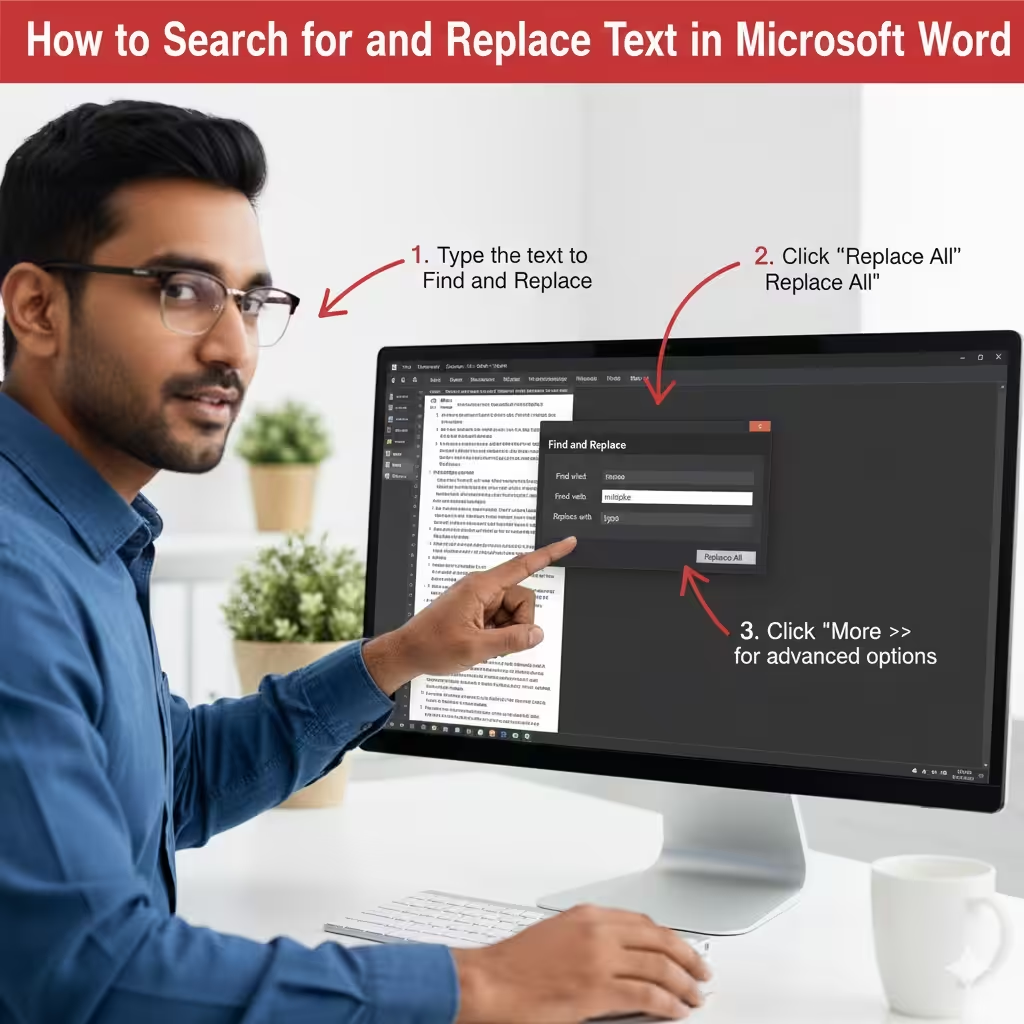
Open the Find and Replace dialog using Ctrl + H.
-
Type the word or phrase you want to find into the Find what field.
-
Type the replacement text into the Replace with field.
-
Click Find Next to move through each instance.
-
Choose Replace to confirm each change or Replace All to change every occurrence instantly.
If your document is long, selecting Replace All can save a lot of time, but always double-check your text afterward to avoid unintended replacements.
How to Use the Navigation Pane for Simple Searches
If you don’t need to replace text—only find it—you can use the Navigation pane:
-
Press Ctrl + F.
-
Type the text you want to locate.
-
All matching results will appear in the Navigation pane.
-
Click any result to jump directly to that location in the document.
This method provides a quick overview of how many times a word appears and where it’s located.
How to Use Advanced Find Options
Advanced Find allows you to search more precisely using additional settings.
To access it:
-
Press Ctrl + H.
-
Click More >> at the bottom of the dialog box.
You will now see several options:
Match case
Finds only text with the exact same capitalization.
Example: Searching for “Apple” will not match “apple”.
Find whole words only
Matches only complete words.
Example: Searching for “in” will NOT match “inside”.
Use wildcards
Allows pattern-based searches for flexible results.
Sounds like (English)
Finds text that sounds similar phonetically.
Find all word forms
Locates variations of a word, such as “run,” “running,” “ran.”
Format search
Finds text with specific formatting (font, style, size, and more).
These options make your searches more targeted, especially in complex documents.
How to Replace Formatting Across the Document
The Find and Replace tool is not limited to text—you can use it to update formatting too.
Example uses:
-
Change all bold text to regular
-
Replace a specific font with another
-
Update highlighted text
-
Remove or apply italics
Steps to replace formatting
-
Press Ctrl + H.
-
Leave the Find what box empty if you only want to change formatting.
-
Click Format at the bottom of the dialog box.
-
Choose the formatting you want to find.
-
Click Replace with > Format and select the new formatting.
-
Click Replace All.
This is extremely useful when cleaning up inconsistent formatting in large documents.
How to Use Wildcards for Advanced Replacement Tasks
Wildcards let you search using flexible patterns. This is perfect for users who need powerful editing tools beyond simple text search.
Turning on wildcard search
-
Press Ctrl + H.
-
Click More >>.
-
Check Use wildcards.
Common wildcard characters
| Wildcard | Meaning |
|---|---|
| * | Any number of characters |
| ? | Any single character |
| [] | Any character within the brackets |
| [! ] | Any character not in the brackets |
Examples
-
Replace all numbers:
Find:[0-9] -
Replace any 3-letter word:
Find:??? -
Find any word starting with “pre”:
Find:pre*
Wildcards are especially helpful when working on technical, academic, or data-heavy documents.
How to Replace Special Characters
The Find and Replace tool also allows you to locate and modify non-printing characters.
Common special characters
| Character | Find Code |
|---|---|
| Paragraph mark | ^p |
| Tab | ^t |
| Manual line break | ^l |
| Space | ^w (any number of spaces) |
Examples
-
Replace double line breaks with single line breaks
-
Find:
^p^p -
Replace with:
^p
-
-
Replace tabs with spaces
-
Find:
^t -
Replace with: (space)
-
This is extremely helpful for formatting imported text, copied content, or structured documents.
Tips for Using Find and Replace Safely
-
Always save a backup before using Replace All.
-
Start with Find Next to preview changes.
-
Double-check formatting after large replacements.
-
Use wildcards carefully—incorrect patterns can affect unintended text.
-
Work in small sections when editing long documents.
Following these precautions ensures clean and safe editing.
Conclusion
The Find and Replace tool is one of the most versatile and powerful features in any word-processing program. Whether you need basic text replacement, advanced wildcard searches, or global formatting changes, this tool can dramatically improve your efficiency. By mastering both simple and advanced functions, you can manage large documents with ease and precision.