


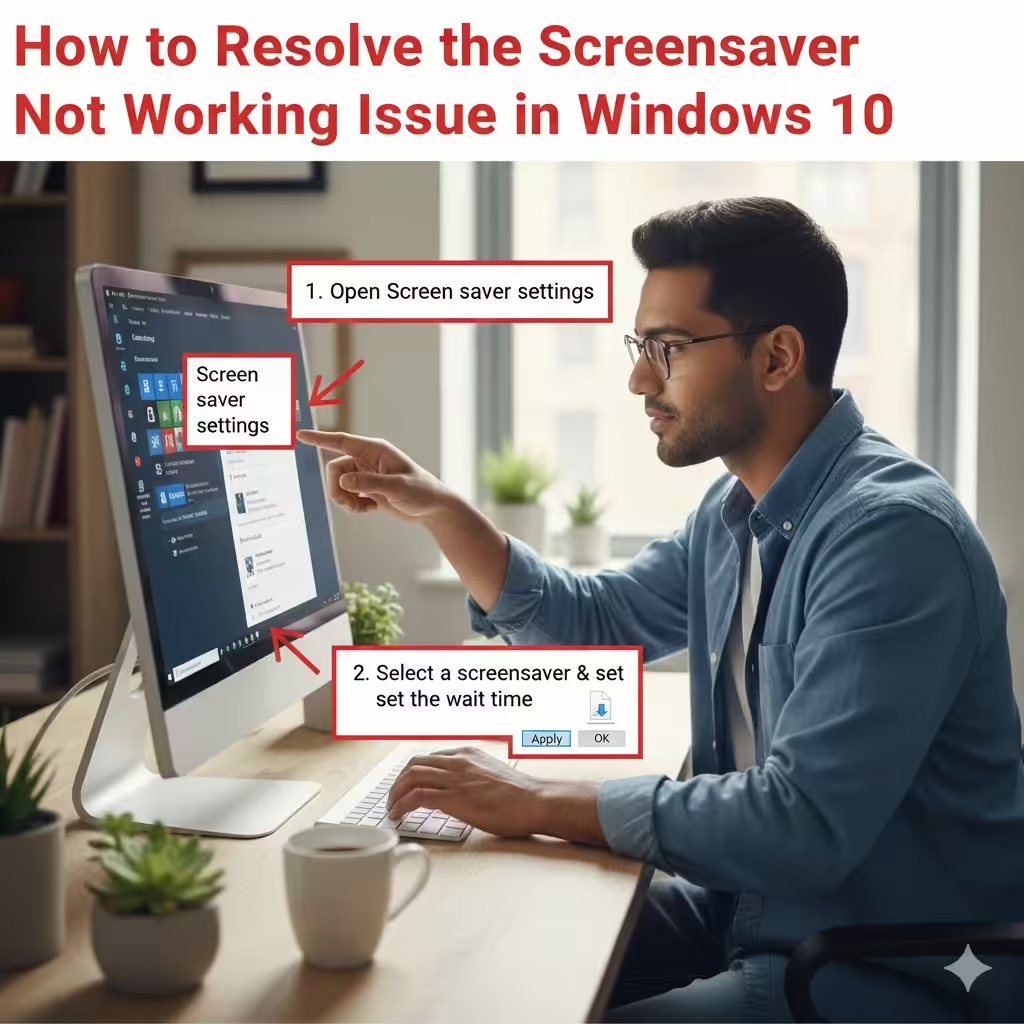
How to Resolve the Screensaver Not Working Issue in Windows 10
A screensaver is a simple feature, but many Windows 10 users encounter the frustrating problem of the screensaver not starting or functioning correctly. Whether it refuses to activate, activates too late, or doesn’t display at all, the issue can interrupt your workflow and may even point to deeper system problems. Fortunately, the cause is usually something simple—such as mouse activity, power settings, background processes, or device drivers.
This comprehensive guide will walk you through all possible reasons why your Windows 10 screensaver isn’t working and provide clear, step-by-step solutions to restore full functionality.
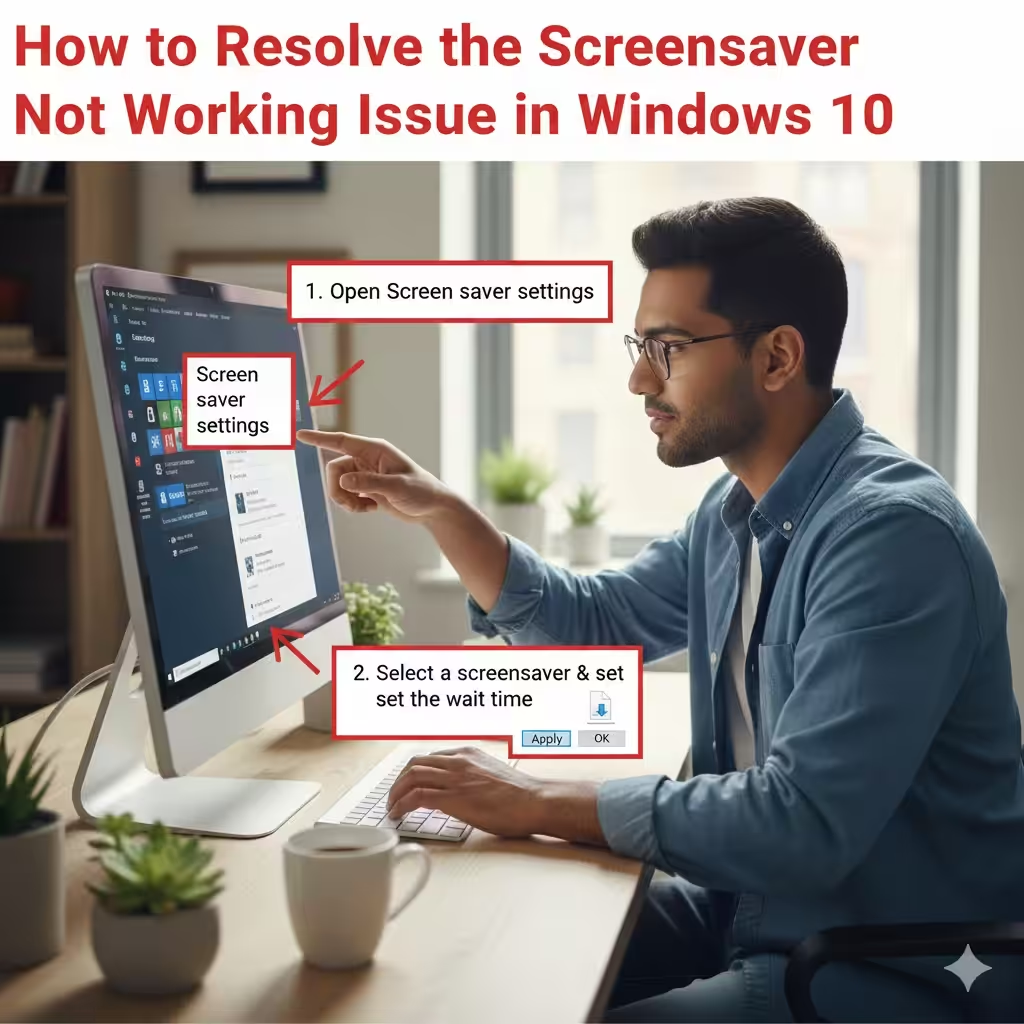
Common Causes of Screensaver Problems in Windows 10
Before applying fixes, it helps to understand why the screensaver may not work. Below are the most frequent causes:
-
Mouse sensitivity or movement from connected devices
-
Incorrect or disabled screensaver settings
-
Power Plan configurations preventing activation
-
Outdated or malfunctioning display drivers
-
Applications blocking the screensaver
-
Connected game controllers waking the system
-
Background videos, streaming, or media apps
-
Windows updates resetting settings
-
Corrupted system files
Knowing the cause makes the troubleshooting process smoother and more effective.
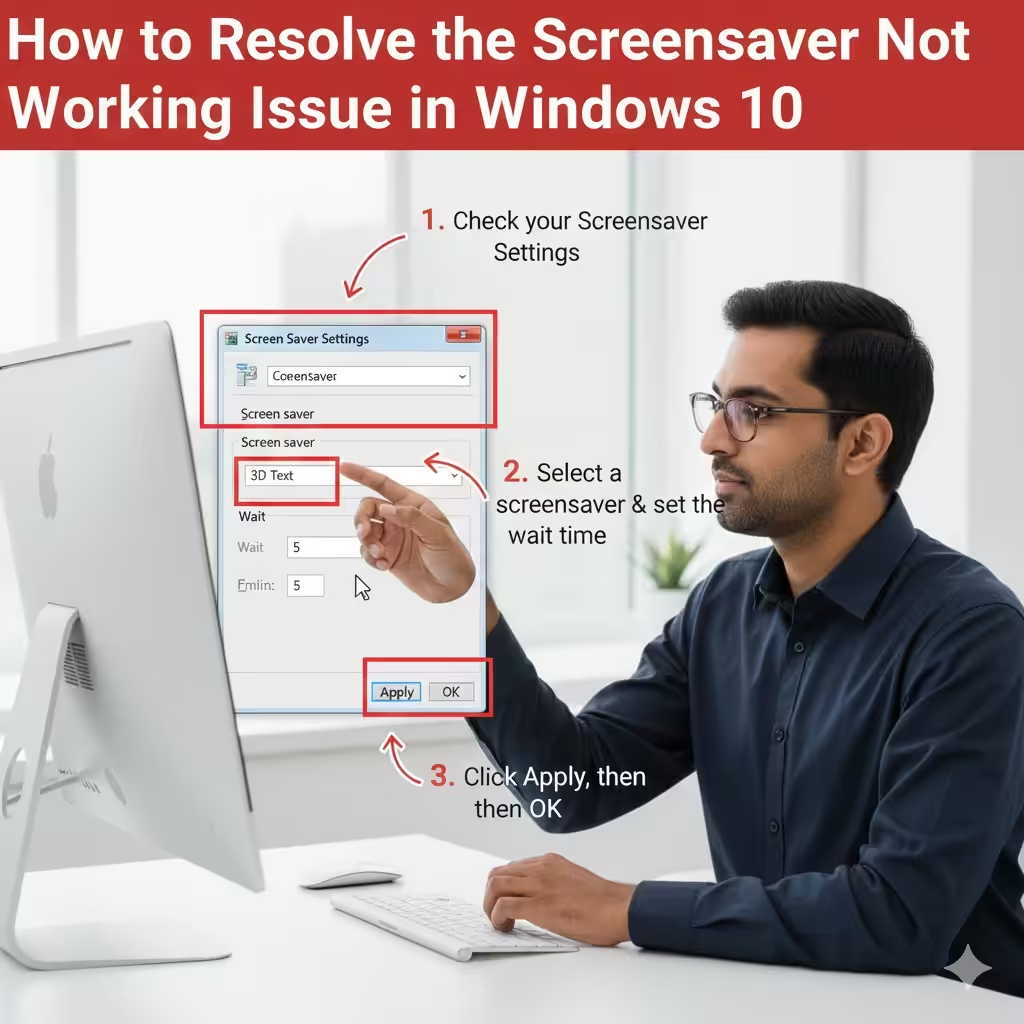
Fix 1: Check Your Screensaver Settings
The first step is to ensure your screensaver isn’t disabled.
-
Press Windows + I to open Settings.
-
Go to Personalization > Lock screen.
-
Scroll down and click Screen saver settings.
-
Ensure a screensaver is selected (e.g., “3D Text” or “Photos”).
-
Set the Wait time to a value like 5 or 10 minutes.
-
Click Apply, then OK.
If it was previously set to None, the screensaver would never activate.
Fix 2: Disconnect or Adjust Mouse Sensitivity
A common cause is subtle mouse movement—even from vibrations or pets walking near the desk.
-
Try disconnecting your mouse temporarily.
-
If you use a wireless mouse, remove the USB receiver.
-
Reduce mouse sensitivity or turn off “Enhance pointer precision.”
-
Clean the mouse sensor to prevent micro-movement.
If the screensaver activates when the mouse is unplugged, this is the cause.
Fix 3: Unplug Game Controllers or USB Devices
Devices like Xbox controllers, PlayStation controllers, and even drawing tablets can interrupt sleep timers and screensavers.
-
Disconnect any USB controllers.
-
Unplug gaming steering wheels or joysticks.
-
Remove USB hubs temporarily.
Restart your computer and check whether the screensaver works.
Fix 4: Check Advanced Power Settings
Your Windows power plan may be preventing the system from idling properly.
-
Open Control Panel.
-
Go to Power Options.
-
Click Change plan settings next to your power plan.
-
Select Change advanced power settings.
-
Expand Multimedia settings.
-
Under When sharing media, choose Allow the computer to sleep.
-
Expand Display, and ensure Turn off display after is configured correctly.
If the system never reaches an idle state, the screensaver will not start.
Fix 5: Disable Video or Media Applications Running in the Background
Apps like YouTube, Netflix, VLC, Spotify, and web browsers can block screensavers because they detect video playback.
To test:
-
Close all media applications.
-
Check Task Manager (Ctrl + Shift + Esc) for apps using GPU or audio.
-
Close any that might be running in the background.
Once no apps are preventing idle mode, test the screensaver again.
Fix 6: Turn Off Presentation Mode
Windows Presentation Mode forces the system to stay awake.
Check if it’s enabled:
-
Press Windows + R.
-
Type:
-
Press Enter.
-
Ensure Presentation Mode is turned Off.
If enabled, it will block both sleep and screensavers.
Fix 7: Update or Reinstall Display Drivers
Faulty or outdated GPU drivers can stop your screensaver from activating.
Update Drivers Via Device Manager
-
Press Windows + X and choose Device Manager.
-
Expand Display adapters.
-
Right-click your graphics card.
-
Select Update driver > Search automatically.
Reinstall Drivers
If updating doesn’t help:
-
Right-click your display adapter.
-
Select Uninstall device.
-
Restart your computer.
Windows will automatically reinstall the correct driver.
Fix 8: Run System File Checker (SFC Scan)
Corrupted Windows files may affect screensaver behavior.
-
Press Windows + X and select Windows PowerShell (Admin) or Command Prompt (Admin).
-
Type:
-
Press Enter.
Windows will scan and repair damaged files.
After the scan completes, restart your PC.
Fix 9: Remove Third-Party Screensaver Software
If you’ve installed custom screensaver apps, they may conflict with Windows 10.
-
Uninstall third-party screensaver utilities.
-
Restart your computer.
-
Re-enable the default Windows screensaver.
Microsoft recommends avoiding unofficial screensavers because they often conflict with Windows updates.
Fix 10: Check Registry Settings for Screensaver Timeout
Incorrect registry entries can override your screensaver settings.
Warning: Edit the registry carefully.
-
Press Windows + R and type regedit.
-
Navigate to:
-
Look for these values:
-
ScreenSaveActive – Set to 1
-
ScreenSaveTimeOut – Set to 600 (10 minutes) or another value
-
-
Double-click each entry to edit the value.
Restart your computer after making changes.
Fix 11: Ensure Windows Updates Are Installed
Updates can fix bugs affecting the screensaver.
-
Go to Settings > Update & Security.
-
Click Check for updates.
-
Install all available updates.
-
Restart your PC.
Sometimes, Windows patches restore proper screensaver functionality.
Fix 12: Create a New User Profile
If your user profile is corrupted, screensaver settings may stop functioning.
-
Open Settings.
-
Go to Accounts > Family & other users.
-
Click Add someone else to this PC.
-
Create a new account.
-
Log in and test the screensaver.
If it works under the new account, your original profile has corrupted configurations.
Fix 13: Reset Windows 10 Power Settings to Default
Resetting all power settings can resolve hidden system conflicts.
-
Open Command Prompt (Admin).
-
Run:
-
Restart your system.
This resets all power plans and idle settings.
Conclusion
When your Windows 10 screensaver isn’t working, it’s usually due to simple issues such as device movement, incorrect settings, or applications running in the background. With the fixes in this guide—ranging from basic checks to advanced system repairs—you should be able to identify the cause and restore your screensaver quickly. By ensuring your power settings, drivers, and system configuration are correctly set, Windows can return to its normal idle behavior without interruptions.