


Troubleshooting the “Something Went Wrong” Issue When Starting an Office Program
The “Something Went Wrong” message is one of the most common errors users encounter when trying to open an Office app such as Word, Excel, PowerPoint, or Outlook. This message usually appears without much detail, which can be frustrating—especially when you need to work urgently. Fortunately, this issue is typically caused by a few predictable factors such as corrupted files, account problems, outdated Office builds, or issues with Windows services.
This complete guide explains the causes of the error and provides detailed solutions to fix it. Follow the steps below to get your Office apps running smoothly again.
Common Causes of the “Something Went Wrong” Error
Before we start troubleshooting, it helps to understand why this error appears. Below are the most common causes:
-
Corrupted or missing Microsoft Office installation files
-
Incorrect or expired Microsoft account credentials
-
Conflicts with previous Office versions
-
Windows system services that are disabled or malfunctioning
-
Network connection issues preventing activation
-
Disabled licensing services
-
Pending Office updates
-
Damaged Office registry entries
Understanding these factors will make it easier to apply the right fix.
Fix 1: Restart Your Computer and Try Again
Although simple, restarting Windows often resolves temporary conflicts with services or applications.
-
Save all open files.
-
Click Start > Power > Restart.
-
After rebooting, relaunch the Office app.
If the issue was caused by a temporary process conflict, this fix may work instantly.
Fix 2: Check Your Microsoft Account
Office apps require activation through your Microsoft account. If you’re not signed in correctly, you may see the “Something Went Wrong” error.
-
Open Settings on Windows.
-
Go to Accounts > Email & accounts.
-
Make sure your Microsoft account is listed and active.
-
Open any Office app and select File > Account.
-
Sign in again with your correct Microsoft account.
If your subscription is expired, renew it from your Microsoft account dashboard before trying again.
Fix 3: Update Office to the Latest Version
Outdated Office builds may cause compatibility or licensing issues.
-
Open any Office app such as Word or Excel.
-
Go to File > Account.
-
Under Office Updates, click Update Now.
-
Let the update complete, then restart the app.
If you cannot open Office at all, update Office from the Control Panel:
-
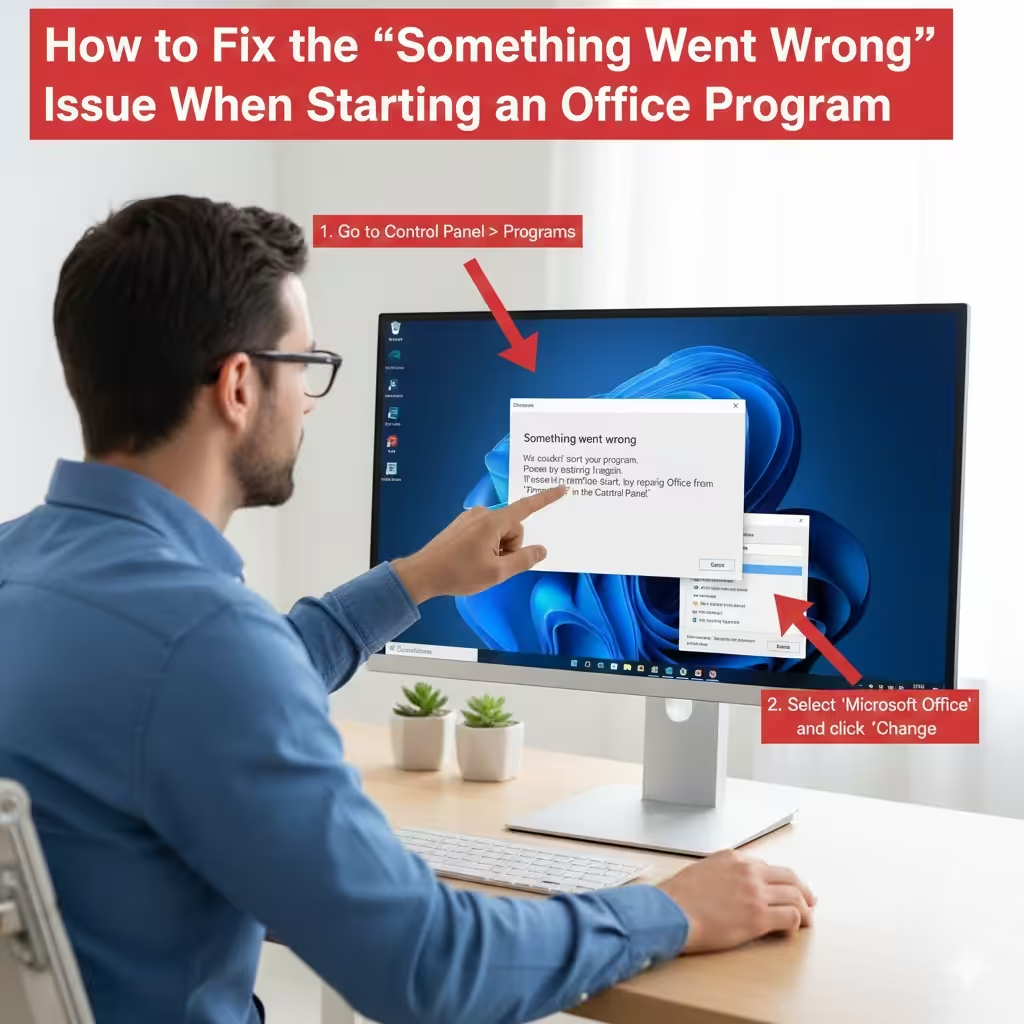
Go to Control Panel > Programs > Programs and Features
-
Select Microsoft Office
-
Choose Change > Quick Repair
Fix 4: Repair Office Installation
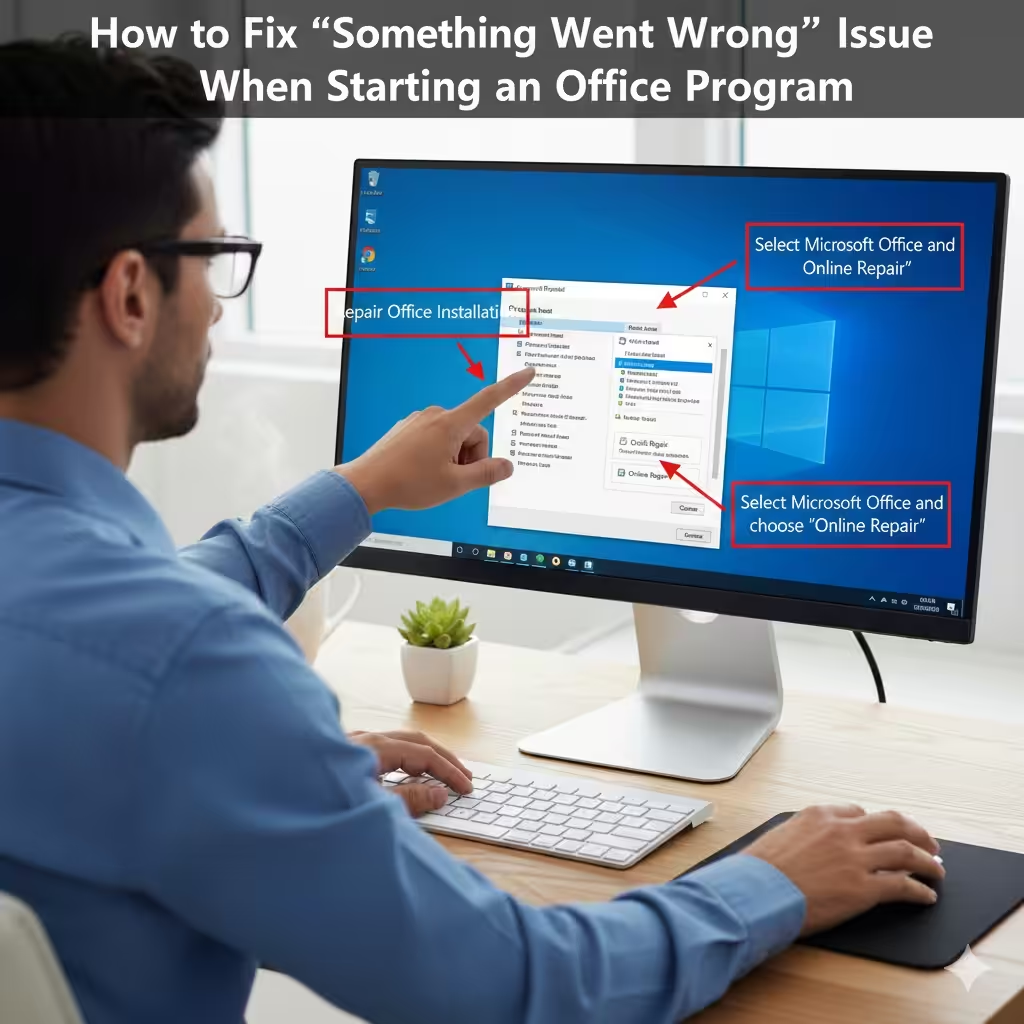
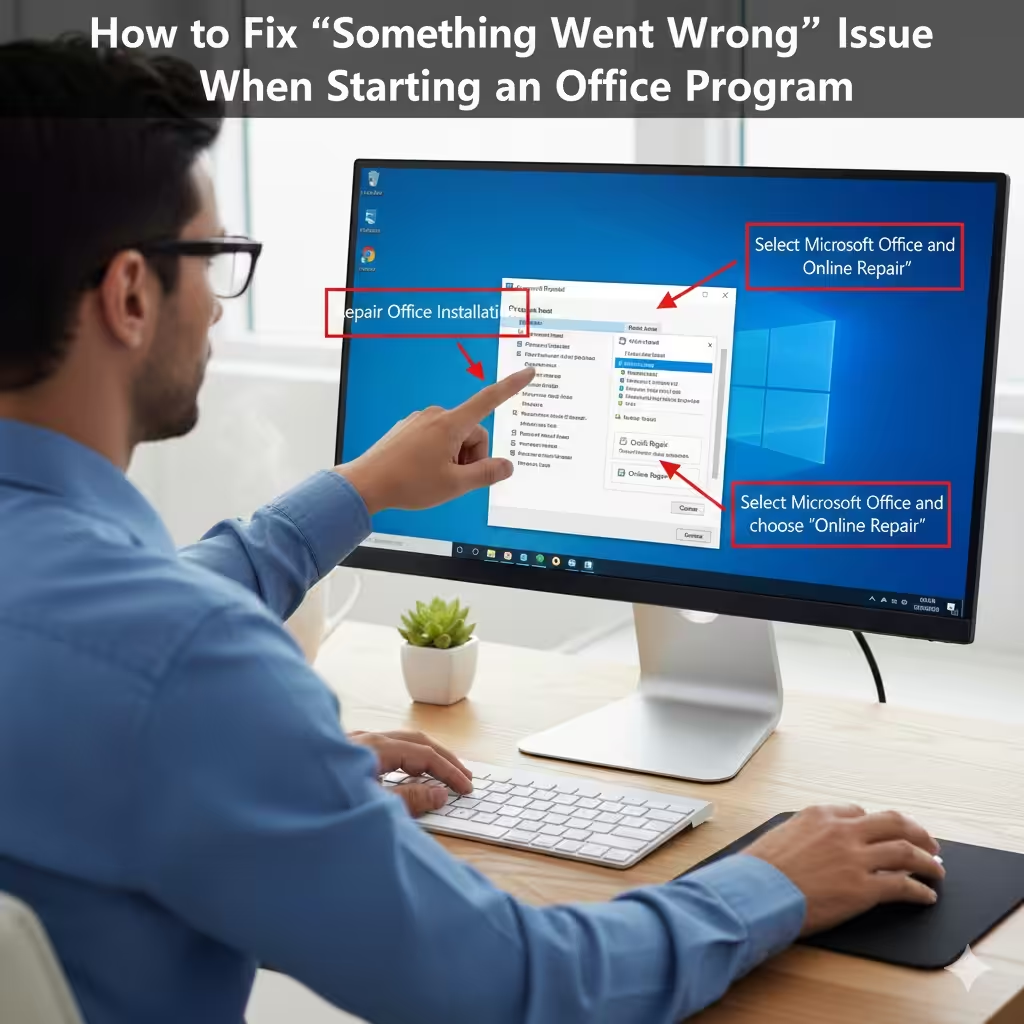
A corrupted Office installation is one of the most common reasons for this error. Windows provides two troubleshooting tools: Quick Repair and Online Repair.
Quick Repair
-
Go to Control Panel > Programs > Programs and Features.
-
Select Microsoft Office from the list.
-
Click Change.
-
Choose Quick Repair and confirm.
Quick Repair fixes basic file issues without needing an internet connection.
Online Repair
If Quick Repair doesn’t work:
-
Repeat the steps above.
-
Choose Online Repair.
This option fully reinstalls Office and resolves most installation-related issues.
Fix 5: Ensure Required Windows Services Are Running
Office relies on several Windows services, especially licensing services. If they are disabled, Office apps will fail to start.
-
Press Windows + R, type services.msc, and press Enter.
-
Find the following services and ensure they are running:
-
Office Software Protection Platform
-
Windows Update
-
Microsoft Click-to-Run Service
-
-
Right-click each one and select Start (or Restart).
-
Set Startup Type to Automatic.
After restarting the services, try launching your Office app again.
Fix 6: Remove Old or Conflicting Office Versions
If you previously installed older versions of Office—like Office 2010 or Office 2013—those files may interfere with newer versions.
-
Go to Control Panel > Programs > Programs and Features.
-
Uninstall all old versions of Office.
-
Restart your computer.
-
Reinstall your current Office version from your Microsoft account.
Microsoft also offers an official removal tool to uninstall Office completely if leftover files remain.
Fix 7: Reset Office Activation
If Office cannot verify your license, the error may appear.
-
Open any Office application (if possible).
-
Go to File > Account.
-
Sign out of your Microsoft account.
-
Close all Office apps.
-
Reopen an Office app and sign in again.
This refreshes your activation data.
Fix 8: Temporarily Disable Antivirus or Firewall
Some antivirus programs block Office components from launching correctly.
-
Temporarily disable your antivirus software.
-
Try opening the Office app again.
-
If it works, create an exception in your antivirus settings for Office.
Be sure to re-enable your antivirus afterward.
Fix 9: Reset Your Internet Settings
Network issues can disrupt Office activation and connection to Microsoft’s licensing servers.
Reset DNS
-
Open Command Prompt as Administrator.
-
Run:
Reset Internet Settings
-
Open Control Panel.
-
Go to Internet Options.
-
Select Advanced.
-
Click Reset.
Now try reopening the Office app.
Fix 10: Run the Microsoft Support and Recovery Assistant
Microsoft provides an automated troubleshooting tool specifically designed for Office issues.
-
Download the tool from the official Microsoft website.
-
Run it and choose Office.
-
Follow the on-screen steps to detect and fix problems.
This tool can repair activation issues, account conflicts, and installation errors automatically.
Fix 11: Reinstall Office Completely
If all else fails, reinstalling Office may be the final solution.
-
Uninstall Office from Programs and Features.
-
Restart your computer.
-
Sign in to your online Microsoft account.
-
Go to Services & Subscriptions.
-
Download and reinstall Office.
This removes all corrupted files and restores default settings.
Conclusion
The “Something Went Wrong” error in Office can be frustrating, but it is usually easy to resolve once you identify the root cause. By checking your Microsoft account, repairing Office, updating the software, and ensuring required services are running, you can typically fix the issue without needing professional support. For persistent problems, Microsoft’s tools and a complete reinstall provide reliable final solutions.
With the steps in this guide, you should be able to start your Office apps smoothly and return to your work without interruptions.