


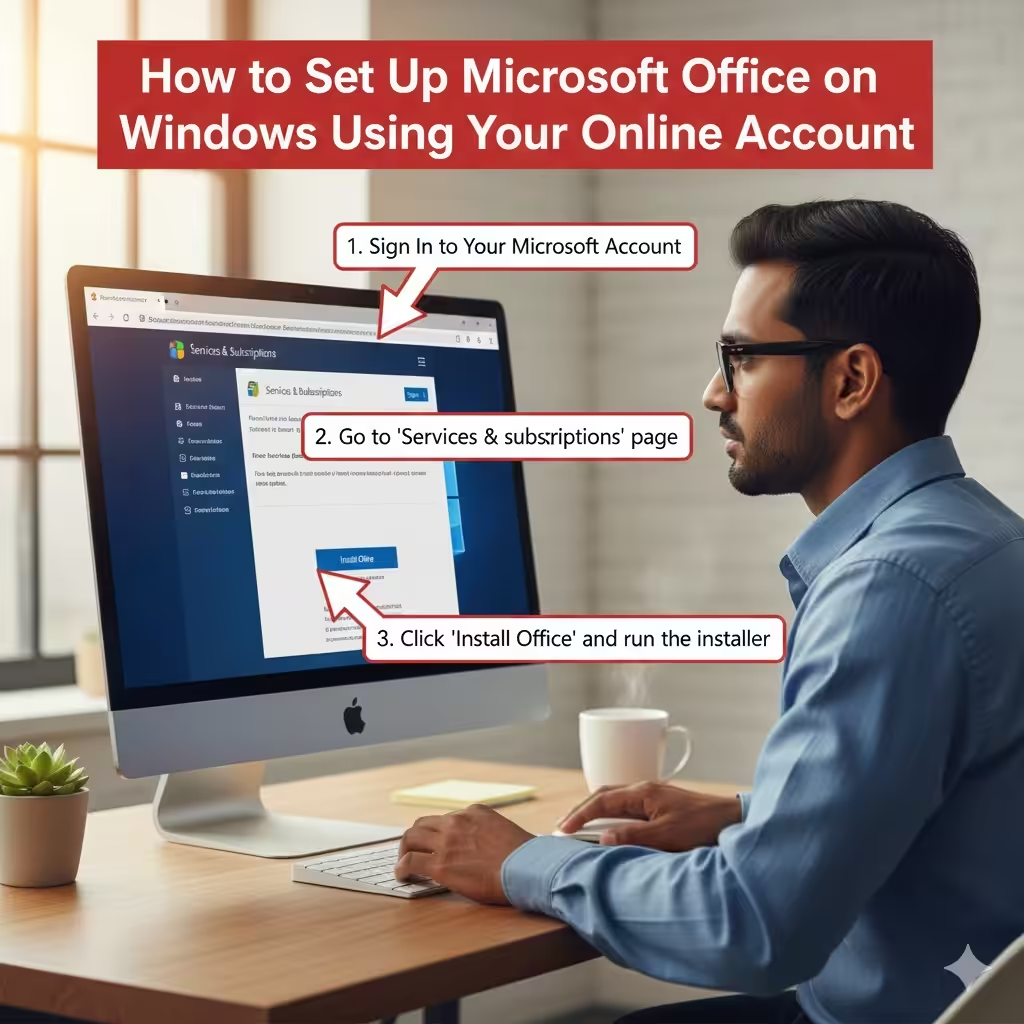
How to Set Up Microsoft Office on Windows Using Your Online Account
Installing Office on a Windows PC has become easier and more streamlined thanks to the integration of cloud services and online account management. Instead of relying on DVDs or product keys printed on cards, most modern Office versions—such as Microsoft 365 and Office 2021—can be installed directly through your online Microsoft account. This cloud-based approach ensures your software is always available, easy to reinstall, and securely linked to your personal account.
In this guide, you’ll learn step-by-step how to install Office on your Windows computer using your online Microsoft account, along with troubleshooting tips and essential notes to ensure a smooth setup experience.
What You Need Before Installing Office
Before beginning the installation process, make sure you have the following:
-
A valid Microsoft account that owns the Office license or subscription.
-
A stable internet connection.
-
Enough disk space for installation (typically 4–10 GB).
-
A Windows PC running Windows 10 or Windows 11 for the latest Office versions.
-
Your Microsoft 365 subscription or Office product already redeemed on your account.
If you purchased Office from a retailer, ensure the product has been redeemed at the official Microsoft website before you start downloading.
Step 1: Sign In to Your Microsoft Account
The first step is accessing your Microsoft account dashboard, where all your services and subscriptions are stored.
-
Open your browser and go to the official Microsoft website.
-
Click Sign In in the upper-right corner.
-
Enter your email, phone number, or Skype ID associated with your Microsoft account.
-
Complete the login process using your password or two-step authentication if enabled.
Once logged in, you’ll see your account homepage with access to services like Office, OneDrive, and Xbox.
Step 2: Go to the Services & Subscriptions Page
To download Office, you must access the section where your purchases and licenses are displayed.
-
After signing in, open the Services & Subscriptions tab from the top menu.
-
Scroll through your list of purchases until you find your Microsoft 365 or Office product.
-
If your Office license is valid and redeemed, you will see a button labeled Install or Install Office next to it.
If you do not see your Office purchase, it may be linked to a different Microsoft account. In that case, double-check which email was used when redeeming your product.
Step 3: Start the Office Installation Download
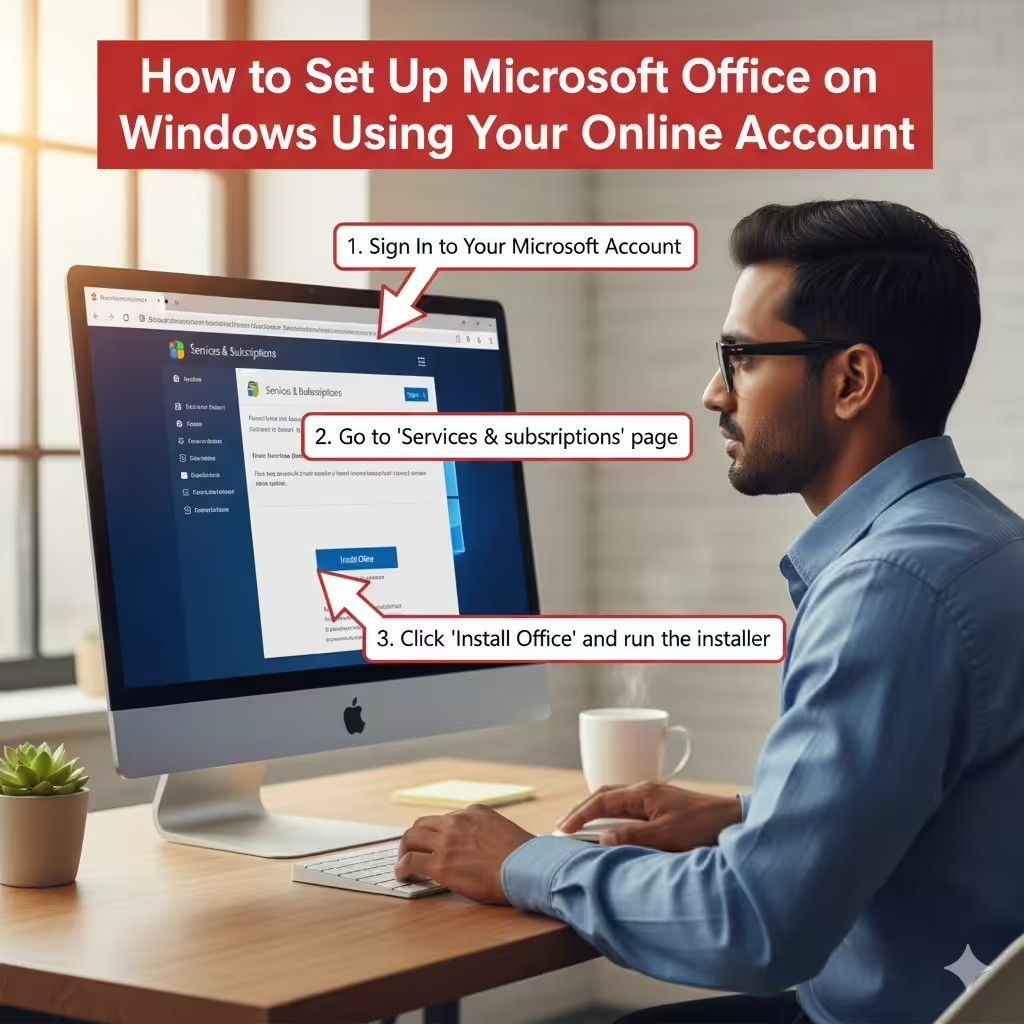
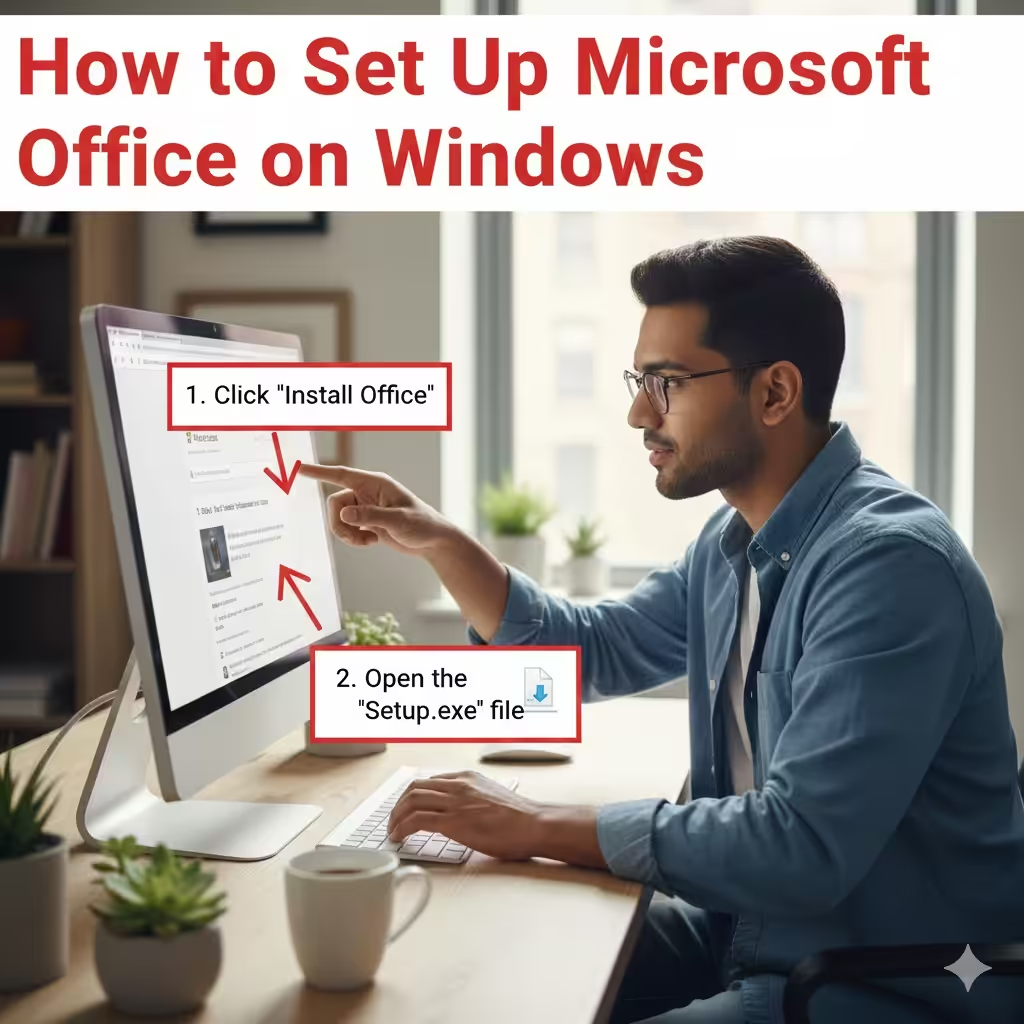
Once you click the Install button, your browser will start downloading the Office installer.
-
Select Install Office to begin.
-
A small file named Setup.exe (or OfficeSetup.exe) will download to your computer.
-
Open the file once the download completes.
This installer will automatically download the full Office package from Microsoft’s servers.
Step 4: Run the Installer on Your Windows PC
With the installer opened, the setup process is straightforward.
-
Double-click the downloaded installer file.
-
When prompted by Windows, click Yes to allow changes.
-
The Microsoft Office installer will launch and begin downloading the necessary components.
-
You’ll see a window displaying progress with messages like “We’re getting things ready” or “Installing Office.”
This process may take several minutes depending on your internet speed and system performance.
Once the installation completes, you will see the message “You’re all set!”, indicating Office is ready to use.
Step 5: Activate Office Using Your Microsoft Account
After Office is installed, it must be activated using the same Microsoft account you used to download it.
-
Open any Office app such as Word, Excel, or PowerPoint.
-
When the app starts, it will prompt you to sign in.
-
Enter your Microsoft account email and password.
-
Once signed in, your Office license will activate automatically.
Most subscriptions activate automatically within seconds. If activation fails, simply restart your Office apps or your PC and try again.
Common Installation Issues and How to Fix Them
Even though Microsoft has simplified the installation process, some users may still experience problems. Below are the most common issues and their solutions.
1. Can’t Find Your Office License
If the Services & Subscriptions page does not show your purchase:
-
Make sure you are signed in with the correct Microsoft account.
-
Check old emails for order confirmations to verify which account was used.
-
Contact Microsoft Support if you believe your license is missing.
2. Installation Stuck or Extremely Slow
If the progress bar freezes:
-
Restart your internet connection.
-
Close all other applications.
-
Temporarily disable antivirus software.
-
Reboot your PC and relaunch the installer.
3. Error Messages During Installation
Common errors include setup failures, corruption issues, or missing system files.
-
Run Windows Update to ensure your system is up to date.
-
Uninstall older Office versions from Apps & Features.
-
Use the Microsoft Support and Recovery Assistant tool to automatically fix issues.
4. Activation Problems After Installation
If Office asks for a product key:
-
Click Sign in and enter the Microsoft account used for the purchase.
-
Ensure your subscription has not expired.
-
If you see a license mismatch, restart Office and try again.
Tips for Managing Office After Installation
Once Office is installed and activated, consider these best practices:
-
Keep your Windows OS updated for compatibility and security.
-
Enable automatic updates inside Office to receive the latest features.
-
Use OneDrive to save your documents securely in the cloud.
-
Install Office on multiple devices if your subscription allows it.
-
Manage your subscription or billing options in your Microsoft account dashboard.
These steps help ensure your Office apps run smoothly without interruptions.
Conclusion
Installing Office on a Windows PC using your online Microsoft account is a convenient and efficient process. By signing in, accessing the Services & Subscriptions page, downloading the installer, and activating Office with your account, you can set up your Office suite in just a few minutes. Even if issues arise, most can be resolved quickly using basic troubleshooting or Microsoft’s built-in tools.
With your Office apps ready to use, you can enjoy a complete suite of productivity tools tailored for work, school, and personal projects—all securely linked to your online account.