


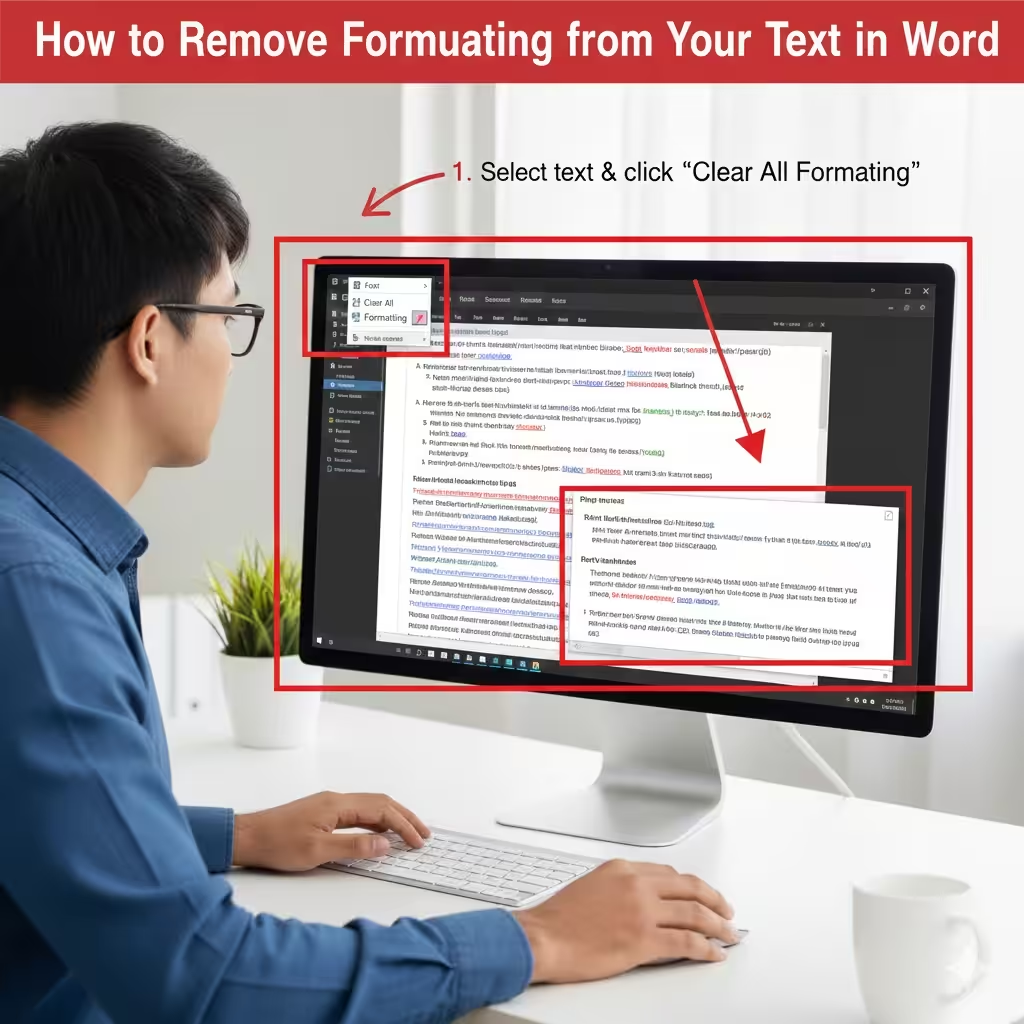
How to Remove Formatting from Your Text in Word
Formatting is an essential part of creating polished and professional documents. However, formatting can sometimes become messy, especially when text is copied from other sources such as websites, PDFs, or emails. Bold text, unusual fonts, inconsistent spacing, colored text, or unwanted styles can make your document difficult to read or edit. The good news is that Microsoft Word provides several ways to quickly clear formatting and restore your text to a clean, consistent style.
This comprehensive guide explains how to clear formatting in Microsoft Word on Windows, macOS, and the web version, as well as how to remove paragraph styles, reset headings, and strip formatting when pasting text.
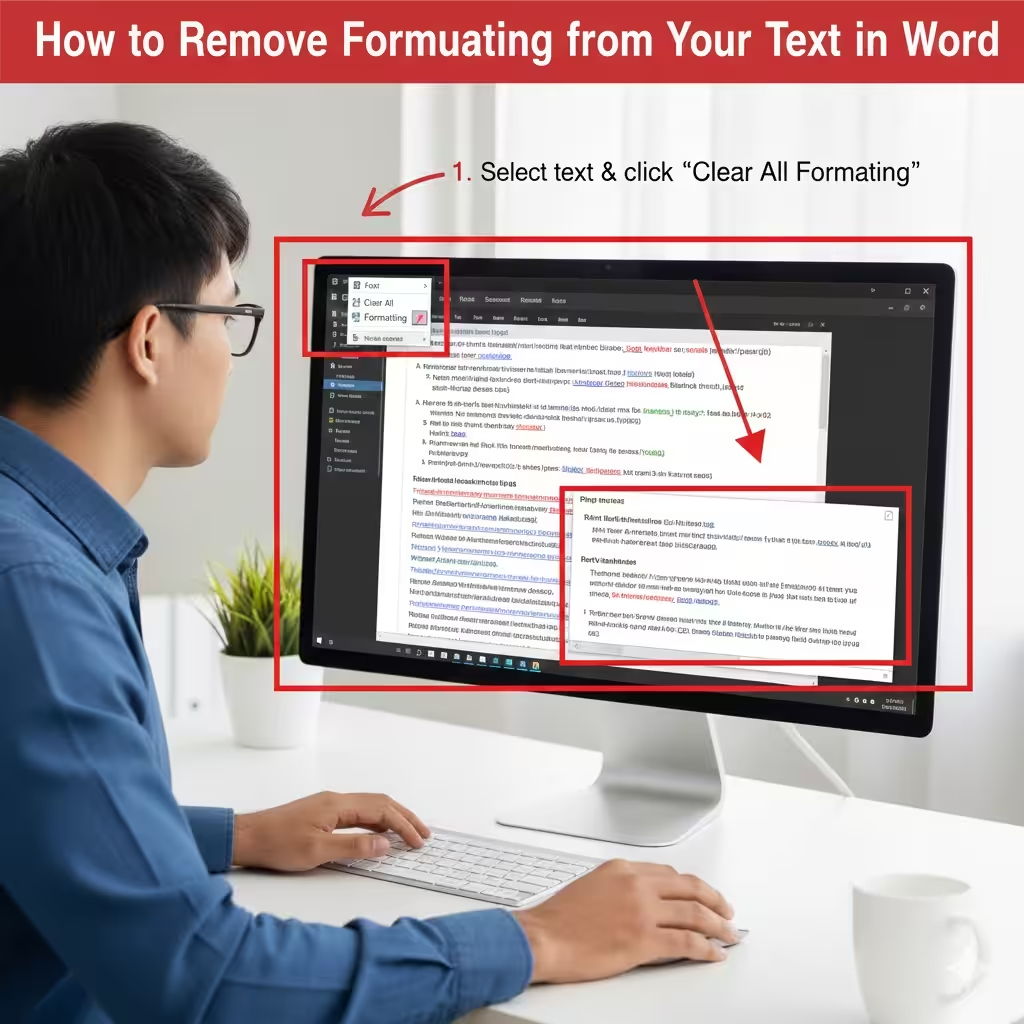
Understanding What “Clear Formatting” Means in Word
Before learning how to remove formatting, it helps to understand what Word considers “formatting.” In Word, formatting is divided into two primary categories:
Direct Formatting
This includes visual changes that are manually applied to text, such as:
-
Font size and color
-
Bold, italic, underline
-
Highlighting
-
Text effects
-
Superscript and subscript
Paragraph Formatting
This type of formatting impacts how text is arranged on the page, including:
-
Alignment (left, center, right)
-
Line spacing
-
Indentation
-
Bullets and numbering
-
Styles applied from the Style Gallery
Clearing formatting removes both types unless you choose more targeted methods.
How to Clear Formatting Using the Ribbon Toolbar
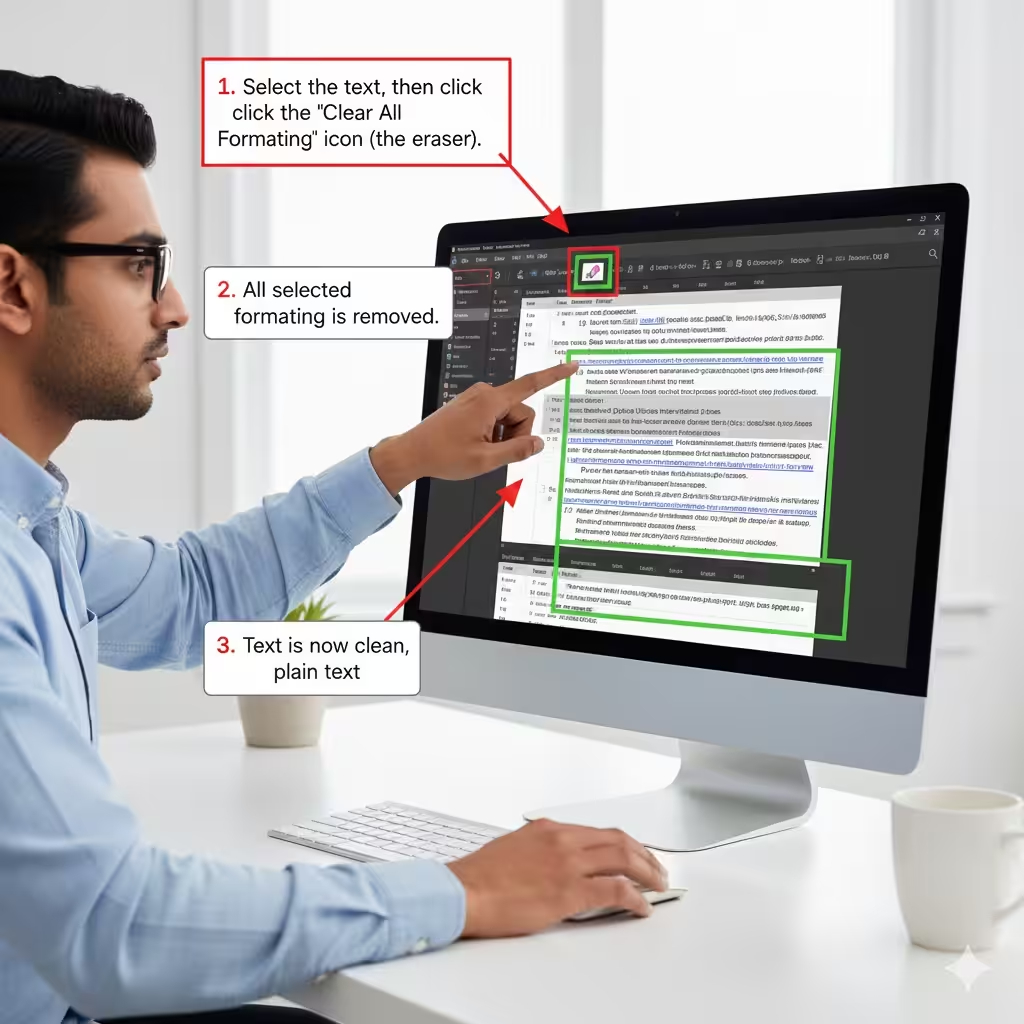
One of the quickest ways to clear formatting in Microsoft Word is by using the command directly on the Ribbon.
Steps
-
Select the text that you want to clear.
-
Go to the Home tab.
-
In the Font group, locate the button labeled Clear All Formatting (represented by an eraser icon over an “A”).
-
Click the button.
This instantly removes all character-level and paragraph-level formatting, returning your text to Word’s default style, usually Normal.
When to Use This Method
-
When you copy text from a webpage
-
When you want to quickly remove bold, colors, or unusual fonts
-
When a section of your document looks inconsistent with the rest
How to Use Keyboard Shortcuts to Clear Formatting
If you prefer working efficiently without clicking through menus, Microsoft Word offers built-in keyboard shortcuts.
Windows Shortcut
Press: Ctrl + Spacebar
This removes character formatting, but keeps paragraph formatting such as indentation and spacing.
Press: Ctrl + Q
This removes paragraph formatting, restoring the paragraph to its default style.
macOS Shortcut
Press: Command + Spacebar
(If Spotlight Search interferes, you may need to adjust macOS keyboard settings.)
Press: Command + Option + Q
This removes paragraph formatting on macOS.
Why These Shortcuts Matter
Using shortcuts is ideal when:
-
You want to reset only part of the formatting
-
You want to work quickly without navigating the Ribbon
-
You need to fix text inside a long document
Clearing Formatting Through the Styles Panel
Sometimes formatting problems come from applied styles rather than manual settings. The Styles panel in Word can help reset or reapply clean formatting.
Steps to Clear Styles
-
Select your text.
-
Open the Styles pane by pressing Ctrl + Shift + Alt + S (Windows) or Control + Option + Command + S (Mac).
-
Choose Clear All (sometimes labeled Normal or Default Paragraph Font).
This forces the selected text to adopt Word’s built-in Normal style.
Useful When
-
You want to remove a Heading style
-
The document uses inconsistent custom styles
-
Formatting is inherited from templates
How to Clear Formatting When Pasting Text
Many formatting issues begin when text is pasted into a Word document. Fortunately, Word offers tools to help paste text cleanly.
Method 1: Paste Without Formatting
-
Copy the text from the source.
-
In Word, right-click where you want to paste.
-
Choose Keep Text Only, marked by a clipboard icon with an “A.”
Keyboard Shortcut for Paste as Plain Text
-
Windows: Ctrl + Shift + V (in newer versions)
-
macOS: Command + Shift + V
Method 2: Set Default Paste Options
-
Go to File.
-
Select Options.
-
Choose Advanced.
-
Scroll to the Cut, Copy, and Paste section.
-
Change your defaults for pasting between documents or from other programs to Keep Text Only.
This prevents future formatting problems by stripping styles from pasted content automatically.
How to Clear Formatting from an Entire Document
If your document is heavily formatted or messy, you may want to reset all formatting at once.
Option 1: Select All Text and Clear Formatting
-
Press Ctrl + A to select the entire document.
-
Click Clear All Formatting on the Home tab.
Option 2: Convert to Plain Text
-
Press Ctrl + A.
-
Copy the selection (Ctrl + C).
-
Paste it into a plain text editor such as Notepad.
-
Copy it again and paste it back into Word.
This removes 100% of styles, formatting, hyperlinks, and embedded objects.
Clearing Formatting in Word for the Web
The web version of Microsoft Word also provides tools to remove formatting.
Steps
-
Select the text.
-
On the Home tab, click the Clear Formatting icon.
-
Alternatively, use the right-click menu and choose Clear Formatting.
While not as full-featured as the desktop version, it handles basic formatting removal well.
Common Issues When Clearing Formatting and How to Fix Them
Sometimes formatting remains even after using “Clear All Formatting.” Here’s why:
Issue 1: Styles Are Still Applied
Solution: Clear styles using the Styles Pane.
Issue 2: Paragraph Marks Are Hidden
Paragraph formatting may remain invisible.
Solution: Enable formatting marks with Ctrl + Shift + 8 to locate issues.
Issue 3: Tables Contain Embedded Formatting
Solution: Convert tables to text before clearing formatting.
Issue 4: Section Breaks Reset Formatting
Solution: Review and remove unnecessary section breaks.
Final Thoughts
Clearing formatting in Microsoft Word is an essential skill that can help you maintain a clean, consistent, and professional document. Whether you need to remove formatting from a small section or reset an entire document, Word offers several powerful tools—from Ribbon commands and keyboard shortcuts to style controls and paste options.
By understanding how each method works, you can choose the technique that best fits your workflow and ensure your documents remain easy to edit and visually appealing.