


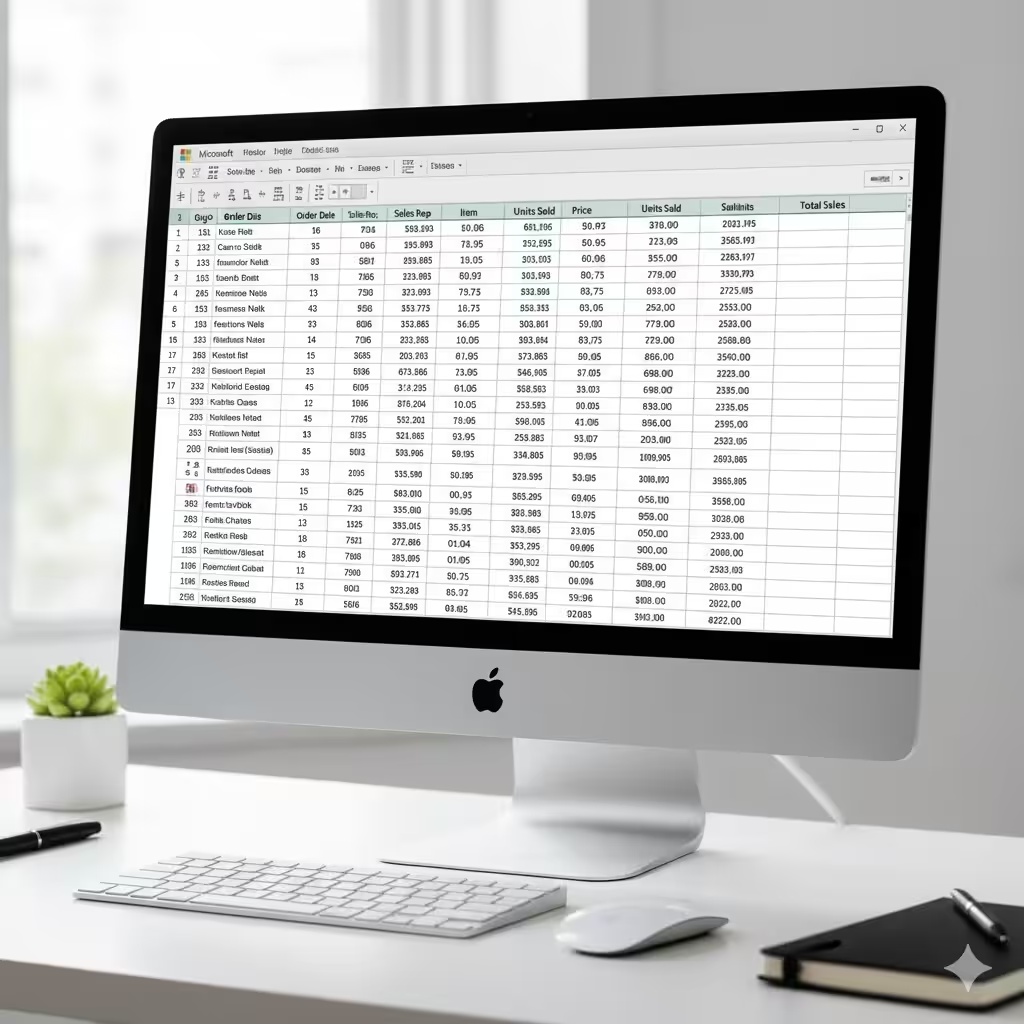
How to Use Excel’s Auto Format Feature for Quick and Easy Data Formatting
Microsoft Excel is one of the most versatile tools for managing, analyzing, and presenting data. While many users are familiar with basic formatting options such as bold text, borders, and cell colors, Excel also offers a powerful feature called Auto Format. This feature allows you to quickly apply professional, consistent formatting to entire worksheets or data ranges, saving time and enhancing the readability of your spreadsheets.
In this comprehensive guide, you’ll learn how to use Excel’s Auto Format option effectively, explore its features, and discover tips for customizing formats to match your data needs.
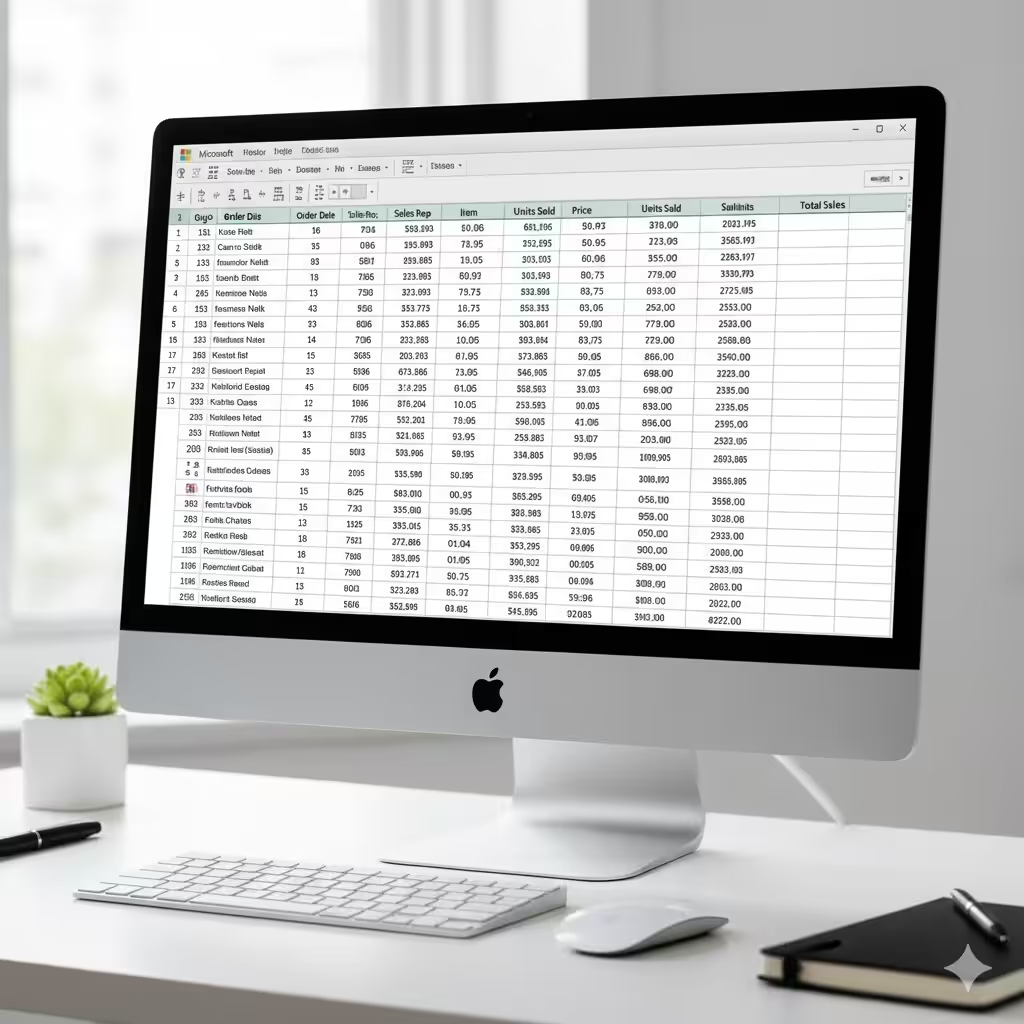
What is Excel’s Auto Format Feature?
Excel’s Auto Format option is a built-in tool that provides a set of predefined styles you can apply to your data. It can format numbers, text, borders, shading, and even apply alternating row colors, making your spreadsheet visually appealing and easier to read.
The feature is especially useful when:
-
You need to present data professionally
-
You want to ensure consistency across large datasets
-
You need a quick way to improve spreadsheet readability
-
You want to save time formatting tables manually
With Auto Format, you don’t have to spend hours adjusting fonts, borders, and colors — Excel does it for you in just a few clicks.
Step 1: Open Your Excel Workbook
To start using Auto Format, first open the Excel workbook containing the data you want to format. If you’re creating a new spreadsheet, input your data in a structured format with headers and rows before applying Auto Format.
Organizing your data properly is important because Auto Format works best on tables or clearly defined ranges.
Step 2: Select the Data Range
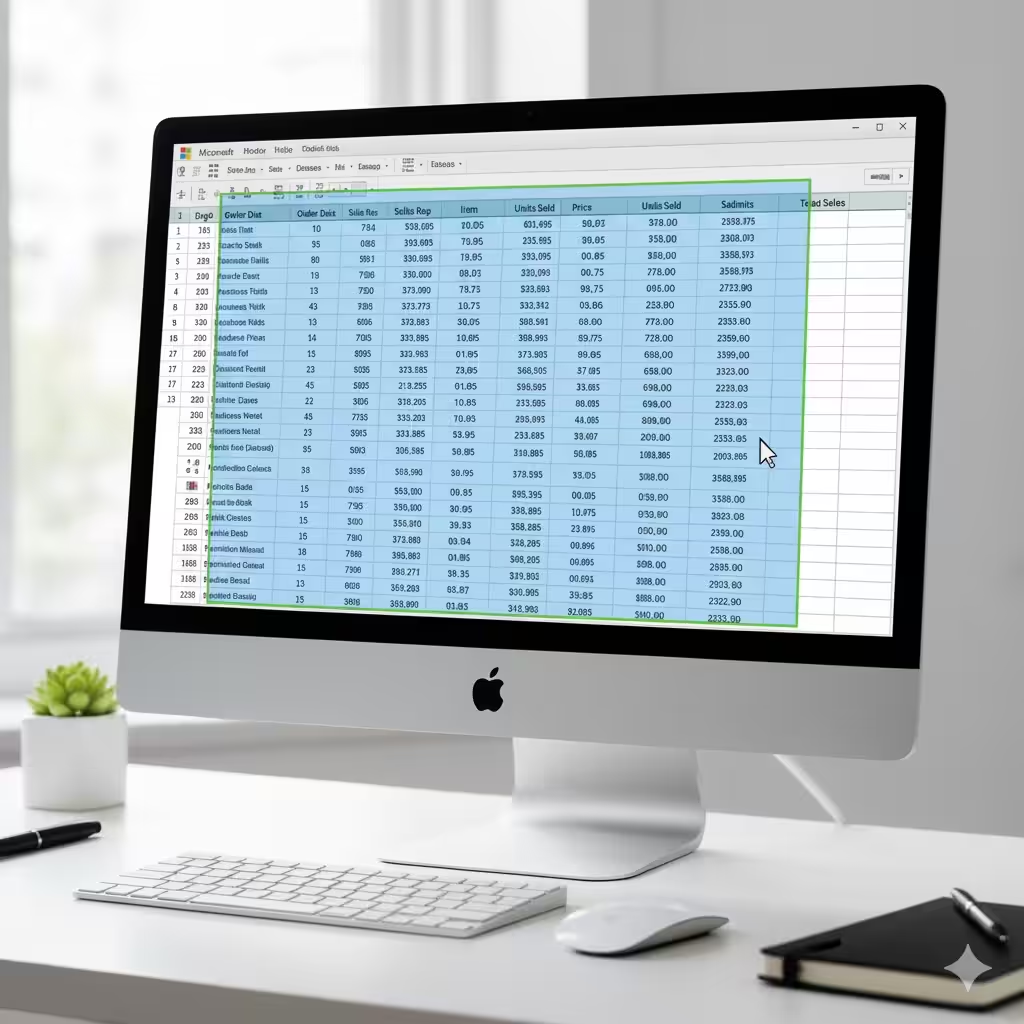
Auto Format works on a selected range of cells.
-
Click and drag your mouse over the cells you want to format
-
Include headers if you want them to be formatted as well
-
Make sure your selection covers the entire table or dataset
Selecting the correct range ensures that the formatting is applied consistently without affecting unrelated cells.
Step 3: Access the Auto Format Option
In modern versions of Excel, the Auto Format feature is not directly visible on the ribbon, but it is still accessible through the Quick Access Toolbar or by adding it manually.
How to Access Auto Format
-
Click the File menu → Options
-
Go to Quick Access Toolbar
-
Under “Choose commands from,” select Commands Not in the Ribbon
-
Scroll down and select AutoFormat
-
Click Add to include it in your Quick Access Toolbar, then click OK
Once added, you can click the Auto Format icon anytime to apply formatting to a selected range.
Step 4: Choose a Predefined Format
When you click the Auto Format button, a dialog box appears with a list of predefined styles. Some common styles include:
-
Classic 1, Classic 2: Basic formatting with borders and bold headers
-
Accounting: Formats numeric values as currency with proper alignment
-
Professional: Alternating row colors, bold headers, and borders
-
Simple Table: Minimalistic style with clear separation between rows
Select the style that best fits your dataset and click OK. Excel will instantly apply the formatting to the selected range.
Step 5: Customize Your Auto Format
While predefined styles are convenient, you may want to adjust certain elements to match your specific needs. The Auto Format dialog allows you to customize:
-
Number formats: Display currency, percentages, or dates correctly
-
Font styles: Change font type, size, or bold/italic settings
-
Borders: Adjust borders around headers, rows, or columns
-
Shading: Apply colors to headers, alternating rows, or the entire table
-
Alignment: Set left, center, or right alignment for text and numbers
To customize:
-
In the Auto Format dialog, click Options
-
Check or uncheck the boxes for each formatting option
-
Click OK to apply the customized format
This allows you to retain the benefits of Auto Format while tailoring it to your preferences.
Step 6: Update or Reapply Auto Format
If you modify your data after applying Auto Format, you can reapply the same style to maintain consistency. Simply select the updated range and click the Auto Format button again. This ensures that any new rows or columns adopt the same formatting automatically.
Step 7: Use Auto Format for Large Datasets
Auto Format is particularly powerful when working with large datasets:
-
Alternating row colors make it easier to track rows across the table
-
Bold headers stand out, providing clarity when printing or sharing data
-
Number formatting ensures that data such as currency, percentages, or dates is consistent throughout the sheet
Using Auto Format on large spreadsheets improves readability and reduces errors caused by inconsistent formatting.
Step 8: Combine Auto Format with Other Excel Features
For maximum efficiency, Auto Format works well in combination with other Excel features:
-
Conditional Formatting: Highlight specific cells based on rules while maintaining a consistent table format
-
Tables: Convert your range to a table (Insert → Table) and then apply Auto Format for a professional look
-
Freeze Panes: Keep headers visible while scrolling through large datasets
-
Print Titles: Ensure your formatted headers appear on every printed page
These features complement Auto Format and create a polished, functional spreadsheet.
Tips for Mastering Auto Format
-
Always review the formatting after applying Auto Format to ensure numbers, text, and headers are displayed correctly
-
Avoid overlapping styles — for example, applying Auto Format after manually formatting some cells may overwrite previous settings
-
Save frequently used formats as custom table styles for even faster formatting in future projects
-
Experiment with different Auto Format styles to determine which one enhances clarity and readability the most
Common Issues and Solutions
-
Auto Format not visible: Ensure you’ve added it to the Quick Access Toolbar as described above
-
Formatting not applying correctly: Check that the correct range is selected and that your table is structured properly with headers
-
Overwritten data formats: Use the Options menu in Auto Format to deselect number formatting if you want to preserve existing formats
Example Scenario
Suppose you are preparing a monthly sales report with hundreds of rows and multiple columns for Product, Region, Sales, and Profit. Manually formatting this table can be time-consuming and error-prone. Using Auto Format, you can:
-
Select the entire sales dataset
-
Click Auto Format
-
Choose the Professional style for bold headers and alternating row colors
-
Adjust number formatting for the Sales and Profit columns to display currency
Within seconds, your spreadsheet looks professional, is easier to read, and is ready for presentation or printing.
Conclusion
Excel’s Auto Format feature is a powerful tool for efficient data formatting, helping users save time, improve readability, and create professional-looking spreadsheets. By understanding how to access, apply, and customize Auto Format, you can enhance your Excel workflows significantly.
Whether you’re working on financial reports, inventory sheets, or project tracking, mastering Auto Format ensures that your data is presented clearly and consistently. Combining Auto Format with features like conditional formatting, tables, and print options can make your Excel skills more advanced and your spreadsheets more effective.