


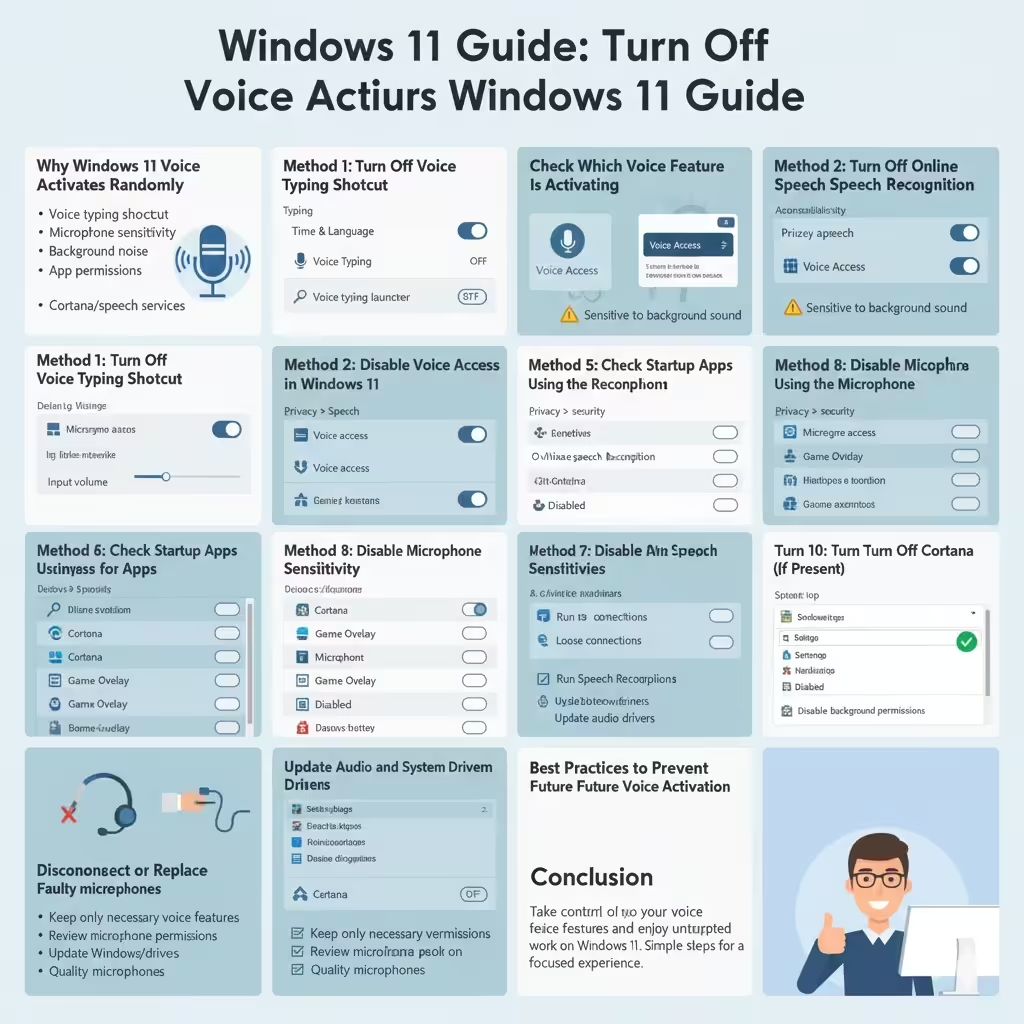
Windows 11 Guide: Turn Off Automatic Voice Activation
Windows 11 includes several voice-enabled features designed to make your computer easier to use, such as voice typing, voice access, and digital assistant services. While these tools can be helpful, many users experience a frustrating issue where Windows 11 activates voice features randomly, even when they did not say a command. This can interrupt work, trigger microphones unexpectedly, or display voice panels at inconvenient times.
This guide explains why Windows 11 voice activation happens randomly and provides clear, step-by-step solutions to stop it. By the end of this article, you will know how to fully control voice features and prevent unwanted activations.
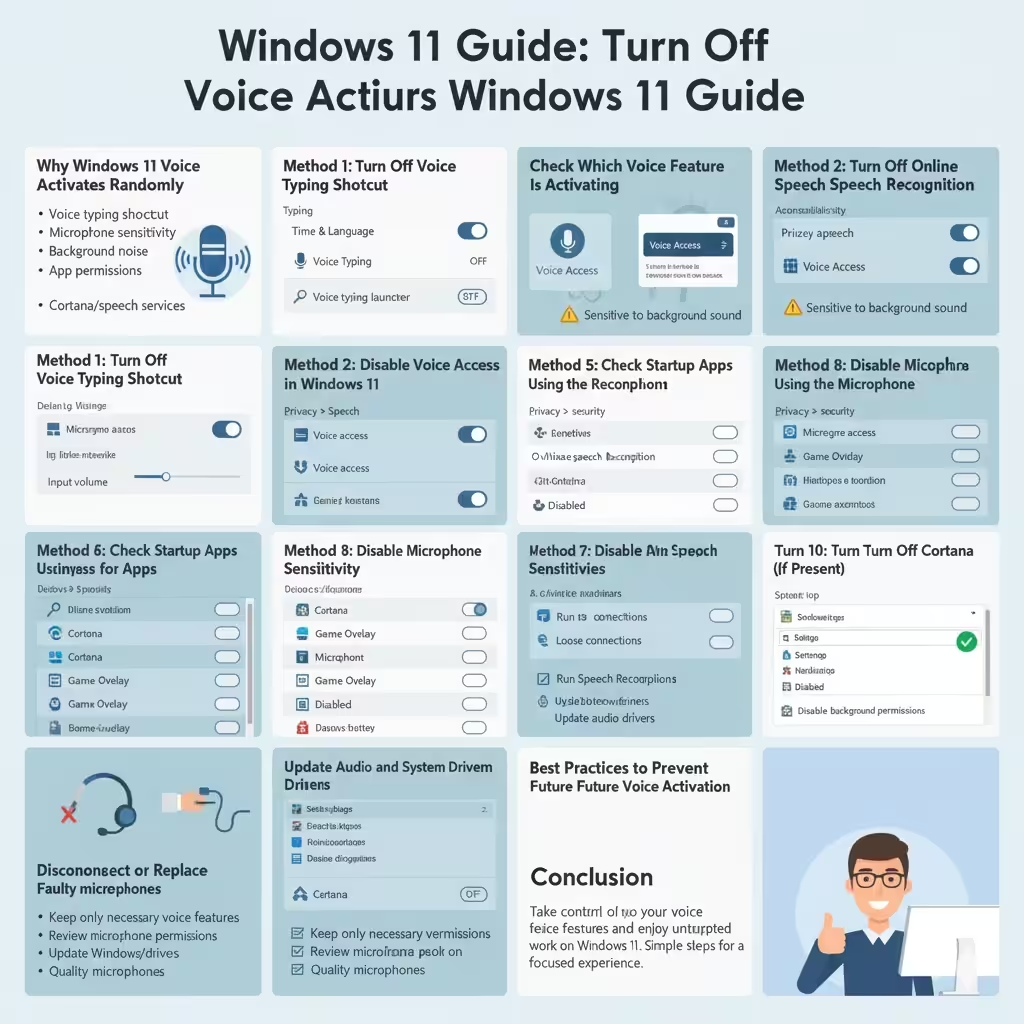
Why Windows 11 Voice Activates Randomly
Random voice activation usually occurs because Windows is listening for specific triggers or interpreting background noise as speech.
Common causes include:
-
Voice typing shortcuts being pressed accidentally
-
Voice Access being enabled
-
Microphone sensitivity issues
-
Background noise triggering voice detection
-
App permissions allowing microphone access
-
Cortana or speech services running in the background
Understanding which feature is responsible helps you disable it correctly.
Check Which Voice Feature Is Activating
Before turning everything off, try to identify what appears on screen when voice activates.
-
A microphone icon with text input usually indicates Voice Typing
-
A command bar at the top suggests Voice Access
-
System pop-ups related to speech may indicate Speech Recognition
Once you recognize the feature, you can disable it more precisely.
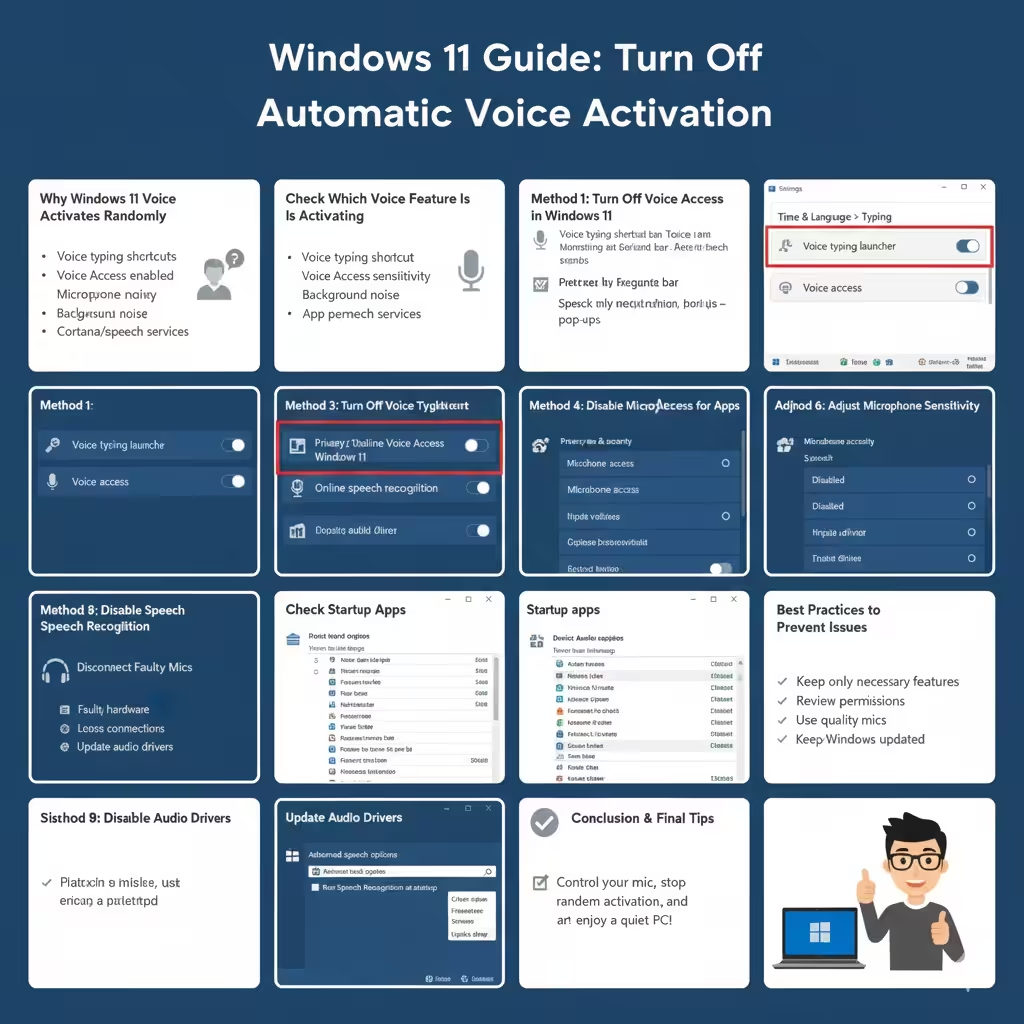
Method 1: Turn Off Voice Typing Shortcut
Voice typing is one of the most common causes of random activation. It is triggered by a keyboard shortcut.
Disable Voice Typing
-
Open Settings
-
Go to Time & Language
-
Click Typing
-
Turn off Voice typing launcher
This prevents the microphone panel from appearing unexpectedly.
Why This Helps
Accidental key combinations can activate voice typing without you noticing. Disabling the launcher stops this behavior entirely.
Method 2: Disable Voice Access in Windows 11
Voice Access allows full control of Windows using spoken commands. If enabled, it may activate unexpectedly.
Steps to Turn Off Voice Access
-
Open Settings
-
Select Accessibility
-
Click Speech
-
Turn off Voice access
Restart your PC to ensure the feature is fully disabled.
When Voice Access Causes Problems
Voice Access is sensitive to speech-like sounds, videos, or background conversations, which can trigger it unintentionally.
Method 3: Turn Off Online Speech Recognition
Online speech recognition uses cloud-based processing and can stay active in the background.
How to Disable Online Speech Recognition
-
Open Settings
-
Go to Privacy & security
-
Click Speech
-
Turn off Online speech recognition
This prevents Windows from continuously listening for voice input.
Method 4: Disable Microphone Access for Apps
Some apps may activate the microphone without obvious notification.
Manage Microphone Permissions
-
Open Settings
-
Go to Privacy & security
-
Click Microphone
-
Turn off Microphone access entirely
-
Or scroll down and disable access for specific apps
-
Recommended Approach
If you still need your microphone for meetings or recording, disable access only for apps you do not trust or use.
Method 5: Check Startup Apps Using the Microphone
Some applications start with Windows and immediately access the microphone.
How to Review Startup Apps
-
Open Task Manager
-
Click the Startup tab
-
Disable unnecessary apps, especially:
-
Voice assistants
-
Communication apps
-
Game overlays
-
Restart your PC after making changes.
Method 6: Adjust Microphone Sensitivity
High microphone sensitivity can cause Windows to misinterpret background noise as voice commands.
Lower Microphone Sensitivity
-
Open Settings
-
Go to System
-
Select Sound
-
Click Input
-
Choose your microphone
-
Reduce the Input volume
This minimizes accidental activation caused by noise.
Method 7: Disable Speech Recognition Services
Windows includes legacy speech recognition services that may still run.
Turn Off Speech Recognition
-
Open Control Panel
-
Select Ease of Access
-
Click Speech Recognition
-
Choose Advanced speech options
-
Disable speech recognition features
This stops background voice detection completely.
Method 8: Disconnect or Replace Faulty Microphones
Sometimes the issue is hardware-related.
Common Hardware Causes
-
Faulty headset microphones
-
Loose audio jacks
-
Low-quality built-in microphones
What to Do
-
Disconnect external microphones and test
-
Try a different headset
-
Update audio drivers
If the problem stops when the microphone is disconnected, hardware is likely the cause.
Method 9: Update Audio and System Drivers
Outdated drivers can cause microphone behavior issues.
Update Drivers
-
Open Device Manager
-
Expand Audio inputs and outputs
-
Right-click your microphone
-
Choose Update driver
Also check Windows Update for optional driver updates.
Method 10: Turn Off Cortana (If Present)
Although Cortana is largely phased out, remnants may still exist on some systems.
Disable Cortana
-
Open Settings
-
Go to Apps
-
Select Installed apps
-
Find Cortana
-
Disable background permissions or uninstall if available
This removes another possible source of voice activation.
How to Test If the Issue Is Fixed
After applying your changes:
-
Restart your computer
-
Use your PC normally for a while
-
Play videos or talk nearby
-
Watch for any unexpected microphone activation
If nothing triggers, the issue is resolved.
Best Practices to Prevent Future Voice Activation
To avoid similar problems in the future:
-
Keep only necessary voice features enabled
-
Regularly review microphone permissions
-
Use quality microphones
-
Keep Windows and drivers updated
-
Disable unused accessibility features
Preventive steps reduce the chance of random behavior.
When Voice Activation Is Actually Useful
Voice features can be helpful for:
-
Hands-free accessibility
-
Dictation and typing
-
Users with mobility limitations
If you need these tools occasionally, consider enabling them only when required instead of leaving them active all the time.
Common Mistakes to Avoid
Avoid these common errors:
-
Disabling the wrong feature
-
Leaving microphone permissions wide open
-
Ignoring background apps
-
Assuming the issue is always software-related
A systematic approach works best.
Conclusion
Random voice activation in Windows 11 can be annoying, disruptive, and even concerning from a privacy perspective. Fortunately, the issue is usually caused by specific features such as voice typing, Voice Access, or microphone permissions—and all of them can be controlled or disabled easily.