


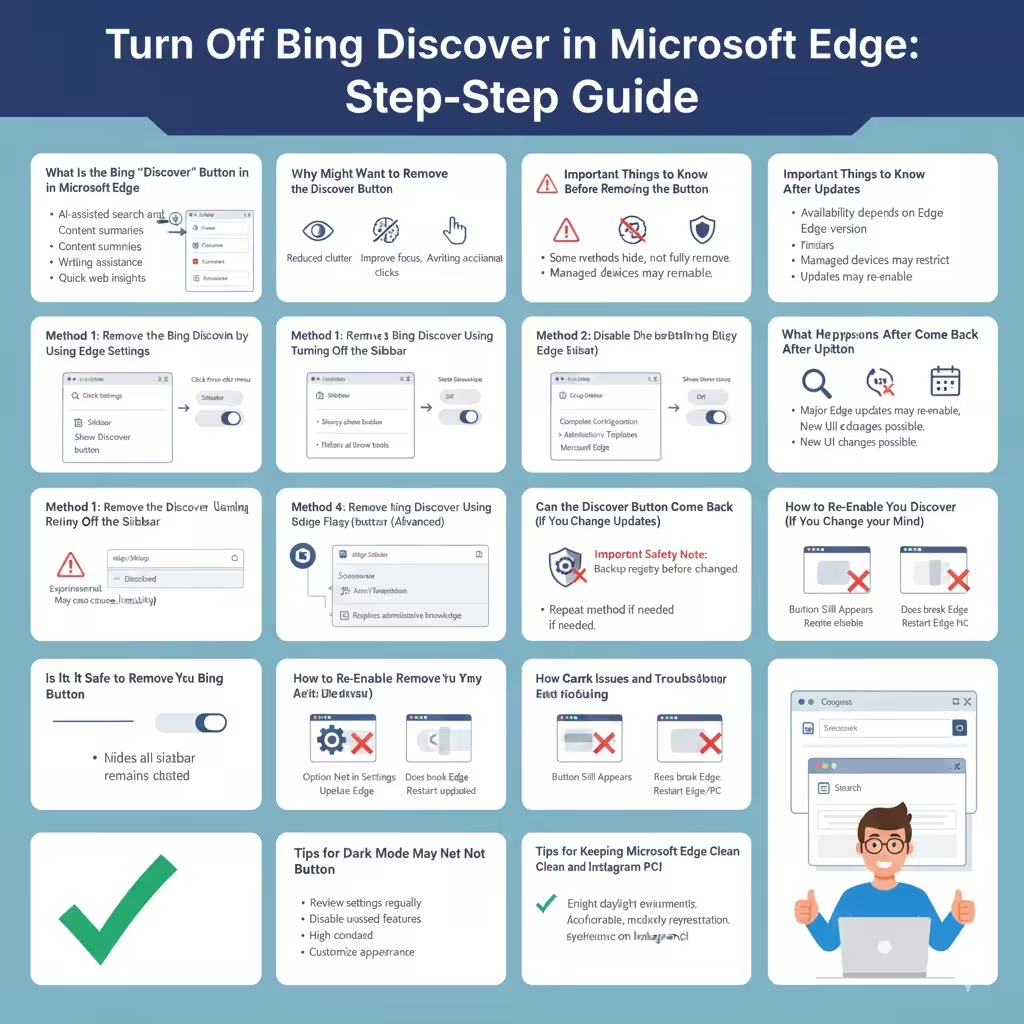
Turn Off Bing Discover in Microsoft Edge: Step-by-Step Guide
Microsoft Edge has evolved rapidly, adding new features designed to improve productivity and integrate Microsoft services more deeply into the browser. One such feature is the Bing “Discover” button, which appears as a colorful icon (often a Bing logo or sparkle-like symbol) in the top-right corner of the Edge toolbar. While some users find it useful for quick access to Bing Chat and AI-powered tools, others see it as distracting or unnecessary.
If you prefer a cleaner browser interface, this guide will show you how to remove or disable the Bing “Discover” button in Microsoft Edge. We will cover multiple methods, explain why the button appears, and help you choose the best approach depending on your Edge version and preferences.
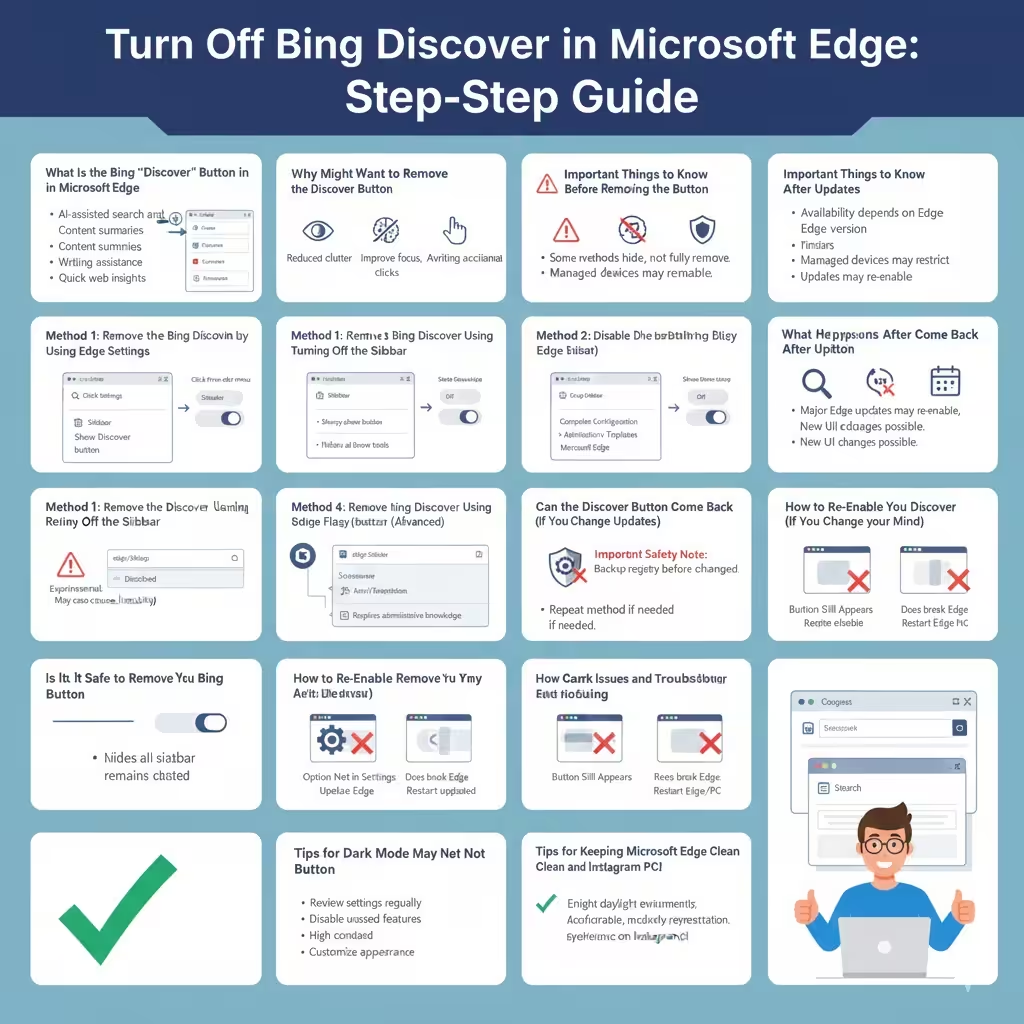
What Is the Bing “Discover” Button in Microsoft Edge
The Bing “Discover” button is a shortcut that opens a sidebar or panel with Bing-powered features. These may include:
-
AI-assisted search and chat
-
Content summaries
-
Writing assistance
-
Quick web insights
Microsoft introduced this feature to highlight Bing’s AI capabilities and integrate them directly into Edge. However, not all users want these tools visible at all times.
Why You Might Want to Remove the Discover Button
There are several reasons why users choose to disable or hide the Discover button.
Common reasons include:
-
Reducing visual clutter in the browser
-
Avoiding accidental clicks
-
Improving focus while browsing
-
Maintaining a minimal or professional interface
-
Personal preference
Removing the button does not break Edge or affect basic browsing features.
Important Things to Know Before Removing the Button
Before proceeding, keep these points in mind:
-
The availability of removal options depends on your Edge version
-
Some methods hide the button rather than fully removing it
-
Enterprise or managed devices may restrict certain settings
-
Updates may re-enable the button in some cases
With that in mind, let’s explore the available methods.
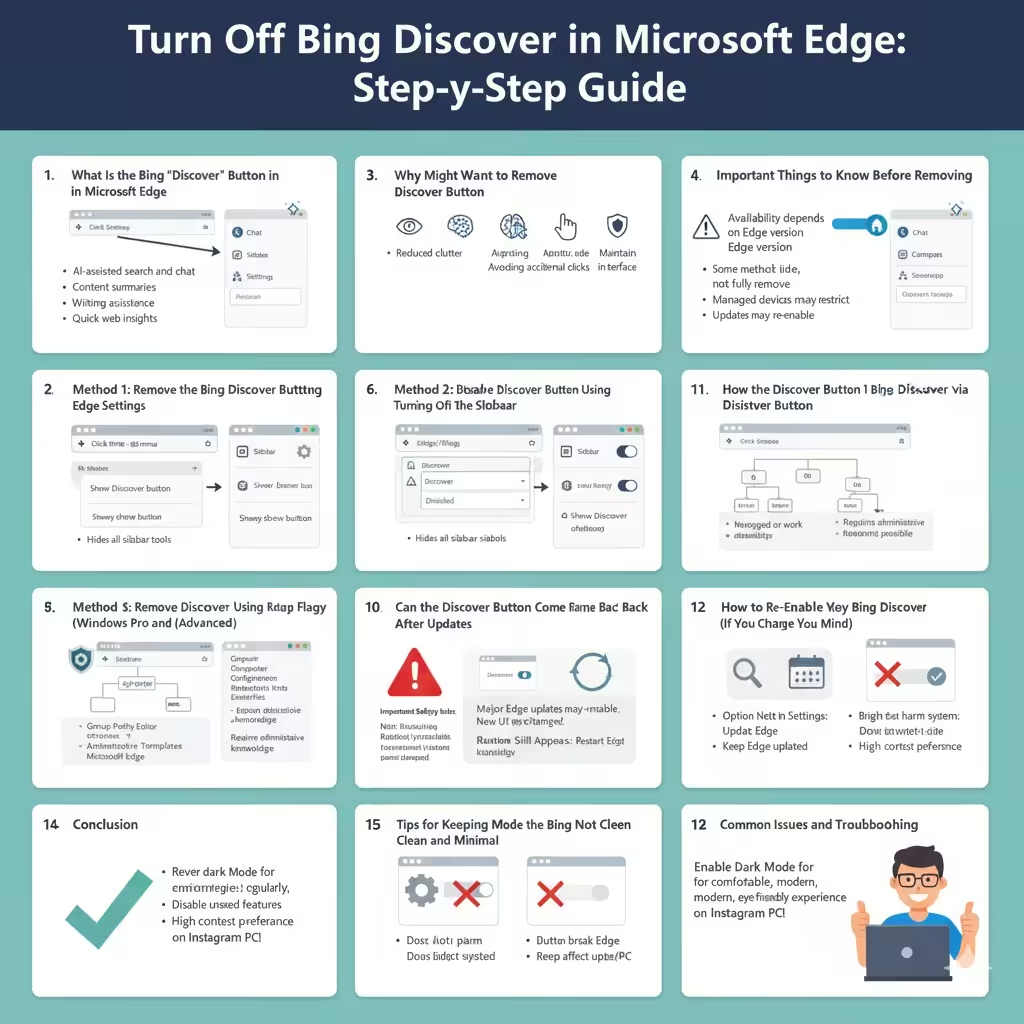
Method 1: Remove the Bing Discover Button Using Edge Settings
For most users, Microsoft Edge provides a built-in option to hide the Discover button.
Step-by-Step Instructions
-
Open Microsoft Edge
-
Click the three-dot menu in the top-right corner
-
Select Settings
-
In the left panel, click Sidebar
-
Look for Discover or App-specific settings
-
Turn off Show Discover or Show Bing Discover button
Once disabled, the Discover button will disappear from the toolbar.
Why This Method Is Recommended
-
Simple and safe
-
No advanced configuration required
-
Fully supported by Microsoft
-
Easy to re-enable later if needed
This is the best option for most users.
Method 2: Disable the Discover Button by Turning Off the Sidebar
The Discover button is closely tied to Edge’s sidebar feature. Disabling the sidebar can also remove the button.
Steps to Disable the Sidebar
-
Open Edge Settings
-
Click Sidebar
-
Toggle Always show sidebar to Off
-
Review other sidebar-related options
This hides the Discover button along with other sidebar tools.
When to Use This Method
-
You do not use Edge’s sidebar features
-
You want a minimal interface
-
You prefer fewer browser elements
Be aware that this method affects all sidebar apps, not just Discover.
Method 3: Remove the Discover Button Using Edge Flags (Advanced Users)
If the option does not appear in settings, Edge flags may help.
How to Use Edge Flags
-
Type
edge://flagsinto the address bar -
Press Enter
-
Search for Discover or Sidebar
-
Look for flags related to:
-
Bing Discover
-
Edge Sidebar
-
-
Set the flag to Disabled
-
Restart Edge
Important Warning
Edge flags are experimental. Changing them may:
-
Affect browser stability
-
Be reset after updates
-
Stop working in future versions
Use this method only if standard settings are unavailable.
Method 4: Remove the Discover Button Using Group Policy (Windows Pro and Enterprise)
For advanced users or organizations, Group Policy offers more control.
When This Method Is Useful
-
Managed or work devices
-
Shared computers
-
Environments requiring consistent settings
General Steps (Overview)
-
Open Group Policy Editor
-
Navigate to Microsoft Edge policies
-
Disable features related to sidebar or Bing integration
This method is powerful but requires administrative knowledge.
Method 5: Remove the Discover Button via Registry Editor (Advanced)
Registry editing can also disable the Discover button.
Important Safety Note
Editing the registry incorrectly can cause system issues. Always back up the registry before making changes.
When to Use This Method
-
Other options are unavailable
-
You are comfortable with advanced system tools
-
You understand the risks involved
This approach is best left to experienced users.
What Happens After You Remove the Discover Button
Once removed or disabled:
-
The Edge toolbar looks cleaner
-
Bing Discover features are no longer one-click accessible
-
You can still use Bing via the address bar or website
-
Core browser functionality remains unchanged
Nothing essential is lost.
Can the Discover Button Come Back After Updates
Yes, in some cases:
-
Major Edge updates may re-enable features
-
New UI changes may introduce similar buttons
If this happens, simply repeat the method that worked for you.
How to Re-Enable the Discover Button (If You Change Your Mind)
If you later decide you want the Discover button back:
-
Go to Settings → Sidebar
-
Re-enable Show Discover
-
Restart Edge if needed
This flexibility allows you to customize Edge over time.
Common Issues and Troubleshooting
The Option Does Not Appear in Settings
Possible reasons:
-
Edge version is outdated
-
Feature rollout is incomplete
-
Device is managed by an organization
Solution: Update Edge or use an alternative method.
Button Still Appears After Disabling
Try:
-
Restarting Edge
-
Restarting your PC
-
Checking for Edge updates
Some changes require a full restart to apply.
Is It Safe to Remove the Bing Discover Button
Yes. Removing or disabling the Discover button:
-
Does not harm your system
-
Does not break Edge
-
Does not affect security updates
It is purely a user interface preference.
Tips for Keeping Microsoft Edge Clean and Minimal
To maintain a clutter-free browser:
-
Review sidebar and toolbar settings regularly
-
Disable features you do not use
-
Keep Edge updated for better control options
-
Customize appearance to match your workflow
Small adjustments can significantly improve usability.
Conclusion
The Bing “Discover” button in Microsoft Edge is designed to highlight Bing’s AI-powered features, but it is not essential for everyday browsing. If you find it distracting or unnecessary, Microsoft Edge provides several ways to remove or hide it—ranging from simple settings toggles to advanced system-level methods.