


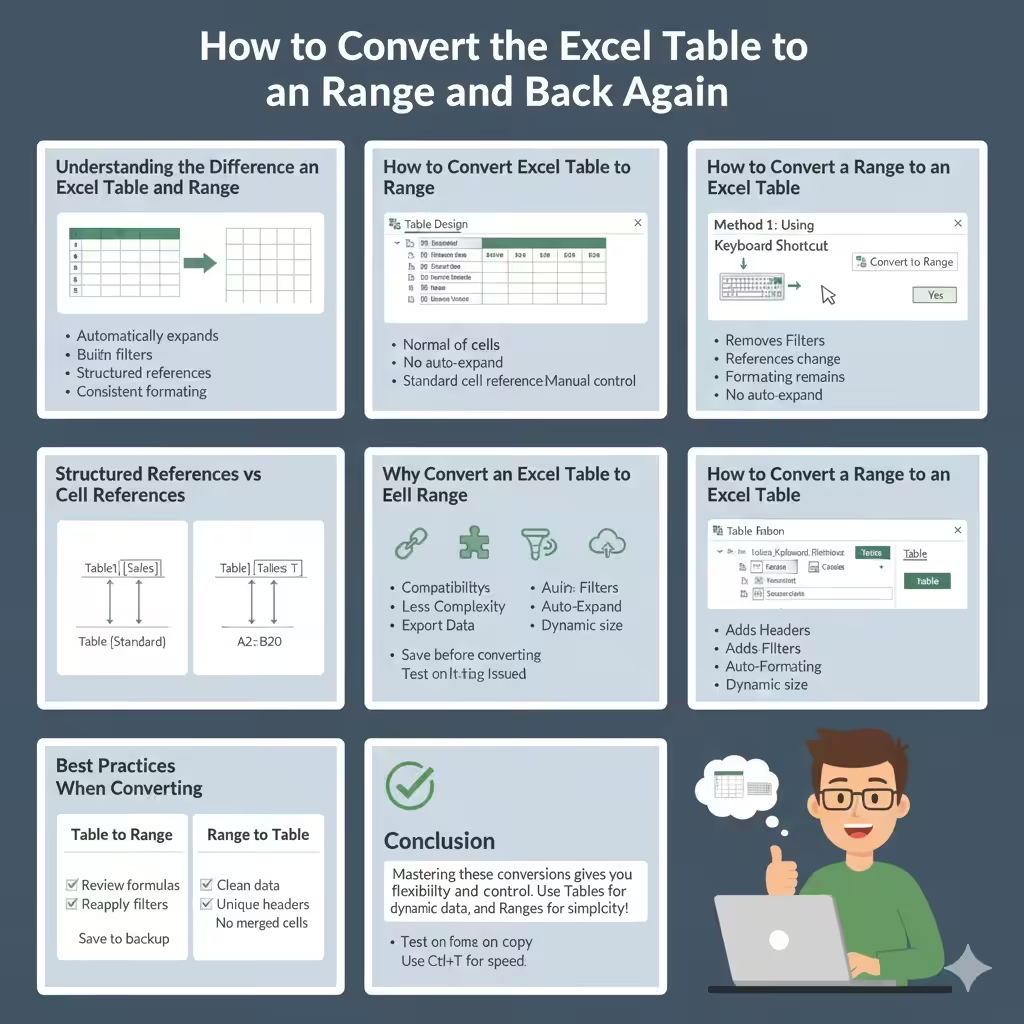
How to Convert an Excel Table to a Range and Back Again
Microsoft Excel offers powerful tools to manage and analyze data efficiently. One of the most useful features is the Excel Table, which provides structured formatting, automatic expansion, and built-in filtering. However, there are times when a standard range works better than a table. Knowing how to convert a table to a range—and a range back to a table—gives you flexibility and control over how your data behaves.
This comprehensive guide explains how to convert an Excel table to a range and vice versa, when to use each option, and common mistakes to avoid. Whether you are a beginner or an experienced Excel user, mastering these conversions will improve your workflow and data management skills.
Understanding the Difference Between an Excel Table and a Range
Before converting between the two, it is important to understand what makes them different.
An Excel Table:
-
Automatically expands when new data is added
-
Includes built-in filters and sorting
-
Uses structured references in formulas
-
Applies consistent formatting
A Range:
-
Is a normal group of cells
-
Does not automatically expand
-
Uses standard cell references
-
Offers more manual control
Each has its own advantages depending on your task.
Why Convert an Excel Table to a Range
There are several situations where converting a table back to a range is useful.
Common reasons include:
-
Compatibility with older Excel versions
-
Using formulas or features that do not work well with tables
-
Reducing file complexity
-
Preparing data for export or sharing
-
Avoiding structured references in formulas
While tables are powerful, they are not always necessary.
Why Convert a Range to an Excel Table
Converting a range into a table can dramatically improve how you work with data.
Benefits include:
-
Automatic formatting and headers
-
Built-in filtering and sorting
-
Easier formula management
-
Improved readability
-
Dynamic range expansion
Tables are especially helpful for ongoing data entry and analysis.
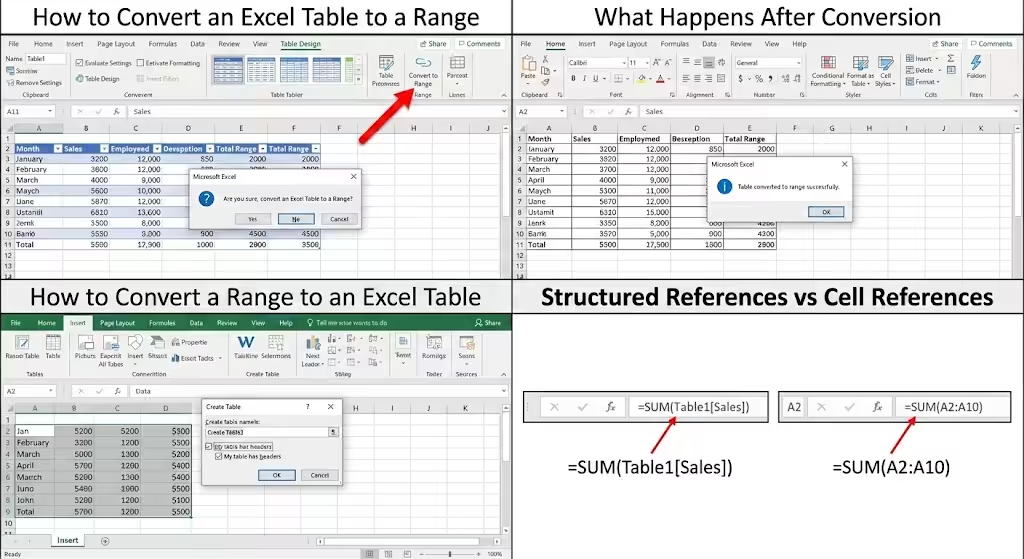
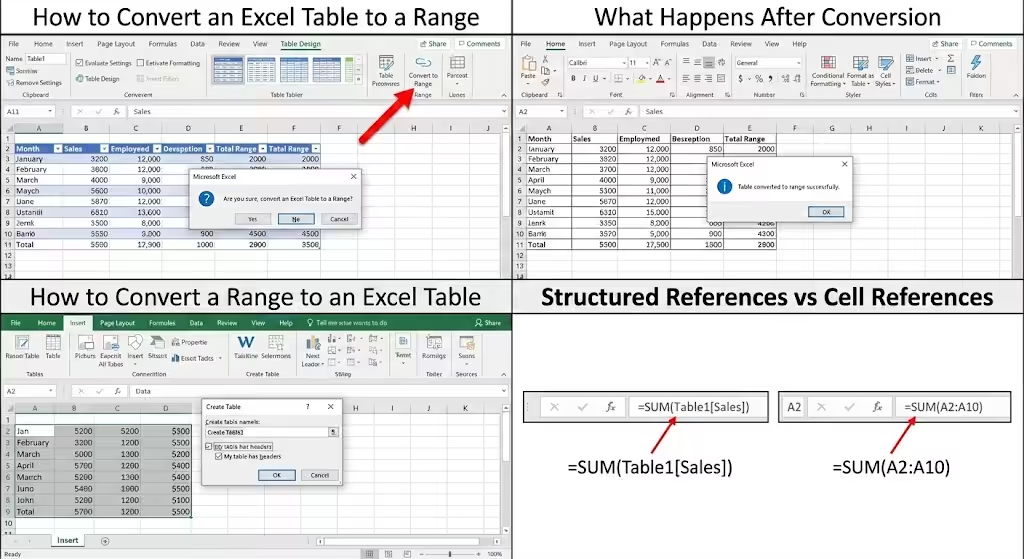
How to Convert an Excel Table to a Range
Converting a table to a range is quick and does not delete any data.
Step-by-Step Instructions
-
Click anywhere inside the table
-
Go to the Table Design tab on the Ribbon
-
Click Convert to Range
-
Confirm by clicking Yes
The table will immediately become a normal range, while keeping the data and formatting.
What Happens After Conversion
-
Filters are removed
-
Structured references become standard cell references
-
Formatting remains intact
-
The data no longer expands automatically
Only the table functionality is removed, not the content.
How to Convert a Range to an Excel Table
Turning a range into a table is just as simple.
Method 1: Using the Keyboard Shortcut
-
Select the data range
-
Press Ctrl + T
-
Confirm the data range
-
Check My table has headers if applicable
-
Click OK
Method 2: Using the Ribbon
-
Select the range
-
Go to the Insert tab
-
Click Table
-
Confirm the selection
Your data is now an Excel Table with filtering and formatting enabled.
What Happens When You Convert a Range to a Table
Once converted:
-
Headers gain filter drop-downs
-
Rows are formatted consistently
-
Formulas automatically copy down
-
Charts and formulas update dynamically
This makes tables ideal for growing datasets.
Structured References vs Cell References
One major difference between tables and ranges is how formulas work.
Structured References in Tables
Instead of A2:A10, tables use readable names like:
-
Table1[Sales] -
[@Price]
These references are easier to understand but may confuse beginners.
Standard Cell References in Ranges
Ranges use traditional references such as:
-
A2:B20
Some users prefer ranges for simplicity or compatibility.
Common Issues When Converting Tables and Ranges
Formulas Change Unexpectedly
When converting a table to a range, structured references may change to cell references. This can slightly alter formulas, especially in complex worksheets.
Filters Disappear
Table filters are removed when converting to a range. If you still need filters, you must reapply them manually.
Formatting Confusion
Although formatting remains, it is no longer automatically applied to new rows once the table is converted to a range.
Best Practices When Converting a Table to a Range
To avoid problems:
-
Review formulas after conversion
-
Reapply filters if needed
-
Confirm data ranges are correct
-
Save a backup before converting
These steps ensure a smooth transition.
Best Practices When Converting a Range to a Table
When turning a range into a table:
-
Ensure headers are clear and unique
-
Remove blank rows and columns
-
Avoid merged cells
-
Choose a table style that improves readability
Clean data results in better table performance.
When You Should Use an Excel Table
Tables are ideal when:
-
Data grows regularly
-
Filtering and sorting are needed
-
You want automatic formatting
-
You are building dashboards or reports
They are especially useful for data analysis and reporting.
When You Should Use a Range Instead
Ranges work better when:
-
You need full manual control
-
You are preparing data for export
-
Compatibility is a concern
-
You want simple formulas
Ranges are still powerful and flexible.
Converting Tables and Ranges in Shared Workbooks
When sharing Excel files:
-
Tables improve clarity and structure
-
Ranges reduce confusion for beginners
-
Consider the skill level of your audience
Choose the format that best suits your collaborators.
Tips for Switching Between Tables and Ranges Efficiently
To work efficiently:
-
Use Ctrl + T for quick table creation
-
Learn where the Table Design tab appears
-
Name your tables clearly
-
Document conversions in complex files
These habits save time and reduce errors.
Avoiding Data Loss During Conversion
Conversion itself does not delete data, but mistakes can happen.
To stay safe:
-
Save your file before converting
-
Test conversions on a copy
-
Review formulas and references afterward
Prevention is always better than recovery.
Conclusion
Converting an Excel table to a range and vice versa is a simple yet powerful skill that gives you full control over how your data behaves. Tables offer automation, clarity, and efficiency, while ranges provide flexibility and simplicity. Knowing when and how to switch between them allows you to adapt Excel to your specific needs.