


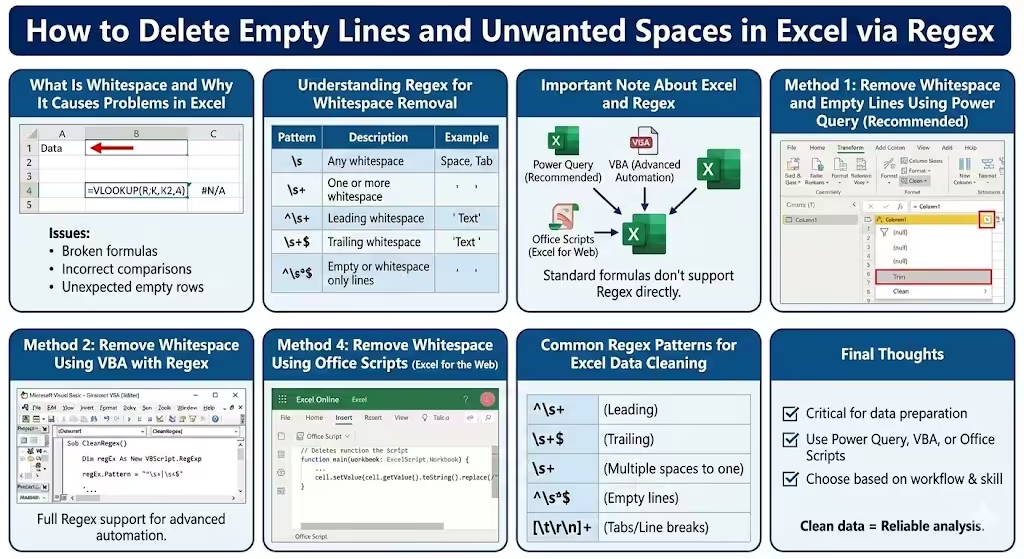
How to Delete Empty Lines and Unwanted Spaces in Excel via Regex
When working with Excel data, extra whitespace and empty lines are common problems that can make datasets messy, inaccurate, and difficult to analyze. Leading spaces, trailing spaces, multiple spaces between words, or blank rows often appear when data is copied from websites, databases, PDFs, or exported systems.
Using regular expressions (Regex) is one of the most powerful and flexible ways to clean this kind of data. Although Excel does not support Regex natively in standard formulas, there are still several effective ways to use Regex with Excel through tools like Power Query, VBA, and Office Scripts.
This guide explains how to remove whitespace and empty lines in Excel using Regex, step by step, with clear explanations suitable for both beginners and advanced users.
What Is Whitespace and Why It Causes Problems in Excel
Whitespace refers to characters that create empty space but are not always visible.
Common whitespace characters include:
-
Spaces
-
Tabs
-
Line breaks
-
Carriage returns
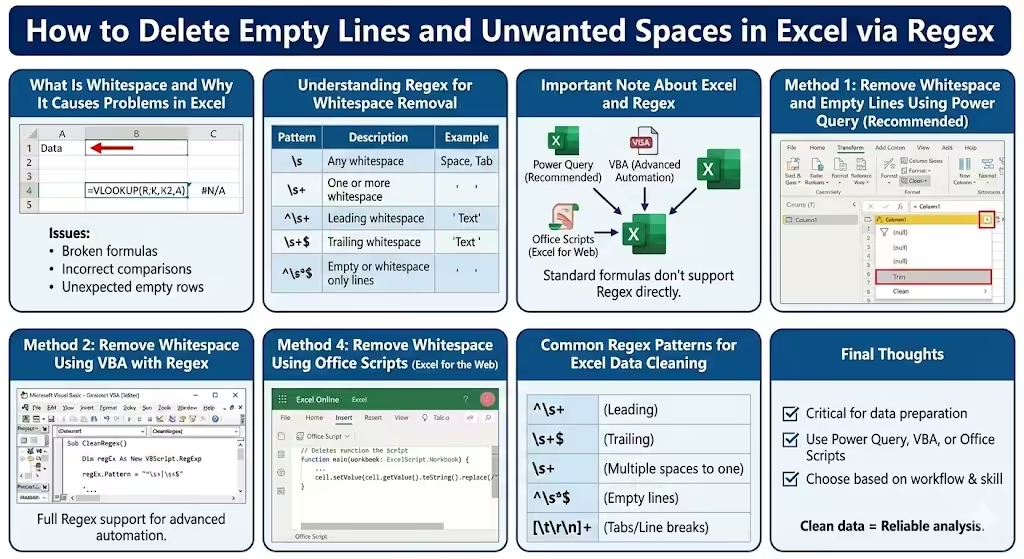
In Excel, these characters can:
-
Break formulas like VLOOKUP or MATCH
-
Cause incorrect comparisons
-
Create unexpected empty rows
-
Prevent proper sorting and filtering
Removing unwanted whitespace ensures your data is clean and reliable.
Understanding Regex for Whitespace Removal
Regex (Regular Expressions) is a pattern-matching language used to search, replace, and manipulate text.
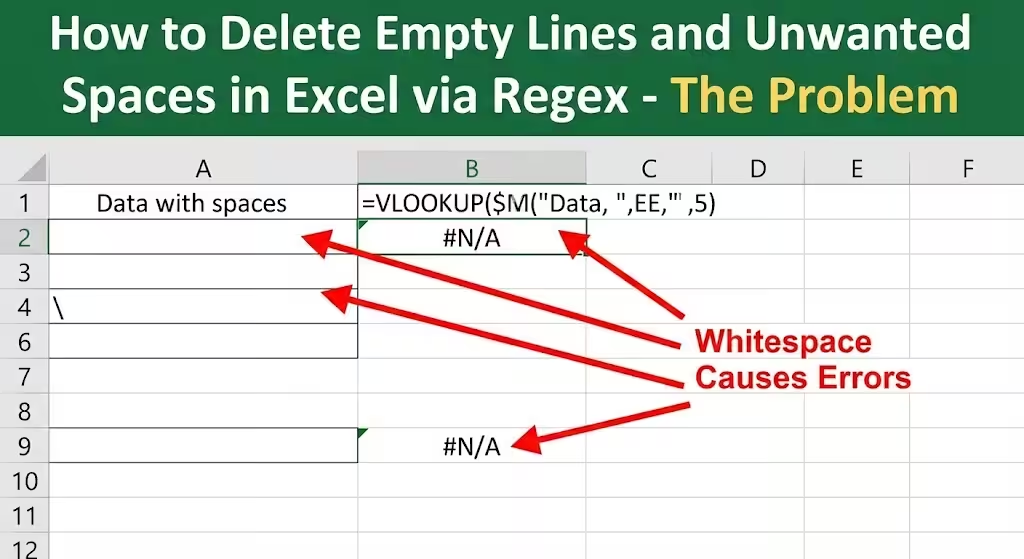
Some useful Regex patterns for whitespace include:
-
\s→ matches any whitespace character -
\s+→ matches one or more whitespace characters -
^\s+→ matches leading whitespace -
\s+$→ matches trailing whitespace -
^\s*$→ matches empty or whitespace-only lines
Knowing these patterns helps you clean data precisely instead of removing useful spacing accidentally.
Important Note About Excel and Regex
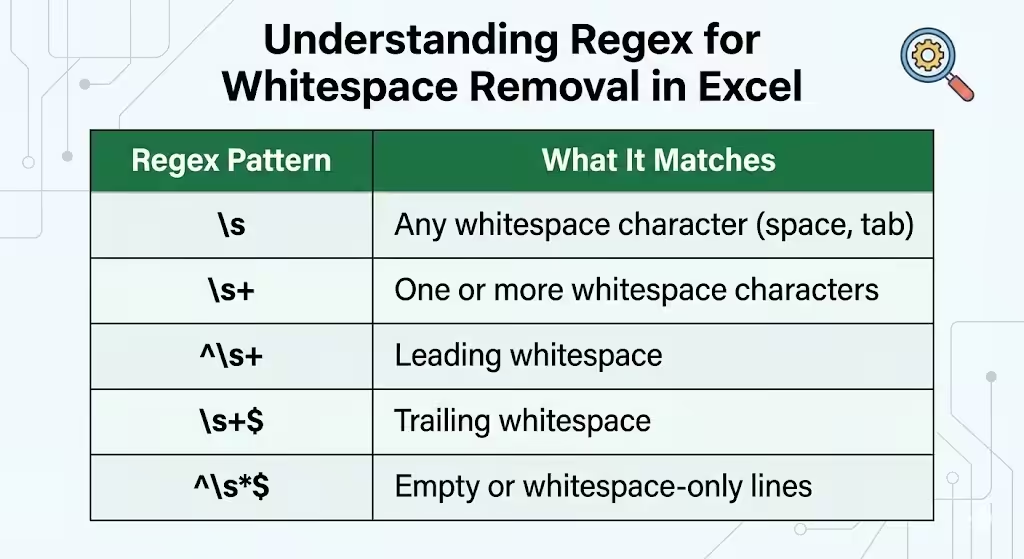
Standard Excel formulas do not support Regex directly. However, you can still use Regex in Excel by:
-
Using Power Query
-
Using VBA (Visual Basic for Applications)
-
Using Office Scripts (Excel for the web)
Each method has its own advantages.
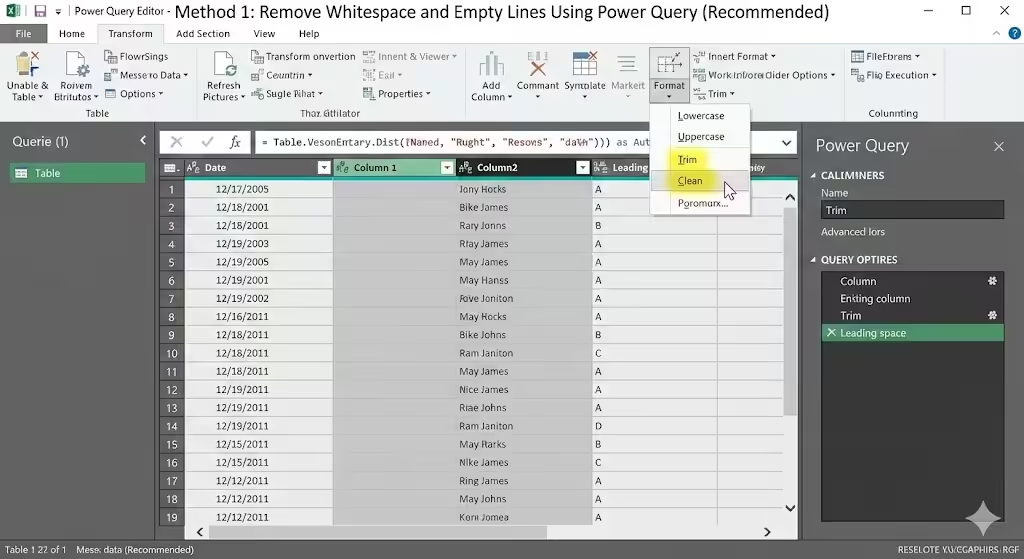
Method 1: Remove Whitespace and Empty Lines Using Power Query (Recommended)
Power Query is the easiest and safest way to apply Regex-like logic in Excel without coding.
Why Use Power Query
-
Built into Excel
-
No risk to original data
-
Easy to repeat steps
-
Supports advanced text transformations
Steps to Remove Whitespace with Power Query
-
Select your data range
-
Go to the Data tab
-
Click From Table/Range
-
Confirm the table creation
Once Power Query opens:
-
Select the column you want to clean
-
Go to Transform
-
Choose Format → Trim (removes leading and trailing spaces)
-
Choose Format → Clean (removes non-printable characters)
Remove Empty Lines
-
Select the column
-
Click the filter dropdown
-
Uncheck (null) and empty values
Advanced Regex-Like Cleanup
Although Power Query does not use traditional Regex syntax everywhere, it allows:
-
Replacing line breaks
-
Removing tabs
-
Normalizing spaces
For example, replace line breaks with a single space to remove empty lines inside cells.
Method 2: Remove Whitespace Using VBA with Regex
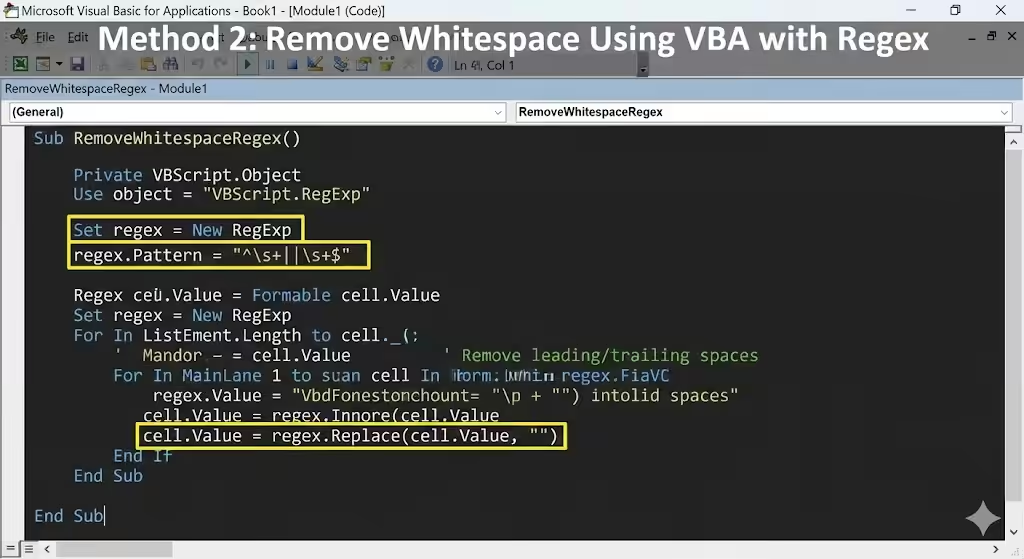
VBA allows full Regex support and is ideal for advanced automation.
When to Use VBA
-
Large datasets
-
Repeated cleaning tasks
-
Complex text patterns
-
Need precise Regex control
How VBA Uses Regex
VBA supports Regex through the VBScript.RegExp object.
Example VBA Use Cases
With Regex in VBA, you can:
-
Remove leading and trailing spaces
-
Replace multiple spaces with one
-
Remove empty rows
-
Clean entire worksheets automatically
What This Method Does Well
-
Full Regex syntax support
-
High performance
-
Reusable macros
Things to Keep in Mind
-
Requires enabling macros
-
Not ideal for shared files with restricted security
-
Best for experienced users
Method 3: Remove Empty Lines with Excel Filters and Regex Logic
Even without true Regex, Excel filters can remove empty rows efficiently.
Steps
-
Select your data
-
Enable filters
-
Filter out blank cells
-
Delete visible rows
While this method does not use Regex directly, it works well when combined with Power Query or VBA for full cleanup.
Method 4: Remove Whitespace Using Office Scripts (Excel for the Web)
Office Scripts supports JavaScript and Regex, making it ideal for Excel Online users.
Why Use Office Scripts
-
Works in Excel for the web
-
Supports Regex patterns
-
Can automate cleaning tasks
What You Can Do with Regex in Office Scripts
-
Remove all whitespace
-
Normalize spacing
-
Delete empty rows
-
Clean text across entire worksheets
This method is best for users already familiar with scripting.
Common Regex Patterns for Excel Data Cleaning
Here are some practical patterns you can use conceptually in Power Query, VBA, or Office Scripts:
-
Remove leading spaces:
^\s+ -
Remove trailing spaces:
\s+$ -
Replace multiple spaces with one:
\s+ -
Remove empty lines:
^\s*$ -
Remove tabs and line breaks:
[\t\r\n]+
Understanding these patterns helps you apply them correctly in different Excel tools.
Removing Empty Rows vs Empty Cells
It is important to distinguish between:
-
Empty cells
-
Rows that appear empty due to whitespace
Rows with invisible spaces are not technically empty. Regex helps identify and remove these hidden characters.
Best Practices When Cleaning Excel Data
Follow these best practices to avoid mistakes:
-
Always work on a copy of your data
-
Clean whitespace before applying formulas
-
Check results visually after cleaning
-
Document your cleaning steps
This ensures accuracy and repeatability.
Common Mistakes to Avoid
Avoid these frequent errors:
-
Removing all spaces when only extra spaces are unwanted
-
Deleting rows without filtering properly
-
Overwriting original data
-
Ignoring hidden line breaks
Regex is powerful but must be used carefully.
When Regex Is the Best Solution
Regex is ideal when:
-
Data comes from unstructured sources
-
Text contains inconsistent spacing
-
Normal Excel functions are not enough
-
Automation is required
For simple cases, TRIM and CLEAN functions may work, but Regex provides far more control.
Comparing Regex Methods in Excel
Each approach has its strengths:
-
Power Query: best for most users
-
VBA: best for advanced automation
-
Office Scripts: best for Excel Online
Choosing the right method depends on your workflow and skill level.
Final Thoughts
Removing whitespace and empty lines in Excel is a critical step in data preparation. While Excel does not natively support Regex in formulas, tools like Power Query, VBA, and Office Scripts make it possible to apply powerful pattern-based cleaning techniques.