


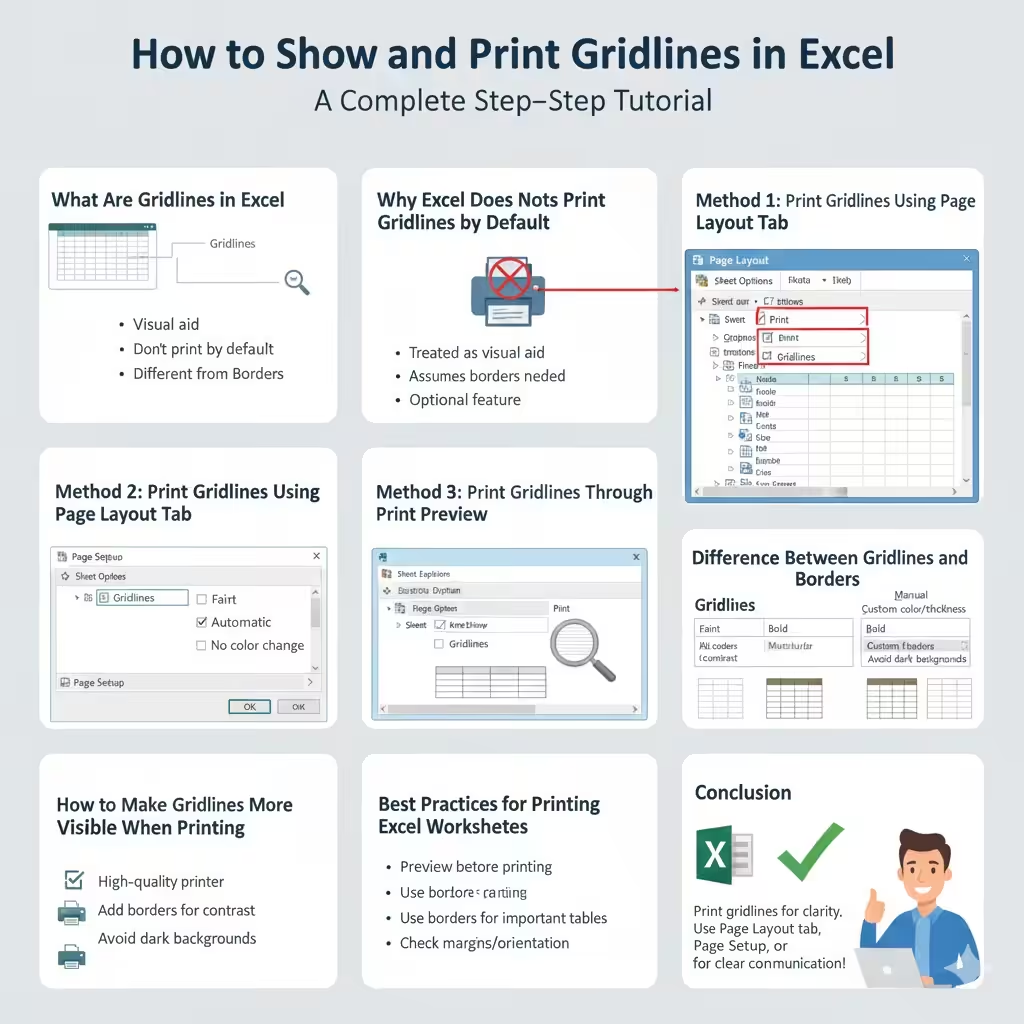
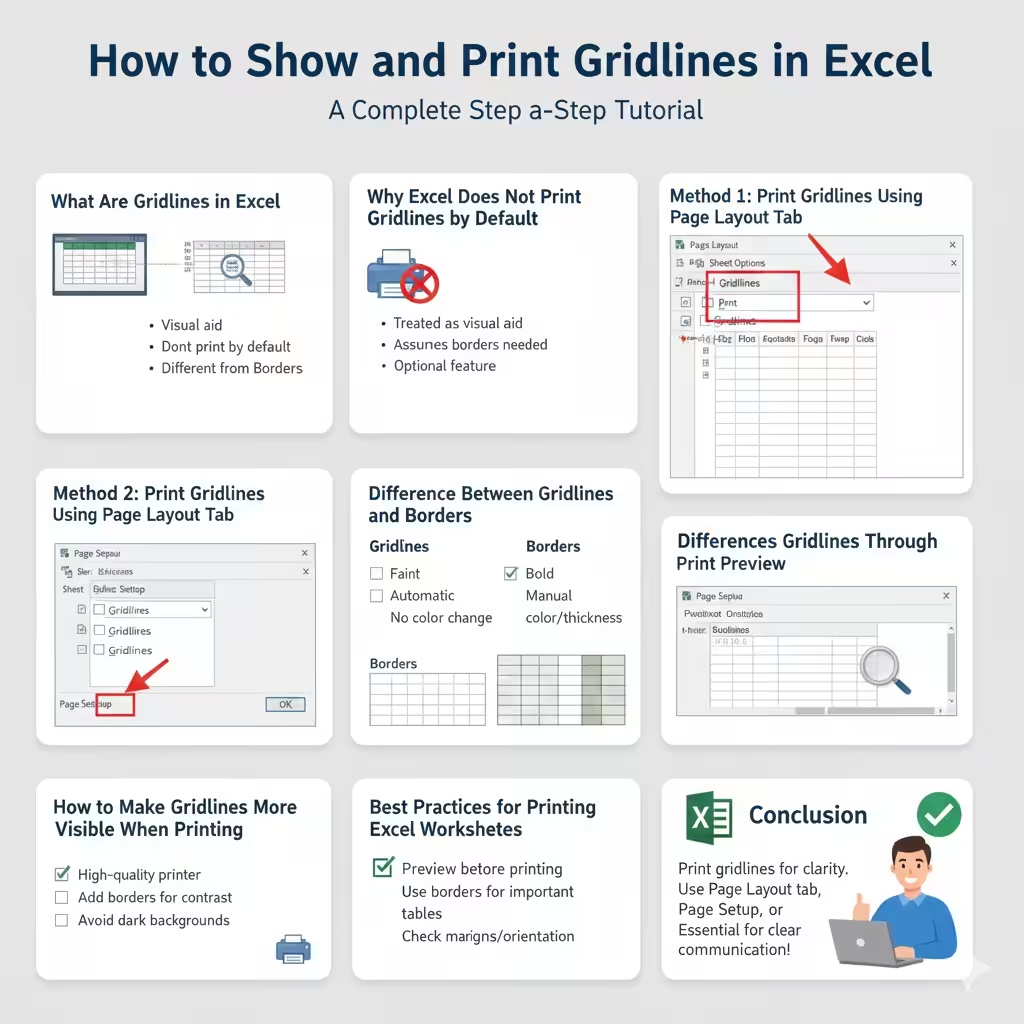
How to Show and Print Gridlines in Excel
Gridlines in Excel help users read and understand data more easily by visually separating rows and columns. On the screen, gridlines are enabled by default, making worksheets clearer and more structured. However, when it comes to printing, many users are surprised to find that gridlines do not appear on printed pages unless they are explicitly enabled.
This article provides a complete, easy-to-follow guide on how to print gridlines in Excel, explains why gridlines disappear during printing, and explores multiple methods to ensure your worksheets print clearly and professionally.
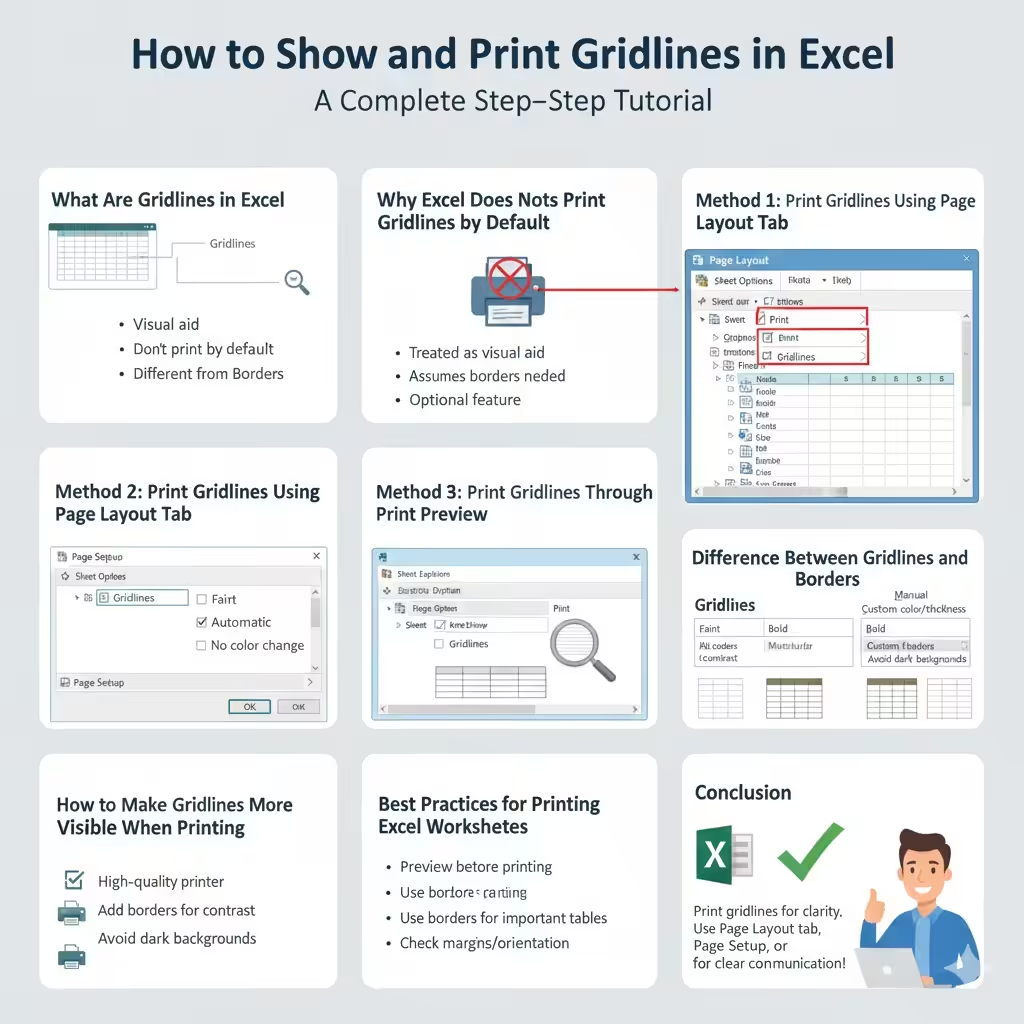
What Are Gridlines in Excel
Gridlines are the faint gray lines that appear between cells in an Excel worksheet. They are different from borders, which are manually applied and more visually prominent.
Gridlines:
-
Appear by default on the screen
-
Help identify rows and columns
-
Do not print automatically
Understanding this distinction is important when preparing documents for printing.
Why Excel Does Not Print Gridlines by Default
Excel treats gridlines as a visual aid for on-screen editing rather than a formatting element. Because of this:
-
Gridlines are disabled for printing by default
-
Excel assumes users will apply borders if needed
-
Printing gridlines is considered optional
This design choice gives users more control over how printed worksheets look.
When You Should Print Gridlines
Printing gridlines is useful when:
-
Sharing worksheets for review
-
Printing tables without borders
-
Creating worksheets for manual data entry
-
Improving readability of numeric data
In professional reports, borders may look better, but gridlines are ideal for quick reference or internal documents.
Method 1: Print Gridlines Using Page Layout Tab
This is the most common and easiest way to print gridlines.
Steps to Enable Gridline Printing
-
Open your Excel worksheet
-
Click the Page Layout tab
-
Locate the Sheet Options group
-
Under Gridlines, check Print
Once enabled, gridlines will appear on all printed pages for that worksheet.
Why This Method Works Well
-
Quick and simple
-
No advanced settings required
-
Works in all modern Excel versions
This option affects only the current worksheet, not the entire workbook.
Method 2: Print Gridlines Using Page Setup
Another reliable way to print gridlines is through the Page Setup dialog.
Steps Using Page Setup
-
Click the Page Layout tab
-
Click the small arrow in the Page Setup group
-
Open the Sheet tab
-
Check Gridlines under Print
-
Click OK
This method offers additional control over print settings in one place.
When to Use Page Setup
-
When adjusting margins and scaling
-
When printing large worksheets
-
When preparing professional layouts
Method 3: Print Gridlines Through Print Preview
You can also enable gridlines while preparing to print.
Steps in Print Preview
-
Press Ctrl + P
-
Click Page Setup at the bottom
-
Go to the Sheet tab
-
Check Gridlines
-
Return to Print Preview
This allows you to immediately see how gridlines will look on paper.
How to Make Gridlines More Visible When Printing
Sometimes gridlines appear too faint on printed pages.
Tips to Improve Gridline Visibility
-
Use a high-quality printer setting
-
Increase contrast using borders if needed
-
Avoid light background colors
-
Use print preview to check clarity
Gridlines are intentionally subtle, so borders may be a better choice for emphasis.
Difference Between Gridlines and Borders
Understanding this difference helps you choose the right option.
Gridlines:
-
Automatically generated
-
Light and uniform
-
Cannot change color or thickness
Borders:
-
Manually applied
-
Customizable in color and thickness
-
Always print
If you need bold lines, borders are the better solution.
How to Print Gridlines for Specific Worksheets Only
Gridline print settings are worksheet-specific.
To control this:
-
Enable gridlines only on worksheets you plan to print
-
Leave others unchanged
-
Save the workbook to preserve settings
This flexibility is useful for multi-sheet workbooks.
Common Problems When Printing Gridlines
Gridlines Still Do Not Print
Possible reasons include:
-
Printing the wrong worksheet
-
Gridlines not enabled for that sheet
-
Printer settings overriding Excel settings
Always double-check the worksheet and print preview.
Gridlines Print Unevenly
This can happen if:
-
Page scaling is too high
-
Columns or rows are very small
-
Printer resolution is low
Adjust scaling and cell size for better results.
Printing Gridlines with Background Colors
If your worksheet has background colors:
-
Gridlines may be harder to see
-
Light colors work best
-
Dark fills may hide gridlines
Consider adding borders if readability is affected.
How Page Scaling Affects Gridlines
Scaling options like “Fit to One Page” can:
-
Shrink gridlines
-
Make them less visible
-
Distort layout
Test different scaling options before final printing.
Printing Gridlines in Excel for Mac
The process on Excel for Mac is similar:
-
Open Page Layout
-
Enable Print Gridlines
-
Use Print Preview to confirm
Menu names may vary slightly, but the concept remains the same.
Best Practices for Printing Excel Worksheets
To ensure professional results:
-
Preview before printing
-
Use borders for important tables
-
Avoid excessive scaling
-
Check margins and orientation
Preparation prevents wasted paper and ink.
When You Should Use Borders Instead of Gridlines
Borders are better when:
-
Printing formal reports
-
Highlighting important data
-
Creating invoices or forms
Gridlines are better for quick reference or internal use.
Frequently Asked Questions About Printing Gridlines
Do Gridlines Print in PDF Files
Yes, if gridline printing is enabled, they will appear in PDFs generated from Excel.
Can You Change Gridline Color for Printing
No, Excel does not allow changing gridline color. Use borders if customization is needed.
Are Gridlines Saved with the Workbook
Yes, gridline print settings are saved per worksheet.
Conclusion
Printing gridlines in Excel is a simple but often overlooked step that can greatly improve the readability of printed worksheets. Since Excel does not print gridlines by default, you must enable them through the Page Layout tab, Page Setup dialog, or Print Preview settings.