


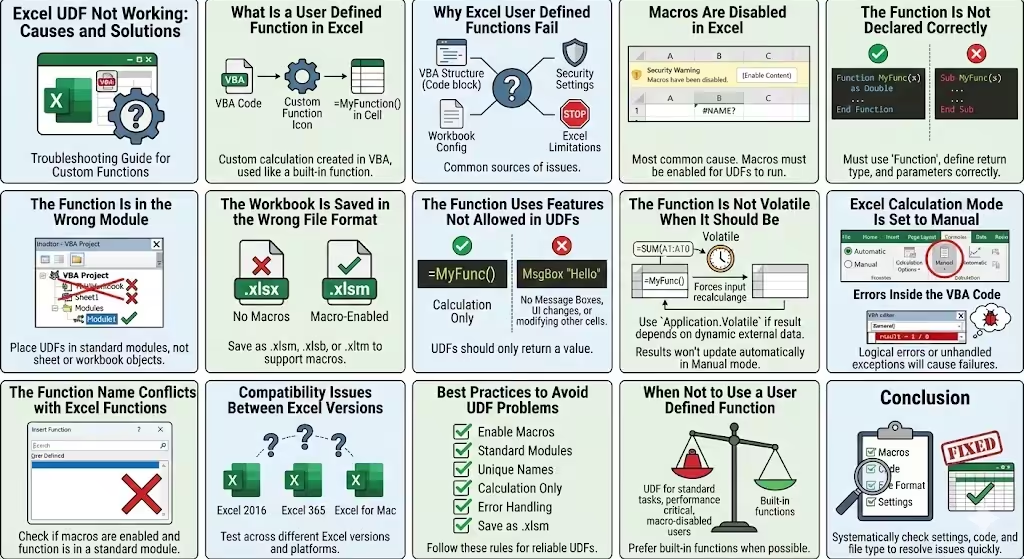
Excel UDF Not Working: Causes and Solutions
Excel User Defined Functions (UDFs) are powerful tools that allow users to extend Excel’s built-in functionality using VBA (Visual Basic for Applications). With UDFs, you can create custom calculations, automate complex logic, and tailor Excel exactly to your needs. However, many users encounter situations where a User Defined Function does not work as expected, returns errors, or does not appear at all.
This article explains why an Excel User Defined Function may not be working, explores the most common causes, and provides clear guidance on how to fix each issue. Whether you are new to VBA or already experienced, understanding these problems will help you build more reliable Excel solutions.
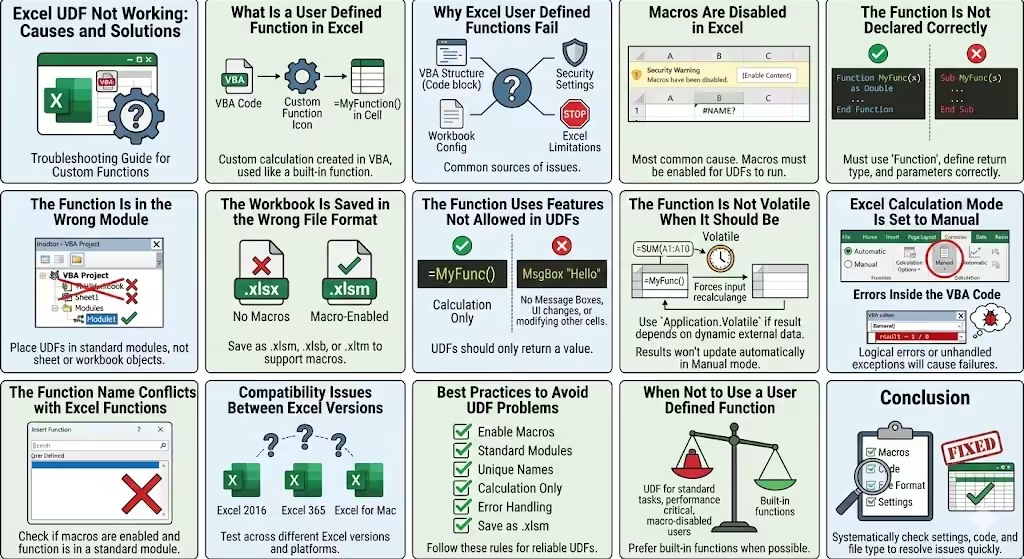
What Is a User Defined Function in Excel
A User Defined Function is a custom function written in VBA that can be used like a normal Excel function. Once created, it can be called directly from a worksheet cell.
UDFs are commonly used to:
-
Perform specialized calculations
-
Simplify complex formulas
-
Reuse logic across worksheets
-
Handle custom business rules
Despite their flexibility, UDFs must follow specific rules to work correctly in Excel.
Why Excel User Defined Functions Fail
When a UDF does not work, it is rarely due to a single cause. Instead, problems usually come from:
-
VBA code structure
-
Security and macro settings
-
Workbook configuration
-
Excel calculation settings
-
Limitations of UDFs themselves
Understanding these categories makes troubleshooting much easier.
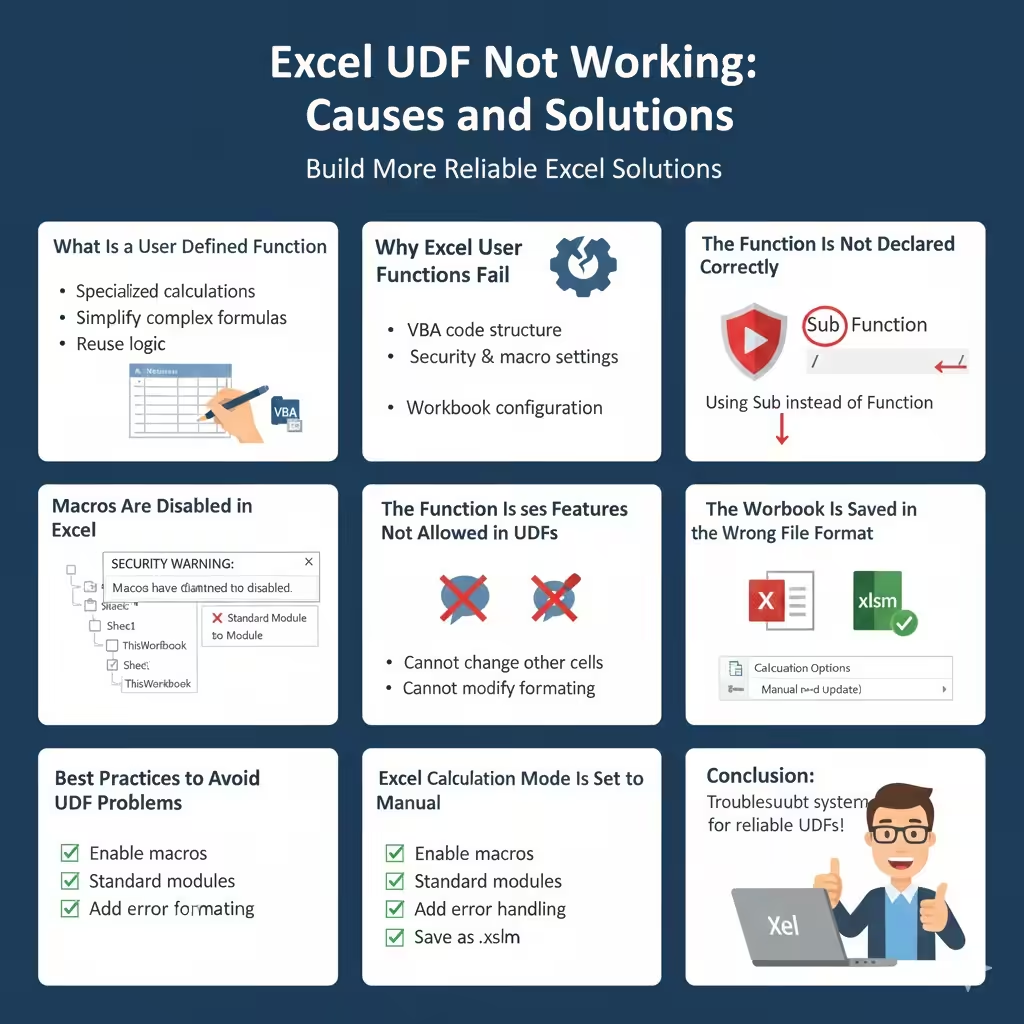
Macros Are Disabled in Excel
One of the most common reasons a UDF does not work is that macros are disabled.
Excel treats UDFs as macros, so if macros are blocked:
-
The function will not calculate
-
The function may return errors
-
The function may not appear in the function list
Why This Happens
Excel disables macros by default to protect users from malicious code, especially when opening files downloaded from the internet.
How This Affects UDFs
If macros are disabled:
-
VBA code does not run
-
Excel cannot execute the function logic
-
Cells using the UDF may show errors or zero values
Enabling macros is essential for UDFs to work.
The Function Is Not Declared Correctly
UDFs must follow a specific structure in VBA. If the function is not declared properly, Excel cannot recognize it.
Common Declaration Problems
-
Using
Subinstead ofFunction -
Forgetting to specify a return value
-
Using unsupported data types
-
Missing parentheses in parameters
Even a small syntax issue can prevent Excel from using the function.
The Function Is in the Wrong Module
Excel only recognizes UDFs that are placed in standard VBA modules.
Where the Function Should Be
-
The function must be inside a standard module
-
It should not be placed in:
-
Sheet modules
-
ThisWorkbook
-
UserForms
-
Why Module Location Matters
If the function is stored in the wrong place:
-
Excel cannot find it
-
The function will not appear in formulas
-
The worksheet cannot call it
Moving the code to a standard module often solves the problem instantly.
The Workbook Is Saved in the Wrong File Format
Another common reason a UDF does not work is the workbook file type.
Why File Format Matters
Excel files must support macros for UDFs to function.
UDFs will not work in:
-
Standard
.xlsxfiles
They must be saved as:
-
Macro-enabled workbooks
If the workbook is saved without macro support, the VBA code is removed or disabled.
The Function Uses Features Not Allowed in UDFs
User Defined Functions have limitations that many users overlook.
What UDFs Cannot Do
UDFs are not allowed to:
-
Change other cells
-
Modify formatting
-
Display message boxes
-
Interact with the user
-
Access certain Excel objects
Why This Causes Problems
If a UDF tries to perform actions outside its allowed scope:
-
It may return an error
-
It may not calculate
-
It may behave unpredictably
UDFs are meant for calculations only.
The Function Is Not Volatile When It Should Be
Excel recalculates formulas based on dependencies. If a UDF depends on values Excel does not track automatically, it may not update.
Symptoms of This Issue
-
The function calculates once but does not update
-
Results change only after manual recalculation
Why This Happens
Excel does not know when to recalculate the function unless:
-
Input cells change
-
The function is marked as volatile
This can make the function appear broken when it is actually just not recalculating.
Excel Calculation Mode Is Set to Manual
Excel can be set to manual calculation mode, which prevents automatic updates.
How This Affects UDFs
When calculation mode is manual:
-
UDF results may not update
-
Changes appear ignored
-
Users think the function is broken
Manual calculation mode is often used for performance reasons but can cause confusion.
Errors Inside the VBA Code
Sometimes the function exists and runs, but internal errors cause it to fail.
Common Code-Level Issues
-
Division by zero
-
Incorrect variable types
-
Missing error handling
-
Invalid assumptions about input
Why This Is Hard to Spot
Unlike worksheet formulas, VBA errors may:
-
Stop execution silently
-
Return incorrect results
-
Only appear during debugging
Proper error handling is essential for reliable UDFs.
The Function Name Conflicts with Excel Functions
Naming conflicts can prevent a UDF from working correctly.
What Causes Conflicts
-
Naming a UDF the same as a built-in Excel function
-
Using reserved keywords
What Happens in This Case
Excel may:
-
Call the built-in function instead
-
Ignore the UDF
-
Return unexpected results
Choosing unique and descriptive function names avoids this problem.
The Function Is Not Public
By default, UDFs must be accessible to Excel.
Visibility Issues
If a function is:
-
Declared as Private
-
Scoped incorrectly
Excel will not recognize it in worksheets.
Ensuring the function is publicly accessible is required.
The Function Does Not Appear in the Function List
Some users expect to see their UDF listed in Excel’s function wizard.
Why It May Not Appear
-
Macros are disabled
-
The function has invalid parameters
-
The function is in the wrong module
Even if it does not appear in the list, it may still work if typed correctly.
Compatibility Issues Between Excel Versions
Different versions of Excel handle VBA differently.
Possible Compatibility Problems
-
Differences between Windows and Mac Excel
-
Changes in Excel updates
-
Deprecated VBA features
Testing UDFs across versions helps avoid surprises.
Best Practices to Avoid UDF Problems
To ensure your User Defined Functions work reliably:
-
Enable macros when needed
-
Store functions in standard modules
-
Use clear and unique names
-
Keep functions calculation-only
-
Add error handling
-
Save workbooks in macro-enabled formats
Following these practices reduces errors significantly.
When Not to Use a User Defined Function
UDFs are powerful, but they are not always the best choice.
Avoid UDFs when:
-
Built-in Excel functions already solve the problem
-
Performance is critical with large datasets
-
The workbook will be shared with users who disable macros
Understanding these limitations helps you choose the right solution.
Conclusion
When an Excel User Defined Function is not working, the issue is almost always related to macro settings, code structure, file format, or Excel limitations. By systematically checking each possible cause—such as macro security, module placement, calculation mode, and VBA restrictions—you can identify and fix the problem quickly.