


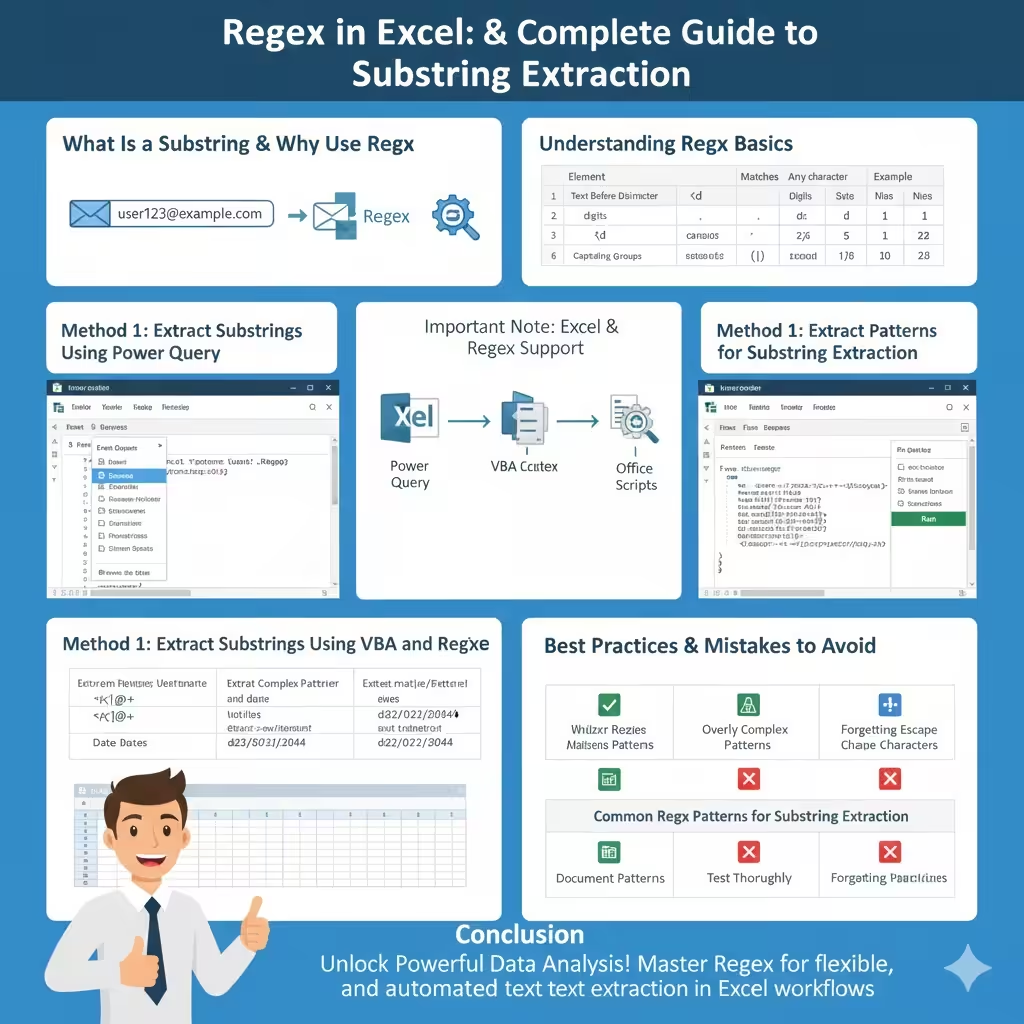
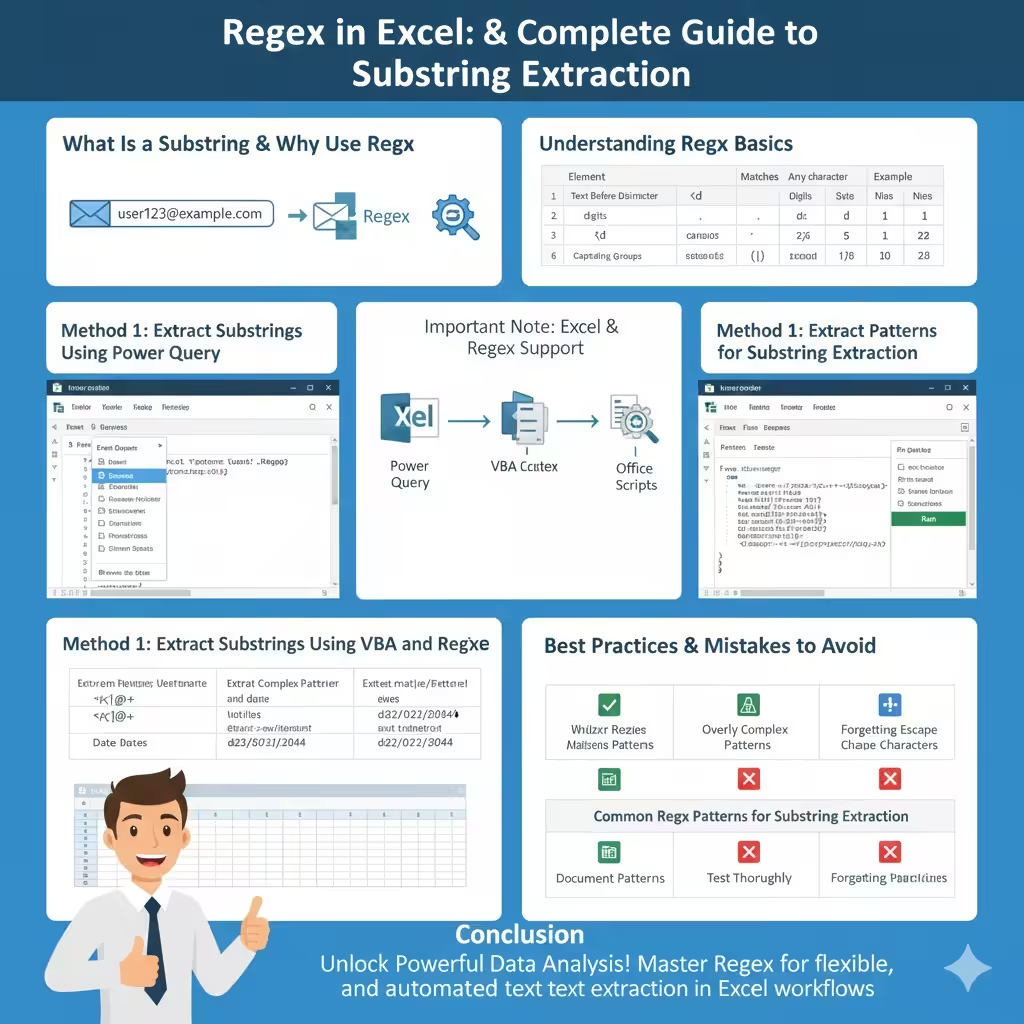
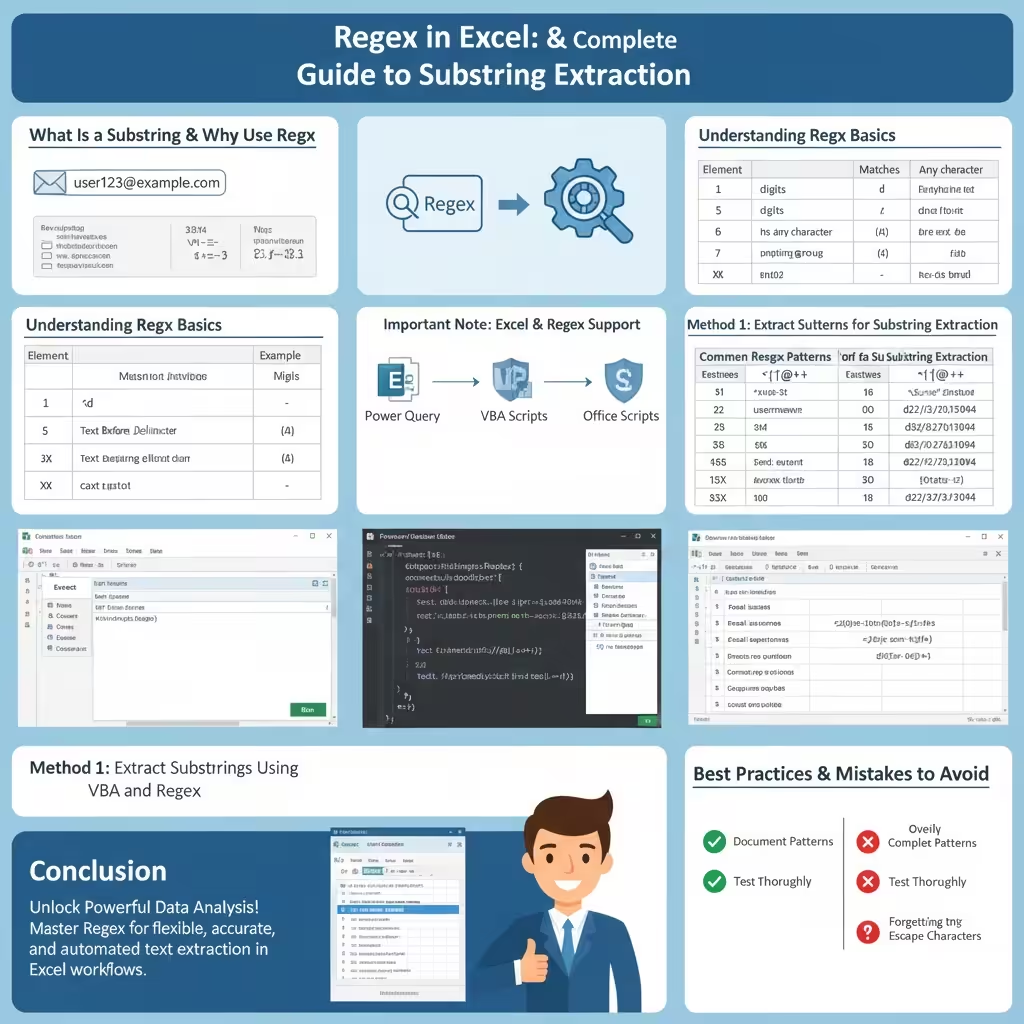
Regex in Excel: A Complete Guide to Substring Extraction
Extracting specific parts of text from larger strings is a common task in data analysis. Whether you are working with product codes, email addresses, log files, or imported text data, you often need to isolate meaningful information hidden inside long strings. While Excel offers many text functions, they can become complex and difficult to manage for advanced patterns.
This is where regular expressions (Regex) become extremely useful. Regex provides a flexible, pattern-based approach to extracting substrings, making it ideal for advanced data analysis tasks in Excel.
This guide explains how to extract substrings in Excel using Regex, explores multiple methods available in modern Excel environments, and helps you understand when and why Regex is the best solution.
What Is a Substring in Excel Data
A substring is a smaller portion of a text string. For example:
-
A username extracted from an email address
-
A product ID extracted from a description
-
A date extracted from a log entry
Extracting substrings allows you to:
-
Clean and normalize data
-
Perform accurate analysis
-
Create structured datasets from unstructured text
Without proper extraction, valuable information remains hidden.
Why Use Regex for Data Extraction
Traditional Excel functions like LEFT, RIGHT, MID, FIND, and SEARCH are useful, but they have limitations.
Regex is better when:
-
Patterns are inconsistent
-
Text length varies
-
Multiple formats exist
-
You need precise pattern matching
Regex allows you to describe what the text looks like instead of where it appears.
Understanding Regex Basics for Excel Users
Regex uses patterns to match text.
Some basic Regex elements include:
-
.matches any character -
\dmatches digits -
\wmatches letters and numbers -
+matches one or more occurrences -
*matches zero or more occurrences -
()captures groups
Captured groups are especially important for extracting substrings.
Important Note About Regex Support in Excel
Excel does not support Regex directly in traditional worksheet formulas. However, Regex can still be used through:
-
Power Query
-
VBA (Visual Basic for Applications)
-
Office Scripts (Excel for the web)
Each method offers different levels of flexibility and complexity.
Method 1: Extract Substrings Using Power Query
Power Query is one of the most user-friendly ways to work with Regex-like patterns in Excel.
Why Power Query Is Ideal for Data Analysis
-
No coding required for basic tasks
-
Built-in data transformation tools
-
Repeatable and scalable workflows
-
Handles large datasets efficiently
Steps to Extract Substrings in Power Query
-
Select your data range
-
Go to the Data tab
-
Click From Table/Range
-
Open the Power Query Editor
Inside Power Query:
-
Select the column containing text
-
Use Extract → Text Before, Text After, or Text Between
-
Use Replace Values to remove unwanted patterns
While Power Query does not expose full Regex syntax in every option, it supports advanced pattern-based extraction under the hood.
Method 2: Extract Substrings Using VBA and Regex
For full Regex control, VBA is the most powerful solution.
Why Use VBA for Regex Extraction
-
Complete Regex syntax support
-
Precise pattern matching
-
Suitable for automation
-
Reusable across workbooks
How VBA Uses Regex
VBA uses the VBScript.RegExp object to apply Regex patterns to text.
What You Can Extract with VBA Regex
-
Email domains
-
Numbers from text
-
Dates in various formats
-
Codes with specific patterns
This approach is ideal for advanced users and complex data analysis.
Method 3: Extract Substrings Using Office Scripts
Office Scripts allows Excel for the web users to work with Regex using JavaScript.
Why Office Scripts Are Useful
-
Works in Excel Online
-
Supports modern Regex syntax
-
Automates data cleaning and extraction
-
Easy integration with Power Automate
This method is especially useful for cloud-based workflows.
Common Regex Patterns for Substring Extraction
Understanding common patterns helps you extract data accurately.
Some useful Regex patterns include:
-
Extract numbers:
\d+ -
Extract text inside parentheses:
\((.*?)\) -
Extract email username:
^[^@]+ -
Extract domain from email:
@(.+)$ -
Extract dates:
\d{2}/\d{2}/\d{4}
These patterns can be adapted depending on your data structure.
Using Capturing Groups to Extract Data
Capturing groups allow you to isolate specific parts of a match.
For example:
-
Parentheses define the part you want to extract
-
Multiple groups allow multiple extractions
Capturing groups are essential for advanced analysis and transformation.
Handling Inconsistent Data Formats
Real-world data is rarely consistent.
Regex helps by:
-
Matching optional characters
-
Handling multiple formats
-
Ignoring irrelevant text
This flexibility makes Regex superior to rigid text functions.
Extracting Multiple Substrings from One Cell
In some cases, you may need to extract more than one value from a single cell.
With Regex:
-
You can define multiple capturing groups
-
Extract multiple patterns
-
Store results in separate columns
Power Query and VBA handle this scenario particularly well.
Dealing with Errors and Empty Results
Regex extraction may fail if:
-
The pattern does not match
-
The text format changes
-
Data contains unexpected characters
Always handle these cases by:
-
Checking for null values
-
Validating input data
-
Testing patterns on sample text
This prevents errors from spreading through your analysis.
Performance Considerations
Regex is powerful but can be resource-intensive.
To maintain performance:
-
Avoid overly complex patterns
-
Limit extraction to necessary columns
-
Clean data before applying Regex
-
Test on small samples first
Efficient patterns improve speed and reliability.
When Regex Is Better Than Excel Functions
Regex is the better choice when:
-
Patterns vary widely
-
Data comes from external sources
-
Traditional formulas become too complex
-
Automation is required
Excel functions are simpler, but Regex offers unmatched flexibility.
Best Practices for Regex-Based Data Analysis
Follow these best practices:
-
Always document your patterns
-
Use descriptive column names
-
Test patterns thoroughly
-
Keep transformations modular
-
Work on copies of raw data
These habits improve accuracy and maintainability.
Common Mistakes to Avoid
Avoid these errors:
-
Using greedy patterns unintentionally
-
Forgetting to escape special characters
-
Applying Regex to already clean data
-
Ignoring performance impact
Careful design prevents costly mistakes.
Conclusion
Extracting substrings in Excel is a fundamental step in data analysis, and Regex provides a powerful, flexible way to handle complex text patterns. Although Excel does not natively support Regex in worksheet formulas, tools like Power Query, VBA, and Office Scripts make it possible to harness Regex effectively.