


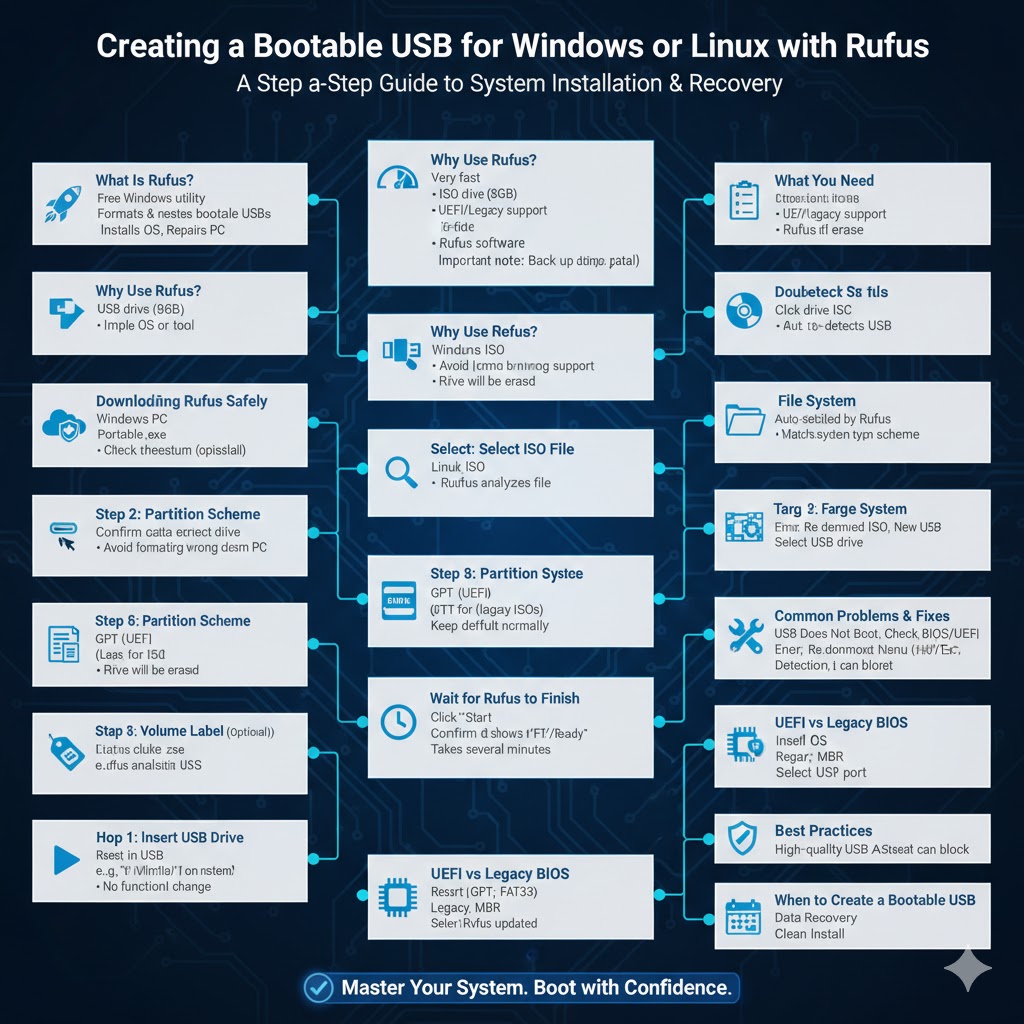
Creating a Bootable USB for Windows or Linux with Rufus
Creating a bootable USB drive is an essential skill for anyone who installs operating systems, repairs computers, or works with system recovery tools. One of the most popular and reliable tools for this task on Windows is Rufus. Rufus is lightweight, fast, free, and widely trusted for creating bootable USB drives from ISO files.
In this complete step-by-step guide, you’ll learn how to create a bootable USB using Rufus, from preparation and settings to common mistakes and best practices. This guide is suitable for beginners and advanced users alike.
What Is Rufus?
Rufus is a free Windows utility designed to format and create bootable USB flash drives. It is commonly used to:
-
Install Windows or Linux
-
Create recovery or repair drives
-
Flash BIOS or firmware tools
-
Run live operating systems from USB
Rufus supports a wide range of ISO files and works with both modern UEFI systems and older BIOS-based computers.
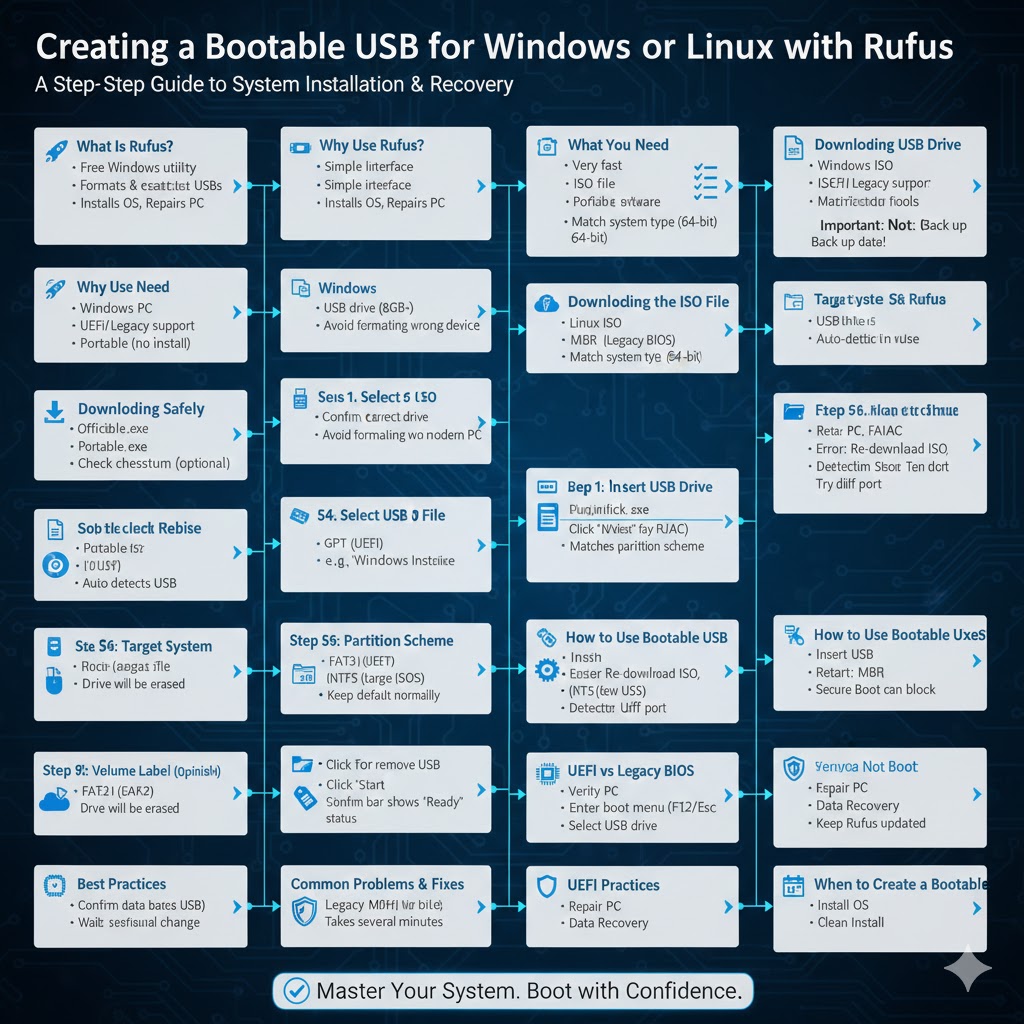
Why Use Rufus to Create a Bootable USB?
Rufus is preferred by many users because it offers several advantages.
Key benefits include:
-
Very fast USB creation speed
-
Simple and clean interface
-
Supports UEFI and Legacy BIOS
-
Works with large ISO files
-
Does not require installation
-
Actively maintained and updated
Because of its reliability, Rufus is widely recommended for creating Windows installation USB drives.
What You Need Before You Start
Before creating a bootable USB with Rufus, make sure you have everything ready.
You will need:
-
A Windows computer
-
A USB flash drive (at least 8 GB recommended)
-
An ISO file (Windows, Linux, or other bootable image)
-
Rufus software
Important note: Creating a bootable USB will erase all data on the USB drive. Back up any important files before continuing.
Downloading Rufus Safely
Rufus does not require installation and runs as a standalone executable.
After downloading:
-
Save the file to your desktop or Downloads folder
-
No installation is required
-
You can run it directly
Make sure you use the official version to avoid malware or modified software.
Downloading the ISO File
To create a bootable USB, you need an ISO file.
Common ISO examples include:
-
Windows installation ISO
-
Linux distributions
-
System recovery tools
Ensure the ISO file matches your system requirements, such as 64-bit architecture and correct operating system version.
How to Create a Bootable USB Using Rufus
Now let’s walk through the main process step by step.
Step 1: Insert the USB Flash Drive
Plug your USB flash drive into your computer. Windows should detect it automatically.
Make sure no important files are stored on it, as the drive will be completely erased.
Step 2: Launch Rufus
Double-click the Rufus executable file.
If prompted by User Account Control, click Yes.
Rufus will open and automatically detect your USB drive.
Step 3: Select the USB Device
Under the Device section, confirm that the correct USB drive is selected.
If you have multiple USB drives connected, double-check this step carefully to avoid formatting the wrong device.
Step 4: Select the Boot Selection (ISO File)
Click the Select button.
Browse to the location of your ISO file.
Choose the ISO and click Open.
Rufus will analyze the ISO and adjust some settings automatically.
Step 5: Choose the Partition Scheme
The partition scheme depends on your system type.
-
Choose GPT for UEFI systems (most modern computers)
-
Choose MBR for Legacy BIOS or older systems
If you are unsure, GPT is usually the correct choice for Windows 10 and Windows 11 on modern PCs.
Step 6: Choose the Target System
Rufus automatically selects the correct target system based on the partition scheme.
Typical options include:
-
UEFI (non-CSM)
-
BIOS or UEFI
Make sure this matches your computer’s firmware type.
Step 7: Select the File System
The file system is important for compatibility.
Common options:
-
FAT32 (recommended for UEFI)
-
NTFS (used for large Windows ISO files)
Rufus will often select the best option automatically. In most cases, it is safe to keep the default setting.
Step 8: Set Volume Label (Optional)
The volume label is the name of the USB drive.
You can leave it as default or rename it to something like:
-
Windows Installer
-
Boot USB
-
Recovery Drive
This step is optional and does not affect functionality.
Step 9: Start the Process
Click Start.
Rufus may display additional options depending on the ISO file. For Windows ISOs, you may see customization options such as:
-
Standard Windows installation
-
Windows To Go
Select the standard option unless you know you need something specific.
Confirm any warning messages about data being erased.
Wait for Rufus to Finish
Rufus will begin creating the bootable USB.
During this process:
-
Do not remove the USB drive
-
Do not close Rufus
-
Wait until the status bar shows “Ready”
The process may take several minutes depending on the ISO size and USB speed.
How to Use the Bootable USB
Once Rufus finishes, your USB drive is ready.
To boot from it:
-
Insert the USB into the target computer
-
Restart the computer
-
Enter the boot menu or BIOS/UEFI
-
Select the USB drive as the boot device
The system should now boot from the USB drive.
Common Problems and Solutions
USB Does Not Boot
If the USB does not boot:
-
Check boot order in BIOS or UEFI
-
Confirm Secure Boot settings
-
Verify correct partition scheme
-
Ensure the ISO file is valid
Rufus Does Not Detect USB Drive
Try:
-
Reconnecting the USB drive
-
Using a different USB port
-
Restarting Rufus
-
Testing another USB drive
Error During Creation
If Rufus reports errors:
-
Re-download the ISO file
-
Use a different USB drive
-
Run Rufus as administrator
UEFI vs Legacy BIOS Considerations
Modern computers use UEFI, while older systems use Legacy BIOS.
Important tips:
-
UEFI systems often require FAT32
-
Legacy BIOS works with MBR
-
Secure Boot may block some tools
Understanding your system firmware helps ensure a successful boot.
Best Practices When Using Rufus
To avoid issues and ensure success:
-
Always verify the ISO checksum if possible
-
Use high-quality USB flash drives
-
Avoid multitasking during creation
-
Label your bootable USB clearly
-
Keep Rufus updated
These practices improve reliability and reduce errors.
When Should You Create a Bootable USB?
Creating a bootable USB is useful in many situations, such as:
-
Installing or reinstalling Windows
-
Testing Linux without installation
-
Repairing startup problems
-
Recovering data from a broken system
-
Performing clean installations
Having a bootable USB ready can save significant time during emergencies.
Final Thoughts
Learning how to create a bootable USB using Rufus is a valuable skill for any computer user. Rufus offers a fast, reliable, and user-friendly way to turn an ISO file into a bootable USB drive.