


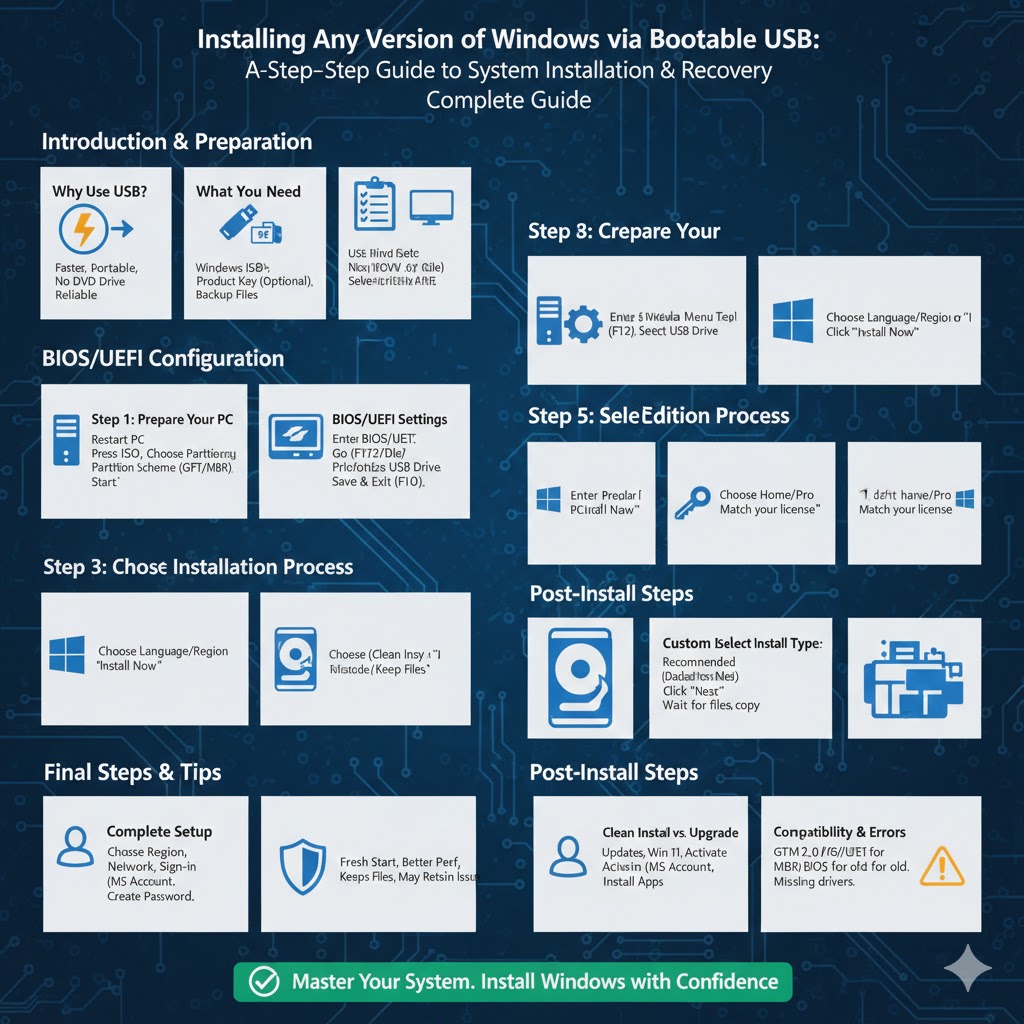
Installing Any Version of Windows via Bootable USB: Complete Guide
Installing Windows using a bootable USB drive is one of the most reliable and efficient methods to set up or reinstall an operating system. Whether you are upgrading your system, performing a clean installation, or repairing a corrupted Windows installation, using a USB drive is faster and more convenient than traditional DVD installation.
In this complete step-by-step guide, you will learn how to install Windows 11, Windows 10, Windows 8.1, or Windows 7 using a bootable USB. This guide covers preparation, BIOS configuration, installation steps, and post-installation setup to help you complete the process smoothly.
Why Install Windows Using a Bootable USB?
Using a bootable USB drive offers several advantages over older installation methods.
Key benefits include:
-
Faster installation speed compared to DVDs
-
Compatibility with modern laptops that lack optical drives
-
Easier portability
-
Reliable installation process
-
Ability to reuse the USB for future installations
Most modern systems are designed to support USB booting, making this method the standard for Windows installation today.
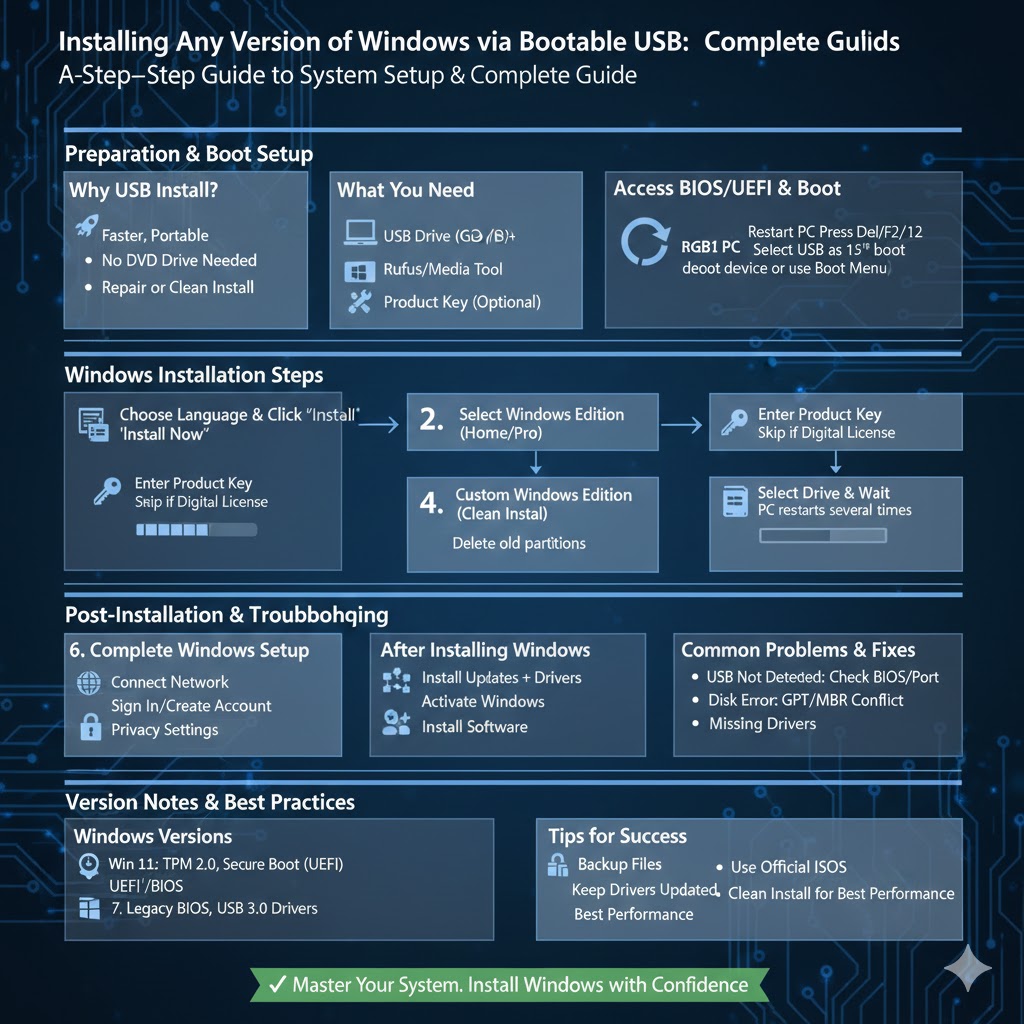
What You Need Before Installing Windows
Before starting the installation process, make sure you have the following:
-
A USB flash drive (at least 8 GB recommended)
-
A Windows ISO file (Windows 11, 10, 8.1, or 7)
-
A working computer to create the bootable USB
-
A valid Windows product key (if required)
-
Backup of important files
Important: Installing Windows may erase all data on the target drive. Always back up your files before proceeding.
Step 1: Create a Bootable Windows USB Drive
Before installing Windows, you must create a bootable USB drive.
You can use tools such as:
-
Windows Media Creation Tool
-
Rufus
-
Official Microsoft ISO downloader
Basic Steps to Create a Bootable USB
-
Insert the USB flash drive into your computer.
-
Open your chosen USB creation tool.
-
Select the Windows ISO file.
-
Choose the correct partition scheme (GPT for UEFI or MBR for BIOS).
-
Start the creation process.
Wait until the tool finishes. Once completed, your USB drive will be ready for installation.
Step 2: Prepare Your Computer for Installation
To install Windows from a USB drive, your computer must boot from the USB instead of the internal hard drive.
Access the Boot Menu or BIOS
-
Insert the bootable USB into the target computer.
-
Restart the computer.
-
Press the boot menu key during startup (commonly F12, F2, Delete, Esc, or F10).
If the boot menu appears, select the USB drive directly.
If not, enter BIOS or UEFI settings and change the boot order to prioritize the USB device.
Step 3: Start the Windows Installation Process
Once the computer successfully boots from the USB drive, the Windows Setup screen will appear.
Choose Language and Region
-
Select your preferred language.
-
Choose time and currency format.
-
Select keyboard layout.
-
Click Next.
Then click Install Now.
Step 4: Enter Your Product Key
Depending on your Windows version, you may be prompted to enter a product key.
Options include:
-
Entering a valid product key
-
Choosing “I don’t have a product key” (you can activate later)
If your device has a digital license, activation may happen automatically after installation.
Step 5: Select Windows Edition
If prompted, choose the Windows edition that matches your license.
Examples include:
-
Windows 11 Home
-
Windows 11 Pro
-
Windows 10 Home
-
Windows 10 Pro
Selecting the correct edition is important for activation.
Step 6: Choose Installation Type
You will see two options:
-
Upgrade (keep files and settings)
-
Custom (advanced)
For a clean installation, choose Custom.
This option allows you to manage partitions and install Windows fresh.
Step 7: Select the Installation Drive
You will now see a list of available drives and partitions.
For a clean install:
-
Select the main system partition
-
Delete old partitions if necessary (this erases all data)
-
Create a new partition
-
Select the new partition and click Next
Windows will begin copying files and installing the operating system.
Step 8: Wait for Installation to Complete
The installation process may take several minutes.
During this time:
-
The computer will restart multiple times
-
Do not remove the USB drive until setup finishes
-
Do not power off the system
Once installation completes, Windows will begin initial setup.
Step 9: Complete Windows Setup
After installation, you must configure initial settings.
You may be asked to:
-
Choose your region
-
Connect to a network
-
Sign in with a Microsoft account
-
Create a local account
-
Set privacy preferences
-
Create a password or PIN
Follow the on-screen instructions to complete setup.
Installing Different Windows Versions
The overall installation process is similar for Windows 11, 10, 8.1, and 7. However, there are minor differences.
Windows 11 Installation Notes
-
Requires TPM 2.0 and Secure Boot
-
Modern UEFI system recommended
Windows 10 Installation Notes
-
Works on most modern systems
-
Compatible with UEFI and Legacy BIOS
Windows 8.1 Installation Notes
-
Similar to Windows 10 but with older interface
Windows 7 Installation Notes
-
May require additional drivers for USB 3.0
-
Legacy BIOS systems are more compatible
-
Official support has ended
Always ensure your hardware meets the requirements of the chosen Windows version.
Common Installation Problems and Solutions
USB Not Detected
-
Check boot order in BIOS
-
Try another USB port
-
Recreate the bootable USB
Windows Cannot Be Installed on This Disk
This often relates to partition style mismatch.
-
GPT works with UEFI
-
MBR works with Legacy BIOS
Adjust BIOS settings or recreate the USB with the correct partition scheme.
Missing Drivers
For older systems, you may need to install drivers manually after installation.
Download drivers from the manufacturer’s website.
After Installing Windows
Once Windows is installed:
-
Install system updates
-
Install device drivers
-
Activate Windows
-
Install essential software
-
Restore backed-up files
Keeping your system updated improves security and performance.
Clean Install vs Upgrade
A clean install removes all previous data and starts fresh. It is recommended when:
-
The system is slow
-
You are experiencing errors
-
You want a fresh start
An upgrade keeps files and programs but may retain existing issues.
Final Thoughts
Installing Windows 11, 10, 8.1, or 7 using a bootable USB is a straightforward and efficient process when done correctly. By preparing a bootable USB, configuring BIOS or UEFI settings, and following the step-by-step installation process, you can successfully install Windows on almost any compatible computer.