


How to Give Others Access to Your Calendar in Outlook
Sharing your calendar can make collaboration smoother, improve communication, and help teams stay organized. Whether you’re managing projects, scheduling meetings, or keeping family members updated on your availability, sharing your calendar ensures everyone is on the same page.
Microsoft Outlook and other calendar apps make it easy to share your schedule with colleagues, clients, or anyone else who needs to know when you’re available. In this guide, you’ll learn how to share your calendar across different platforms and how to manage permissions effectively to maintain privacy and control.
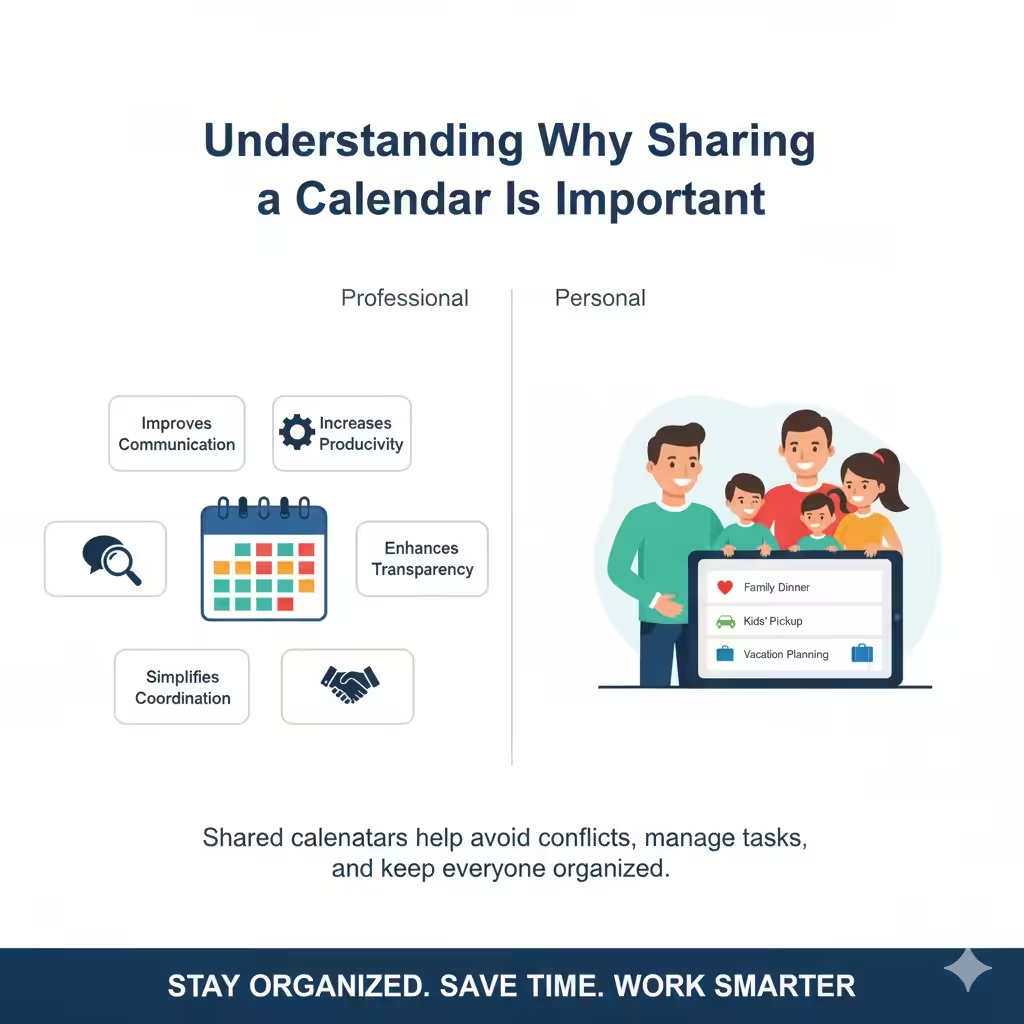
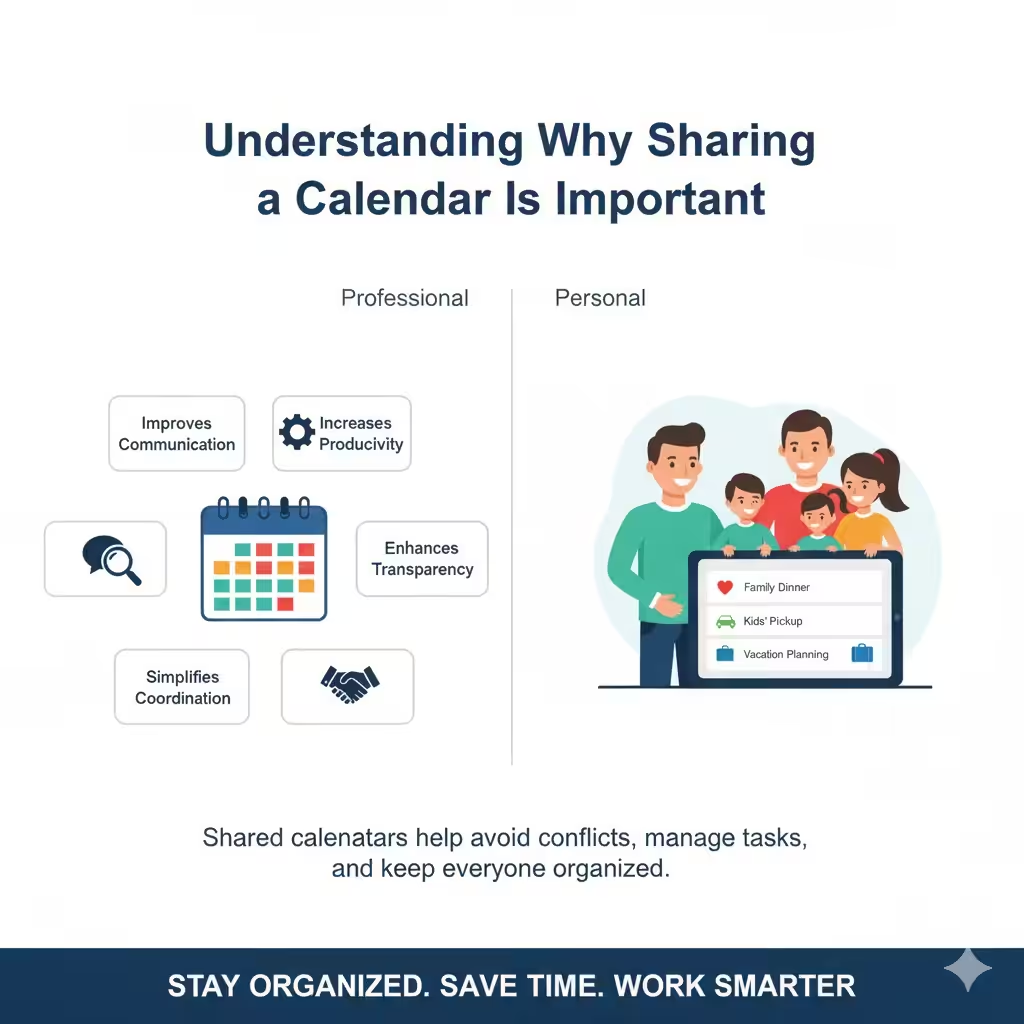
Understanding Why Sharing a Calendar Is Important
Before diving into the steps, it’s important to understand why sharing your calendar matters.
In a professional setting, teams often rely on shared calendars to schedule meetings without conflicts, track project milestones, and coordinate deadlines. For personal use, sharing your calendar helps family members or friends know your schedule, especially if you’re managing shared responsibilities.
Here are a few benefits of calendar sharing:
-
Improves communication: Avoids scheduling conflicts and double-booking.
-
Increases productivity: Makes planning meetings faster and easier.
-
Enhances transparency: Lets team members know when you’re free or busy.
-
Simplifies coordination: Perfect for shared projects or family planning.
With that in mind, let’s explore how to share your calendar step-by-step.
How to Share Your Calendar in Microsoft Outlook on Windows
If you use Microsoft Outlook on Windows, sharing your calendar is simple and customizable.
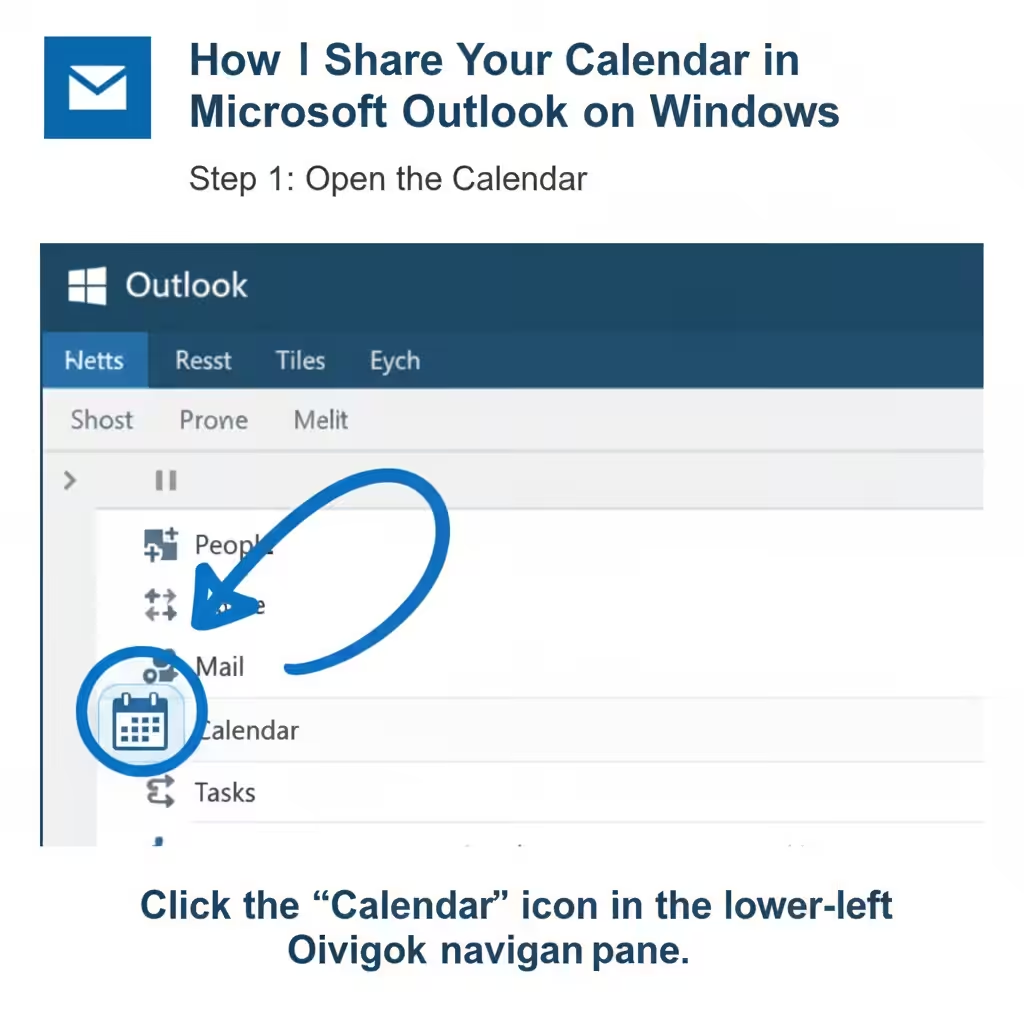
Step 1: Open the Calendar
-
Launch Microsoft Outlook on your PC.
-
At the bottom of the navigation pane, select the Calendar icon.
Step 2: Access Calendar Sharing Options
-
On the Home tab, find the Share Calendar button in the toolbar.
-
Choose the calendar you want to share (if you have multiple calendars).
Step 3: Add Recipients
A new sharing invitation window will open. Enter the email addresses of the people you want to share your calendar with.
You can also select contacts directly from your organization’s directory if you’re using Microsoft 365 or Exchange.
Step 4: Set Permissions
Outlook allows you to control how much information others can see in your calendar. Choose from these options:
-
Can view when I’m busy: Shows only free/busy times.
-
Can view titles and locations: Displays event details without sensitive information.
-
Can view all details: Lets recipients see full event information.
-
Can edit: Allows others to modify your calendar events.
-
Delegate: Gives full control, including the ability to schedule meetings on your behalf.
After setting permissions, click Send to share your calendar. The recipients will receive an email invitation to view your calendar.
How to Share Your Calendar in Outlook for Mac
If you’re using Outlook on a Mac, the steps are similar but the layout may look slightly different.
Step 1: Open Calendar View
-
Open Microsoft Outlook for Mac.
-
Click the Calendar icon in the navigation pane.
Step 2: Share Your Calendar
-
On the Organize tab, click Calendar Permissions.
-
In the dialog box that appears, select Add User.
-
Enter the name or email address of the person you want to share your calendar with.
Step 3: Adjust Permissions
Select the permission level from the dropdown list, such as Reviewer, Editor, or Delegate.
Each role has specific privileges:
-
Reviewer: Can view your calendar.
-
Editor: Can view and modify events.
-
Delegate: Can manage calendar events on your behalf.
Click Add, then OK to confirm.
How to Share Your Calendar in Outlook on the Web (Outlook.com or Microsoft 365)
If you prefer using the web version of Outlook, you can share your calendar directly from your browser.
Step 1: Access Your Calendar
-
Go to Outlook.com and sign in with your Microsoft account.
-
Click the Calendar icon in the sidebar.
Step 2: Open Sharing Settings
-
On the left panel, locate the calendar you want to share.
-
Hover over it and click the More options (…) icon.
-
Select Sharing and permissions.
Step 3: Add People and Set Permissions
-
Enter the email address of the person you want to share your calendar with.
-
Choose what they can do:
-
Can view when I’m busy
-
Can view titles and locations
-
Can view all details
-
Can edit
-
Delegate
-
After setting the appropriate permission, click Share.
The person you shared your calendar with will receive an email containing a link to view it.
How to Stop Sharing Your Calendar
You can stop sharing your calendar at any time.
On Windows:
-
Open Calendar in Outlook.
-
Click Calendar Permissions on the Home tab.
-
Select the person you want to remove and click Remove.
-
Click OK to confirm.
On Outlook Web:
-
Go to the Calendar view.
-
Open Sharing and permissions.
-
Find the person’s name and click the Trash icon to revoke access.
This immediately removes their ability to view or edit your calendar.
How to Share Your Calendar in Google Calendar
If you’re using Google Calendar instead of Outlook, here’s how to share it:
-
Open Google Calendar on your browser.
-
On the left panel, find My calendars and hover over the one you want to share.
-
Click the More options (…) icon and choose Settings and sharing.
-
Under Share with specific people, click Add people.
-
Enter the recipient’s email address and select their permission level:
-
See only free/busy
-
See all event details
-
Make changes to events
-
Make changes and manage sharing
-
-
Click Send to share.
Google will send an invitation to the person’s email with a link to view your calendar.
Tips for Managing Shared Calendars
-
Use color coding: Assign colors to specific event types (e.g., meetings, deadlines, or personal tasks) for better organization.
-
Review permissions regularly: Make sure only authorized individuals have access.
-
Avoid over-sharing: Only share necessary information to maintain privacy.
-
Use descriptive event titles: Helps others understand your schedule at a glance.
-
Leverage integration: Connect your calendar with apps like Microsoft Teams or Slack for automatic updates.
Troubleshooting Calendar Sharing Issues
If your calendar doesn’t sync or recipients can’t see it:
-
Check your internet connection and ensure your account is properly synced.
-
Verify permissions to confirm the right access levels.
-
Restart Outlook or refresh the browser if changes don’t appear immediately.
-
Ensure your organization’s admin hasn’t disabled external sharing if you’re using a work account.
Conclusion
Sharing your calendar is one of the most efficient ways to coordinate meetings, manage workloads, and improve communication. Whether you’re using Microsoft Outlook, Outlook Web, Mac, or Google Calendar, the process is quick and customizable.
By adjusting permissions carefully, you can maintain control over your privacy while still providing transparency and accessibility to those who need it.