


Steps to Create Group Contacts in Outlook
Managing communication efficiently is essential, especially in professional environments where you frequently send emails to the same team or set of contacts. Microsoft Outlook makes this process simple through the Contact Group feature—also known as a Distribution List.
By creating a Contact Group in Outlook, you can send one email to multiple recipients without having to type each address manually. This feature is particularly helpful for teams, departments, clients, and social groups.
In this guide, you’ll learn how to create a Contact Group in Microsoft Outlook on Windows, Mac, and Outlook on the Web, along with helpful tips for managing and editing your groups effectively.
Understanding What a Contact Group Is
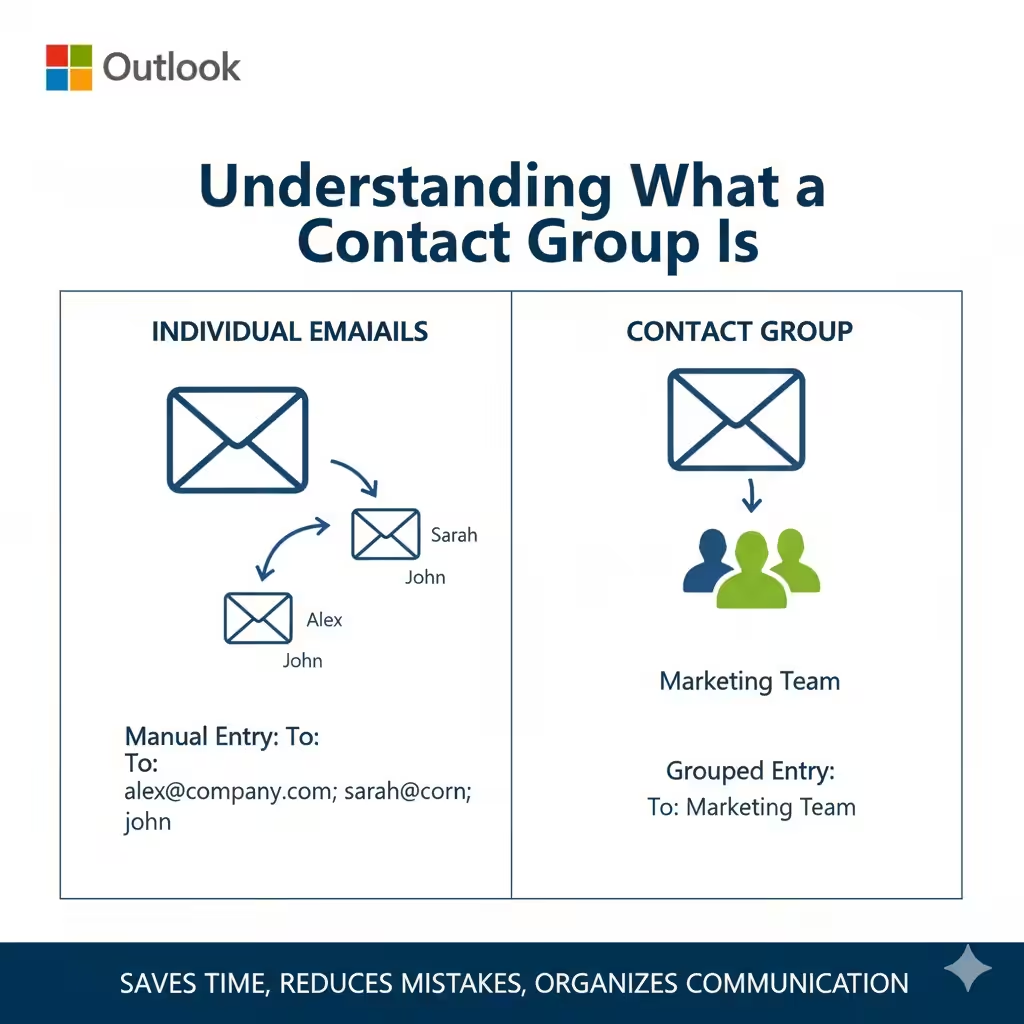
A Contact Group in Outlook is a collection of email addresses grouped together under a single name. Instead of entering multiple email addresses in the “To” field, you can just type the name of your Contact Group, and Outlook will send the message to everyone in that group.
For example, you can create a Contact Group called Marketing Team that includes all your marketing colleagues. Whenever you want to send a message to everyone, simply select Marketing Team instead of adding each person individually.
Contact Groups save time, reduce mistakes, and keep your communication organized—especially if you frequently email the same people.
How to Create a Contact Group in Outlook on Windows
Creating a Contact Group in Outlook for Windows is straightforward and takes just a few minutes.
Step 1: Open the People Section
-
Launch Microsoft Outlook on your computer.
-
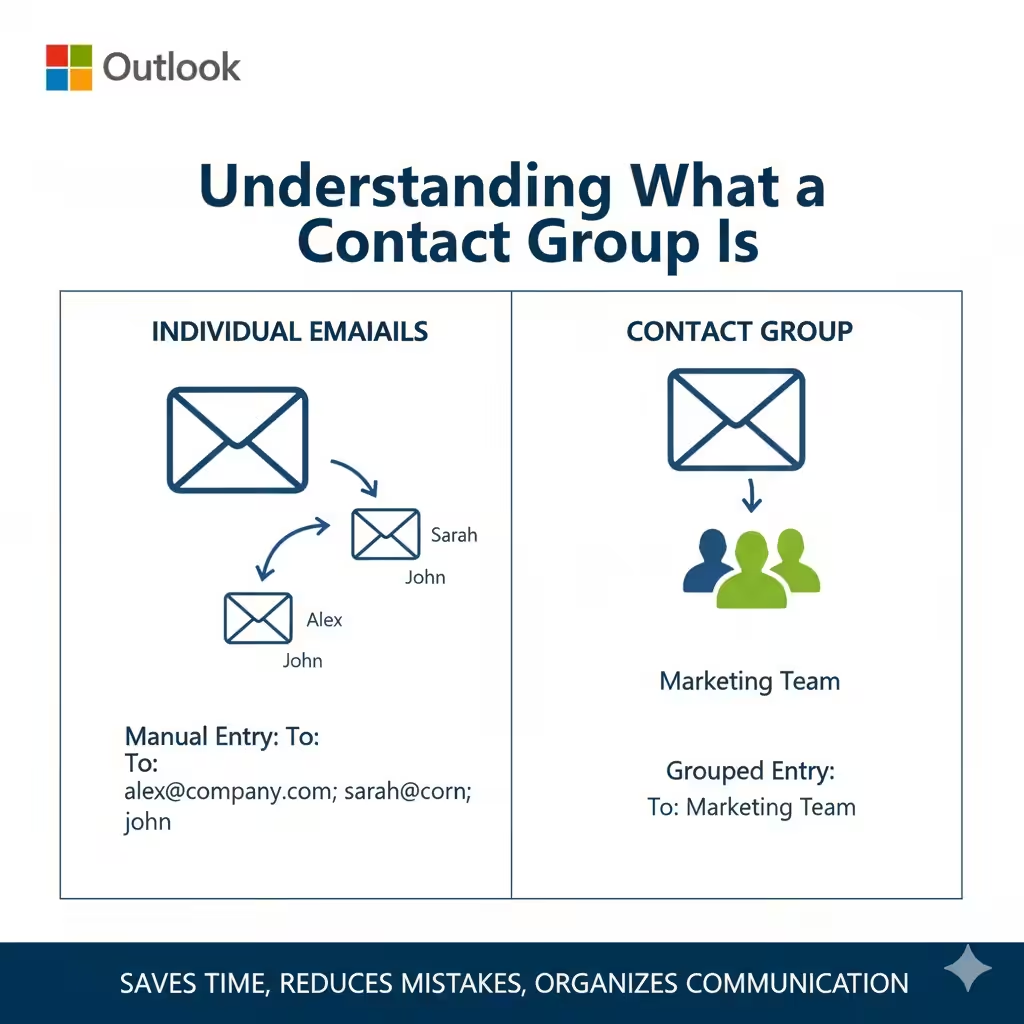
In the lower-left corner of the navigation pane, select the People icon (it looks like two silhouettes).
-
This opens the contact management area where all your contacts and groups are stored.
Step 2: Create a New Contact Group
-
On the Home tab, click New Contact Group in the toolbar.
-
A new window titled Untitled Group will appear.
Step 3: Name Your Contact Group
Type a meaningful name for your group in the Name field—for example, “Sales Department,” “Project Alpha Team,” or “Monthly Report Recipients.”
Step 4: Add Members to the Group
Click Add Members in the ribbon, and choose from the following options:
-
From Outlook Contacts: Select people already in your Outlook address book.
-
From Address Book: Add members from your company’s directory (if you use a Microsoft 365 account).
-
New Email Contact: Manually enter an email address that isn’t already in your contacts.
Select the members you want to include and click Add, then OK.
Step 5: Save the Contact Group
Once you’ve added all your members, click Save & Close at the top left.
Your Contact Group will now appear in your Contacts list, and you can use it just like a regular contact when composing an email.
How to Create a Contact Group in Outlook on the Web (Outlook.com or Microsoft 365)
If you prefer using the web version of Outlook, you can also create a Contact Group directly from your browser.
Step 1: Access the People App
-
Go to Outlook.com or log in to your Microsoft 365 account.
-
Click the App Launcher (nine dots in the upper-left corner).
-
Choose People from the list of apps.
Step 2: Create a New Group
-
Click New Contact at the top of the page.
-
From the dropdown menu, select New Contact List.
Step 3: Add a Name and Members
-
Enter a Name for your Contact Group.
-
In the Add email addresses box, type the names or email addresses of people you want to include.
-
Outlook will automatically suggest matches from your contacts or company directory.
-
Step 4: Save Your Group
After adding all members, click Create.
Your Contact Group is now saved, and you can easily use it when sending emails. Just type the group name in the To, Cc, or Bcc field.
How to Create a Contact Group in Outlook for Mac
The process for creating a Contact Group in Outlook on a Mac is similar, though the interface looks a bit different.
Step 1: Go to the People View
-
Open Microsoft Outlook on your Mac.
-
In the navigation pane, select People.
Step 2: Create a New Contact List
-
Click New Contact List on the toolbar.
-
A new window will appear where you can name your group and add members.
Step 3: Add Members
-
In the Add Members box, type the names or email addresses of people you want to include.
-
You can add both internal (organization) and external (personal) contacts.
Step 4: Save the Contact Group
Click Save & Close or simply press Command + S.
The Contact Group will now appear in your contacts and can be used when composing a new message.
How to Send an Email to a Contact Group
Once your Contact Group is created, sending a message to everyone in it is simple:
-
Open Outlook and click New Email.
-
In the To field, type the name of your Contact Group.
-
Outlook will automatically fill in all the group members.
-
Compose your email and click Send.
The message will be sent to every member of the group at once, saving you time and effort.
How to Edit a Contact Group in Outlook
Over time, your group members may change—you may need to add new members or remove old ones. Here’s how to manage that easily.
To Add Members
-
Go to the People view.
-
Open your Contact Group.
-
Click Add Members > choose the source (Outlook Contacts, Address Book, or New Email Contact).
-
Select or enter the contacts and click OK, then Save & Close.
To Remove Members
-
Open the Contact Group.
-
Highlight the member you want to remove.
-
Click Remove Member on the ribbon.
-
Click Save & Close to update the group.
To Rename the Group
-
Open the Contact Group.
-
Change the name in the Name field.
-
Save your changes.
How to Delete a Contact Group
If a Contact Group is no longer needed, you can delete it easily:
-
Go to People.
-
Locate the group you want to delete.
-
Right-click it and select Delete.
-
Confirm your choice.
Deleting a Contact Group doesn’t delete the individual contacts—it only removes the group list.
Tips for Managing Contact Groups
-
Use descriptive names: Choose clear names for your groups, like “HR Department” or “Project Team Alpha.”
-
Regularly update members: Review your lists every few months to ensure they stay current.
-
Create subgroups: For large teams, create smaller subgroups for specific purposes (e.g., “Marketing Leads” or “Design Team”).
-
Use Bcc wisely: When emailing external groups, use Bcc to protect recipients’ privacy.
-
Back up your contacts: Export your contact groups periodically for data safety.
Conclusion
Creating a Contact Group in Microsoft Outlook is one of the easiest ways to simplify your communication workflow. Instead of manually entering multiple addresses every time, a Contact Group lets you send a message to a set of people with just one click.
Whether you’re managing a project team, staying in touch with clients, or coordinating events, Contact Groups save valuable time and ensure consistent communication.