


How to Add Someone to Your Outlook Contacts List
Microsoft Outlook is not just an email application—it’s also a powerful tool for managing contacts, appointments, and communication across your professional and personal life. Whether you use Outlook for business networking or keeping in touch with colleagues and friends, knowing how to add contacts effectively is essential.
Adding contacts in Outlook allows you to store email addresses, phone numbers, company details, and even birthdays in one organized place. Once saved, Outlook can automatically fill in contact details when you compose an email, schedule a meeting, or share a document.
This comprehensive guide will show you how to add contacts in Microsoft Outlook across Windows, Mac, and the web.
Understanding the Importance of Contacts in Outlook
Before diving into the steps, it’s important to understand why adding contacts in Outlook is beneficial:
-
Easier communication: You don’t have to remember or manually type email addresses.
-
Personalization: You can add notes, company names, and birthdays to each contact.
-
Integration: Contacts sync with other Microsoft apps like Teams, OneDrive, and Skype.
-
Efficiency: Quickly access your address book when scheduling meetings or sending group emails.
In short, managing contacts well saves time and keeps your communication seamless across all Microsoft 365 services.
How to Add a Contact in Outlook on Windows
If you’re using Outlook on a Windows computer, here’s how to create a new contact step-by-step.
Step 1: Open the People Section
-
Launch Microsoft Outlook.
-
At the bottom of the navigation pane, select the People icon (it looks like two silhouettes).
-
This opens your contact list.
Step 2: Add a New Contact
-
In the Home tab, click New Contact.
-
A new window will appear, allowing you to enter contact details.
Step 3: Fill in the Contact Details
Enter the person’s information, such as:
-
Full Name – The name you’ll recognize in your contact list.
-
Email Address – Their primary email for communication.
-
Phone Numbers – Mobile, business, or home.
-
Company Name and Job Title – Useful for professional contacts.
-
Address – Office or home address (optional).
-
Notes – Additional details like meeting notes, preferences, or birthdays.
You can also add a profile picture by clicking the photo icon and uploading an image.
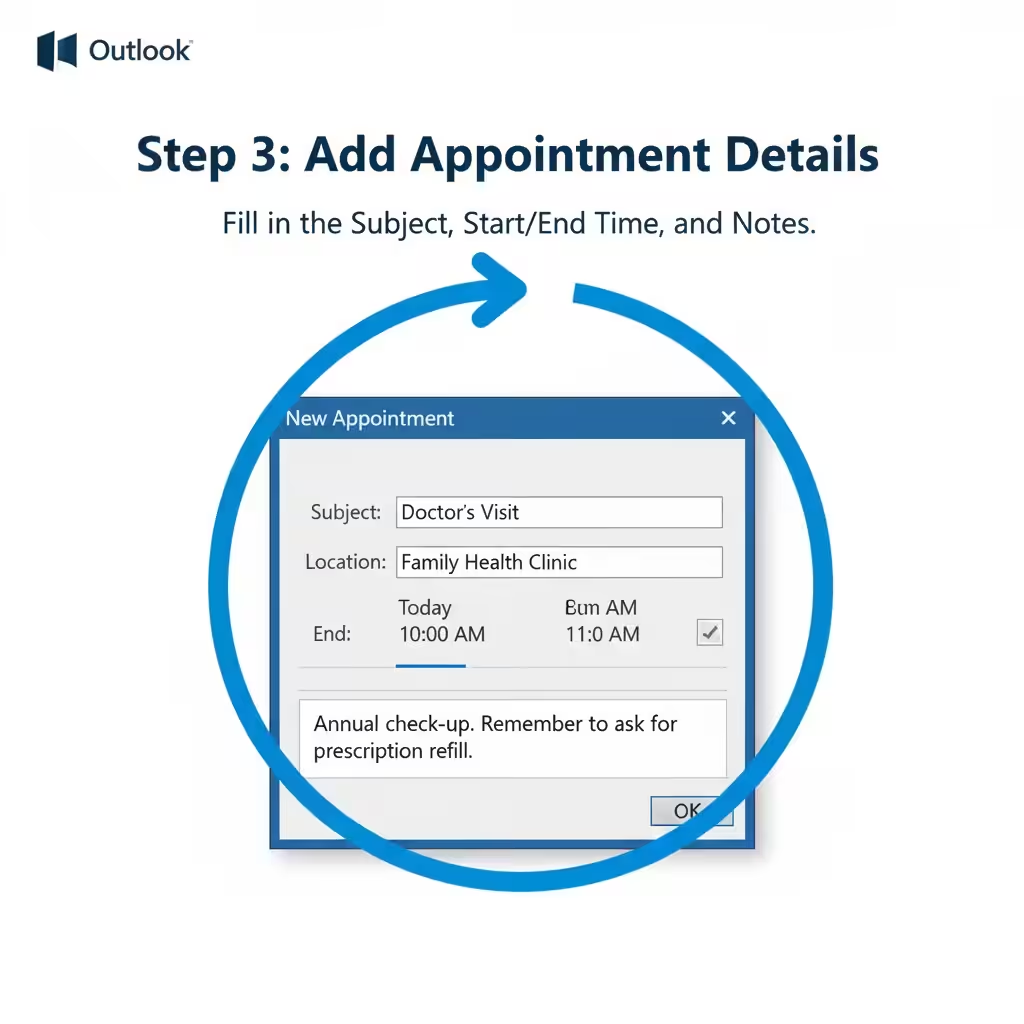
Step 4: Save the Contact
Once you’ve entered all the information, click Save & Close at the top left of the window.
Your new contact will now appear in your Outlook contacts list.
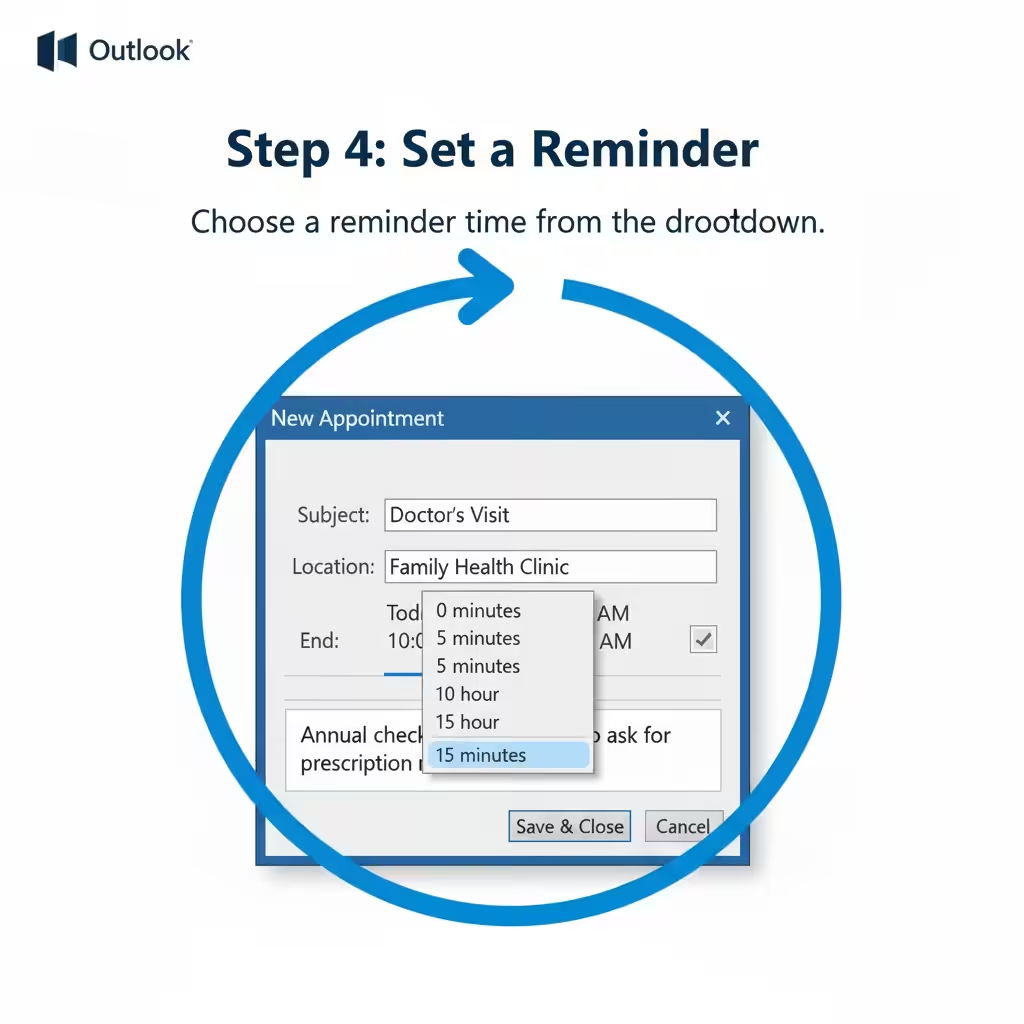
Step 5: Add a Contact Directly from an Email
Outlook also lets you quickly create a contact from an email message.
-
Open an email from the person you want to add.
-
Right-click their name in the message header.
-
Choose Add to Outlook Contacts.
-
A new contact form will open with their email address pre-filled.
-
Add any additional details and click Save & Close.
This method is especially useful when you frequently receive new emails from business contacts or clients.
How to Add a Contact in Outlook on the Web (Outlook.com or Microsoft 365)
If you use the web version of Outlook, adding a contact is just as easy.
Step 1: Open Outlook on the Web
-
Go to Outlook.com or log in to your Microsoft 365 account.
-
Click the People icon on the left sidebar (or choose it from the app launcher at the top-left corner).
Step 2: Create a New Contact
-
Click New Contact at the top of the page.
-
Select Create contact.
Step 3: Enter Contact Information
Fill out the fields such as name, email, phone number, job title, and company.
You can also add:
-
Custom fields (e.g., website or notes)
-
Photo for visual identification
-
Birthday or anniversary dates
Step 4: Save the Contact
When done, click Create.
Your new contact will be saved automatically and available across all Outlook-connected devices.
Step 5: Add a Contact from an Email in Outlook Web
Another fast way to add a contact is directly from your inbox:
-
Open the email from the person you want to add.
-
Hover over their name in the message preview.
-
Click More actions (three dots) > Add to contacts.
-
A contact card will appear where you can add additional information.
-
Click Save.
How to Add a Contact in Outlook for Mac
For Mac users, the steps are slightly different but just as straightforward.
Step 1: Go to the People View
-
Open Microsoft Outlook on your Mac.
-
Select People from the navigation pane or the sidebar.
Step 2: Add a New Contact
-
On the toolbar, click New Contact.
-
A blank contact form will open.
Step 3: Enter the Contact’s Information
Type in the contact’s:
-
Name and display name
-
Email address
-
Company name and position
-
Phone numbers
-
Physical address
-
Notes or any other relevant details
Step 4: Save the Contact
Click Save & Close or simply press Command + S.
The contact will now be listed in your Outlook address book.
Step 5: Add a Contact from an Email
If you’ve received an email from someone new, you can also save them as a contact:
-
Open the email.
-
Right-click their name in the sender field.
-
Choose Add to Contacts.
-
Modify the information if needed, then save it.
How to Import Contacts from a File
If you already have a list of contacts stored in another email platform or Excel file, you can import them into Outlook instead of adding each manually.
Step 1: Prepare Your File
Make sure your contacts are saved as a .CSV (Comma Separated Values) file.
Step 2: Import Contacts
-
Go to File > Open & Export > Import/Export.
-
Select Import from another program or file.
-
Choose Comma Separated Values (CSV).
-
Browse to locate your contact file.
-
Select your target contact folder and finish the import process.
This is particularly useful when migrating contacts from Gmail, Yahoo Mail, or another Outlook account.
How to Edit or Delete Contacts in Outlook
After adding contacts, you can easily edit or remove them as needed.
Edit a Contact
-
Go to the People view.
-
Select the contact you want to edit.
-
Click Edit Contact or Open Contact.
-
Modify the information, then click Save & Close.
Delete a Contact
-
Select the contact you want to remove.
-
Click Delete on the toolbar.
-
Confirm the deletion.
Deleted contacts will move to the Deleted Items folder, where you can restore them later if needed.
Tips for Managing Contacts in Outlook
-
Group Contacts: Use Contact Groups to organize people you email often (like a project team).
-
Sync Contacts: Enable sync with your mobile device for access anywhere.
-
Add Notes: Record important details or follow-up reminders in each contact’s note section.
-
Backup Contacts: Export your contacts regularly to avoid losing them.
Conclusion
Adding and managing contacts in Microsoft Outlook is a small task that delivers big benefits. Whether you’re building professional relationships, organizing your work network, or simplifying your personal communication, Outlook’s contact management features make the process easy and efficient.
By following this guide, you can confidently add contacts in Outlook across all platforms—Windows, Mac, and the web—and keep your address book organized, synchronized, and ready whenever you need it.