


How to Clear Hyperlinks from a Word Document
Hyperlinks are a useful feature in Microsoft Word, allowing you to connect text or images to websites, email addresses, or other documents. However, there are many situations when you might need to remove these links—such as preparing a clean document, converting text for printing, or removing automatic links created when pasting content from the web. Fortunately, Microsoft Word provides several easy ways to remove hyperlinks, whether you want to delete a single link or remove all hyperlinks at once.
This guide explains everything you need to know about removing hyperlinks in Word, with step-by-step instructions for different methods and versions of Word. Whether you are using Word 2010, 2013, 2016, 2019, Word for Microsoft 365, or Word for Mac, the solutions below will help you clean your document quickly and efficiently.
Understanding Hyperlinks in Word
Before removing hyperlinks, it helps to understand what they are and how they function.
What Is a Hyperlink?
A hyperlink is clickable text or an image that directs you to:
-
A website
-
An email address
-
A specific section within the document
-
A file on your computer
Hyperlinks typically appear underlined and in blue text unless the formatting has been changed.
Why Remove Hyperlinks?
You might need to remove hyperlinks for several reasons, including:
-
Cleaning up large documents
-
Preparing text for printing
-
Removing automatic hyperlink formatting
-
Sharing plain text without clickable links
-
Simplifying document appearance
Whatever the reason, Word offers several methods to accomplish this task.
How to Remove a Single Hyperlink in Word
If you only want to delete one hyperlink without affecting the rest of your document, this method is ideal.
Steps to Remove One Hyperlink
-
Right-click the hyperlink you want to remove.
-
Select Remove Hyperlink from the context menu.
-
The hyperlink disappears, but the text remains intact.
What Happens After Removal?
-
The text loses its blue underline.
-
It becomes plain, unlinked text.
-
No website or email address will open when clicked.
This method is quick and works on any version of Microsoft Word.
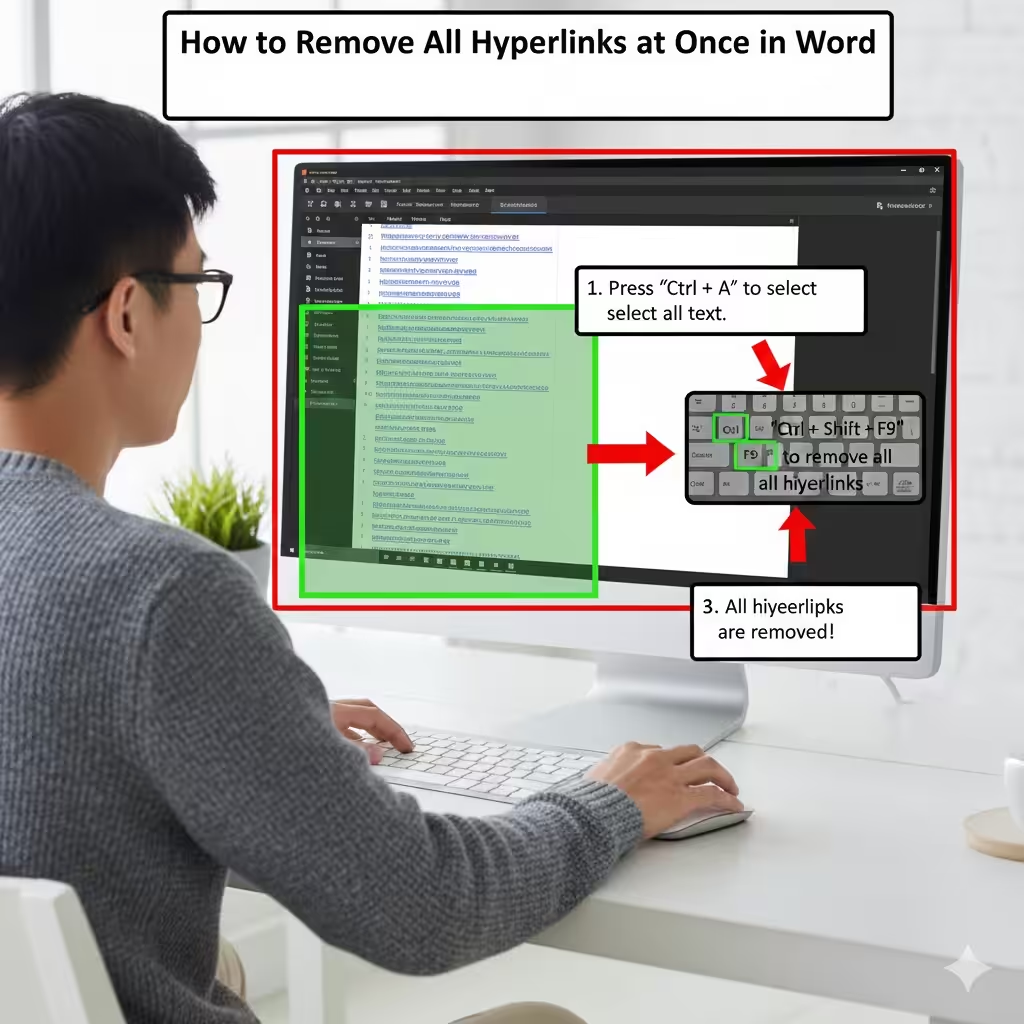
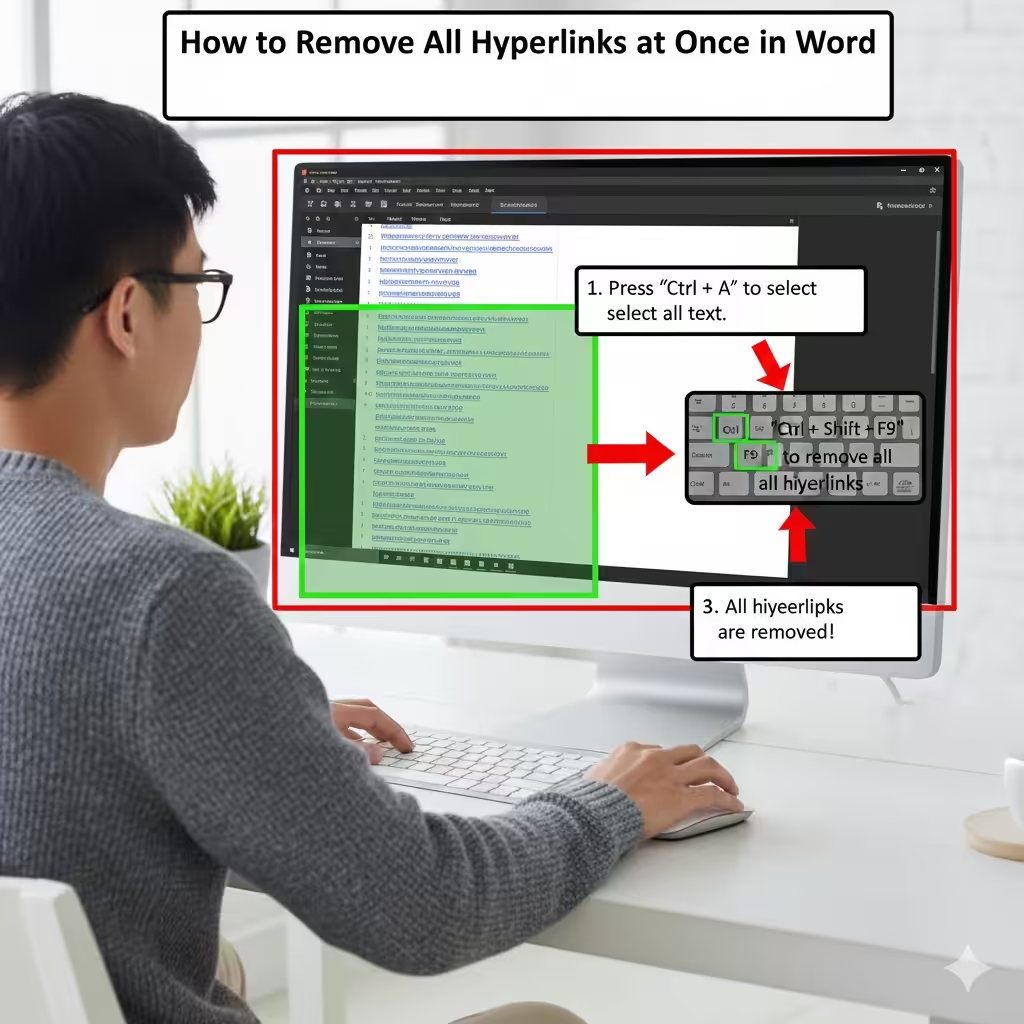
How to Remove All Hyperlinks at Once in Word
If your document contains dozens or hundreds of hyperlinks, removing them one by one can be time-consuming. Word provides a faster option using keyboard shortcuts.
Shortcut to Remove All Hyperlinks
-
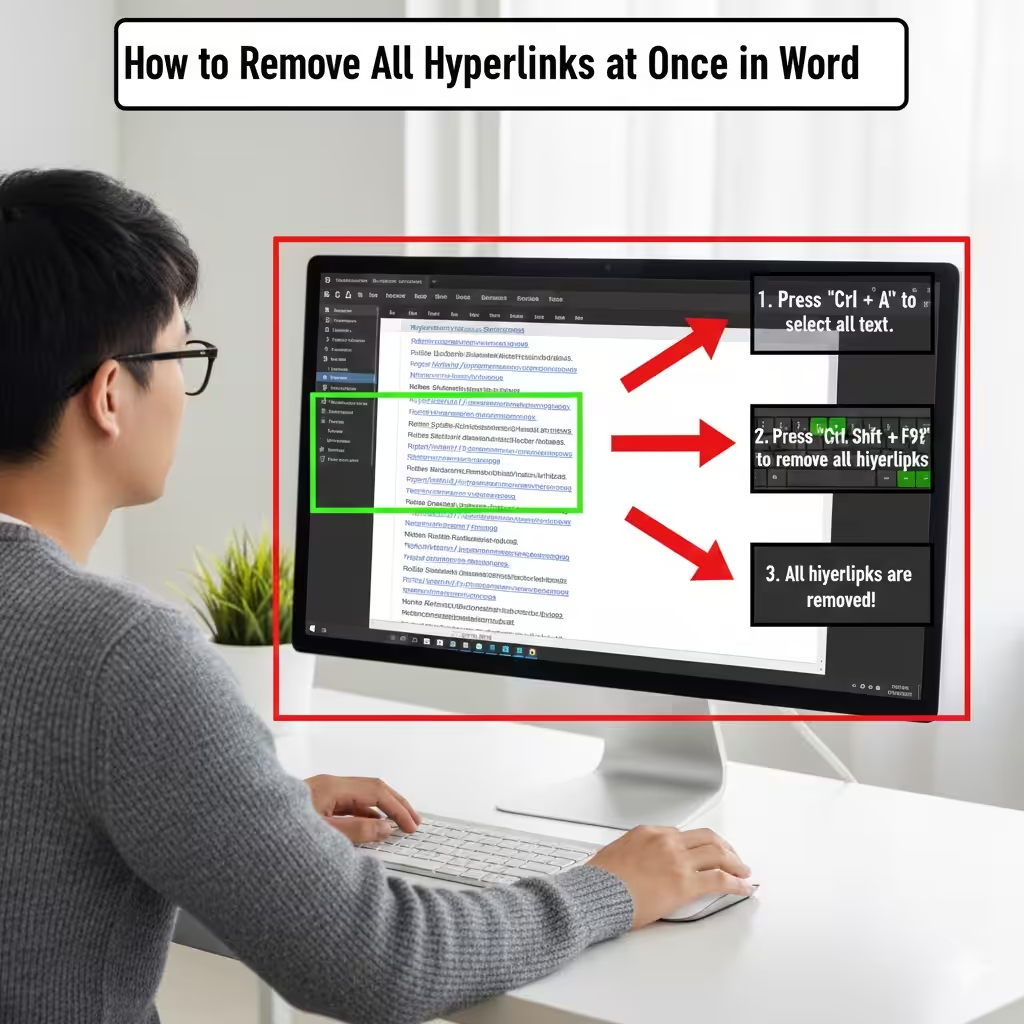
Press Ctrl + A to select the entire document.
-
Press Ctrl + Shift + F9.
This instantly converts every hyperlink in the document into plain text.
Important Notes
-
Only hyperlinks created automatically or manually will be removed.
-
Cross-references and citations may remain, depending on your settings.
-
Formatting (bold, color, etc.) may stay unless you clear formatting separately.
This is the most efficient way to remove all hyperlinks in a large document.
How to Remove Hyperlinks While Pasting Text
When you copy content from a webpage, Word automatically converts URLs and email addresses into hyperlinks. You can prevent this by using special paste options.
Steps to Paste Without Hyperlinks
-
Copy the content you want to paste.
-
In Word, right-click where you want to paste.
-
Choose Paste as Plain Text or Keep Text Only.
You can also use the shortcut:
Ctrl + Shift + V (in newer versions of Word)
Why Use This Method?
-
Removes all original formatting
-
Prevents unwanted hyperlinks
-
Gives you clean, editable text
This is extremely helpful when copying from emails, websites, or documents full of links.
How to Remove Hyperlinks Using Word’s AutoCorrect Settings
If Word keeps turning text into hyperlinks automatically—for example, when typing a URL—you can disable this feature.
How to Turn Off Automatic Hyperlinks
-
Go to File → Options.
-
Select Proofing.
-
Click AutoCorrect Options.
-
Go to the AutoFormat As You Type tab.
-
Uncheck the box labeled Internet and network paths with hyperlinks.
-
Click OK to save your changes.
Benefits of Turning Off Auto Hyperlinking
-
Prevents Word from automatically linking URLs
-
Helps keep your document clean
-
Saves time when typing content with many URLs
This method is useful for long-term control over how Word handles hyperlinks.
How to Remove Hyperlinks on Word for Mac
The process on a Mac is slightly different but still straightforward.
Removing a Single Hyperlink on Mac
-
Control-click (or right-click) the hyperlink.
-
Select Remove Hyperlink.
Removing All Hyperlinks at Once on Mac
-
Press Command + A to select all text.
-
Press Command + Shift + FN + F9.
This converts all hyperlinks to plain text.
Disabling Automatic Hyperlinks on Mac
-
Go to Word → Preferences.
-
Click AutoCorrect.
-
Open the AutoFormat As You Type tab.
-
Uncheck Internet and network paths with hyperlinks.
Mac users can manage hyperlinks just as easily as Windows users.
How to Remove Hyperlinks from Selected Text Only
Sometimes you want to remove hyperlinks from a specific section, not the entire document.
Steps
-
Highlight the text containing the hyperlinks.
-
Press Ctrl + Shift + F9 (Windows) or Command + Shift + FN + F9 (Mac).
This removes only the hyperlinks within your selection.
When to Use This Method
-
Cleaning a paragraph without affecting other parts of the document
-
Preparing a specific section for printing
-
Keeping hyperlinks in one area but removing them elsewhere
How to Keep the Hyperlink but Remove the Formatting
Sometimes users want to keep the hyperlink functional but remove the blue underline and color.
Steps
-
Select the hyperlink.
-
Press Ctrl + U to remove the underline.
-
Change the text color to black in the Font settings.
The link remains clickable, but it will appear as regular text.
Troubleshooting Hyperlink Issues
Hyperlink Won’t Remove
If Remove Hyperlink does not appear:
-
Check if the link is part of a field code.
-
Press Alt + F9 to toggle fields.
Formatting Remains After Removal
You may need to clear all formatting:
-
Select text → Press Ctrl + Spacebar
Hyperlinks Reappear
This happens if AutoFormat is still enabled.
Disable auto hyperlinking (explained earlier).
Conclusion
Removing hyperlinks in Word is easy once you know the available tools and shortcuts. Whether you want to remove a single hyperlink, clear all hyperlinks at once, disable automatic hyperlink creation, or strip formatting while keeping clickable links, Word gives you complete control. By using the methods outlined in this guide, you can keep your documents clean, readable, and professional.