


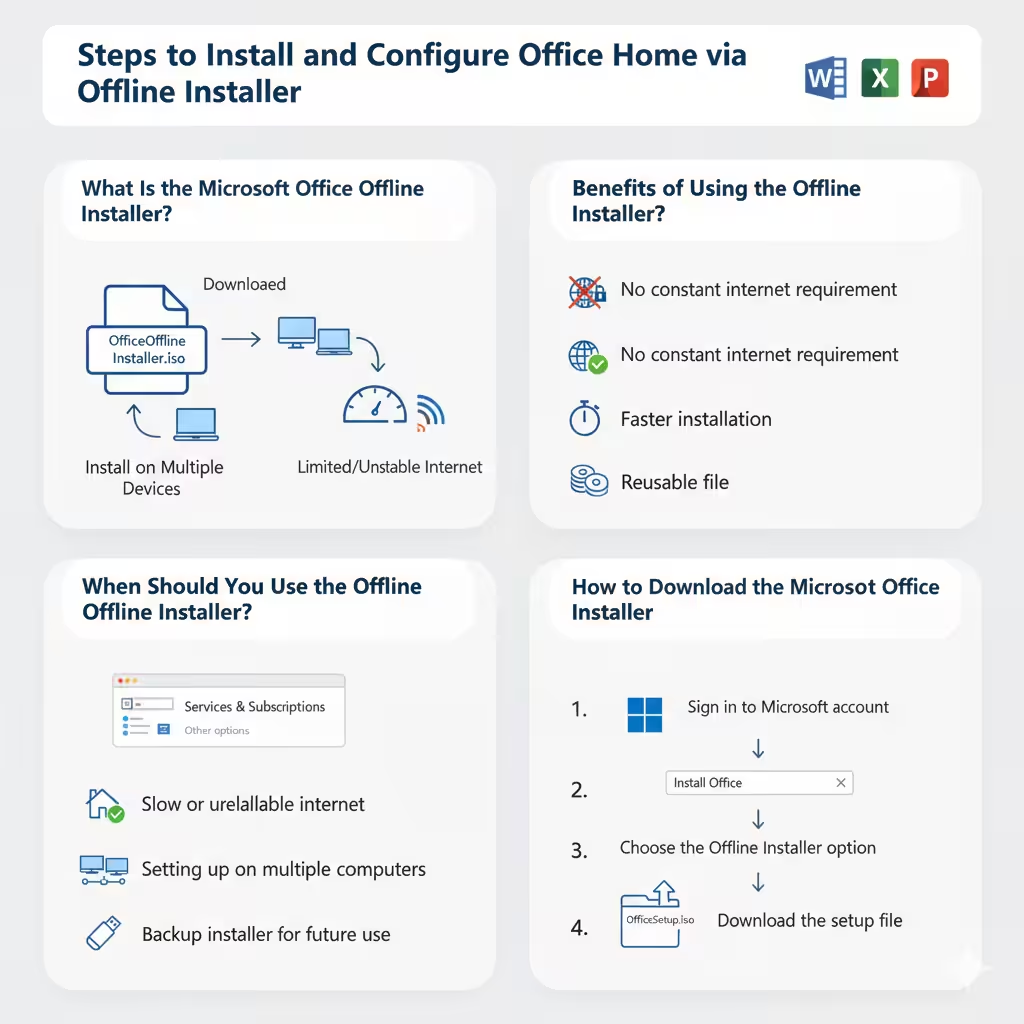
Steps to Install and Configure Office Home via Offline Installer
Microsoft Office remains one of the most widely used productivity suites worldwide, offering essential tools like Word, Excel, PowerPoint, and Outlook. For users of Office Home, Microsoft provides both online and offline installation options. While the online method is straightforward, there are situations where the offline installer is a much better choice.
This guide will explain what the Microsoft Office offline installer is, why you might need it, and how to download, install, and use it effectively on your computer.
What Is the Microsoft Office Offline Installer?
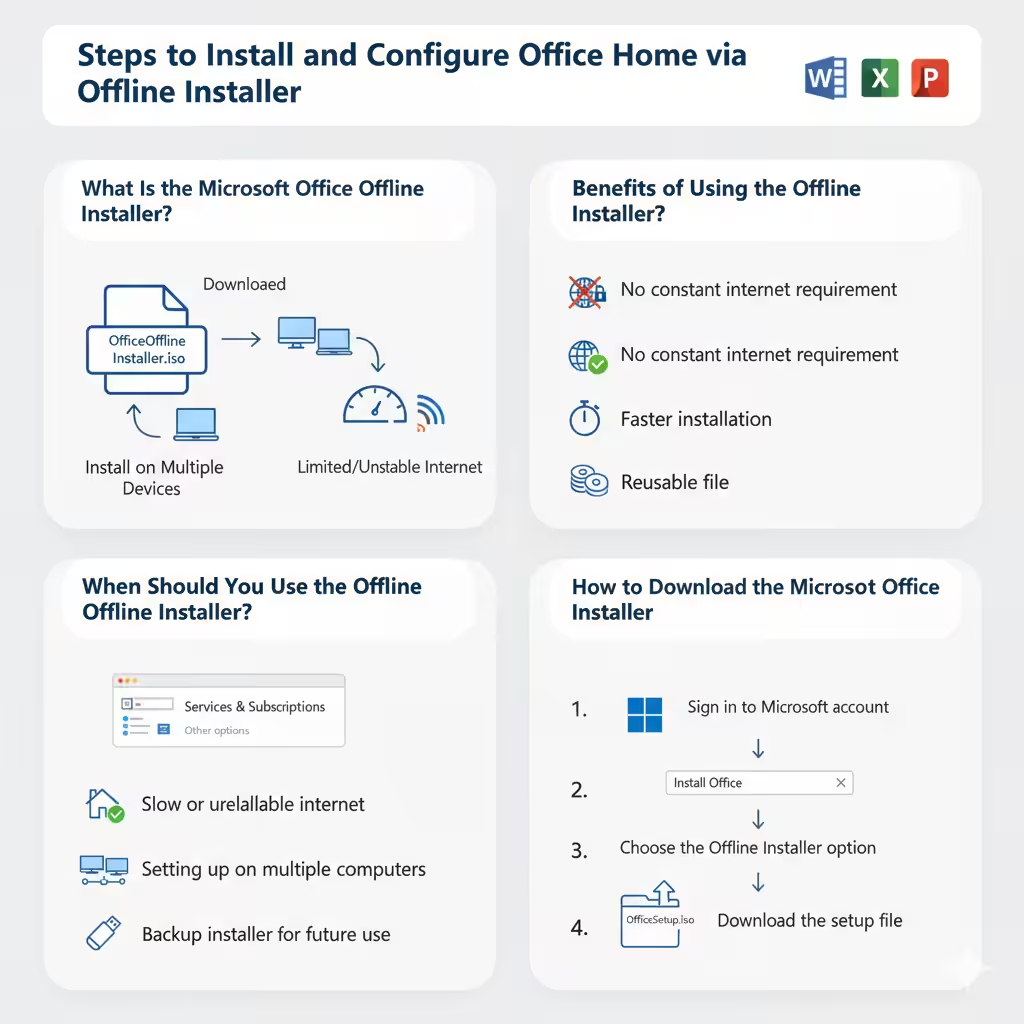
The Microsoft Office offline installer is a standalone setup file that allows you to install Office Home applications without requiring a continuous internet connection. Instead of downloading files during the installation process, all necessary files are included in the offline package.
This option is especially useful in environments where:
-
Internet speed is limited or unstable.
-
You need to install Office on multiple devices.
-
The installation process requires more control and flexibility.
Benefits of Using the Offline Installer
Choosing the offline installer has several advantages over the standard online installation:
-
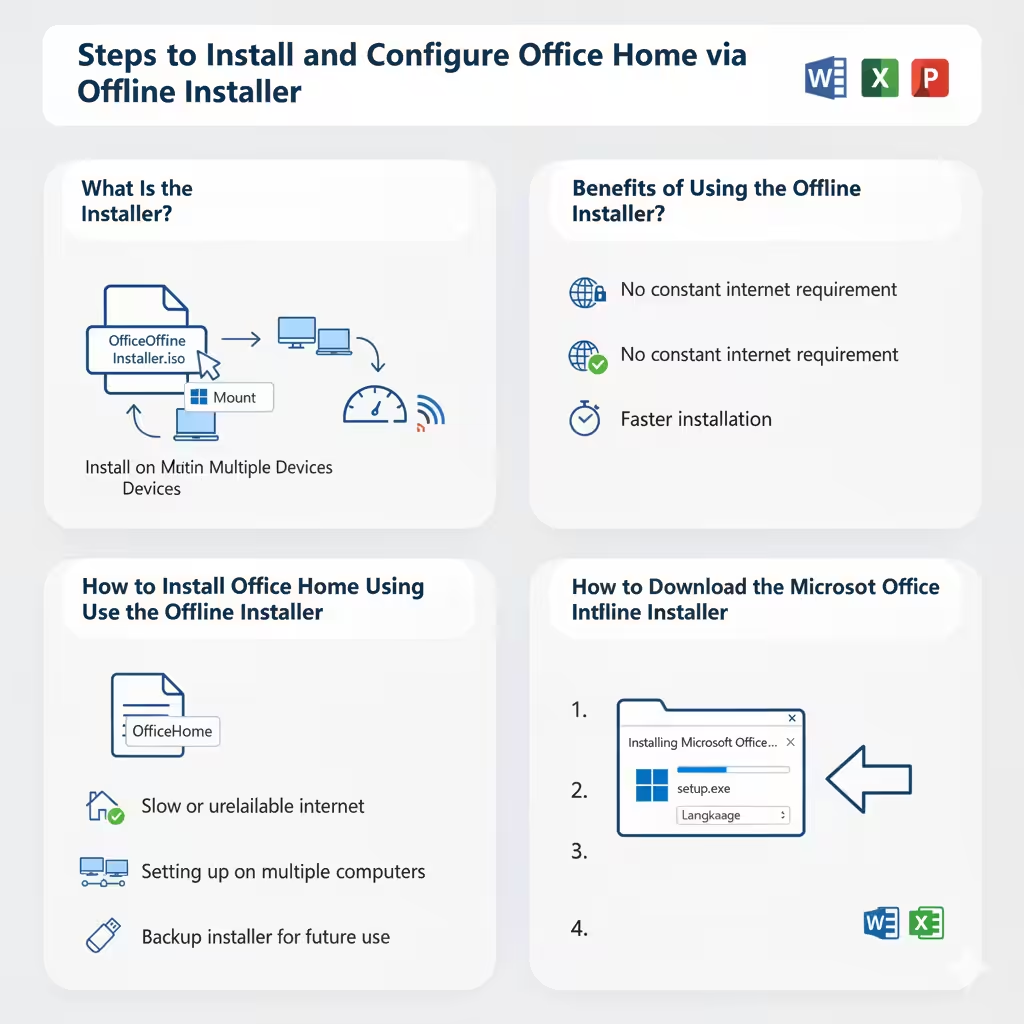
No constant internet requirement: Once the offline file is downloaded, you do not need an internet connection to complete the setup.
-
Faster installation: Since the files are prepackaged, installation is usually quicker than downloading components during setup.
-
Reusable file: You can use the same installer on multiple computers, provided your license supports it.
-
Better reliability: Offline installation minimizes the chance of interruptions caused by network failures.
When Should You Use the Offline Installer?
While most users will be fine with the online installation, the offline installer is recommended if:
-
You live in an area with slow or unreliable internet.
-
You are setting up Office Home on multiple computers in one location.
-
You prefer having a backup installer for future use.
-
You encounter issues with the online installation process.
How to Download the Microsoft Office Offline Installer
The offline installer is available directly from Microsoft’s website, but you need a valid Office Home subscription or license to access it. Follow these steps:
-
Sign in to your Microsoft account
-
Visit the Microsoft Office website.
-
Log in using the Microsoft account linked to your Office Home subscription.
-
-
Go to the Office installation page
-
After signing in, click on Services & Subscriptions.
-
Locate your Office Home subscription.
-
-
Choose the Offline Installer option
-
Click Install Office.
-
Select Other options.
-
Choose Download an offline installer.
-
-
Download the setup file
-
The file will typically be in ISO format.
-
Save it to your computer.
-
How to Install Office Home Using the Offline Installer
Once you have downloaded the offline installer, the installation process is straightforward.
-
Mount the ISO file
-
On Windows 10 or Windows 11, right-click the ISO file and choose Mount.
-
On older systems, you may need third-party software to open ISO files.
-
-
Run the setup file
-
Inside the mounted ISO, locate setup.exe.
-
Double-click it to start the installation.
-
-
Follow the on-screen instructions
-
The setup wizard will guide you through the process.
-
Choose your preferred language and edition if prompted.
-
-
Complete installation
-
The installer will copy all necessary files to your computer.
-
Once finished, you can launch Office apps like Word or Excel immediately.
-
Activating Office After Offline Installation
Even though the installation can be completed offline, activation requires an internet connection at least once.
-
Open any Office application (e.g., Word).
-
When prompted, sign in with your Microsoft account.
-
The application will connect to Microsoft’s servers and verify your license.
-
Once activated, you can continue using Office, even without a constant internet connection.
Troubleshooting Common Issues with the Offline Installer
While the process is usually smooth, you might encounter some issues. Here are common problems and solutions:
-
ISO file won’t mount: Use a third-party tool such as WinRAR, 7-Zip, or Daemon Tools to open the file.
-
Setup fails midway: Restart your computer, temporarily disable antivirus software, and try again.
-
Activation problems: Ensure you are connected to the internet and signed in with the correct Microsoft account.
-
Wrong version installed: During installation, make sure to select the correct edition (32-bit or 64-bit) for your system.
Tips for Using Office Offline Installer Efficiently
-
Always download the installer from the official Microsoft website to avoid corrupted or unsafe files.
-
Keep a copy of the ISO file on an external drive for future use.
-
Before installing on multiple devices, verify how many installations your Office Home license supports.
-
Update Office after installation by connecting to the internet and checking for updates.
When to Use Online Installation Instead
Despite its benefits, the offline installer is not always necessary. The online installer may be a better option if:
-
You only need to install Office on one device.
-
You have fast and stable internet access.
-
You want the latest updates included during installation automatically.
Conclusion
The Microsoft Office offline installer for Office Home is a valuable tool for users who need a flexible, reliable, and reusable installation option. It ensures that you can install Office even in environments with poor internet connectivity, and it saves time when setting up multiple devices.
By following the steps outlined in this guide, you can download, install, and activate Office Home with ease. Whether you choose the offline or online installer, you’ll have access to the full suite of powerful Office applications that support your productivity at home, school, or work.