


Steps to Deactivate Office 365 After Getting a “Limit Reached” Message
Microsoft Office 365 is one of the most popular productivity tools in the world, giving users access to Word, Excel, PowerPoint, Outlook, and more across multiple devices. A big advantage of Office 365 is that it allows you to install and activate your subscription on several computers, tablets, and smartphones. However, there is a limit to how many devices can be signed in at once.
When you try to sign in to Office 365 on another device and see the “Limit Reached” error, it means you have already used the maximum number of allowed activations. Fortunately, you can fix this issue by deactivating Office on devices you no longer use. This guide will walk you through why this happens, how to deactivate Office, and how to manage your activations effectively.
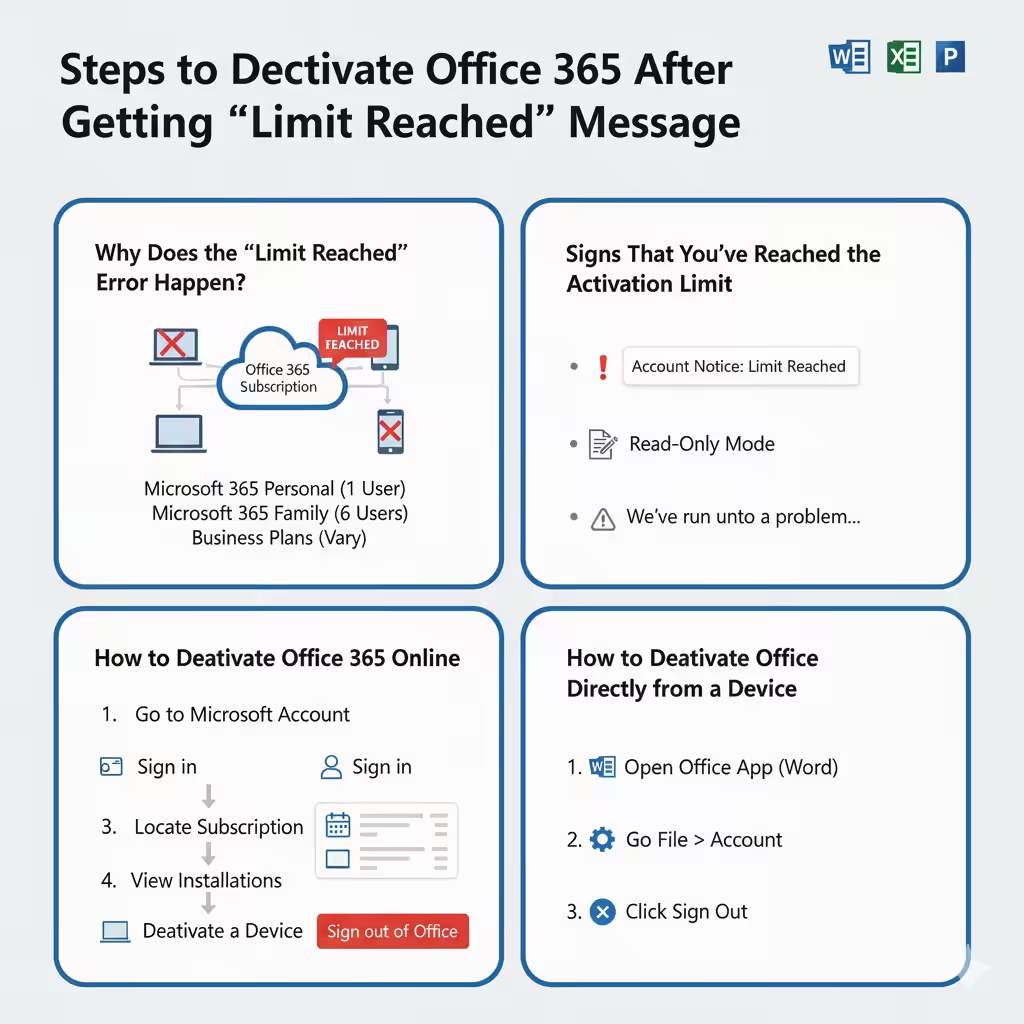
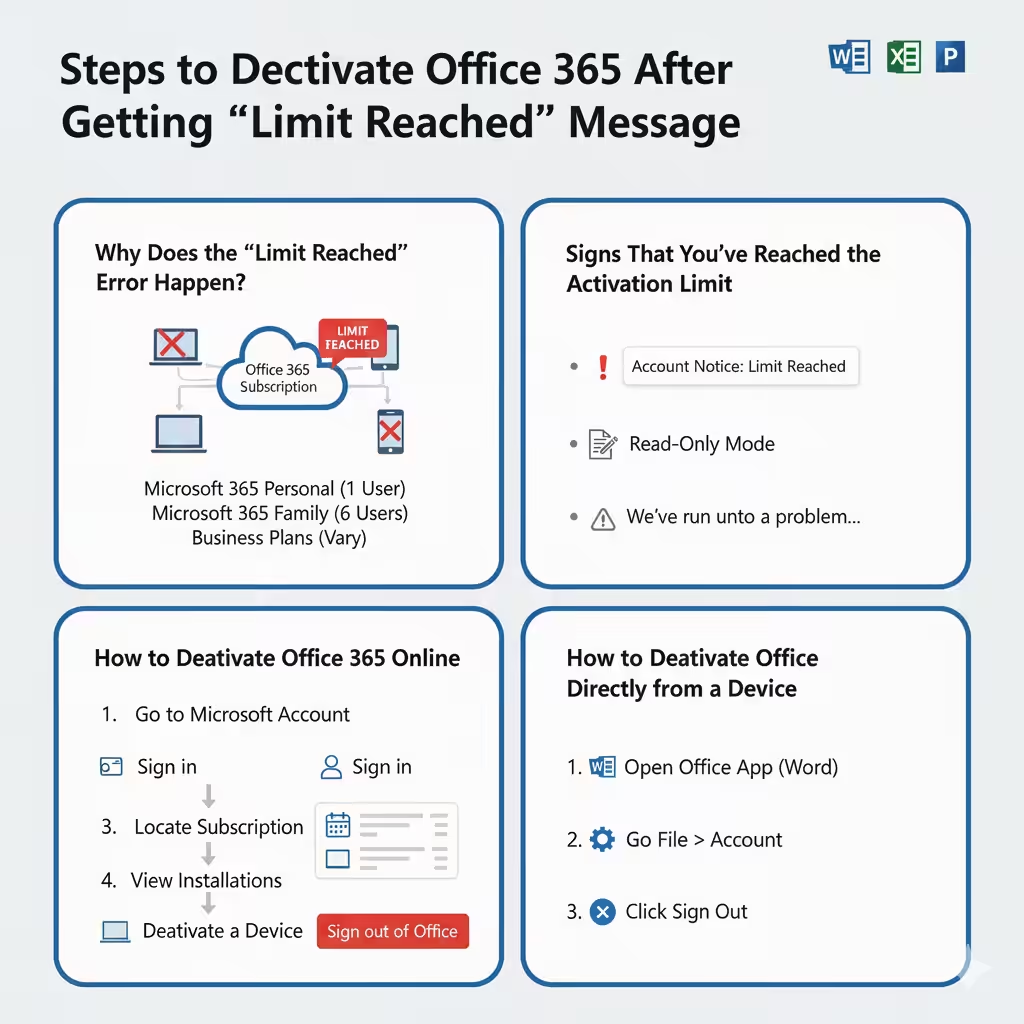
Why Does the “Limit Reached” Error Happen?
Office 365 subscriptions come with a set number of device installations depending on the plan you purchased. For example:
-
Microsoft 365 Personal: Allows installation on multiple devices, but only one active user at a time.
-
Microsoft 365 Family: Allows sharing with up to six users, each with their own installations.
-
Business plans: May have different limitations depending on the license type.
If you frequently switch between devices—say, from a work laptop to a personal desktop, tablet, or smartphone—you may hit the activation limit. When that happens, you must deactivate Office on a device before you can use it on a new one.
Signs That You’ve Reached the Activation Limit
You’ll know you’ve reached the device limit if:
-
You see a pop-up saying “Limit Reached” when signing in.
-
Office apps (like Word or Excel) switch to Read-Only Mode, meaning you can view files but not edit them.
-
You receive messages like “Account Notice” or “We’ve run into a problem with your subscription.”
How to Deactivate Office 365 Online
The most straightforward way to deactivate Office on a device is through the Microsoft Account website. Here’s how:
-
Go to the Microsoft Office website
-
Sign in to your Microsoft account
-
Use the same account that you used to purchase or activate Office 365.
-
-
Locate your Office subscription
-
Find your Office 365 plan under the Services & Subscriptions section.
-
-
View installations
-
Click on Install status or Manage installs.
-
This will show you a list of all the devices currently signed in with your Office 365 subscription.
-
-
Deactivate a device
-
Choose the device you want to deactivate.
-
Click Sign out of Office or Deactivate Install.
-
After deactivation, Office will still be installed on that device, but the apps will switch to Read-Only Mode until a valid account is signed in again.
How to Deactivate Office Directly from a Device
If you still have access to the device, you can also deactivate Office directly:
-
Open any Office app, such as Word or Excel.
-
Go to File > Account.
-
Under User Information, click Sign Out.
-
Close the application.
This will remove the activation from that device and free up a slot for another one.
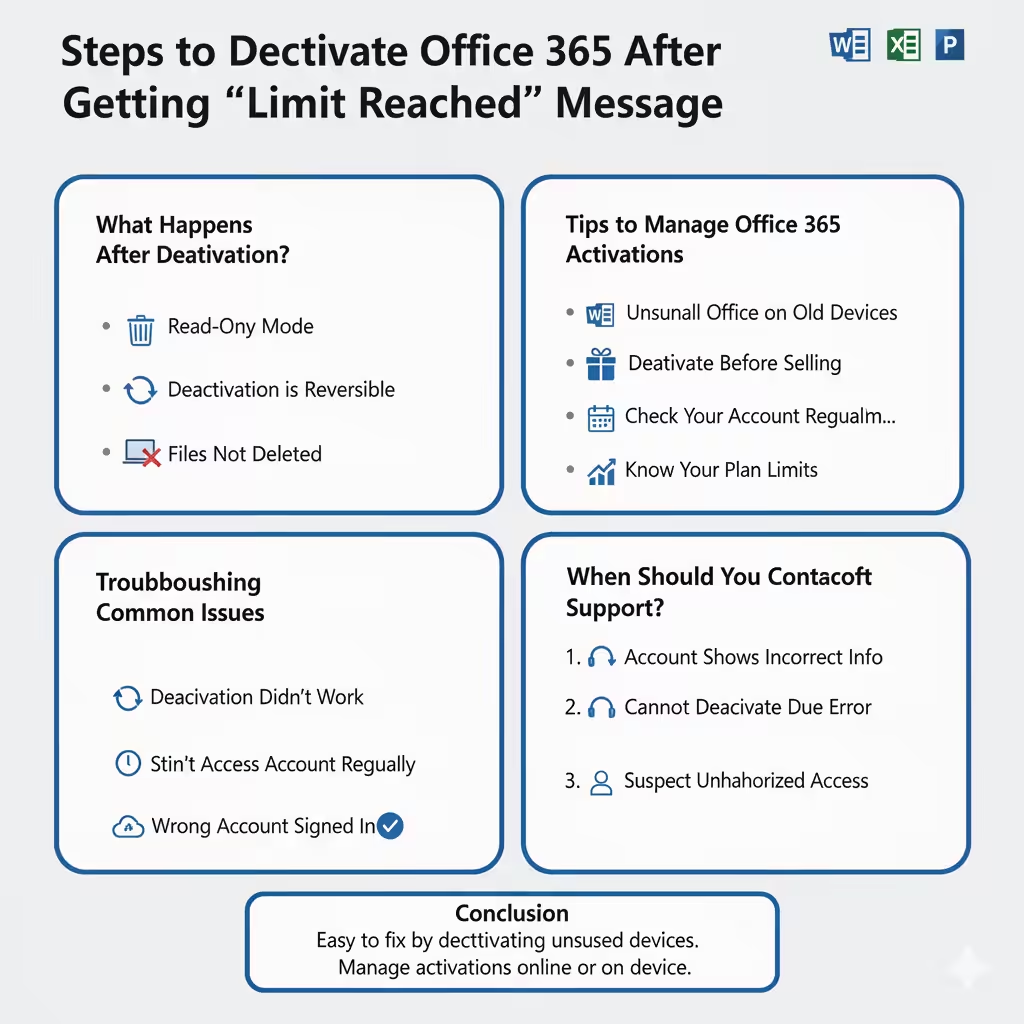
What Happens After Deactivation?
It’s important to understand what deactivation does:
-
Office remains installed but becomes Read-Only. You can open and print documents, but you cannot create or edit them.
-
Deactivation is reversible. If you sign back into Office on the same device with your account, it will reactivate.
-
Deactivation does not uninstall Office or delete any files on your computer.
Tips to Manage Office 365 Activations
To avoid running into the “Limit Reached” error frequently, follow these tips:
-
Uninstall Office on old devices: If you no longer use a computer, remove Office completely.
-
Deactivate before selling or giving away a device: Prevent others from using your subscription by signing out first.
-
Check your account regularly: Visit your Microsoft account page every so often to review your active devices.
-
Know your plan limits: If you need more activations, consider upgrading to a Family or Business plan.
Troubleshooting Common Issues
Sometimes deactivating Office does not immediately solve the problem. Here are some common issues and fixes:
-
Deactivation didn’t work: Try signing out manually on the device in addition to removing it from the Microsoft website.
-
Still seeing “Limit Reached”: Wait a few minutes for Microsoft’s servers to update. Restart the Office app after deactivation.
-
Can’t access the old device: If you sold or no longer have the device, you can still deactivate it remotely from your Microsoft account.
-
Wrong account signed in: Make sure you’re using the correct Microsoft account linked to your subscription.
When Should You Contact Microsoft Support?
If you’ve tried deactivating devices but continue to see the “Limit Reached” error, it may be time to contact Microsoft Support. They can help in cases where:
-
Your account shows incorrect activation information.
-
You cannot deactivate a device due to technical errors.
-
You suspect unauthorized access to your Office subscription.
Conclusion
The “Limit Reached” error in Microsoft Office 365 is a common problem for users who install Office on multiple devices. Thankfully, it is easy to fix by deactivating Office on devices you no longer use. By managing your activations through the Microsoft website or directly on your device, you can free up slots and continue using Office seamlessly.
Keeping track of your activations, signing out of unused devices, and upgrading your plan if necessary are all effective ways to avoid future disruptions. With just a few clicks, you can resolve the issue and get back to using Word, Excel, PowerPoint, and the rest of Office 365 without interruptions.