


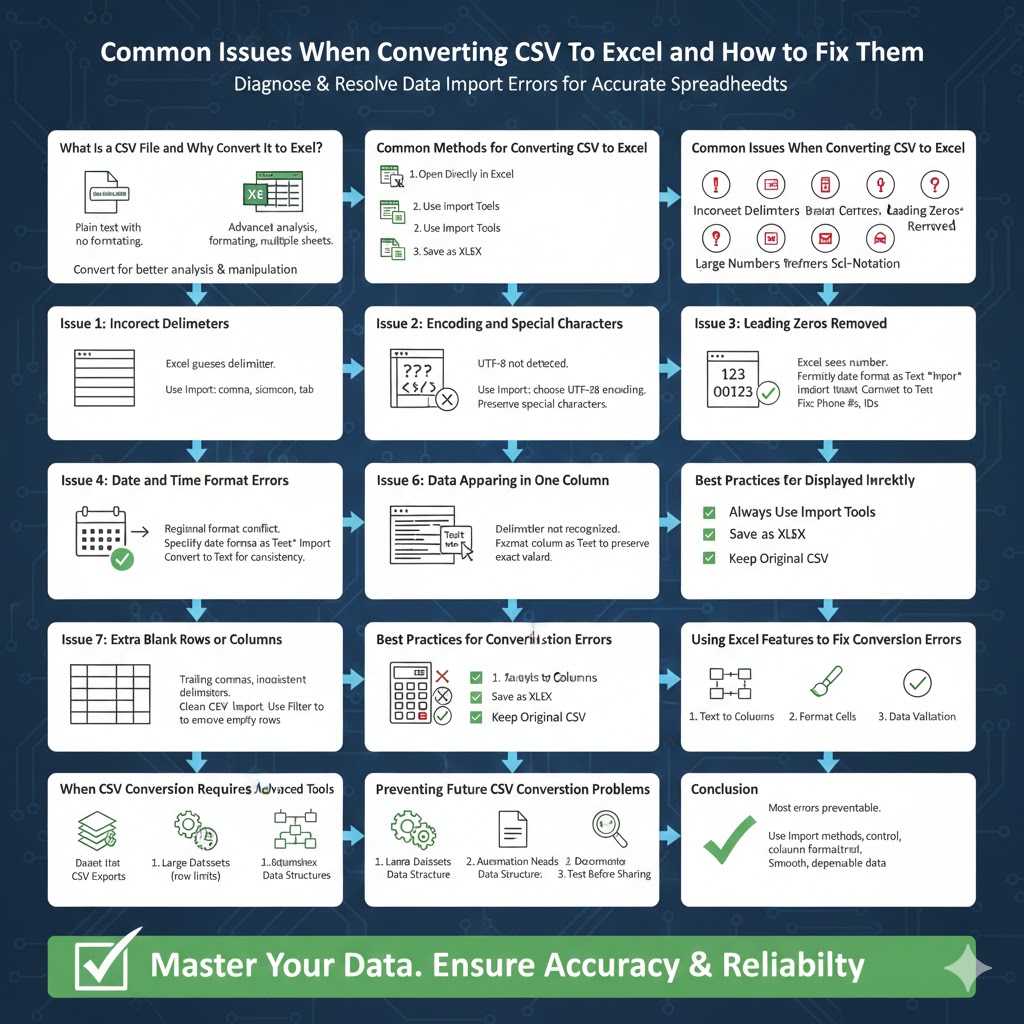
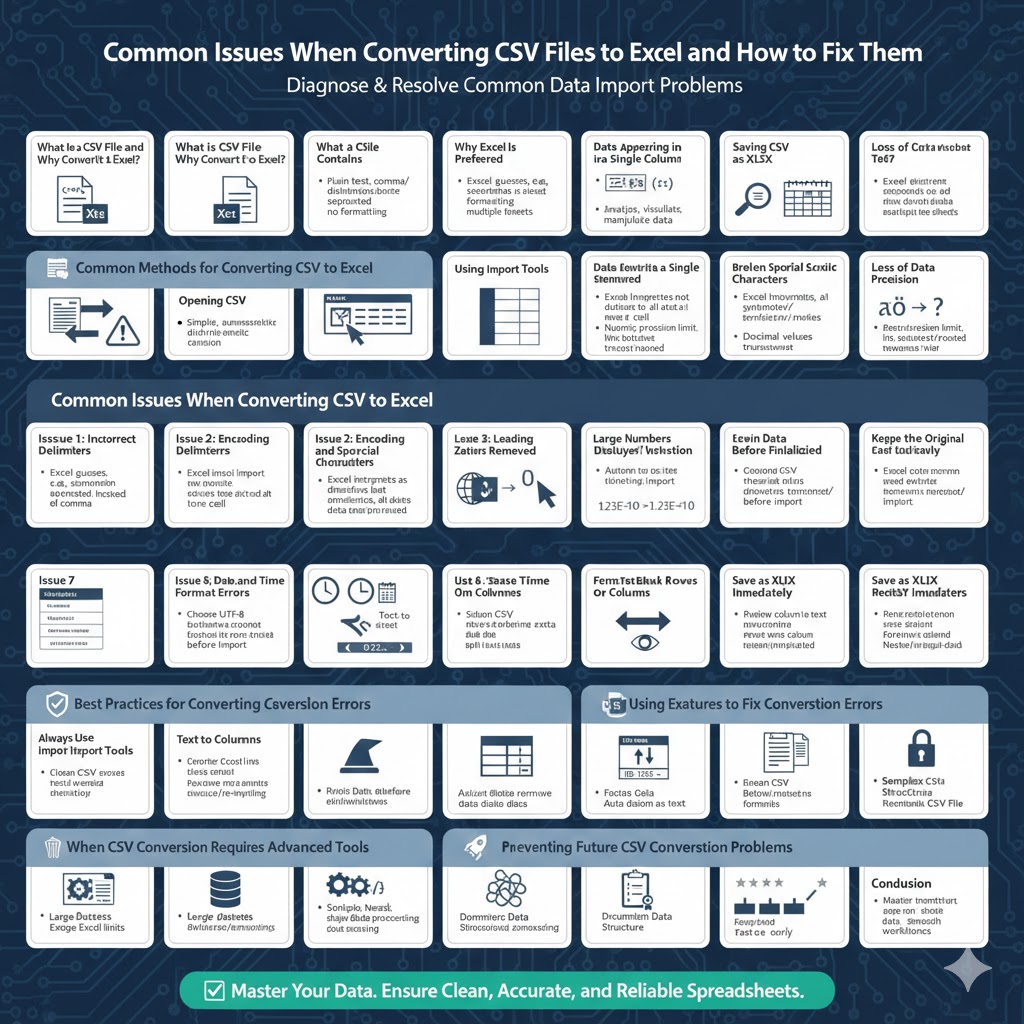
Common Issues When Converting CSV Files to Excel and How to Fix Them
CSV (Comma-Separated Values) files are one of the most widely used formats for storing and transferring data. They are simple, lightweight, and compatible with almost every data-processing system. However, when working with CSV files in Excel, users often encounter formatting problems, data misinterpretation, or errors that make the information difficult to use.
Converting CSV to Excel may seem straightforward, but subtle issues such as incorrect delimiters, broken encoding, or altered data formats can significantly impact accuracy. This guide explains the most common problems encountered when converting CSV files to Excel and provides effective solutions to ensure clean, accurate, and reliable data.
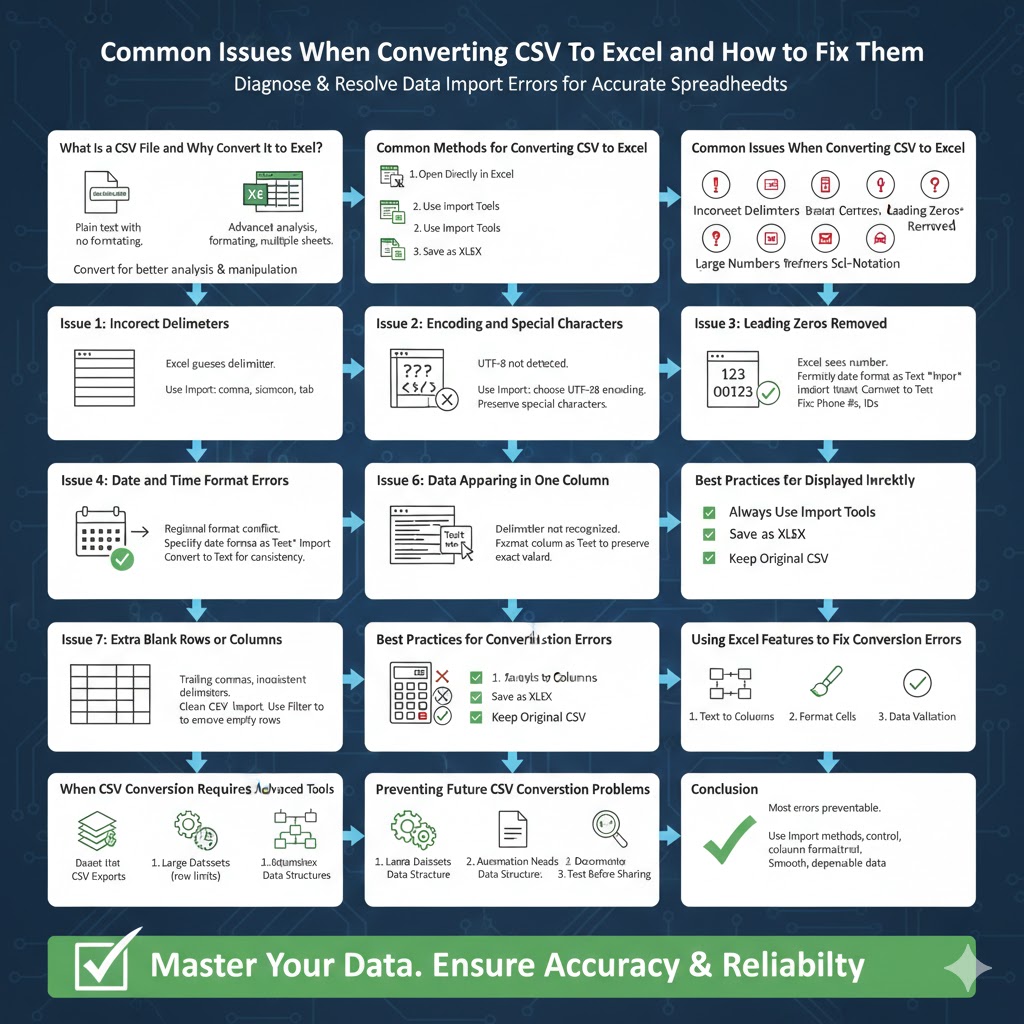
What Is a CSV File and Why Convert It to Excel?
Understanding the difference between CSV and Excel formats helps clarify why conversion issues occur.
What a CSV File Contains
A CSV file stores data as plain text, with values separated by commas or other delimiters. It does not support formulas, formatting, or multiple sheets.
Why Excel Is Preferred
Excel offers advanced data analysis tools, formulas, charts, formatting, and multi-sheet workbooks, making it ideal for working with structured data.
When Conversion Is Necessary
Conversion is needed when you want to analyze, visualize, or manipulate CSV data more effectively.
Common Methods for Converting CSV to Excel
There are several ways to open or convert CSV files into Excel format.
Opening CSV Directly in Excel
Excel can open CSV files directly, automatically converting them into spreadsheet format.
Using Import Tools
Excel’s data import features allow users to control delimiters, encoding, and data types.
Saving CSV as XLSX
Once opened, CSV files can be saved as Excel workbooks for advanced editing.
Common Issues When Converting CSV to Excel
Despite its simplicity, CSV conversion often leads to unexpected problems.
Incorrect Delimiters
Excel may assume commas as delimiters when the file uses semicolons, tabs, or pipes.
Data Appearing in a Single Column
When delimiters are not detected correctly, all data may appear in one column.
Broken Special Characters
Non-English characters may appear as symbols or question marks due to encoding issues.
Leading Zeros Removed
Excel may remove leading zeros from phone numbers, ZIP codes, or IDs.
Date Format Changes
Dates may be automatically reformatted, causing incorrect values.
Large Numbers Displayed in Scientific Notation
Long numerical values may be converted into scientific notation.
Loss of Data Precision
Decimal values or long strings may be truncated or rounded.
Issue 1: Incorrect Delimiters
Why This Happens
CSV files do not enforce a standard delimiter, and Excel guesses based on system settings.
Effective Solution
Use Excel’s import feature to manually select the correct delimiter before loading the data.
Best Practice
Open CSV files through the data import process instead of double-clicking them.
Issue 2: Encoding and Special Characters
Why Encoding Matters
CSV files may use UTF-8 or other encodings that Excel does not automatically detect.
Effective Solution
Choose UTF-8 encoding during the import process to preserve special characters.
Tip for International Data
Always confirm encoding when working with multilingual datasets.
Issue 3: Leading Zeros Removed
Why Excel Removes Zeros
Excel interprets numeric-looking values as numbers by default.
Effective Solution
Set affected columns to text format before importing data.
Use Case Examples
Product codes, ZIP codes, and phone numbers should always be treated as text.
Issue 4: Date and Time Format Errors
Why Date Errors Occur
Excel auto-detects dates based on regional settings, which can cause confusion.
Effective Solution
Specify date formats manually during the import process.
Avoiding Misinterpretation
Convert date columns to text if consistency is more important than calculation.
Issue 5: Data Appearing in One Column
Why This Happens
Excel may not recognize the correct delimiter.
Effective Solution
Use Excel’s text-to-columns or import wizard to split data properly.
Prevention Tip
Check delimiter settings before opening the file.
Issue 6: Large Numbers Displayed Incorrectly
Why Excel Changes Large Numbers
Excel limits numeric precision and may use scientific notation.
Effective Solution
Format columns as text to preserve original values.
When This Matters
Financial data, IDs, and reference numbers require exact precision.
Issue 7: Extra Blank Rows or Columns
Why This Occurs
Inconsistent delimiters or trailing commas create empty cells.
Effective Solution
Clean the CSV file before importing or remove extra delimiters during import.
Data Cleaning Tip
Use Excel’s filtering tools to remove empty rows efficiently.
Best Practices for Converting CSV to Excel
Always Use Import Tools
Import tools provide greater control over formatting and data types.
Preview Data Before Finalizing
Review how Excel interprets each column during import.
Save as XLSX Immediately
Saving the file as an Excel workbook prevents accidental data loss.
Keep the Original CSV File
Always retain the original file for reference or re-importing.
Using Excel Features to Fix Conversion Errors
Text to Columns
This tool helps split data into columns correctly.
Format Cells
Manually adjust cell formats to correct misinterpreted data.
Data Validation
Ensure data consistency after conversion.
When CSV Conversion Requires Advanced Tools
Large Datasets
Very large CSV files may exceed Excel’s row limits.
Automation Needs
Scripts or data-processing tools may be better for recurring conversions.
Complex Data Structures
Nested or irregular data may require preprocessing.
Preventing Future CSV Conversion Problems
Standardize CSV Exports
Use consistent delimiters and encoding when exporting data.
Document Data Structure
Clear documentation reduces guesswork during import.
Test Before Sharing
Open CSV files in Excel before sharing to catch errors early.
Conclusion
Converting CSV files to Excel is a common task, but it often introduces unexpected challenges that can compromise data accuracy. Issues such as incorrect delimiters, encoding problems, lost leading zeros, and altered date formats are frequent but avoidable.
By understanding how Excel interprets CSV files and using proper import methods, you can prevent most conversion errors. Applying best practices such as manual delimiter selection, encoding control, and column formatting ensures that your data remains accurate and reliable. With the right approach, converting CSV to Excel becomes a smooth and dependable process suitable for both small datasets and complex data workflows.