


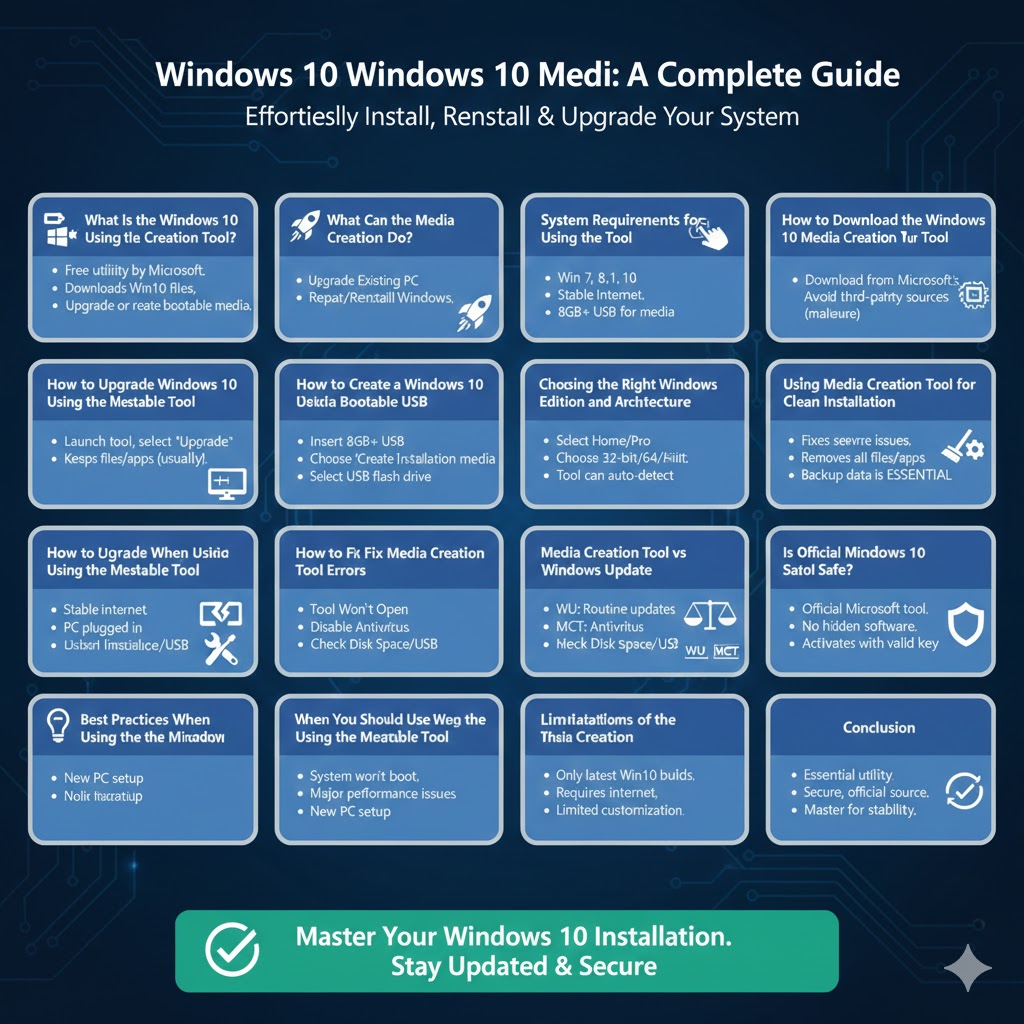
Windows 10 Media Creation Tool: A Complete Guide
The Windows 10 Media Creation Tool is one of Microsoft’s most useful utilities for installing, reinstalling, or upgrading Windows 10. Whether you are setting up a new computer, repairing a broken system, or creating a backup installation USB, this tool provides a simple and official way to get the job done.
Many users are aware of the tool but do not fully understand its capabilities, limitations, or best practices. This guide explains everything you need to know about the Windows 10 Media Creation Tool, including what it is, how it works, when to use it, and how to avoid common mistakes.
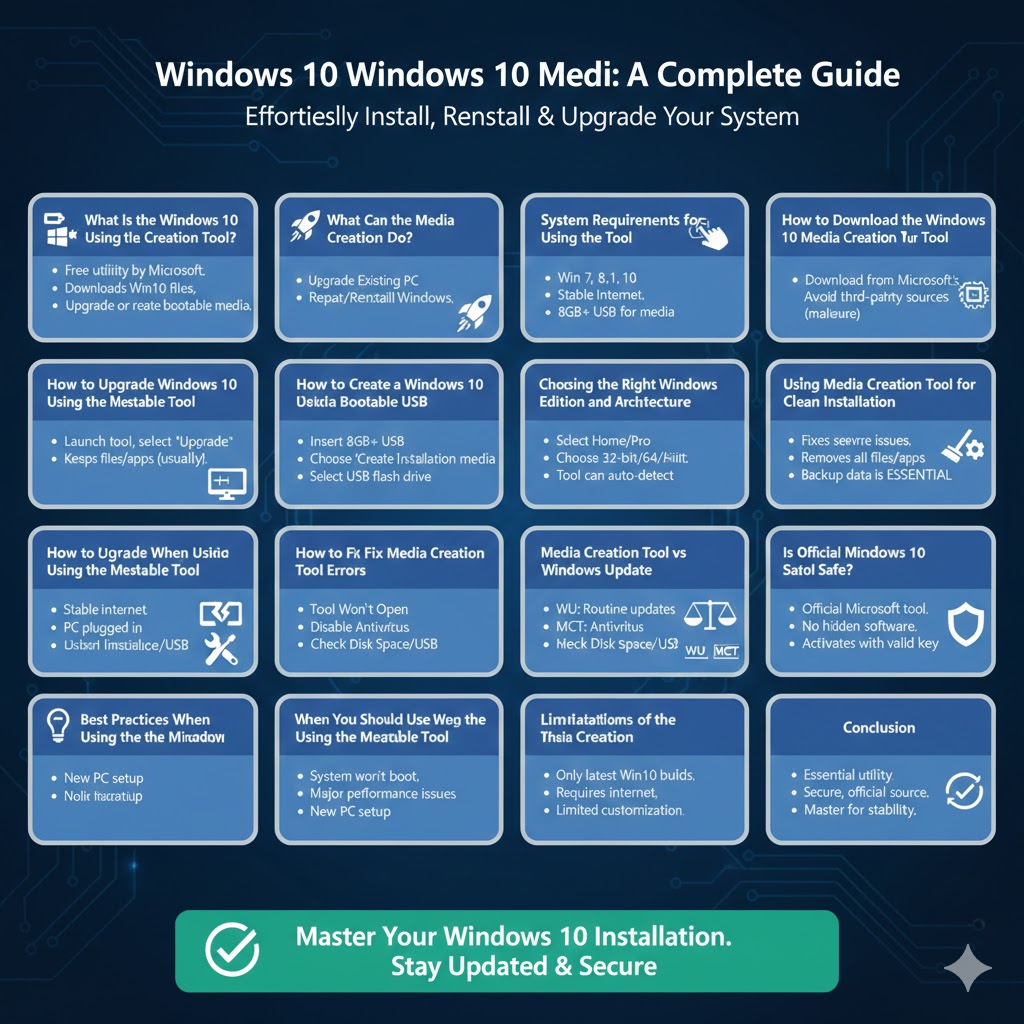
What Is the Windows 10 Media Creation Tool?
The Windows 10 Media Creation Tool is a free utility developed by Microsoft that allows users to download Windows 10 installation files directly from Microsoft’s servers.
Primary Purpose
The tool is designed to help users upgrade their current system to Windows 10 or create installation media for clean installations.
Who Should Use It
It is useful for home users, IT professionals, students, and anyone who needs a reliable Windows installation source.
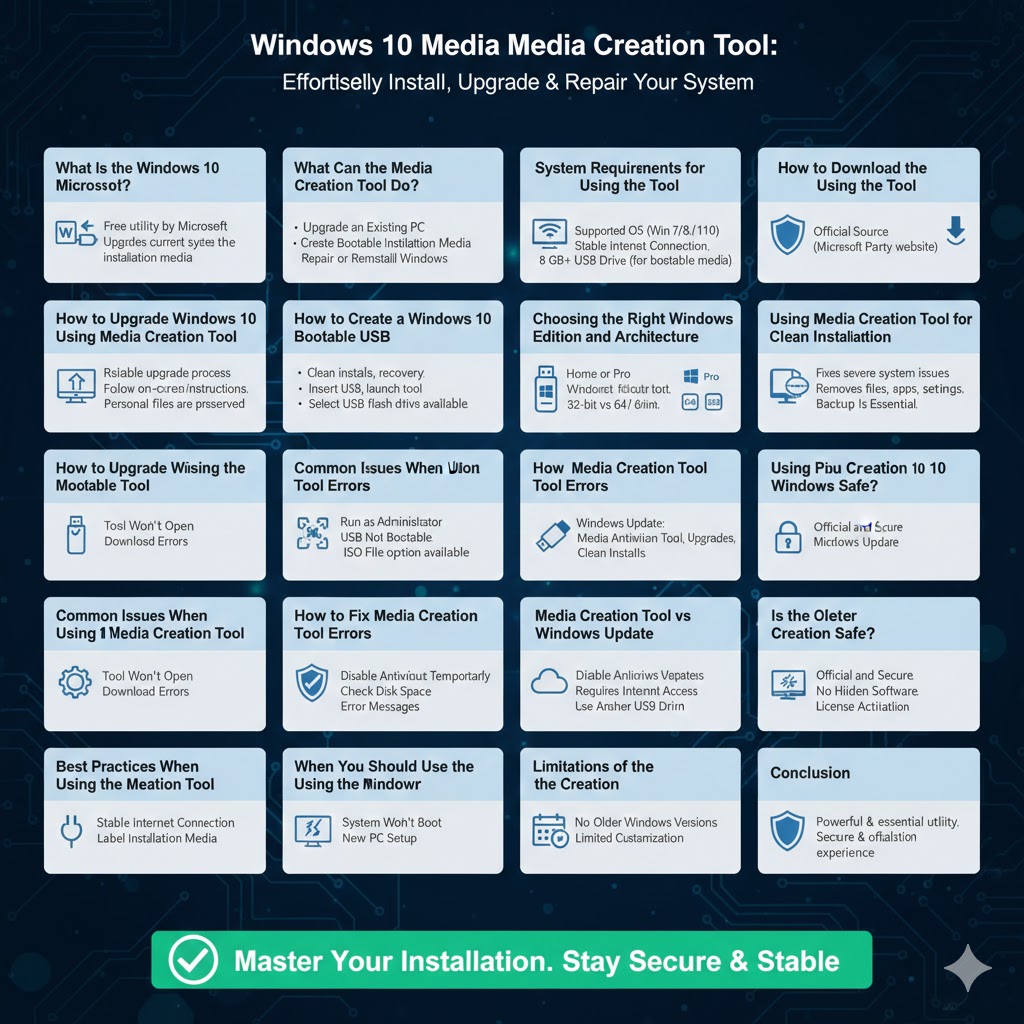
What Can the Media Creation Tool Do?
The tool offers several important functions.
Upgrade an Existing PC
It can upgrade a running Windows system to the latest version of Windows 10 while keeping files and apps.
Create Bootable Installation Media
The tool can create a bootable USB flash drive or ISO file for installing Windows 10.
Repair or Reinstall Windows
Installation media created with the tool can be used to repair corrupted systems or perform clean installs.
System Requirements for Using the Tool
Before using the Media Creation Tool, your system must meet basic requirements.
Supported Operating Systems
The tool runs on Windows 7, Windows 8.1, and Windows 10.
Internet Connection
A stable internet connection is required to download installation files.
Storage Requirements
You need sufficient free disk space and a USB drive with at least 8 GB of storage if creating bootable media.
How to Download the Windows 10 Media Creation Tool
Official Source
The tool should always be downloaded from Microsoft’s official website to ensure safety and authenticity.
Why Official Downloads Matter
Third-party sources may bundle malware or outdated versions.
How to Upgrade Windows 10 Using the Media Creation Tool
Why Upgrade Using This Tool
It provides a more reliable upgrade process than Windows Update in some cases.
Upgrade Process Overview
After launching the tool, select the upgrade option and follow the on-screen instructions. The tool downloads the latest Windows 10 version and installs it automatically.
What Happens to Your Files
In most cases, personal files and installed applications are preserved unless you choose otherwise.
How to Create a Windows 10 Bootable USB
Why Create Bootable Media
Bootable media is essential for clean installs, system recovery, or installing Windows on multiple computers.
USB Creation Steps
Insert a USB drive, launch the tool, choose the option to create installation media, and select USB flash drive as the destination.
ISO File Option
You can also create an ISO file for use with virtual machines or DVD burning.
Choosing the Right Windows Edition and Architecture
Windows Editions
The tool allows you to select Home or Pro editions, depending on your license.
32-bit vs 64-bit
Most modern systems use 64-bit architecture, but older systems may require 32-bit.
Automatic Detection
The tool can automatically detect the recommended options for your PC.
Using Media Creation Tool for Clean Installation
When to Perform a Clean Install
Clean installations are recommended for fixing severe system issues or removing unwanted software.
What Clean Install Does
It removes all existing files, apps, and settings, providing a fresh Windows installation.
Backup Is Essential
Always back up important data before performing a clean install.
Common Issues When Using the Media Creation Tool
Tool Won’t Open
This can be caused by antivirus interference or corrupted system files.
Download Errors
Network instability or insufficient disk space may interrupt downloads.
USB Not Bootable
Incorrect BIOS settings or incompatible USB drives can cause issues.
How to Fix Media Creation Tool Errors
Run as Administrator
Launching the tool with administrator privileges can resolve permission issues.
Disable Antivirus Temporarily
Some antivirus programs block the tool’s operations.
Check Disk Space
Ensure enough free space is available for temporary files.
Use Another USB Drive
Faulty USB drives can prevent successful media creation.
Media Creation Tool vs Windows Update
Windows Update
Best for routine updates and minor upgrades.
Media Creation Tool
Ideal for major upgrades, repairs, and clean installations.
Which One Should You Use
Use Windows Update for simplicity and the Media Creation Tool for control and flexibility.
Is the Media Creation Tool Safe?
Official and Secure
The tool is developed and maintained by Microsoft.
No Hidden Software
It does not include third-party software or ads.
License Activation
Windows installed using the tool activates automatically if you have a valid license.
Best Practices When Using the Media Creation Tool
Use a Stable Internet Connection
Avoid interruptions during downloads.
Keep the PC Plugged In
Power loss during installation can cause serious issues.
Label Installation Media
This helps avoid confusion if you create multiple USB drives.
When You Should Use the Media Creation Tool
System Won’t Boot
Use bootable media for recovery or reinstallation.
Major Performance Issues
A clean install can restore system performance.
New PC Setup
Install Windows on a newly built or replaced system.
Limitations of the Media Creation Tool
No Older Windows Versions
The tool only provides the latest Windows 10 builds.
Requires Internet Access
Offline use is not supported during download.
Limited Customization
Advanced deployment options are not included.
Conclusion
The Windows 10 Media Creation Tool is a powerful and essential utility for anyone who uses Windows. It simplifies upgrading, reinstalling, and repairing Windows 10 while providing a secure and official installation source. Whether you are troubleshooting system problems, preparing installation media, or setting up a new computer, this tool offers a reliable solution.
By understanding how the Media Creation Tool works and following best practices, you can avoid common issues and ensure a smooth Windows installation experience. For long-term system stability, keeping a bootable USB created with the Media Creation Tool is always a smart decision.