


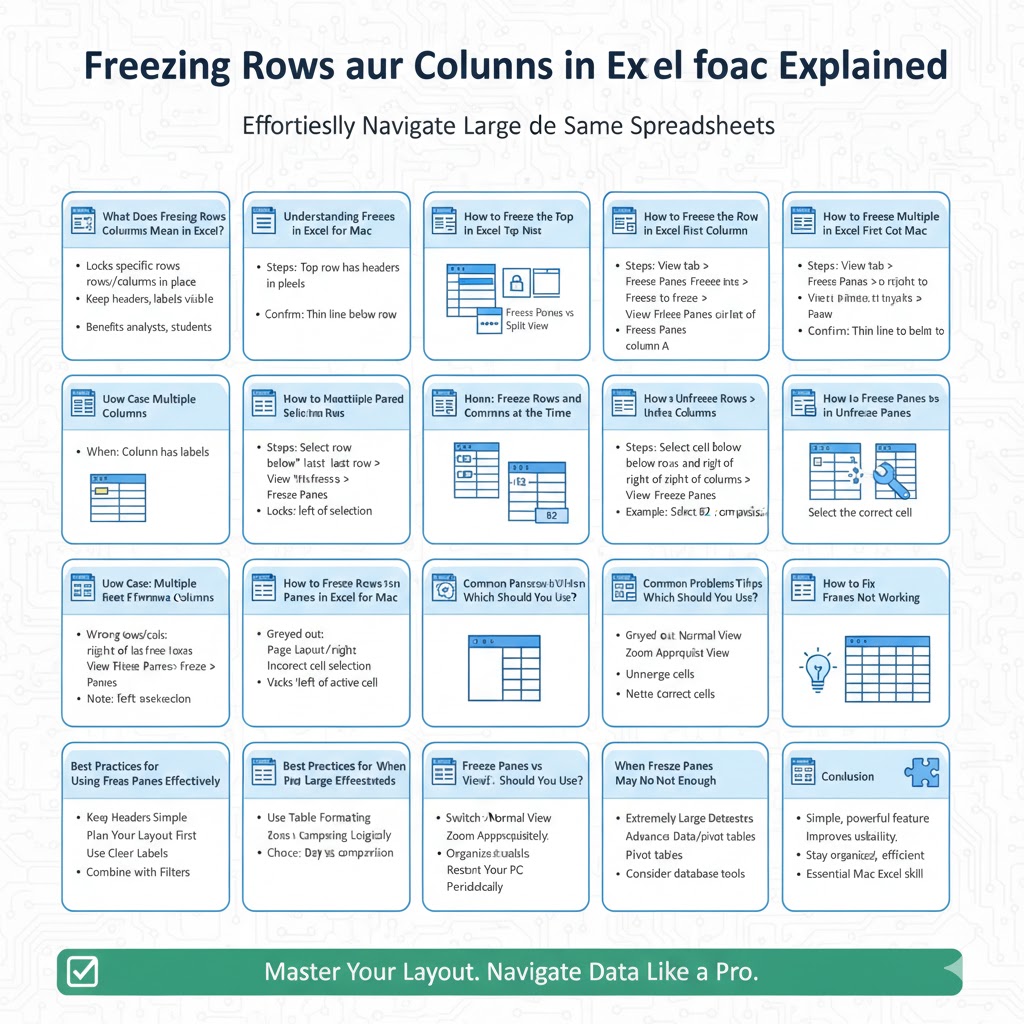
Freezing Rows and Columns in Excel for Mac Explained
Working with large spreadsheets in Excel for Mac can quickly become challenging when important headers or labels scroll out of view. Whether you are managing financial reports, tracking data, or analyzing large datasets, constantly scrolling back to check column titles or row labels can slow down your workflow. This is where the freeze panes feature becomes essential.
Freezing rows or columns in Excel for Mac allows you to keep specific parts of your worksheet visible while scrolling through the rest of the data. This guide explains how to freeze rows, columns, or both in Excel for Mac, along with common issues, practical tips, and best practices to improve productivity.
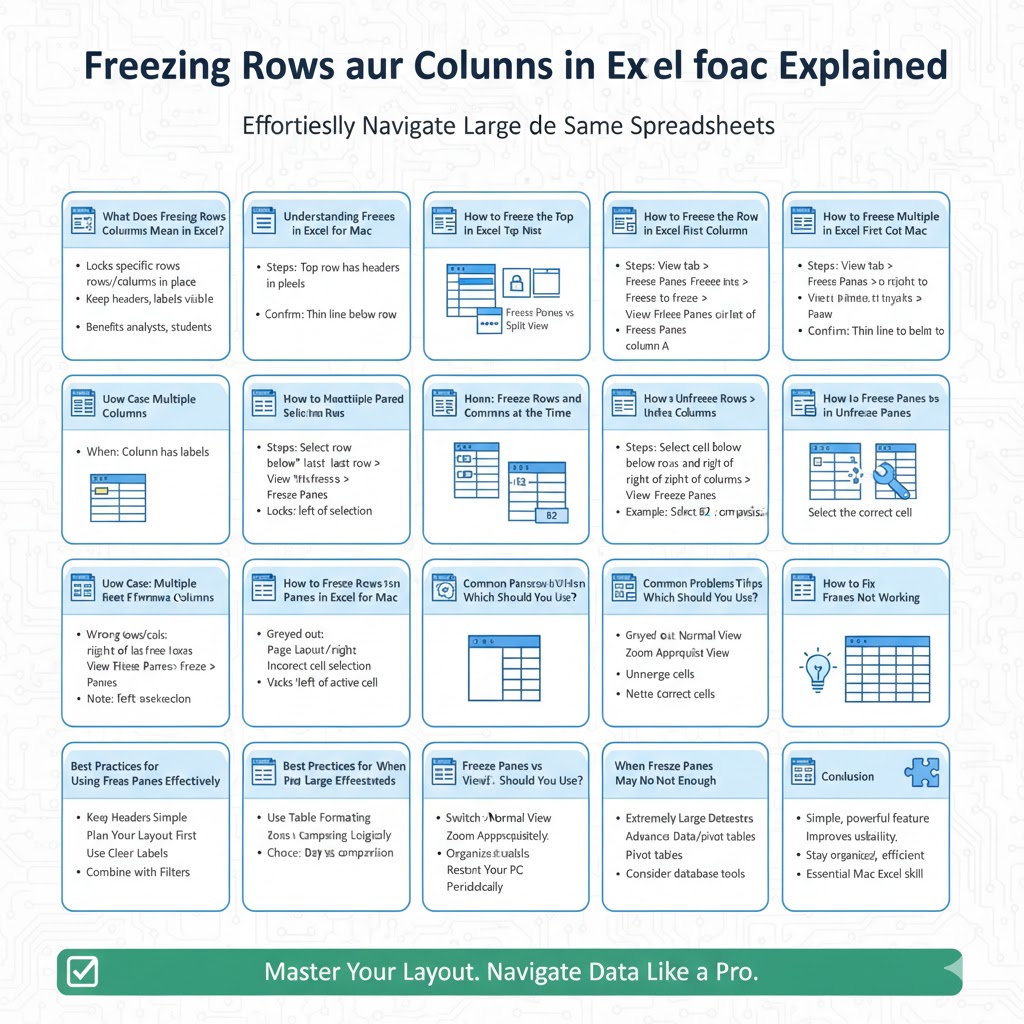
What Does Freezing Rows or Columns Mean in Excel?
Freezing rows or columns means locking specific rows or columns in place so they remain visible as you scroll through a worksheet.
Why Freezing Is Useful
It helps you keep headers, labels, or key reference data visible at all times.
Who Benefits from This Feature
Accountants, analysts, students, project managers, and anyone working with large spreadsheets benefit from frozen panes.
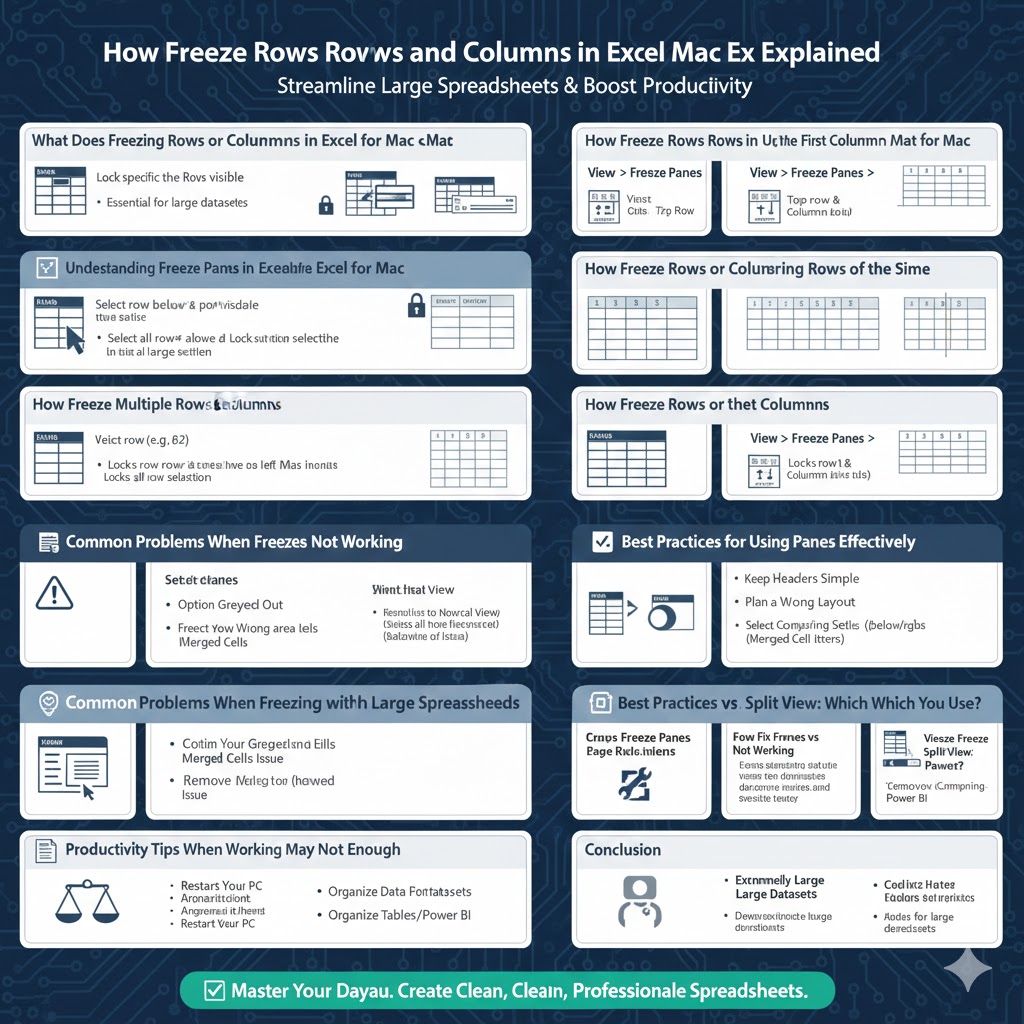
Understanding Freeze Panes in Excel for Mac
Excel for Mac includes built-in tools that work similarly to Excel on Windows, though the interface may look slightly different.
Freeze Panes vs Split View
Freeze panes lock rows or columns permanently, while split view divides the worksheet into movable sections.
Limitations of Freeze Panes
You can only freeze rows from the top and columns from the left side of the worksheet.
How to Freeze the Top Row in Excel for Mac
Freezing the top row is one of the most common use cases.
When to Use This Option
Use it when the first row contains headers that describe each column.
Steps to Freeze the Top Row
Select the View tab from the menu bar, choose Freeze Panes, then click Freeze Top Row. The top row will remain visible as you scroll down.
How to Confirm It Worked
A thin line appears below the frozen row, indicating it is locked.
How to Freeze the First Column in Excel for Mac
Freezing the first column is useful when row labels are stored on the left side.
When This Is Helpful
This is ideal for spreadsheets with names, IDs, or categories in the first column.
Steps to Freeze the First Column
Go to the View tab, select Freeze Panes, and choose Freeze First Column. The column will remain visible while scrolling horizontally.
How to Freeze Multiple Rows in Excel for Mac
Sometimes you need to freeze more than one row.
When to Freeze Multiple Rows
This is useful if headers span multiple rows.
Steps to Freeze Multiple Rows
Select the row directly below the last row you want to freeze. Open the View menu, choose Freeze Panes, and select Freeze Panes. All rows above your selection will be frozen.
Important Note
Excel freezes everything above the active cell, not the selected range.
How to Freeze Multiple Columns in Excel for Mac
Freezing multiple columns follows a similar principle.
Use Case Examples
This is helpful when several columns contain essential reference data.
Steps to Freeze Multiple Columns
Click the column immediately to the right of the last column you want to freeze. Go to View, select Freeze Panes, and choose Freeze Panes. All columns to the left will be locked.
How to Freeze Rows and Columns at the Same Time
Excel allows freezing both rows and columns simultaneously.
When This Is Useful
This is ideal for large tables with both header rows and label columns.
Steps to Freeze Rows and Columns
Select the cell located below the rows and to the right of the columns you want to freeze. Go to the View menu, choose Freeze Panes, and click Freeze Panes.
Example
Selecting cell B2 freezes row 1 and column A.
How to Unfreeze Rows or Columns in Excel for Mac
If you no longer need frozen panes, you can remove them easily.
Steps to Unfreeze Panes
Go to the View menu, select Freeze Panes, then choose Unfreeze Panes. All frozen rows and columns will return to normal scrolling behavior.
When to Unfreeze
Unfreeze panes when reorganizing data or changing worksheet structure.
Common Problems When Freezing Panes in Excel for Mac
Even though the feature is simple, users sometimes encounter issues.
Freeze Panes Option Is Greyed Out
This usually happens when the worksheet is in Page Layout or Page Break Preview mode.
Freezing the Wrong Rows or Columns
This occurs when the wrong cell is selected before freezing.
Frozen Panes Not Working as Expected
This may happen if merged cells exist near the frozen area.
How to Fix Freeze Panes Not Working
Switch Back to Normal View
Ensure the worksheet is in Normal view before freezing panes.
Remove Merged Cells
Unmerge cells in the header area if freezing does not behave correctly.
Select the Correct Cell
Always select the cell just below and to the right of what you want to freeze.
Best Practices for Using Freeze Panes Effectively
Keep Headers Simple
Avoid merging cells in header rows to prevent freezing issues.
Plan Your Layout First
Decide which rows and columns need freezing before formatting the sheet.
Use Clear Labels
Clear and descriptive headers reduce confusion when scrolling.
Combine with Filters
Using filters with frozen headers improves data navigation.
Freeze Panes vs Split View: Which Should You Use?
Freeze Panes
Best for keeping headers and labels visible at all times.
Split View
Better for comparing different sections of the same worksheet.
Choosing the Right Tool
Freeze panes are ideal for data entry and review, while split view works well for comparisons.
Productivity Tips When Working with Large Spreadsheets
Use Table Formatting
Excel tables automatically repeat headers when filtering.
Zoom Appropriately
Adjust zoom levels to improve readability.
Organize Data Logically
Well-structured data reduces the need for constant scrolling.
When Freeze Panes May Not Be Enough
Extremely Large Datasets
Consider using Excel tables or pivot tables.
Advanced Analysis
Database tools or Power BI may be better suited for very large data sets.
Conclusion
Freezing rows and columns in Excel for Mac is a simple yet powerful feature that significantly improves usability when working with large spreadsheets. Whether you need to keep headers visible, lock important labels, or manage complex datasets, freeze panes help you stay organized and efficient.
By understanding how freeze panes work and applying best practices, you can avoid common mistakes and make your spreadsheets easier to navigate. Once mastered, this feature becomes an essential part of everyday Excel work on macOS.